
1. Introduction
This manual provides essential information for the installation, operation, and maintenance of your ASRock AMD Radeon RX 9070 Steel Legend 16GB OC Graphics Card. Please read this manual thoroughly before installation and retain it for future reference.
2. Safety Information
- Always disconnect power from your computer before installing or removing any components.
- Handle the graphics card by its edges to avoid touching sensitive components.
- Ensure proper grounding to prevent electrostatic discharge (ESD) damage.
- Install the graphics card in a well-ventilated computer case to prevent overheating.
- Use only compatible power supply units that meet the recommended wattage.
3. Package Contents
Verify that all items are present in your package:
- ASRock AMD Radeon RX 9070 Steel Legend 16GB OC Graphics Card
- Cooling fan (pre-installed)
- Quick Installation Guide (this document)
4. Product Overview
The ASRock AMD Radeon RX 9070 Steel Legend 16GB OC Graphics Card is designed for high-performance computing and gaming. It features 16GB of GDDR6 memory, AMD RDNA 4 Architecture, and 56 Compute Units with 3rd Gen RT and 2nd Gen AI Accelerators.
Key Features:
- Boost Clock: Up to 2700 MHz / 20 Gbps
- Game Clock: 2210 MHz / 20 Gbps
- Memory: 16GB GDDR6 on 256-Bit Memory Bus
- Architecture: AMD RDNA 4
- Compute Units: 56 (3rd Gen RT + 2nd Gen AI Accelerators)
- API Support: Microsoft DirectX 12 Ultimate
- Interface: PCI Express 5.0
- Power Connectors: 2x 8-pin
- Video Outputs: 3x DisplayPort 2.1a, 1x HDMI 2.1b
- Cooling: Polychrome SYNC Triple Fan Design, Air Deflecting Fin, Ultra-fit Heatpipe
- Construction: Stylish Metal Backplate, Striped Ring Fan, Reinforced Metal Frame, Super Alloy Graphics Card
Component Identification:


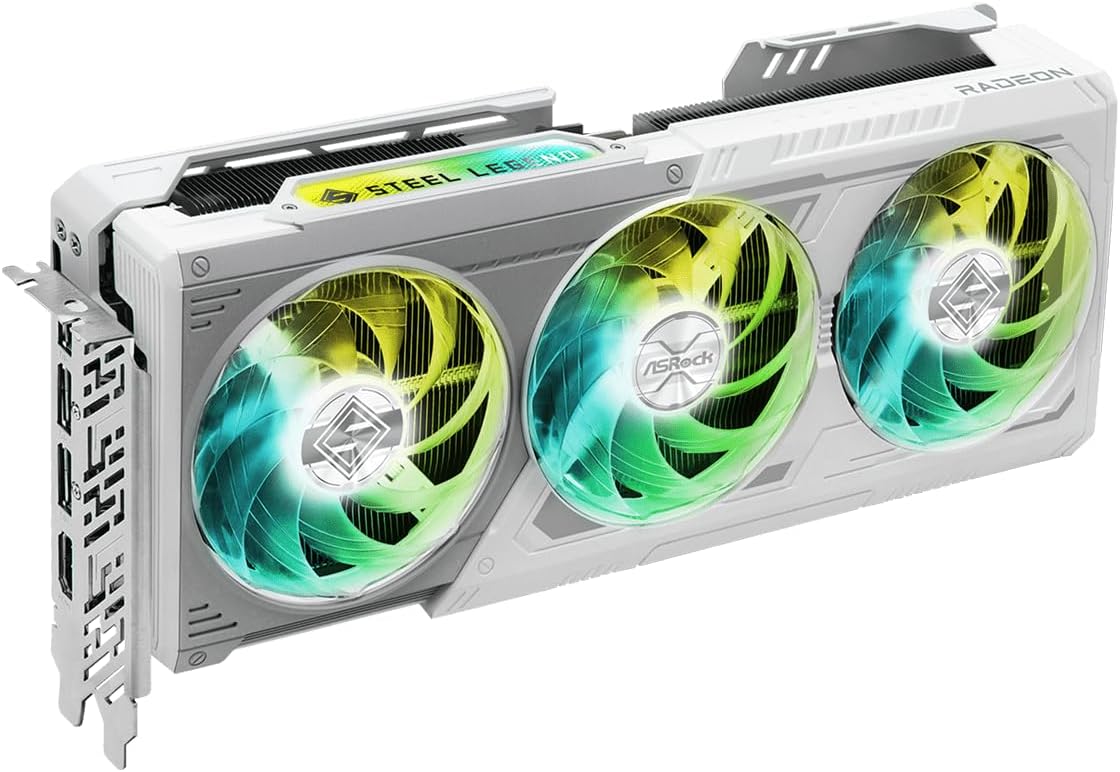


5. Setup
5.1 Physical Installation
- Power off your computer and disconnect the power cable.
- Open your computer case.
- Locate an available PCI Express 5.0 x16 slot on your motherboard.
- Remove the necessary expansion slot covers from your case.
- Carefully align the graphics card with the PCIe slot and press down firmly until it is securely seated.
- Secure the graphics card to the case with screws.
- Connect two 8-pin PCIe power connectors from your power supply to the corresponding ports on the graphics card. Ensure connections are firm.
- Close your computer case.
5.2 Driver Installation
After physical installation, install the latest graphics drivers for optimal performance:
- Power on your computer.
- Visit the official ASRock or AMD website.
- Navigate to the support or driver download section.
- Select your specific graphics card model (AMD Radeon RX 9070 Steel Legend).
- Download and install the latest recommended drivers for your operating system.
- Follow the on-screen instructions to complete the installation and restart your computer if prompted.
6. Operating
6.1 Basic Usage
Once drivers are installed, your graphics card is ready for use. Connect your display(s) to the available DisplayPort or HDMI outputs on the card. The card supports up to three DisplayPort 2.1a connections and one HDMI 2.1b connection.
6.2 Software Configuration (ASRock Polychrome SYNC)
To customize the RGB lighting effects on your graphics card, download and install the ASRock Polychrome SYNC software from the ASRock website. This software allows you to synchronize lighting with compatible ASRock motherboards and personalize the visual aesthetics of your system. A small switch near the power connectors on the card can also turn all LEDs on or off.
6.3 AMD FidelityFX Super Resolution (FSR) 4
The AMD Radeon RX 9070 Steel Legend supports AMD FidelityFX Super Resolution (FSR) 4, a spatial upscaling technology designed to boost framerates in supported games. To enable FSR 4:
- Ensure you have the latest AMD Radeon Software installed.
- Open AMD Radeon Software and enable FSR 4 in the graphics settings.
- Within a supported game, navigate to its graphics settings and enable FSR 4. You may also find options for Frame Generation if supported by the game and driver version.
7. Maintenance
7.1 Cleaning
Regular cleaning helps maintain optimal performance and extends the lifespan of your graphics card:
- Periodically clean dust from the fans and heatsink using compressed air.
- Ensure the computer is powered off and unplugged before cleaning.
- Hold the fan blades gently to prevent them from spinning rapidly during cleaning, which can damage the bearings.
- Do not use liquid cleaners directly on the card.
8. Troubleshooting
8.1 No Display Output
- Check that the graphics card is fully seated in the PCIe slot.
- Ensure all 8-pin power connectors are securely attached to the graphics card.
- Verify that your monitor cable is correctly connected to the graphics card and the monitor.
- Try a different display output port or cable.
8.2 System Instability or Crashes
- Ensure your power supply unit (PSU) meets the recommended wattage for the graphics card.
- Update your graphics drivers to the latest version.
- Check for proper airflow within your computer case to prevent overheating.
- Monitor GPU temperatures using utility software.
8.3 RGB Lighting Issues
- Ensure the LED switch on the graphics card is in the 'ON' position.
- Verify that ASRock Polychrome SYNC software is installed and configured correctly.
- Check for any conflicts with other RGB control software.
9. Specifications
| Feature | Specification |
|---|---|
| Graphics Coprocessor | AMD Radeon RX 9070 |
| Graphics RAM Size | 16 GB GDDR6 |
| Video Output Interface | DisplayPort, HDMI |
| Product Dimensions | 1.17 x 2.28 x 0.04 inches |
| Item Weight | 2.5 pounds |
| Item Model Number | 90-GA5EZZ-00UANF |
| Manufacturer | ASRock |
10. Warranty and Support
For warranty information and technical support, please refer to the official ASRock website or contact ASRock customer service. Keep your proof of purchase for warranty claims. ASRock provides support resources including FAQs, driver downloads, and contact information for assistance.