
1. Introduction
This manual provides essential information for the installation, operation, and maintenance of your GIGABYTE GeForce RTX 5070 Eagle OC SFF 12G Graphics Card. This high-performance graphics card is powered by NVIDIA's Blackwell architecture, featuring enhanced RT Cores and Tensor Cores, along with 12GB of GDDR7 memory, designed for demanding gaming and creative applications.
For additional information and driver downloads, please visit the official GIGABYTE website.
2. Key Features
- Powered by NVIDIA Blackwell architecture and DLSS 4 for advanced graphics and AI acceleration.
- Equipped with GeForce RTX 5070 GPU.
- Integrated with 12GB GDDR7 192-bit memory interface for high-speed data processing.
- PCIe 5.0 interface for maximum bandwidth.
- NVIDIA SFF (Small Form Factor) ready design for compact builds.
- WINDFORCE Cooling System for efficient heat dissipation.

Image: Overview of NVIDIA Blackwell Architecture features, including Fifth-Gen Tensor Cores, New Streaming Multiprocessors, and Fourth-Gen Ray Tracing Cores.

Image: Comparison demonstrating performance improvement with NVIDIA DLSS 4, showing a frame rate increase from 28 FPS to 243 FPS in a game scene.

Image: Side-by-side comparison of a game scene with RTX Off and RTX On, highlighting the enhanced realism and lighting provided by Full Ray Tracing with Neural Rendering.

Image: Comparison showing reduced system latency with NVIDIA Reflex 2, displaying 60ms latency with Reflex Off and 16ms with Reflex On in a game.
3. Package Contents
Verify that all items are present and in good condition upon unboxing:
- GIGABYTE GeForce RTX 5070 Eagle OC SFF 12G Graphics Card
- Quick Guide
- Warranty Registration Card
- Power Adapter Cable (if applicable for older power supplies)
- Graphics Card Support Bracket
- Mounting Screws
Video: Official GIGABYTE GeForce RTX 50 Series Trailer, showcasing various models and their RGB lighting effects.
4. Installation
Before beginning installation, ensure your computer is powered off and unplugged from the wall outlet. It is recommended to wear an anti-static wrist strap to prevent electrostatic discharge (ESD) damage.
- Prepare Your System: Open your computer case and locate an available PCI Express 5.0 x16 slot on your motherboard.
- Remove Slot Covers: Remove the necessary expansion slot covers from the back of your computer case to accommodate the graphics card's I/O panel.
- Insert Graphics Card: Carefully align the graphics card with the PCIe slot and press down firmly until it is securely seated. You should hear a click from the slot's retention clip.
- Secure the Card: Use screws to fasten the graphics card's mounting bracket to the computer case.
- Connect Power: Connect the appropriate power cables from your power supply unit (PSU) to the graphics card's power connectors. This model typically requires a single 8-pin power connector. Ensure a minimum 600W PSU is used.
- Install Support Bracket (Optional): If included, install the graphics card support bracket to prevent sag and provide additional stability.
- Close Case: Close your computer case and reconnect all peripherals and power cables.

Image: Front view of the GIGABYTE GeForce RTX 5070 Eagle OC SFF graphics card, showing the three fans and shroud design.
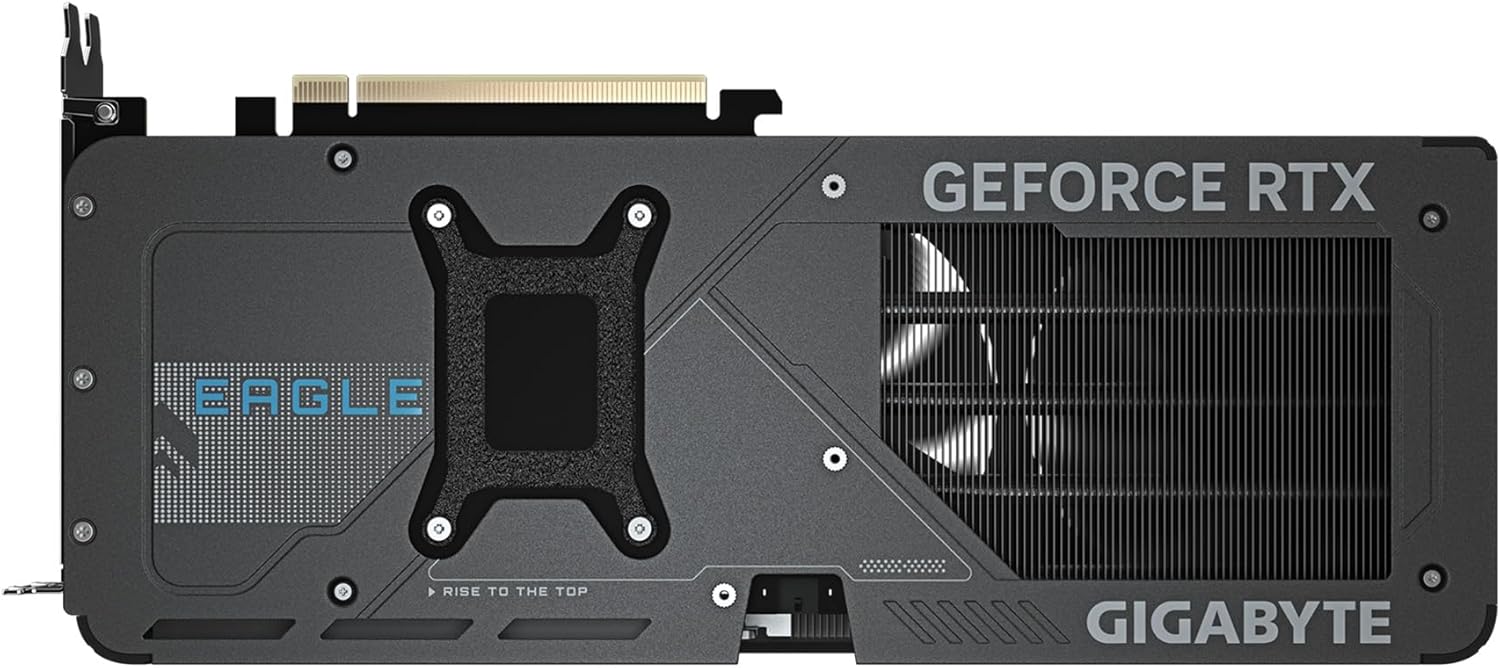
Image: Backplate view of the GIGABYTE GeForce RTX 5070 Eagle OC SFF graphics card, highlighting the reinforced structure and design elements.

Image: Close-up of the I/O ports on the GIGABYTE GeForce RTX 5070 Eagle OC SFF graphics card, showing DisplayPort 2.1a and HDMI 2.1b connections.
5. Operating the Graphics Card
- Power On: Turn on your computer. The system should detect the new graphics card.
- Install Drivers: Install the latest NVIDIA drivers for your graphics card. These can be downloaded from the official NVIDIA website.
- Install GIGABYTE Control Center: Download and install the GIGABYTE Control Center software from the GIGABYTE website. This utility allows you to monitor card status, adjust fan curves, and customize RGB lighting.
- Performance Modes: Utilize the GIGABYTE Control Center to switch between different performance profiles (e.g., Silent, Gaming, OC) or create custom fan curves to balance acoustics and performance.
6. WINDFORCE Cooling System
The GIGABYTE GeForce RTX 5070 Eagle OC SFF features the WINDFORCE Cooling System, designed for optimal thermal performance in a compact form factor. Key components include:
- Active Cooling Design - Hawk Fan: Three unique blade fans provide efficient airflow.
- Large Copper Plate & Composite Copper Heat Pipe: Maximizes heat transfer from the GPU and VRAM.
- Screen Cooling: Extended heatsink design allows air to pass through, enhancing heat dissipation.
- Reinforced Structure: Provides durability and prevents card sag.
- Server-Grade Thermal Conductive Gel: Ensures efficient thermal contact.
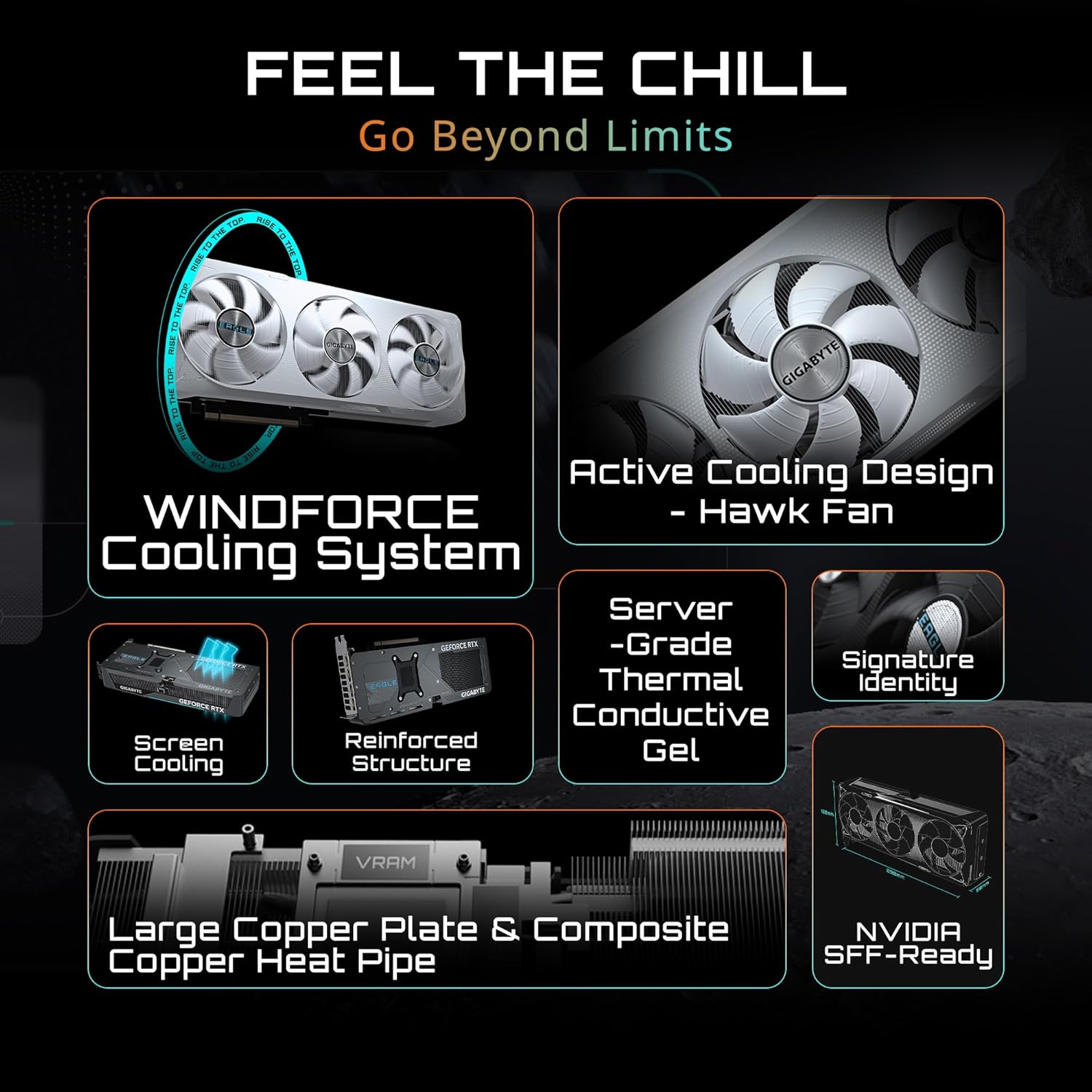
Image: Diagram illustrating the components of the WINDFORCE Cooling System, including Hawk Fans, copper plate, heat pipes, and screen cooling.
7. Specifications
| Feature | Specification |
|---|---|
| Graphics Coprocessor | NVIDIA GeForce RTX 5070 |
| Memory | 12GB GDDR7 |
| Memory Interface | 192-bit |
| GPU Clock Speed | 2600 MHz (Boost) |
| Max Screen Resolution | 7680x4320 Pixels |
| PCIe Interface | PCIe 5.0 |
| Video Output Interface | 3x DisplayPort 2.1a, 1x HDMI 2.1b |
| Item Model Number | GV-N5070EAGLE OC-12GD |
| Product Dimensions (LxWxH) | 11.42 x 4.72 x 1.97 inches (290 x 120 x 50 mm) |
| Item Weight | 3.39 pounds |
| Recommended PSU | 750W |

Image: Technical drawing showing the dimensions of the GIGABYTE GeForce RTX 5070 Eagle OC SFF graphics card in both inches and millimeters.

Image: Infographic detailing key specifications of the GIGABYTE GeForce RTX 5070 Eagle OC SFF, including Core Clock, CUDA Cores, Memory Clock, Memory Size, Memory Bus, Card Bus, Digital Max Resolution, Card Size, Recommended PSU, and Output ports.
8. Maintenance
- Cleaning: Regularly clean the fans and heatsink of the graphics card using compressed air to remove dust buildup. Ensure the system is powered off and unplugged before cleaning.
- Driver Updates: Keep your graphics drivers updated to the latest version from the NVIDIA website for optimal performance and stability.
- Software Monitoring: Use GIGABYTE Control Center or other monitoring software to keep an eye on GPU temperatures and fan speeds to ensure proper operation.
9. Troubleshooting
- No Display: Ensure the graphics card is fully seated in the PCIe slot and all power cables are securely connected. Verify your monitor is connected to the graphics card, not the motherboard's integrated graphics.
- Performance Issues: Check that the latest drivers are installed. Monitor GPU usage and temperatures to identify potential bottlenecks or overheating. Ensure your PSU meets the recommended wattage.
- Overheating: Clean dust from the heatsink and fans. Ensure adequate airflow within your PC case. Adjust fan curves using GIGABYTE Control Center for more aggressive cooling if needed.
- System Instability/Crashes: Ensure all components are properly installed. Update motherboard BIOS and graphics drivers. If overclocking, try reverting to default settings.
10. Warranty and Support
Your GIGABYTE GeForce RTX 5070 Eagle OC SFF 12G Graphics Card comes with a manufacturer's warranty. Please refer to the included Warranty Registration Card for specific terms and conditions. For technical support, driver downloads, and further assistance, please visit the official GIGABYTE Support website.
Registering your product may be required to activate your warranty. Keep your proof of purchase for warranty claims.


