
VisionTechShop DLP-50
VisionTechShop DLP-50 Label Printer User Manual
Model: DLP-50
Introduction
This manual provides detailed instructions for the installation, operation, and maintenance of your VisionTechShop DLP-50 Label Printer. Please read this manual thoroughly before using the printer to ensure proper function and longevity of the device. The DLP-50 is a thermal label printer designed for efficient and reliable label printing, featuring serial connectivity, easy label loading, and a compact footprint. It is compatible with VisionTechShop TVP, TVD, TBW, TBWS, TPS-1, and TVC Series scales.

Image: VisionTechShop DLP-50 Label Printer. This image displays the DLP-50 thermal label printer alongside an example of a printed label, highlighting its compact design and label output capabilities. The label shows "THANK YOU", weight, unit price, and total price.
Safety Information
- Ensure the printer is placed on a stable, level surface.
- Do not expose the printer to water or excessive humidity.
- Use only the power adapter supplied with the printer.
- Avoid touching the print head immediately after printing, as it may be hot.
- Keep out of reach of children.
Package Contents
Verify that all items are present in the package:
- VisionTechShop DLP-50 Label Printer
- Power Cable
- User Manual (this document)
- Labels (LST8060)
Setup
1. Unpacking and Placement
Carefully remove the printer from its packaging. Place the printer on a flat, stable surface near a power outlet and your VisionTechShop scale.
2. Connecting Power
- Connect the power cable to the power port on the back of the DLP-50 printer.
- Plug the other end of the power cable into a standard electrical outlet.
- Ensure the power switch (if present) is in the OFF position before connecting.
3. Loading Labels
The DLP-50 printer uses thermal labels, specifically LST8060 (2.16" x 1" / 55mm x 25mm) labels. Refer to ASIN: B09F8T13YP for compatible labels.
- Open the printer cover.
- Place the roll of labels into the label compartment, ensuring the labels feed from the bottom of the roll and the printable side faces upwards.
- Feed the leading edge of the label roll through the print mechanism until it extends slightly past the print head.
- Close the printer cover securely.

Image: VisionTechShop DLP-50 Label Printer. This image shows the main view of the DLP-50 label printer, illustrating its compact design and the label output slot.
4. Connecting to a Scale/Computer
The DLP-50 printer connects via USB. It is designed to work seamlessly with VisionTechShop TVP, TVD, TBW, TBWS, TPS-1, and TVC Series scales.
- Connect one end of the USB cable to the USB port on the DLP-50 printer.
- Connect the other end of the USB cable to your VisionTechShop scale or computer.
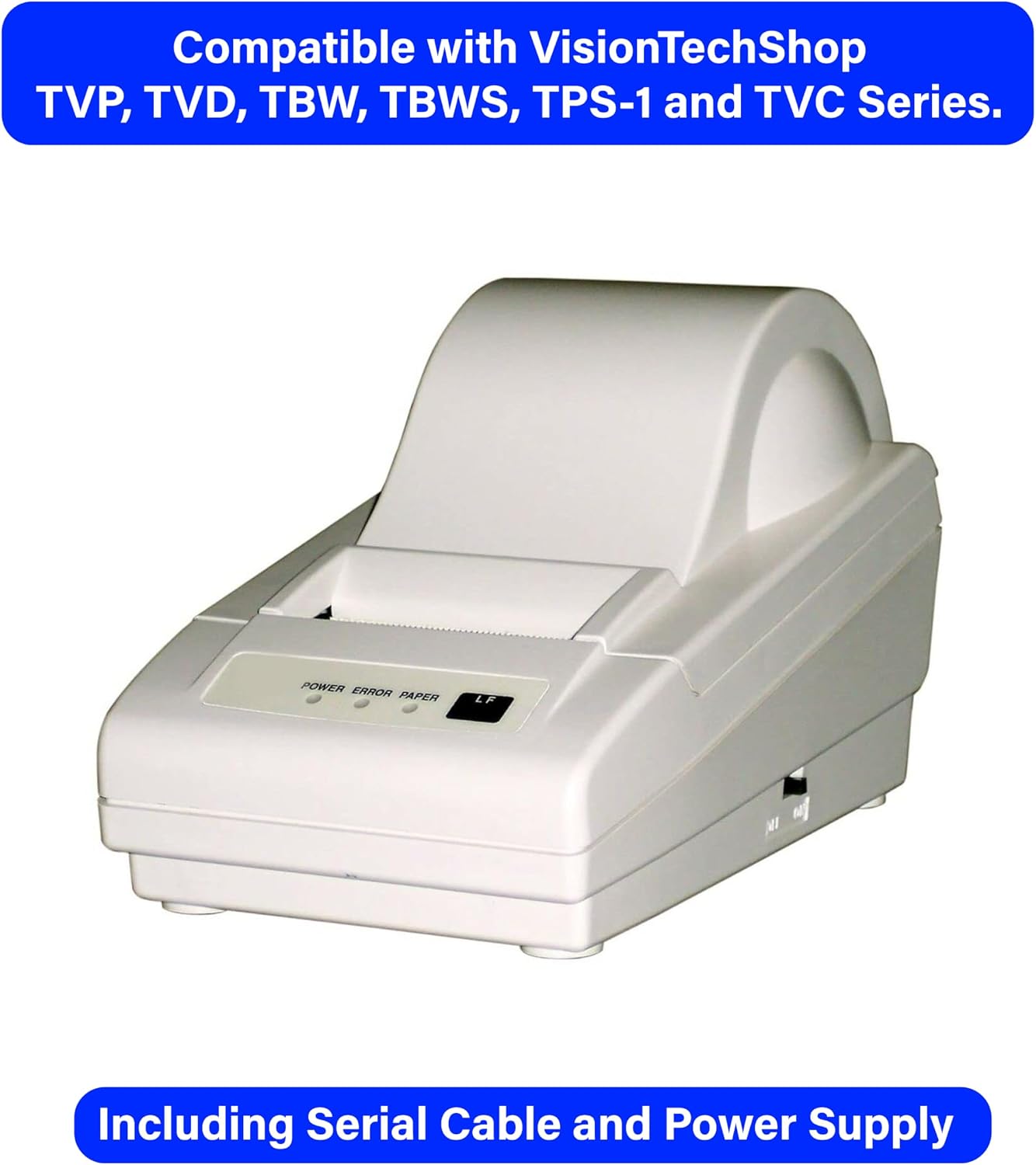
Image: VisionTechShop DLP-50 Label Printer with compatibility text. This image highlights the DLP-50 printer's compatibility with various VisionTechShop scale series (TVP, TVD, TBW, TBWS, TPS-1, TVC) and confirms the inclusion of a serial cable and power supply.
5. Driver Installation (if connecting to a computer)
If connecting to a computer, you may need to install the appropriate printer drivers. These are typically provided on a CD with the printer or can be downloaded from the VisionTechShop official website. Follow the on-screen instructions for driver installation.
Operating Instructions
1. Powering On/Off
Press the power button (if available) or ensure the power cable is connected to turn the printer on. The POWER indicator light should illuminate.
2. Indicator Lights
- POWER: Indicates the printer is powered on.
- ERROR: Illuminates to indicate a printer error (e.g., paper jam, print head issue). Refer to the Troubleshooting section.
- PAPER: Illuminates when the printer is out of labels or the label roll is not loaded correctly.
3. LF (Line Feed) Button
Pressing the LF button will feed a single blank label forward. This is useful for adjusting label position or testing the paper feed mechanism.
4. Printing Labels
Once the printer is connected to a compatible VisionTechShop scale or computer with the necessary software/drivers, printing is initiated from the connected device. The printer will automatically detect and print on the loaded thermal labels.

Image: Example of a printed label. This image shows a sample label printed by the DLP-50, featuring a "THANK YOU" message, weight, unit price, and total price, demonstrating the printer's output quality.
Maintenance
1. Cleaning the Print Head
Regular cleaning of the print head ensures optimal print quality and extends the printer's lifespan.
- Turn off the printer and disconnect the power cable.
- Open the printer cover.
- Gently wipe the print head with a lint-free cloth lightly dampened with isopropyl alcohol.
- Allow the print head to dry completely before closing the cover and reconnecting power.
2. General Cleaning
Wipe the exterior of the printer with a soft, dry cloth. Do not use abrasive cleaners or solvents.
3. Label Replacement
When the PAPER indicator light illuminates or print quality degrades, it's time to replace the label roll. Follow the "Loading Labels" instructions in the Setup section.
Troubleshooting
| Problem | Possible Cause | Solution |
|---|---|---|
| Printer does not power on. | Power cable disconnected or faulty outlet. | Check power cable connections. Try a different power outlet. |
| No print output. | No labels, labels loaded incorrectly, or connection issue. | Check label roll and ensure it's loaded correctly. Verify USB connection to scale/computer. Check printer drivers. |
| PAPER indicator light is on. | Out of labels or labels not loaded properly. | Replace label roll or re-load labels correctly. |
| ERROR indicator light is on. | Paper jam, print head error, or other internal issue. | Open cover and check for paper jams. Clean print head. Power cycle the printer. If issue persists, contact support. |
| Poor print quality. | Dirty print head or old/incorrect labels. | Clean the print head. Ensure you are using compatible thermal labels (LST8060). |
Specifications
| Feature | Detail |
|---|---|
| Brand | VisionTechShop |
| Model Series | DLP-50 |
| Item Model Number | DLP-50-VTS |
| Printing Technology | Thermal |
| Maximum Black and White Print Resolution | 203 dpi |
| Printer Output | Monochrome |
| Hardware Interface | USB |
| Total USB Ports | 1 |
| Maximum Media Size | 2.16" x 1" (55mm x 25mm) |
| Print Media | Labels |
| Compatible Devices | VisionTechShop TVP, TVD, TBW, TBWS, TPS-1 and TVC Series scales. |
| Product Dimensions | 4.17"D x 4.96"W x 7.2"H |
| Item Weight | 3 pounds |
| Included Components | Power Cable, User Manual, Labels (LST8060) |
Warranty and Support
VisionTechShop products are manufactured to high-quality standards. For information regarding warranty coverage, please refer to the warranty card included with your product or visit the official VisionTechShop website. For technical support, troubleshooting assistance beyond this manual, or to inquire about replacement parts, please contact VisionTechShop customer service.
Please retain your purchase receipt for warranty purposes.
Related documentsDLP-50


Ask a question about this manual
Ask about setup, troubleshooting, compatibility, parts, safety, or missing instructions. Manuals+ will review the question and use this page’s manual context to help answer it.