
1. Setup Guide
This section provides instructions for setting up your KAMRUI Hyper H1 Mini PC for the first time.
1.1 Package Contents
Verify that all items are present in the package:
- 1 x KAMRUI Hyper H1 Ryzen 7 6800H Mini PC (32GB DDR5, 1TB M.2 2280 NVMe PCIe3.0x4 SSD)
- 1 x HDMI Cable
- 1 x User Manual
- 1 x Power Adapter
- 1 x VESA Mount with Screws
1.2 Connecting Peripherals
Connect your monitor, keyboard, and mouse to the Mini PC. Refer to the image below for port identification.

Detailed view of the KAMRUI Hyper H1 Mini PC's front and rear ports. Front ports include power button, 3.5mm audio jack, two USB 3.2 Gen2 Type-A ports, and one USB 3.2 Gen2 Type-C port. Rear ports include four USB 3.2 Gen1 Type-A ports, 2.5Gbps LAN, DP2.0, HDMI 2.0, and DC IN.
- Monitor: Connect your monitor(s) using the HDMI 2.0, DP2.0, or USB3.2 Gen2 Type-C ports. The Mini PC supports triple 4K display output.
- Keyboard & Mouse: Connect your keyboard and mouse to any available USB Type-A ports.
- Audio: Connect speakers or headphones to the 3.5mm audio jack on the front panel.
- Network: For a wired connection, connect an Ethernet cable to the 2.5Gbps LAN port. For wireless, ensure your Wi-Fi network is available.
1.3 Power On
- Connect the power adapter to the DC IN port on the back of the Mini PC and then to a power outlet.
- Press the power button located on the front panel. The power indicator light will illuminate.
- Follow the on-screen instructions to complete the initial operating system setup.
2. Operating Instructions
This section covers basic operation and key features of your Mini PC.
2.1 Basic Operation
- Power On/Off: Press the power button to turn the PC on. To turn off, use the operating system's shutdown function or press and hold the power button for 5 seconds.
- Restart: Use the operating system's restart function.
2.2 Connectivity
The KAMRUI Hyper H1 supports advanced wireless connectivity:
- Wi-Fi 6: Provides faster and more stable wireless internet connections.
- Bluetooth 5.2: For connecting wireless peripherals such as keyboards, mice, and headphones.

Graphic illustrating the improved upload and download speeds of Wi-Fi 6 compared to Wi-Fi 5, demonstrating faster and more stable wireless performance.
2.3 Display Configuration
The Mini PC supports connecting up to three 4K displays simultaneously, enhancing multitasking and visual experiences.
A KAMRUI Hyper H1 Mini PC connected to three monitors, demonstrating its triple 4K display output capability via USB3.2 Gen2 Type-C, HDMI 2.0, and DP2.0 ports.
2.4 Performance Overview
The KAMRUI Hyper H1 is equipped with high-performance components for various computing tasks.

Overview of the KAMRUI Hyper H1 Mini PC's core features, including AMD Ryzen 7 6800H processor, AMD Radeon 680M graphics, WiFi 6, Bluetooth 5.2, 32GB DDR5 4800MHz RAM, 1TB M.2 NVMe PCIe3.0x4 SSD, triple 4K display support, efficient cooling, and 28W TDP.
- Processor: AMD Ryzen 7 6800H (8 Cores/16 Threads, up to 4.7GHz, 16MB L3 Smart Cache, Zen 3+ Architecture).
- Graphics: Integrated AMD Radeon 680M (12 CUs, GPU Frequency up to 2200MHz).
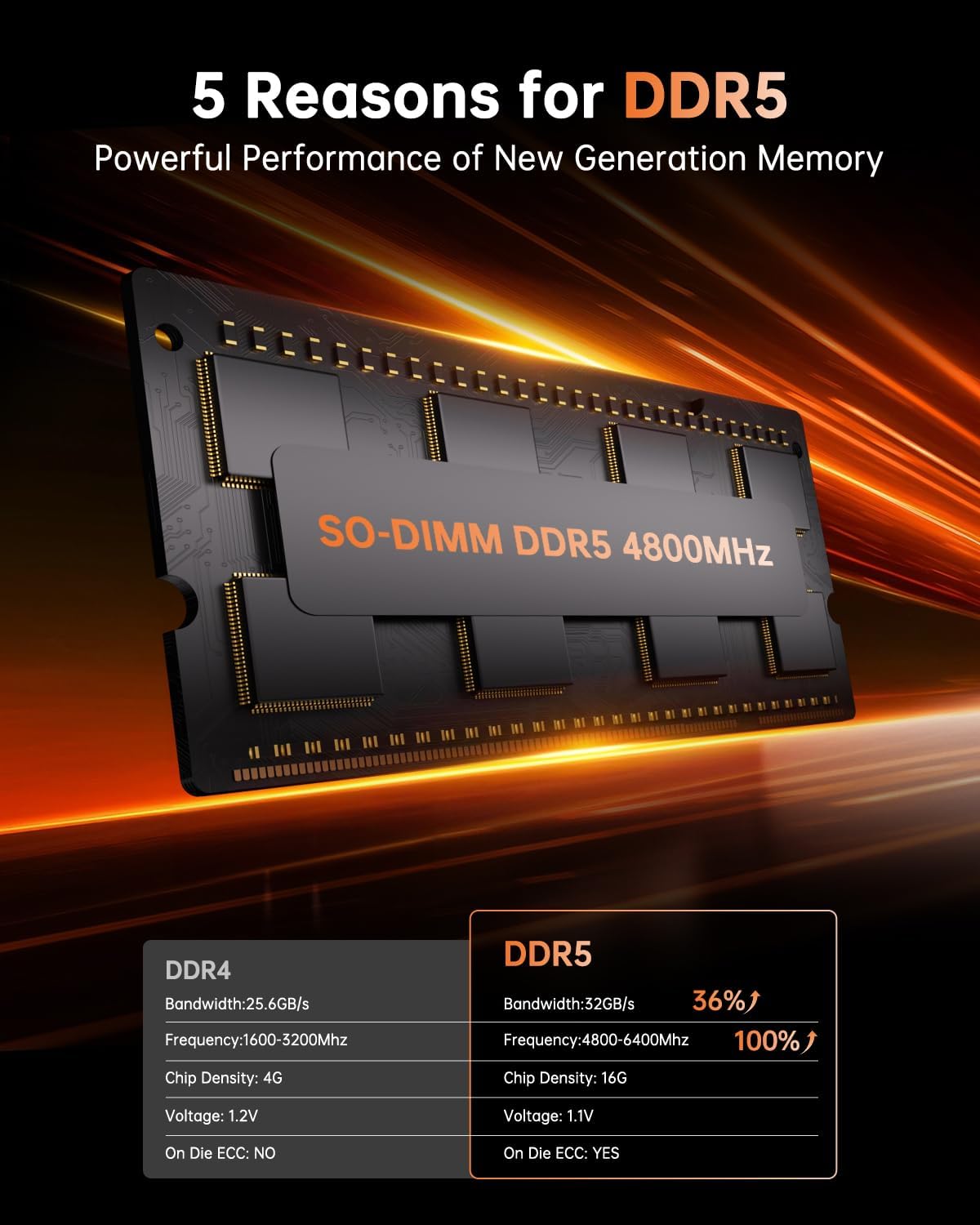
- Memory: 32GB (2x16GB) DDR5 4800MHz Dual Channel RAM, expandable up to 64GB.
- Storage: 1TB M.2 2280 NVMe PCIe3.0x4 SSD.

Close-up of the AMD Ryzen 7 6800H processor, highlighting its 8 cores, 16 threads, 16MB L3 cache, Zen 3+ architecture, and 4.7 GHz max turbo frequency.

Comparison table illustrating the performance benefits of DDR5 4800MHz RAM over DDR4, including increased bandwidth and frequency.
2.5 Usage Scenarios
The Mini PC is suitable for a variety of applications:

Collage of images depicting various use cases for the KAMRUI Hyper H1 Mini PC, including office work, business meetings, design, digital signage, online study, home theater, light gaming, and online shopping.
- Office Work & Business Meetings
- Graphic Design & Digital Signage
- Online Learning & Home Theater
- Light Gaming & Web Browsing
3. Maintenance
Proper maintenance ensures the longevity and optimal performance of your Mini PC.
3.1 Cleaning
- Use a soft, dry cloth to clean the exterior of the Mini PC.
- For dust accumulation in vents, use compressed air. Ensure the PC is powered off before cleaning.
- Avoid using liquid cleaners directly on the device.
3.2 Storage
- Store the Mini PC in a cool, dry environment away from direct sunlight and extreme temperatures.
- If storing for an extended period, ensure it is powered off and disconnected from the power source.
3.3 Upgrades
The KAMRUI Hyper H1 Mini PC offers upgrade options for memory and storage.
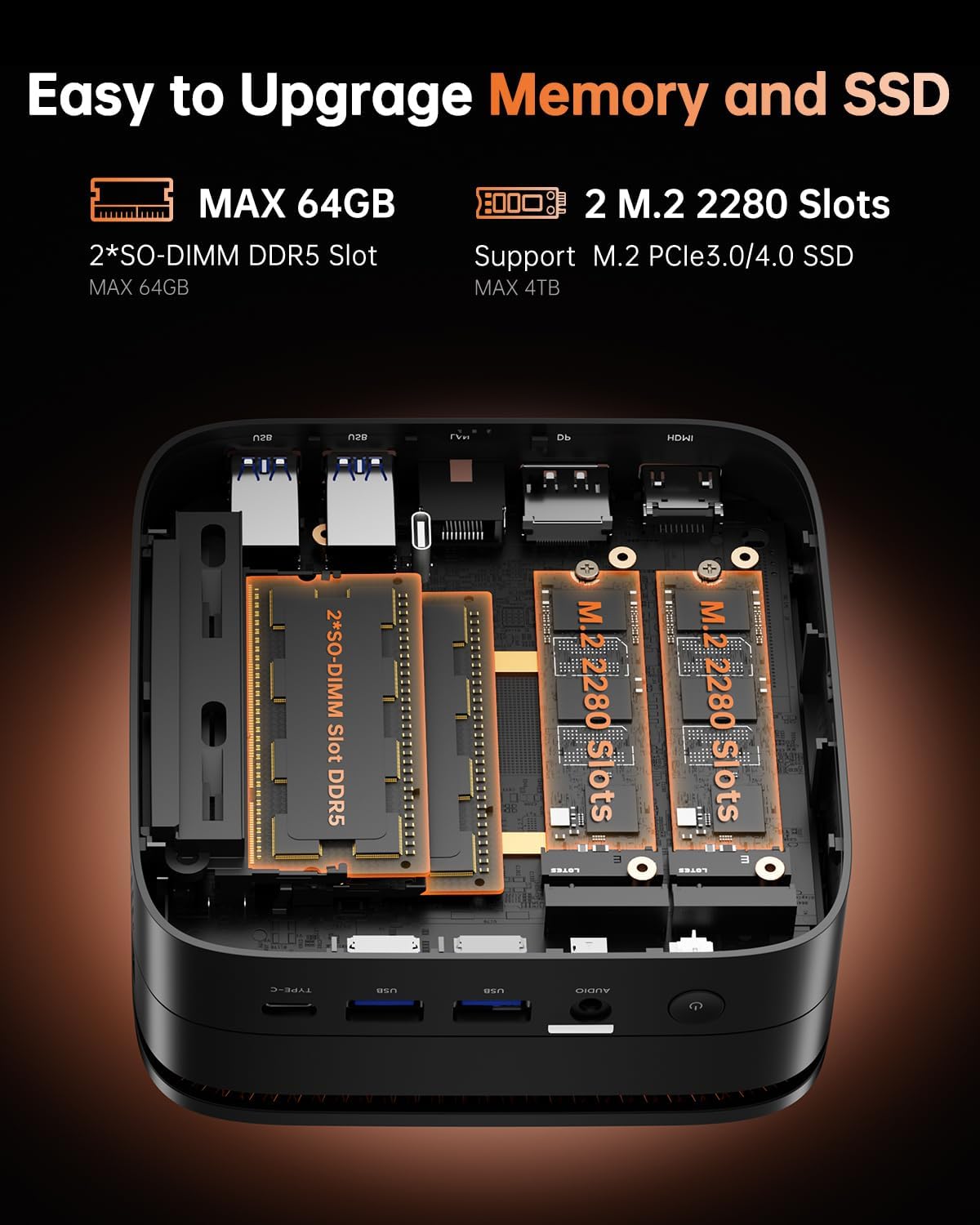
Internal view of the KAMRUI Hyper H1 Mini PC, illustrating the two SO-DIMM DDR5 slots for RAM and two M.2 2280 slots for NVMe SSDs, indicating upgradeability.
- RAM: The device has two SO-DIMM DDR5 slots and supports up to 64GB of DDR5 RAM.
- SSD: It features two M.2 2280 slots, supporting M.2 PCIe3.0/4.0 SSDs for storage expansion.
- Consult a qualified technician for hardware upgrades to avoid damage and maintain warranty validity.
4. Troubleshooting
This section addresses common issues you might encounter with your Mini PC.
4.1 No Power
- Ensure the power adapter is securely connected to both the Mini PC and a working power outlet.
- Verify the power outlet is functional by plugging in another device.
- Check if the power adapter's indicator light (if any) is on.
4.2 No Display Output
- Confirm that the monitor is powered on and the correct input source is selected.
- Check the HDMI, DisplayPort, or USB-C cable connections between the Mini PC and the monitor. Try a different cable if possible.
- Test with a single monitor connection to isolate the issue.
4.3 Connectivity Issues (Wi-Fi/Bluetooth)
- Wi-Fi: Ensure your router is working correctly. Restart the router and the Mini PC. Check Wi-Fi settings in the operating system.
- Bluetooth: Ensure Bluetooth is enabled in the operating system settings. Re-pair your Bluetooth devices.
4.4 System Instability or Freezes
- Ensure the Mini PC has adequate ventilation and is not overheating.
- Update your operating system and device drivers to the latest versions.
- If issues persist, consider performing a system restore or reinstalling the operating system (back up your data first).
5. Technical Specifications
Detailed specifications for the KAMRUI Hyper H1 Mini PC.
| Feature | Specification |
|---|---|
| Processor | AMD Ryzen 7 6800H (8C/16T, up to 4.7GHz) |
| Graphics Coprocessor | AMD Radeon 680M |
| RAM | 32 GB DDR5 4800MHz (2x16GB, expandable to 64GB) |
| Storage | 1 TB M.2 2280 NVMe PCIe3.0x4 SSD (2 M.2 slots, supports PCIe3.0/4.0) |
| Max Screen Resolution | 3840x2160 (4K) |
| Video Output | HDMI 2.0, DP2.0, USB3.2 Gen2 Type-C (Triple 4K Display Support) |
| Wireless Connectivity | Wi-Fi 6 (802.11ax), Bluetooth 5.2 |
| USB Ports (Front) | 2x USB 3.2 Gen2 Type-A (10Gbps), 1x USB 3.2 Gen2 Type-C (10Gbps) |
| USB Ports (Rear) | 4x USB 3.2 Gen1 Type-A (5Gbps) |
| LAN Port | 2.5Gbps Ethernet |
| Audio Port | 3.5mm Audio Jack |
| Operating System | Preinstalled OS |
| Dimensions (LxWxH) | 5.08 x 5.08 x 2.01 inches |
| Item Weight | 1.06 pounds |
6. Warranty and Support
KAMRUI is committed to providing excellent customer service and support for your product.
6.1 Warranty Information
Your KAMRUI Hyper H1 Mini PC comes with a 1-year quality after-sales service. This warranty covers manufacturing defects and ensures repair or replacement of the Mini PC during the warranty period.
6.2 Customer Support
For technical assistance, troubleshooting, or warranty claims, please contact KAMRUI customer support:
- Email: Support@kamrui.com
- Phone (US): +1-833-670-1528 (Monday - Friday, 9am - 5pm EST)
- Online: You can also reach out through your Amazon account by navigating to "Your Account" > "Your order" > "Ask Product Questions" for assistance.
KAMRUI provides offline maintenance service for repairs during the warranty period.


