
1. Introduction
Thank you for choosing the ARZOPA 15.6-inch D15 Digital Photo Frame. This manual provides detailed instructions for setting up, operating, and maintaining your new digital photo frame. Please read this manual thoroughly before use to ensure optimal performance and longevity of your device. The ARZOPA D15 allows you to display your cherished memories with its high-quality FHD touchscreen, unlimited cloud storage, and easy sharing features.
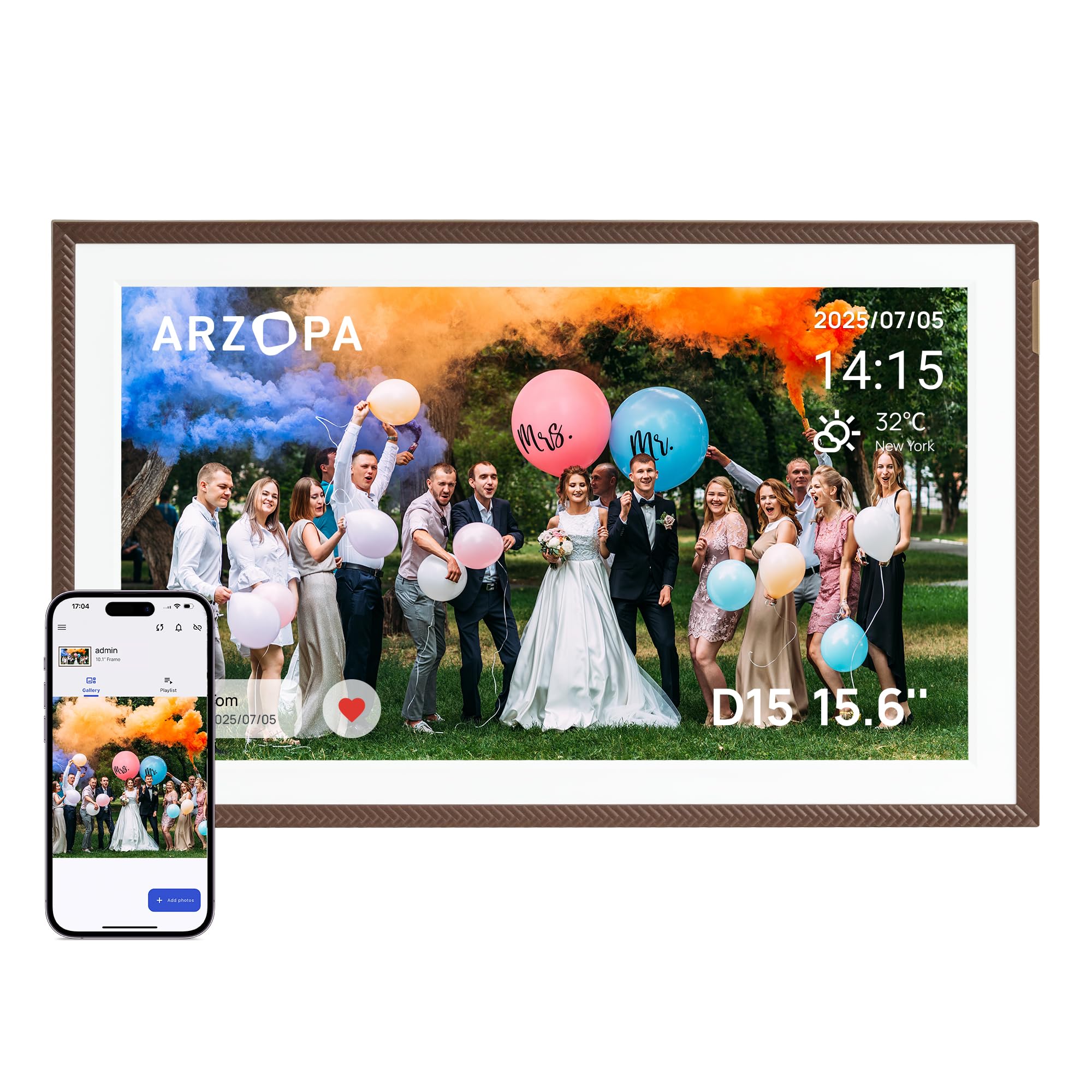
ARZOPA 15.6-inch D15 Digital Photo Frame displaying a family photo in a living room setting.
2. What's in the Box
- ARZOPA 15.6-inch D15 Digital Photo Frame
- Power Adapter
- Detachable Stand
- User Manual
3. Product Overview
Key Features:
- 100% Free and Unlimited Cloud Storage: Transfer your photos and videos to your digital photo frame without a subscription. Enjoy the convenience of cloud storage without an SD card – add memories anytime, anywhere, even when the digital photo frame is offline (automatic synchronization upon reconnection).
- Gift Function, Pre-Loaded Joy: Pre-load photos, videos, and greeting cards via the FREE Arzopa app for a personalized and surprising gift even before the Arzopa D15 frame arrives, without needing to unbox it.
- Easy Setup & Intuitive App: Pre-set Wi-Fi for non-tech-savvy recipients (plug and play). Manage your connected photo frame with over 30 folders and share an unlimited number of photos and videos (up to 2 minutes per video, ≤125MB, 1080p).
- High-Quality Screen & Smart Design: 15.6" FHD 1920*1080 IPS touchscreen with anti-glare technology for true-to-life colors and adjustable brightness (day/night mode). Practical functions (weather, alarm clock, calendar, etc.) and a smart sleep mode (30% energy saving) offer a smart user experience.
- Instant Multi-User Sharing: Invite your loved ones via the free Arzopa app to share their daily lives. 'Like' and 'Comment' on shared moments, enjoy a secure private space. Stay connected with over 30 languages remotely and strengthen family bonds, wherever you are.
Components:
Familiarize yourself with the various parts of your ARZOPA D15 Digital Photo Frame:

Rear view of the ARZOPA D15 Digital Photo Frame showing ports for power, USB, and Micro SD card slot.
- Power Button: Located on the back, used to turn the frame on/off.
- USB Port: For connecting to a computer or USB drive to transfer media.
- Micro SD Card Slot: For expanding storage or transferring media from an SD card.
- DC Power Input: For connecting the power adapter.
- Wall Mount Hole: For mounting the frame on a wall.
- Speaker: For audio playback with videos.
4. Setup
4.1 Powering On:
- Connect the power adapter to the DC power input port on the back of the frame.
- Plug the power adapter into a wall outlet.
- The frame will automatically power on. If not, press and hold the power button for a few seconds.
4.2 Initial Wi-Fi Connection:
- Upon first startup, the frame will guide you through the initial setup process.
- Select your preferred language.
- Connect to a Wi-Fi network. Ensure you are connecting to a 2.4 GHz network for optimal compatibility.
- Enter the Wi-Fi password using the on-screen keyboard.
4.3 App Download and Pairing:
To fully utilize the frame's features, download the ARZOPA app on your smartphone or tablet.
ARZOPA D15 Digital Photo Frame displaying app download options for App Store and Google Play.
- Scan the QR code displayed on the frame or search for "ARZOPA" in your device's app store (App Store for iOS, Google Play for Android).
- Download and install the ARZOPA app.
- Open the app and create an account or log in.
- Follow the in-app instructions to pair your smartphone with the digital photo frame. This usually involves scanning a QR code displayed on the frame.
5. Operating Instructions
5.1 Uploading Photos and Videos:
You can upload media to your ARZOPA D15 frame using the mobile app, a USB drive, or a Micro SD card.
Using the ARZOPA App:
- Open the ARZOPA app on your paired smartphone.
- Navigate to the 'Gallery' or 'Upload' section.
- Select the photos and videos you wish to upload. The frame supports unlimited photos and videos up to 2 minutes in length (≤125MB, 1080p).
- Confirm the upload. The media will be transferred to your frame via cloud storage.

Smartphone screen displaying the ARZOPA app interface for selecting and uploading photos and videos to the digital frame.
Using USB Drive or Micro SD Card:
- Insert a USB drive into the USB port or a Micro SD card into the Micro SD card slot on the frame.
- The frame will detect the external storage.
- Follow the on-screen prompts to import photos and videos to the frame's internal storage.
5.2 Gift Function:
The ARZOPA D15 offers a unique gift function, allowing you to pre-load content and even Wi-Fi settings before gifting the frame.
- In the ARZOPA app, select the 'Gift' option.
- Enter recipient details and choose a theme for the gift card (e.g., Birthday, Mother's Day).
- Upload photos and videos you wish to include.
- Optionally, pre-set the recipient's Wi-Fi network name and password. This allows the frame to connect automatically upon first power-on.
- Once prepared, the app will generate a gift code. The recipient can enter this code on their frame to receive the pre-loaded content.
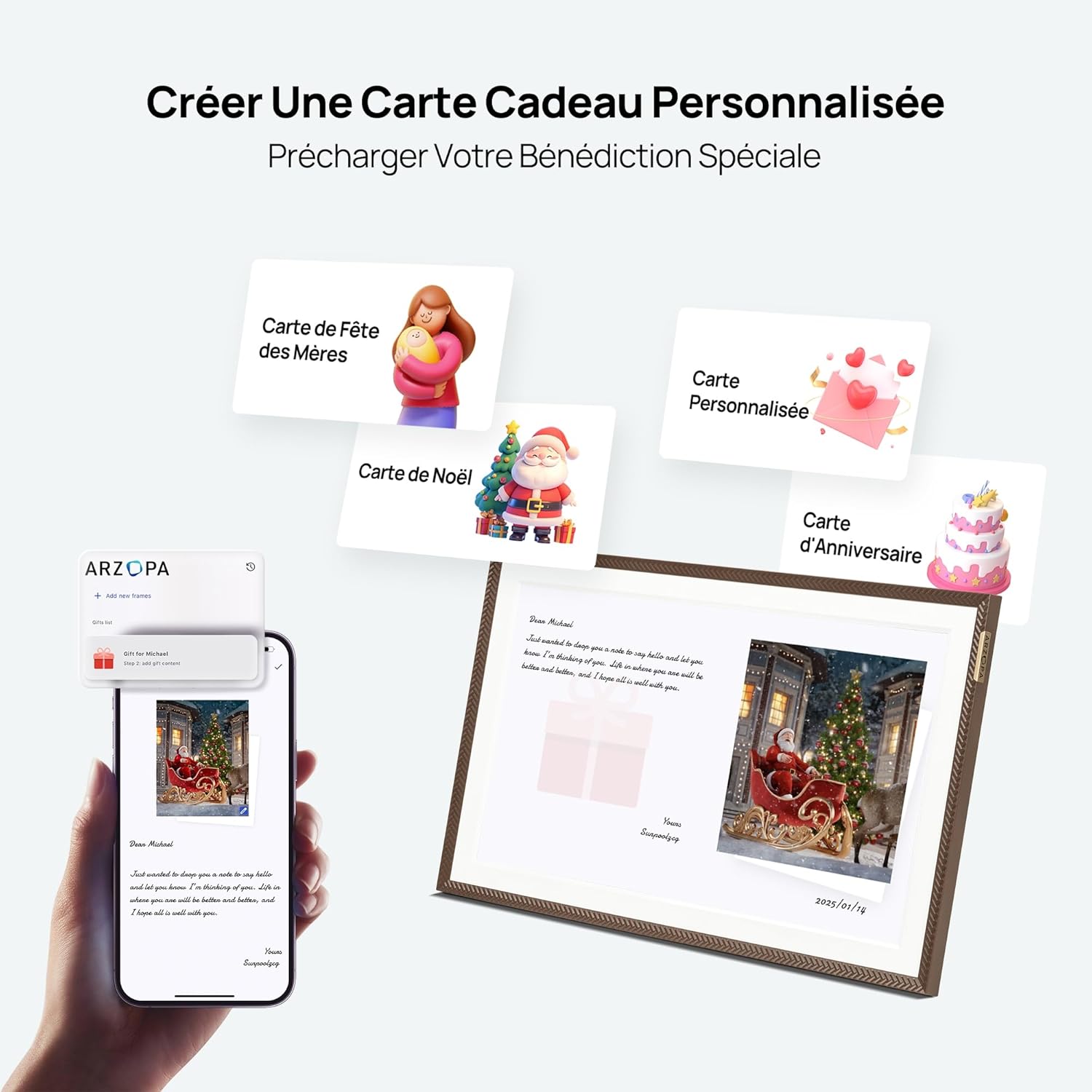
Image showing the process of creating a personalized gift card with photos and messages via the ARZOPA app.
5.3 Display Settings:
Customize your viewing experience through the frame's settings menu.
- Brightness: Adjust screen brightness for different lighting conditions.
- Sleep Mode: Set a schedule for the frame to automatically turn off or dim the screen to save energy and avoid disturbance.
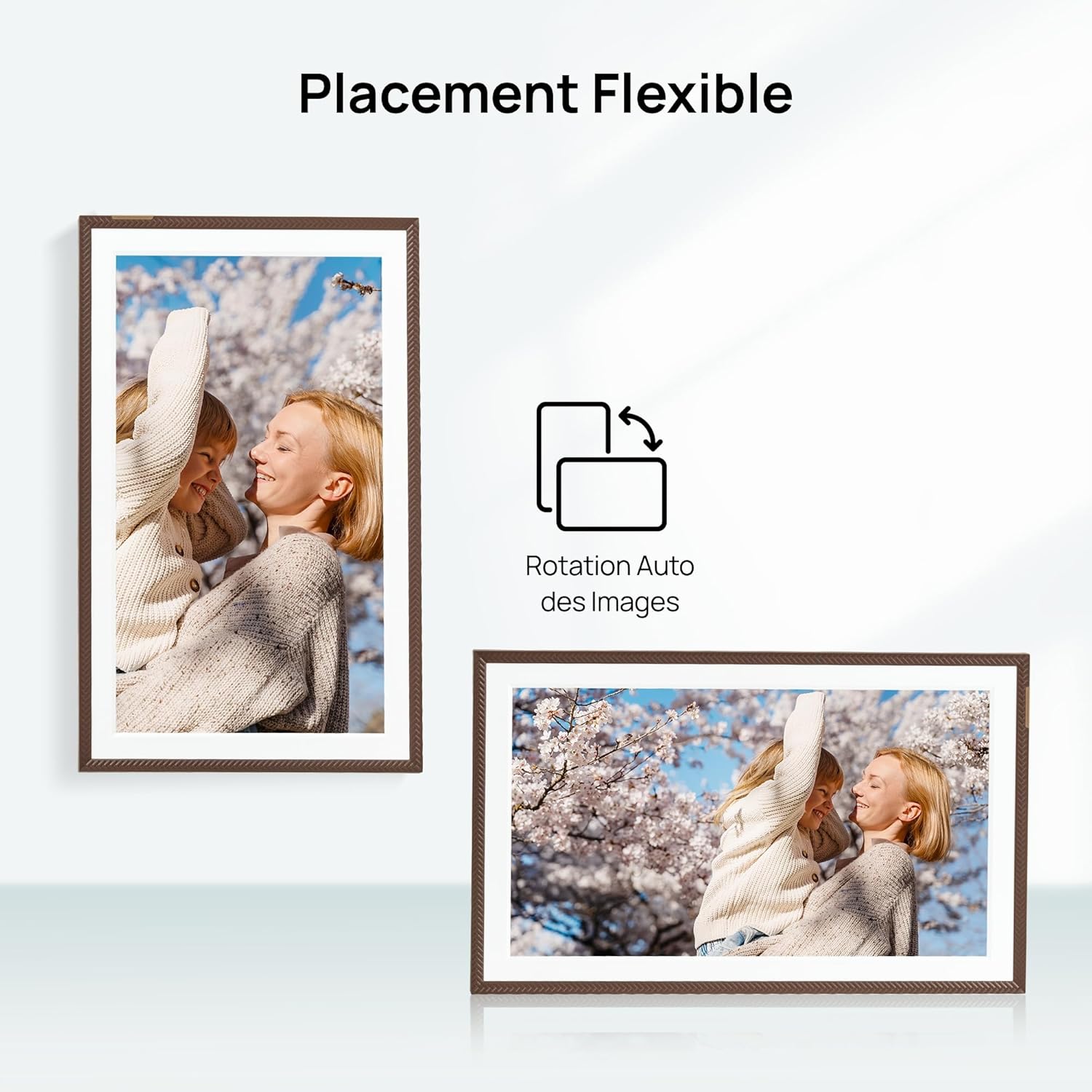
- Orientation: The frame supports automatic rotation for both portrait and landscape display.

The ARZOPA D15 Digital Photo Frame demonstrating flexible placement and automatic image rotation for both portrait and landscape orientations.

The ARZOPA D15 Digital Photo Frame in a bedroom setting, illustrating the customized sleep mode feature for energy saving and undisturbed rest.
5.4 Cloud Storage:
The ARZOPA D15 comes with 100% free and unlimited cloud storage, allowing you to store and access your media securely from anywhere.
Graphic illustrating the free and secure cloud storage feature, supporting JPEG, PNG, WEBP, MP4, M4V, and MOV formats.
6. Maintenance
- Cleaning the Screen: Use a soft, lint-free cloth to gently wipe the screen. Avoid using harsh chemicals or abrasive materials.
- Software Updates: Ensure your frame's software is up to date for the best performance and new features. The frame will typically notify you of available updates.
- Storage Management: Regularly review and organize your media files. While cloud storage is unlimited, managing local storage (if using SD card) can improve performance.
7. Troubleshooting
| Issue | Possible Solution |
|---|---|
| Frame does not power on. | Ensure the power adapter is securely connected to both the frame and a working power outlet. Try a different outlet. |
| Cannot connect to Wi-Fi. | Verify the Wi-Fi password. Ensure the frame is within range of a 2.4 GHz Wi-Fi network. Restart your router and the frame. |
| Photos/Videos are not uploading. | Check your internet connection. Ensure the ARZOPA app is updated. Verify file formats and sizes (videos up to 2 minutes, ≤125MB, 1080p). |
| Screen is unresponsive. | Restart the frame by unplugging and re-plugging the power adapter. If the issue persists, perform a factory reset (refer to the settings menu). |
| Images appear distorted or low quality. | Ensure the original image/video resolution is high enough for the frame's 1920x1080 FHD display. |
8. Specifications
| Feature | Detail |
|---|---|
| Brand | ARZOPA |
| Model | D15 |
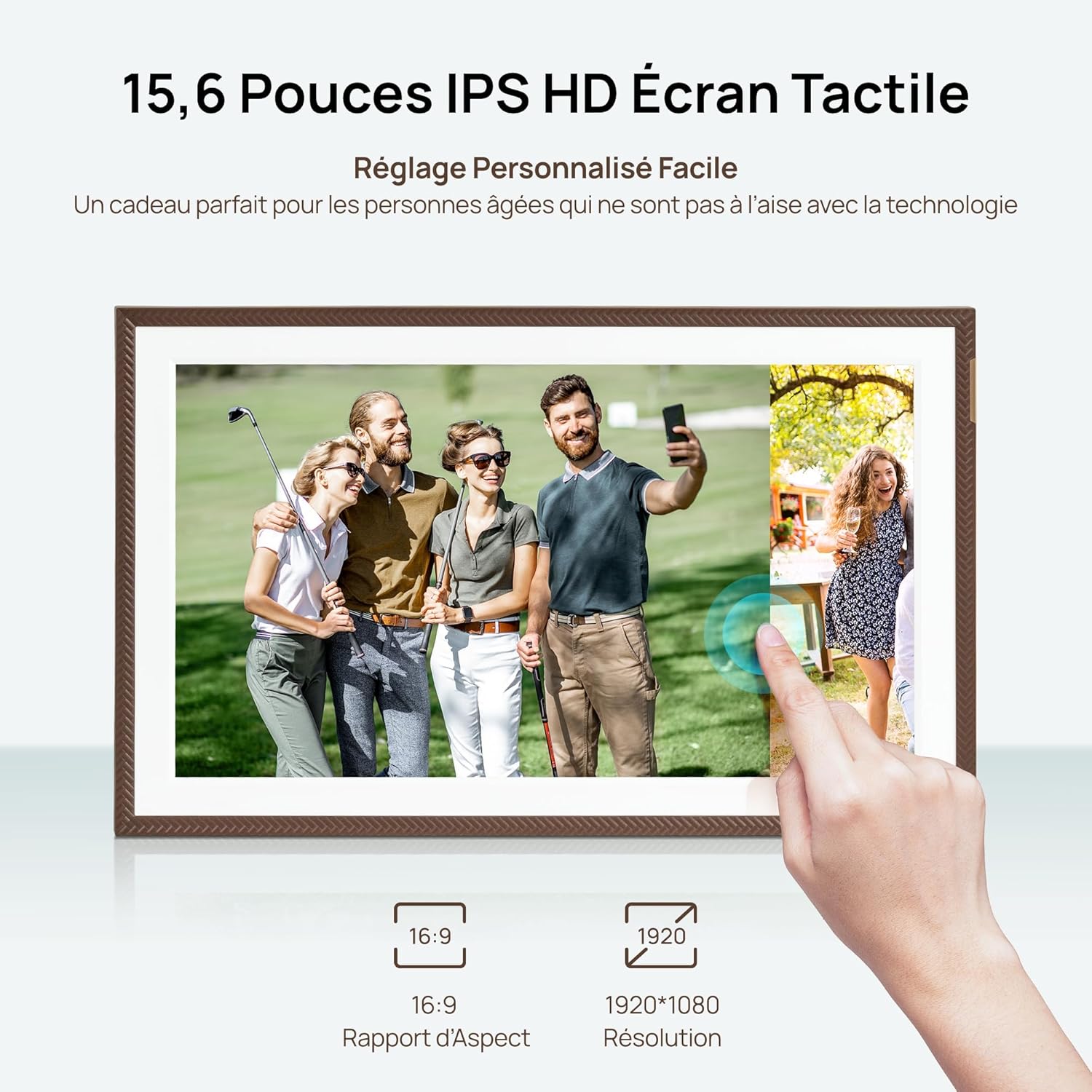
| Screen Size | 15.6 inches |
| Resolution | 1920x1080 (FHD) |
| Aspect Ratio | 16:9 |
| Internal Storage | 32 GB |
| Connectivity | USB, Wi-Fi (2.4 GHz) |
| Input Interface | Touchscreen |
| Power Source | Electric Cable |
| Frame Material | Acrylonitrile Butadiene Styrene (ABS) |
| Product Dimensions (L x W x H) | 40 x 25 x 2.5 cm |
| Product Weight | 2.43 Kilograms |
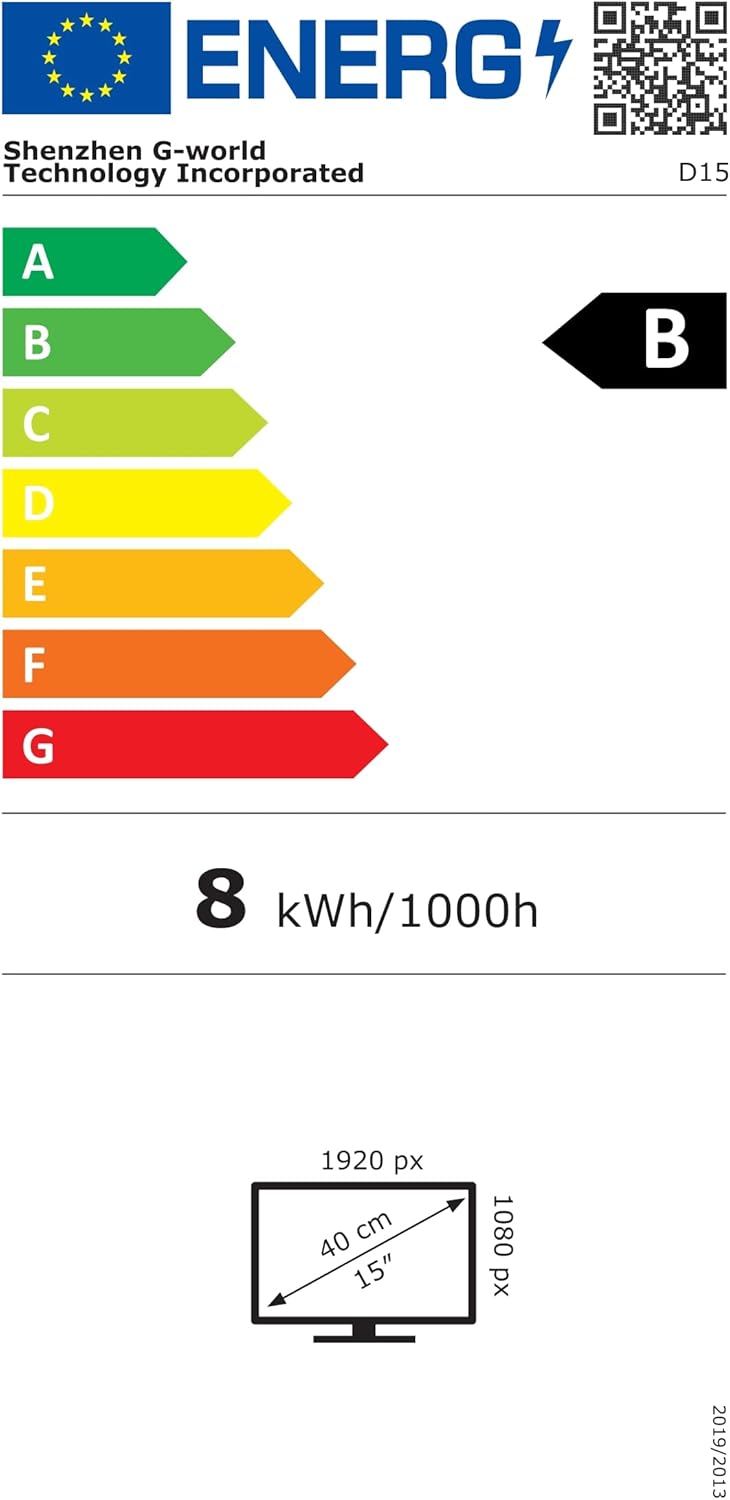
Energy label for the ARZOPA D15 Digital Photo Frame, showing energy consumption and display dimensions. For more details, visit: https://eprel.ec.europa.eu/qr/2089090
9. Warranty and Support
Your ARZOPA D15 Digital Photo Frame comes with a standard manufacturer's warranty. For detailed warranty information, please refer to the warranty card included in your product packaging or visit the official ARZOPA website. If you encounter any issues or have questions not covered in this manual, please contact ARZOPA customer support through their official website or the contact information provided in the warranty documentation.


