
Introduction

Image: The Dinosoo RGB Wireless Controller, showcasing its design and illuminated elements.
This manual provides comprehensive instructions for the Dinosoo RGB Wireless Controller, designed for use with PlayStation 5 and PC. It covers setup, operation, features, and troubleshooting to ensure optimal performance and user experience.
Product Features
- Wireless and Wired Connectivity for PS5 and PC.
- One-Touch Wakeup for PS5 console.
- Built-in Speaker for enhanced audio (no microphone).
- 3.5mm TRRS Audio Jack for headphones (not compatible with Apple 3.5mm headphones).
- Dual Vibration Motors for dynamic feedback.
- Integrated Touchpad and Light Bar.
- Share Button for capturing gaming moments.
- Six-Axis Motion Control for responsive gameplay.
- Turbo Function for rapid input.
- Adjustable RGB Lights with seven color options and multiple modes.
- Programmable Back Keys (PR/PL) for macro functions.
- 1000mAh Battery for extended playtime.
Setup Instructions
1. Initial Connection to PS5
- Ensure your PS5 console is powered on.
- Connect the Dinosoo controller to your PS5 console using the provided USB cable.
- Press the Home button on the controller. The controller will pair with the PS5.
- Once successfully paired via wired connection, the controller can be connected wirelessly.
Note: The controller is not compatible with PS4.
2. Connecting to PC
- Wireless Connection (Bluetooth):
- Ensure your PC has Bluetooth enabled.
- Press and hold the Home button and Share button simultaneously until the controller's light bar flashes, indicating pairing mode.
- On your PC, go to Bluetooth settings and select "Add a device".
- Select the Dinosoo controller from the list of available devices to pair.
- Wired Connection (USB):
- Connect the controller to your PC using a USB cable.
- The PC should automatically detect and install the necessary drivers (Windows system supported).
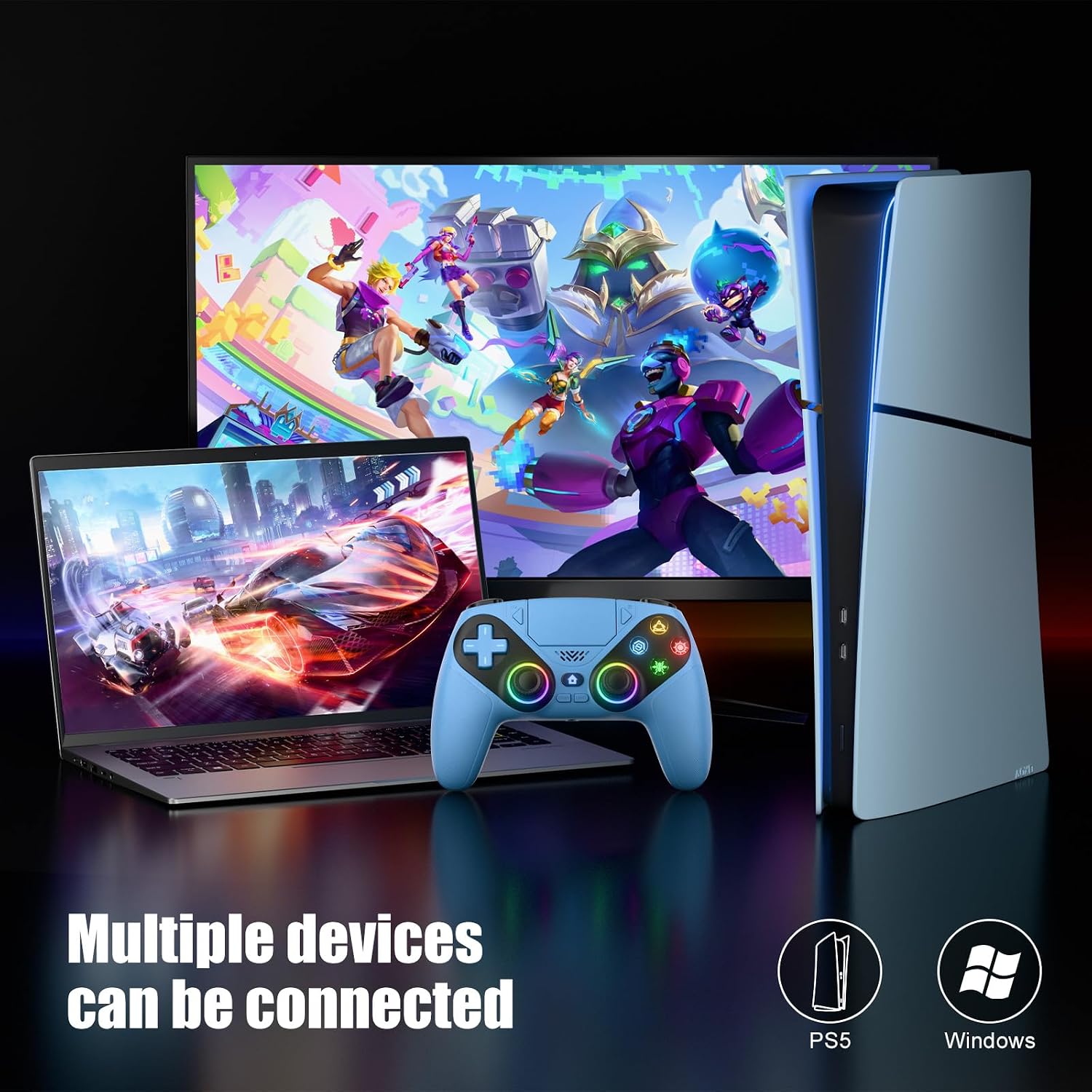
Image: The controller shown with a PlayStation 5 console and a PC, indicating its compatibility with multiple devices.
3. Charging the Controller
Connect the controller to a USB power source (e.g., PS5 console, PC, or USB wall adapter) using the provided USB cable. The integrated light bar will indicate charging status. A full charge takes approximately 3-4 hours and provides 10-15 hours of runtime.

Image: The controller connected via USB-C for charging, illustrating the internal 1000mAh battery and estimated charge/runtime.
Operating Instructions
1. Controller Layout and Functions

Image: Front and back view of the Dinosoo controller with labels for Cross key, Share, Speaker, Left Stick, Turbo, Home, Light, 3.5mm Headphone jack, Right Stick, Touchpad, MENU, R1, USB Charging port, L1, R2, PR, SET (Macro), PL, L2.
- Home Button: Press to wake up the PS5 console or return to the home screen.
- Share Button: Used to capture screenshots or video clips during gameplay.
- Touchpad: Functions as an interactive input device in supported games.
- 3.5mm Audio Jack: Connect compatible TRRS headphones for audio output and microphone input. Note: Apple 3.5mm headphones are not supported for microphone functionality.
- Built-in Speaker: Provides in-game audio effects. Does not include a microphone.
2. Adjusting RGB Lights
The controller features adjustable RGB lighting with seven color options and three light modes. Use the "Light" button (located near the Home button) to cycle through modes and colors.

Image: Illustration of the controller's RGB lighting options, including Single Color Cycle, Dazzling Color Change, Single Color Mode, Light off mode, and Color memory function.
- Single Color Cycle: Lights cycle through all available colors.
- Dazzling Color Change: Dynamic color transitions.
- Single Color Mode: Select and maintain a single color.
- Light Off Mode: Turn off all RGB lighting.
- Color Memory Function: The controller remembers your last selected light setting.
3. Turbo Function
The Turbo function allows for rapid, repeated input of a button press. To activate:
- Press and hold the "Turbo" button.
- While holding "Turbo", press the desired action button (e.g., X, O, Square, Triangle, R1, L1, etc.).
- Release both buttons. The selected action button will now activate rapidly when pressed.
- To deactivate, repeat the process: hold "Turbo" and press the action button again.

Image: The Turbo button highlighted, indicating that one press equals 10 times for rapid input.
4. Macro Programming (Back Keys PR/PL)
The controller features two programmable back keys (PR and PL) that can record a sequence of up to 16 key values. This allows for custom macro functions.

Image: Rear view of the controller highlighting the PR and PL programmable back keys, with a table showing which buttons (A, B, X, Y, L1, L2, L3, R1, R2, R3, UP, DOWN, LEFT, RIGHT) can be assigned.
Specific instructions for programming macros are typically detailed in a separate guide or require a specific button sequence not provided in the current data. Refer to the manufacturer's official support for detailed macro programming steps.
5. Six-Axis Motion Control
The integrated six-axis sensor provides motion control capabilities, allowing for intuitive input in games that support this feature. This enhances gameplay by sensing the controller's orientation and movement.

Image: The controller with visual cues for sensitive 6-axis somatosensory and sensitive 3D joystick, illustrating motion control capabilities.
6. Dynamic Vibration Feedback
The built-in dual vibration motors provide delicate and dynamic feedback, enhancing immersion during gameplay by responding to in-game actions and events.

Image: The controller with visual representation of dual motor vibration feedback, showing delicate vibration sensation.
Maintenance
- Cleaning: Use a soft, dry cloth to clean the controller. Avoid using harsh chemicals or abrasive materials.
- Storage: Store the controller in a cool, dry place away from direct sunlight and extreme temperatures.
- Battery Care: To prolong battery life, avoid fully discharging the controller frequently. Charge it regularly, even if not in use for extended periods.
- Cable Management: Handle the USB charging cable carefully to prevent damage.
Troubleshooting
| Problem | Solution |
|---|---|
| Controller does not connect wirelessly to PS5. | Ensure the initial wired connection and pairing process was completed successfully. Try re-connecting via USB cable first. Check for any system updates on your PS5. |
| Controller does not connect to PC via Bluetooth. | Verify your PC's Bluetooth is enabled and the controller is in pairing mode (Home + Share buttons). Remove any previous pairings and attempt to pair again. Ensure PC drivers are up to date. |
| Controller is not charging. | Check the USB cable and charging port for damage. Try a different USB cable or power source. Ensure the connection is secure. |
| Buttons or joysticks are unresponsive. | Ensure the controller is fully charged. Try resetting the controller (if a reset button is available, typically a small pinhole on the back). Reconnect the controller. |
| Audio jack or speaker not working. | For the audio jack, ensure headphones are TRRS compatible (not Apple 3.5mm for mic). Check in-game audio settings. Ensure controller volume is not muted. |
Specifications
- Model Number: Dinosoo RGB Wireless Controller (B0DTP6BRVL)
- Compatibility: PlayStation 5, PC (Windows system via USB wired connection)
- Connectivity: Wireless (Bluetooth), Wired (USB)
- Battery: 1000mAh Lithium Ion (included)
- Battery Runtime: 10-15 hours
- Charging Time: 3-4 hours
- Features: Turbo, Macro, Dynamic Vibration, 6-Axis Motion Control, Touchpad, Integrated Light Bar, Built-in Speaker, 3.5mm Audio Jack, Adjustable RGB Lights.
- Item Weight: 12.3 ounces
- Package Dimensions: 6.81 x 4.84 x 2.83 inches
Warranty and Support
For warranty information and technical support, please refer to the official Dinosoo website or contact their customer service directly. Details regarding specific warranty periods and support channels are typically provided with your product packaging or on the manufacturer's website.
You can visit the Dinosoo Store for more information: Dinosoo Official Store