1. Product Overview
The Zyxel USGFLEX50HP ZyWALL is a high-performance cyber security firewall designed to provide robust network protection for small to medium-sized businesses. It integrates firewall, VPN, and Unified Threat Management (UTM) capabilities, offering multi-layered defense against various cyber threats. This model features 802.3at PoE+ support and can be managed via the Nebula Cloud platform.
Key Features:
- Firewall/VPN/UTM Performance: Provides ultra-high performance for secure network operations.
- 802.3at PoE+ Support: Enables power delivery over Ethernet, simplifying deployment for compatible devices.
- uOS Operating System: Features a powerful and user-friendly operating system for efficient management.
- SecuExtender VPN Utility: Supports both IKEv2 and SSLVPN for secure remote access.
- Multi-layered Protection: Offers comprehensive defense against cyber threats, including anti-malware, web filtering, and intrusion prevention.
- Nebula Cloud Management: Allows for centralized management and monitoring through the Nebula Cloud platform.

Figure 1: Front view of the Zyxel USGFLEX50HP ZyWALL Firewall, showing status indicators and a USB port.
2. Package Contents
Verify that all items are present in the package:
- Zyxel USGFLEX50HP ZyWALL Firewall Unit
- Power Adapter
- Ethernet Cable
- Quick Start Guide
- Warranty Card
3. Setup Instructions
3.1 Physical Installation
- Placement: Position the firewall on a stable, flat surface or mount it in a rack (if applicable) in a well-ventilated area. Ensure adequate space around the device for heat dissipation.
- Connect Power: Connect the power adapter to the firewall's power input and then to an appropriate power outlet.
- Connect Network Cables:
- Connect your Internet modem or upstream router to the WAN port (typically P1 or a designated WAN port).
- Connect your internal network devices (switches, computers) to the LAN ports (P2-P5).
- If using PoE+ functionality, connect compatible PoE+ devices to the designated PoE+ ports.
- Connect Management PC: Connect a computer directly to one of the LAN ports for initial configuration.

Figure 2: Rear view of the Zyxel USGFLEX50HP ZyWALL Firewall, illustrating the various ports including P1-P5 Ethernet, Console, and power input.
3.2 Initial Configuration
- Power On: Turn on the firewall. Wait for the system indicator lights to stabilize.
- Access Web Interface: Open a web browser on the connected management PC and enter the default IP address (refer to the Quick Start Guide for the specific IP, typically 192.168.1.1).
- Login: Enter the default username and password (also found in the Quick Start Guide). It is highly recommended to change the default password immediately after the first login.
- Run Setup Wizard: Follow the on-screen setup wizard to configure basic network settings, including WAN connection type, LAN IP address, and time zone.
- Firmware Update: Check for and install the latest firmware updates to ensure optimal performance and security.
3.3 Nebula Cloud Management
The Zyxel USGFLEX50HP supports Nebula Cloud management, offering a centralized platform for device configuration, monitoring, and troubleshooting. To enable Nebula Cloud management:
- Register Device: Access the Nebula Control Center (NCC) website (nebula.zyxel.com) and create an account if you don't have one.
- Add Device: Follow the instructions in the NCC to add your USGFLEX50HP device using its MAC address and serial number.
- Synchronize: Once added, the device will synchronize with the Nebula Cloud, allowing you to manage it remotely.

Figure 3: Nebula Cloud dashboard on a tablet, providing a centralized view of network activity and device management.
4. Operating the Firewall
4.1 Security Features (UTM)
The USGFLEX50HP provides a comprehensive suite of security features through its Unified Threat Management (UTM) capabilities. These features are crucial for protecting your network from various threats.
- Anti-Malware/Anti-Virus: Scans files at the network gateway to detect and block viruses, ransomware, and other malicious software.
- Web Filtering/Content Filtering: Allows administrators to block access to risky or inappropriate websites based on categories or custom rules.
- Intrusion Prevention System (IPS/IDP): Detects and prevents network intrusions and exploits by analyzing traffic patterns.
- Application Patrol: Provides control over network application usage, allowing for blocking or prioritizing specific applications.
- Sandboxing/Zero Day Threats: Utilizes cloud-based sandbox technology to analyze unknown and zero-day threats in an isolated environment.
- Reputation Filter: Blocks botnet infections and prevents downloads from known infected websites.
- Email Security/Anti-Spam: Filters out spam and phishing emails with malicious content or attachments.

Figure 4: Overview of security features, distinguishing between those available with hardware only (unlicensed) and those included with a security bundle (licensed).

Figure 5: Visual representation of the firewall's capabilities in blocking threats like anti-malware and IPS, and restricting behaviors through web filtering and application security.
4.2 VPN Configuration
The USGFLEX50HP supports Virtual Private Network (VPN) connections, allowing secure remote access to your network. Refer to the device's web interface or Nebula Cloud documentation for detailed instructions on configuring IKEv2 and SSLVPN tunnels.
4.3 PoE+ Functionality
The USGFLEX50HP model includes Power over Ethernet Plus (PoE+) ports, capable of delivering up to 30W per port to compatible devices such as IP cameras, VoIP phones, and wireless access points. This simplifies deployment by eliminating the need for separate power adapters for these devices.

Figure 6: Illustration of the PoE+ capability, emphasizing its role in maximizing power usage per port for connected devices.
5. Maintenance
Regular maintenance ensures the optimal performance and security of your Zyxel USGFLEX50HP firewall.
- Firmware Updates: Periodically check the Zyxel support website or Nebula Control Center for new firmware versions. Apply updates promptly to benefit from security patches and new features.
- Configuration Backup: Regularly back up your firewall configuration. This allows for quick restoration in case of unexpected issues or device replacement.
- Security Service Subscriptions: Ensure that your UTM security service subscriptions (e.g., Gold Security Pack) are active and up-to-date to maintain comprehensive threat protection.
- Physical Inspection: Periodically inspect the device for proper ventilation and ensure all cable connections are secure.
6. Troubleshooting
This section provides solutions to common issues you might encounter.
6.1 No Internet Access
- Check Physical Connections: Ensure all Ethernet cables are securely connected to the correct ports (WAN, LAN).
- Modem/Router Status: Verify that your Internet modem or upstream router is functioning correctly and has an active Internet connection.
- WAN Configuration: Log into the firewall's web interface or Nebula Cloud and verify that the WAN settings (e.g., DHCP, Static IP, PPPoE) are correctly configured according to your Internet Service Provider (ISP) details.
- DNS Settings: Ensure correct DNS server addresses are configured.
6.2 Cannot Access Web Interface
- IP Address: Confirm you are using the correct IP address for the firewall (default is often 192.168.1.1).
- Network Settings: Ensure your computer's network adapter is configured to obtain an IP address automatically (DHCP) or has a static IP address within the same subnet as the firewall.
- Browser Cache: Clear your web browser's cache and cookies, or try a different browser.
- Reboot: Power cycle the firewall by disconnecting and reconnecting the power adapter. Wait for it to fully boot up before attempting to access the interface again.
6.3 Slow Network Performance
- Check Throughput: Refer to the specifications to ensure your internet speed and user count are within the device's recommended limits.
- UTM Services: While essential for security, some UTM services can impact throughput. Review your security policy settings and consider optimizing them if performance is critical.
- Network Congestion: Check for other devices or applications on your network that might be consuming significant bandwidth.
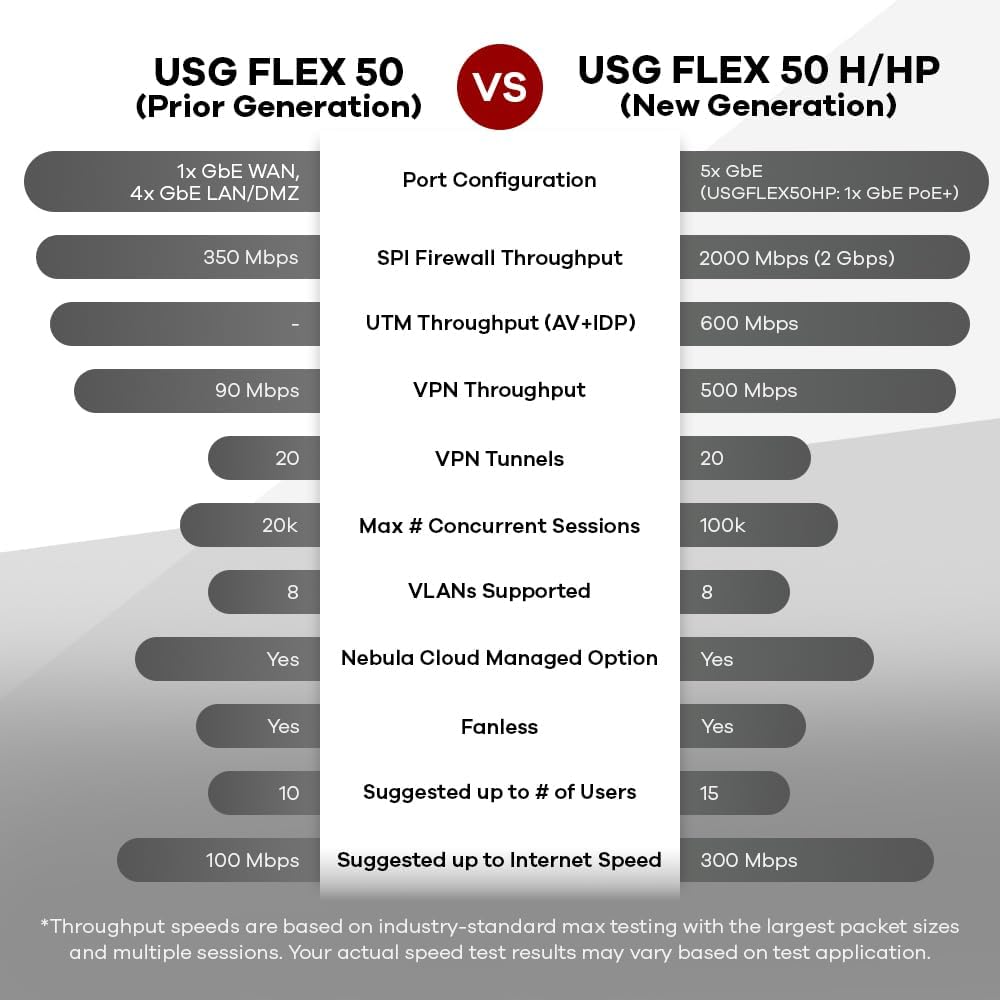
Figure 7: Performance comparison between the prior generation USG FLEX 50 and the new generation USG FLEX 50 H/HP, highlighting improvements in firewall, UTM, and VPN throughput.
7. Specifications
Detailed technical specifications for the Zyxel USGFLEX50HP ZyWALL Firewall.
| Feature | Detail |
|---|---|
| Brand | ZYXEL |
| Model Number | USGFLEX50HP |
| Manufacturer | Zyxel |
| UPC | 760559131302 |
| Item Weight | 4.21 pounds |
| Package Dimensions | 10.94 x 7.44 x 3.9 inches |
| Number of Ports | 5 (Ethernet) + Console + USB |
| Interface Type | PoE+ |
| Recommended Users | Up to 25 users |
| Firewall Throughput | Up to 2000 Mbps (2 Gbps) |
| UTM Throughput (AV+IDP) | Up to 600 Mbps |
| VPN Throughput | Up to 500 Mbps |
8. Warranty and Support
For warranty information, technical support, and additional resources, please visit the official Zyxel website.
- Official Zyxel Website: www.zyxel.com
- Support Portal: Access FAQs, documentation, and contact support personnel.
- Firmware Downloads: Obtain the latest firmware updates for your device.
The product typically includes a manufacturer's warranty. Please refer to the warranty card included in your package or the Zyxel website for specific terms and conditions.


