1. Introduction
Thank you for choosing the Portronics Key10 Combo Wireless Keyboard and Mouse Set. This manual provides detailed instructions for setting up, operating, and maintaining your new wireless peripherals. Please read this manual carefully before use to ensure optimal performance and longevity of your product.
Package Contents:
- 1 x Portronics Key10 Wireless Keyboard
- 1 x Portronics Wireless Mouse
- 1 x USB Receiver (typically stored inside the mouse battery compartment)
- 1 x User Manual

Image 1.1: Portronics Key10 Combo Wireless Keyboard and Mouse Set.
2. Setup and Installation
Follow these steps to set up your Portronics Key10 Combo:
- Insert Batteries:
- Keyboard: Open the battery compartment on the underside of the keyboard. Insert the required batteries (not included), ensuring correct polarity.
- Mouse: Open the battery compartment on the underside of the mouse. Insert the required batteries (not included), ensuring correct polarity.
- Locate USB Receiver: The compact USB receiver is usually stored in the battery compartment of the mouse for safekeeping. Carefully remove it.
- Connect USB Receiver: Plug the USB receiver into an available USB port on your computer (PC or Laptop).
- Power On Devices:
- Keyboard: Locate the ON/OFF switch on the keyboard and slide it to the "ON" position.
- Mouse: Locate the ON/OFF switch on the mouse and slide it to the "ON" position.
- Automatic Connection: Your computer should automatically detect and install the necessary drivers for the keyboard and mouse. This process may take a few moments. Once complete, the devices are ready for use.
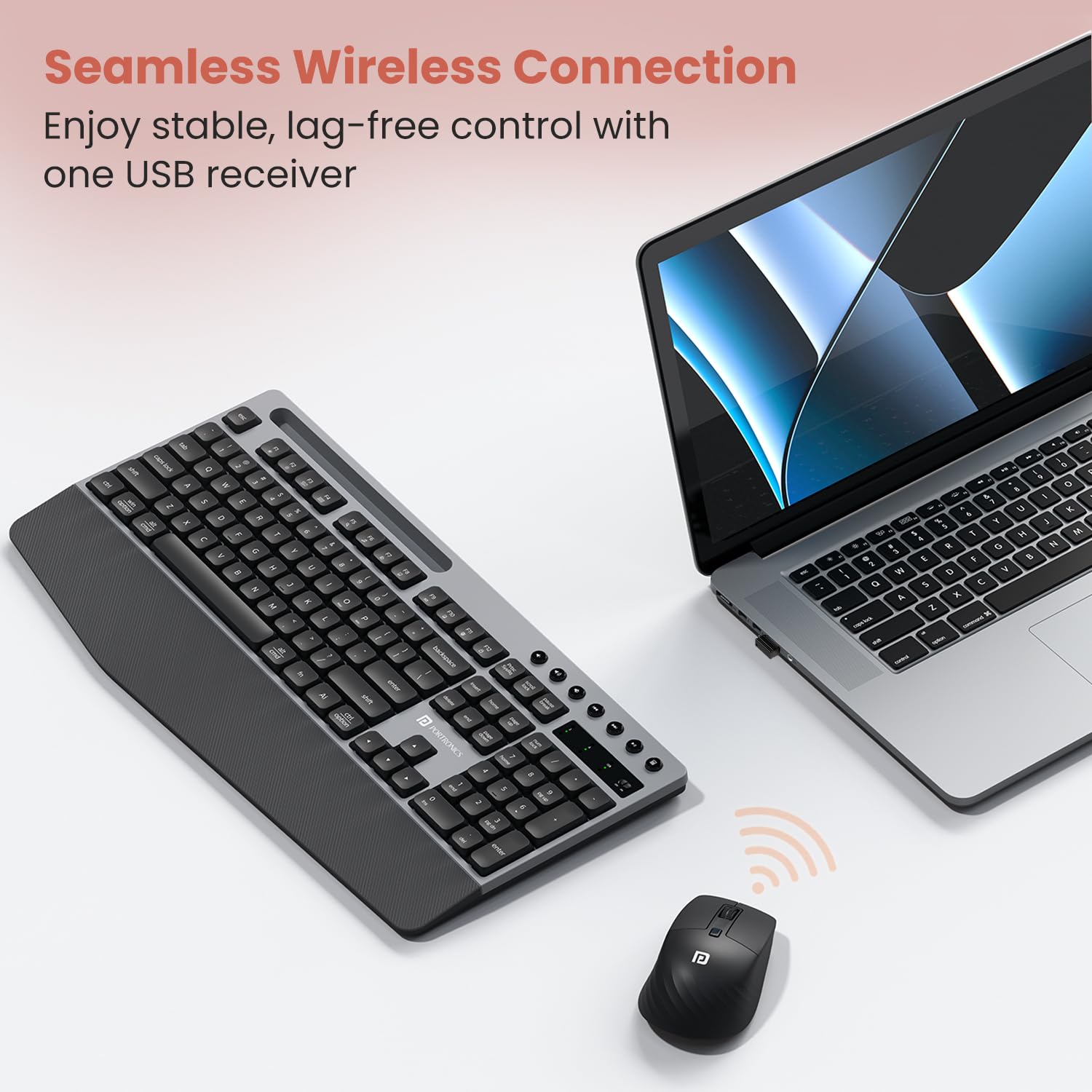
Image 2.1: The USB receiver provides a stable, lag-free 2.4 GHz wireless connection for both keyboard and mouse.
3. Operating Instructions
3.1 Keyboard Features
- Ergonomic Wrist Rest: The integrated wrist rest provides support and comfort during extended typing sessions, reducing strain.
- Noiseless Keycaps: Designed for quiet operation, the keycaps minimize typing sound, making it suitable for shared or quiet environments.
- Multimedia Hotkeys: Dedicated keys located above the function row allow for quick control of media playback (play, pause, skip tracks) and volume adjustments (mute, volume up, volume down).
- Integrated Smartphone Holder: A built-in slot on the keyboard allows you to conveniently place your smartphone, keeping it visible for notifications or multitasking.
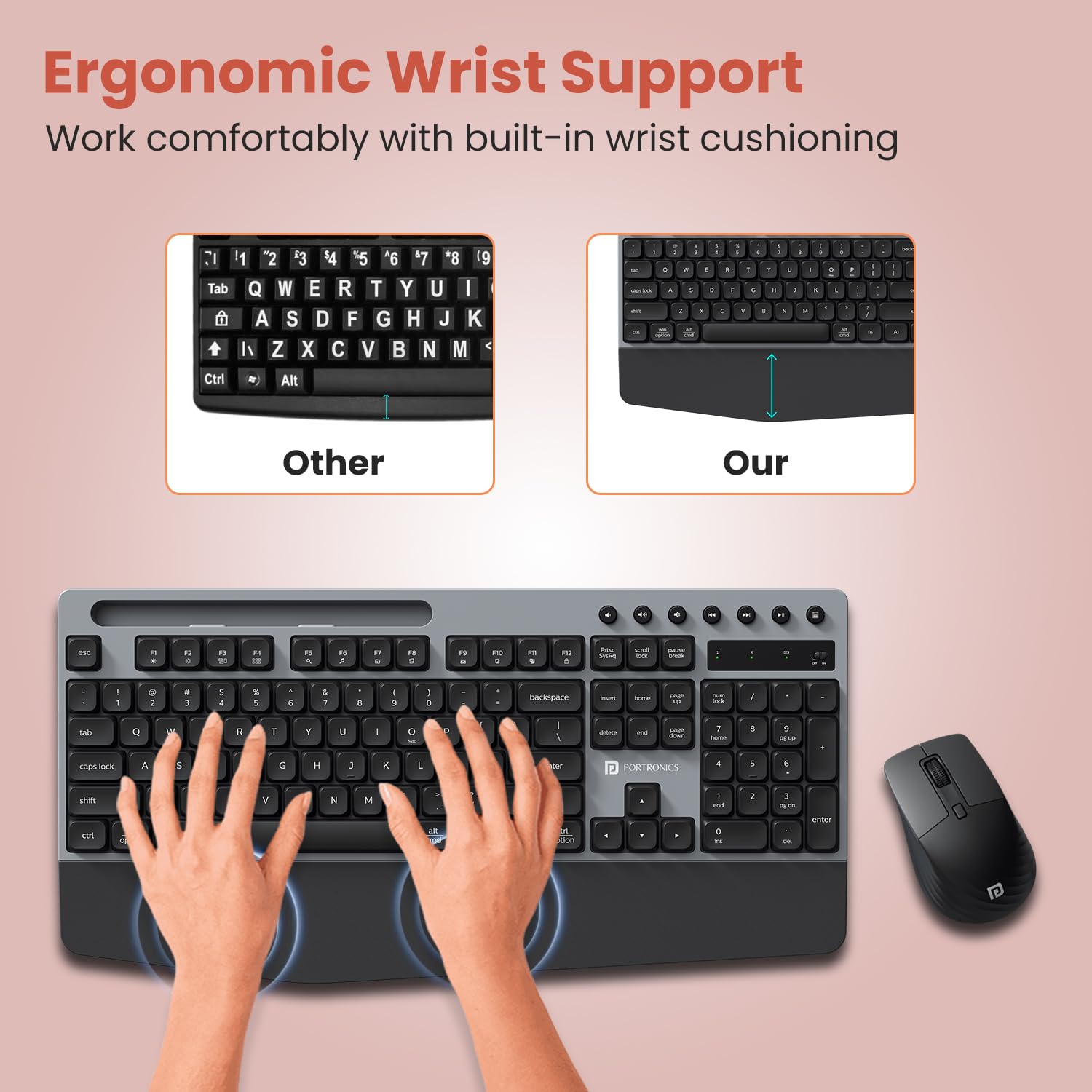
Image 3.1: The keyboard features a built-in wrist rest for enhanced comfort.

Image 3.2: Responsive and quiet keys provide an effortless typing experience.

Image 3.3: Dedicated multimedia keys for quick control of audio and video functions.

Image 3.4: The integrated smartphone holder keeps your device handy.
3.2 Mouse Features
- Adjustable DPI Settings: The mouse features a DPI adjustment button, allowing you to switch between multiple sensitivity levels (e.g., 800, 1200, 1600 DPI) to suit your preference for precision or speed. Press the DPI button to cycle through the settings.

Image 3.5: Adjust mouse sensitivity with the DPI button for optimal control.
3.3 Power Saving Mode
The Key10 Combo is equipped with an auto-sleep function to conserve battery life. If inactive for a period, both the keyboard and mouse will enter a low-power sleep mode. To wake them up, simply press any key on the keyboard or move/click the mouse.

Image 3.6: The auto-sleep feature helps extend battery life during periods of inactivity.
4. Maintenance
To ensure the longevity and optimal performance of your Key10 Combo, follow these maintenance guidelines:
- Cleaning:
- Use a soft, dry cloth to wipe the surfaces of the keyboard and mouse.
- For stubborn dirt, slightly dampen the cloth with water or a mild, non-abrasive cleaner. Avoid excessive moisture.
- Do not use harsh chemicals, solvents, or abrasive materials, as these can damage the finish.
- For keyboard keys, use compressed air to remove dust and debris from between the keycaps.
- Battery Replacement:
- When the devices become unresponsive or exhibit erratic behavior, it may be time to replace the batteries.
- Refer to Section 2.1 for instructions on opening the battery compartments and inserting new batteries.
- Dispose of used batteries responsibly according to local regulations.
- Storage: When not in use for extended periods, turn off both the keyboard and mouse to conserve battery life. Store them in a cool, dry place away from direct sunlight and extreme temperatures.
5. Troubleshooting
If you encounter issues with your Portronics Key10 Combo, please refer to the following common solutions:
| Problem | Possible Solution |
|---|---|
| Devices not responding |
|
| Lag or intermittent connection |
|
| Mouse pointer erratic or not moving smoothly |
|
| Multimedia keys not working |
|
6. Specifications
| Feature | Detail |
|---|---|
| Brand | Portronics |
| Model Number | POR-349 |
| Connectivity Technology | 2.4 GHz Wireless |
| Operating System Compatibility | All Windows (and compatible with other major operating systems) |
| Power Source | Battery Powered (Batteries not included) |
| Keyboard Dimensions (LxWxH) | Approximately 29 x 44.5 x 5 cm |
| Item Weight (Combo) | Approximately 1.09 kg |
| Special Features | Adjustable DPI, Multimedia Hotkeys, Integrated Wrist-Rest, Smartphone Holder, Noiseless Keycaps, Auto-Sleep Power Saving |
7. Warranty and Support
7.1 Warranty Information
The Portronics Key10 Combo Wireless Keyboard and Mouse Set typically comes with a 1-year manufacturer's warranty from the date of purchase. This warranty covers manufacturing defects and material faults under normal use. Please retain your purchase receipt as proof of purchase for warranty claims.
The warranty does not cover damage caused by misuse, accident, unauthorized modification, or normal wear and tear.
7.2 Customer Support
For technical assistance, warranty claims, or any other inquiries regarding your Portronics Key10 Combo, please contact Portronics customer support:
- Email: help@portronics.com
- Phone: +91 9555-245-245
- Manufacturer Address: Portronics Digital Pvt ltd, First Floor Property No D 8 Upper Basement Sector 8 Noida Uttar Pradesh 201301, India.
When contacting support, please have your product model number (POR-349) and proof of purchase ready.


