1. Introduction
The NearStream AM20X USB/XLR Condenser Microphone with Boom Arm is designed to deliver high-quality audio for various applications including podcasting, streaming, gaming, and music recording. This manual provides comprehensive instructions for setting up, operating, and maintaining your microphone to ensure optimal performance.
2. What's in the Box
- AM20X Condenser Microphone x 1
- Mic Windscreen x 1
- Boom Arm Stand x 1
- USB Cable (6.6 ft) x 1

3. Product Overview
The AM20X microphone features intuitive controls and versatile connectivity options. Below is an overview of its main components and functions.
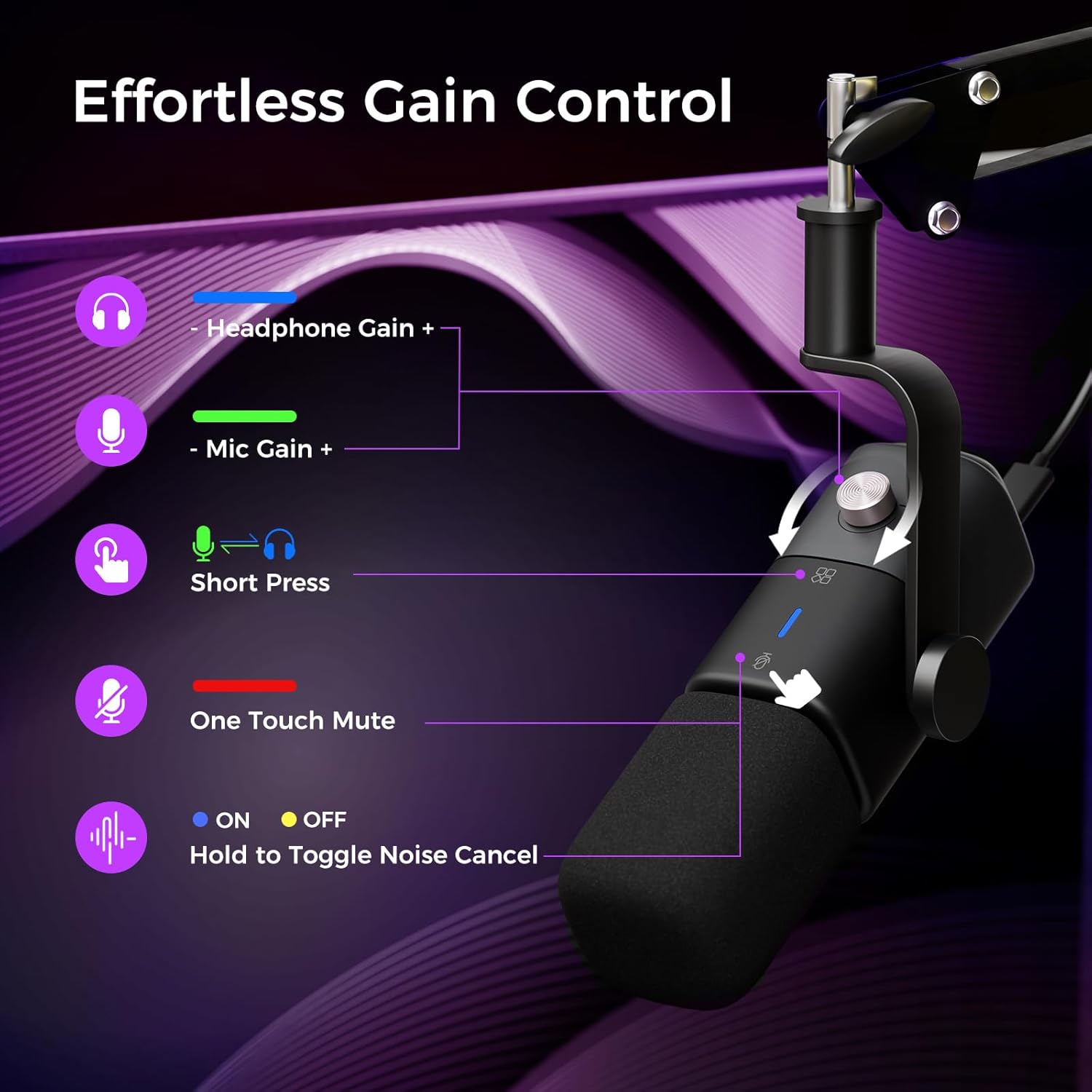
- Mute/Noise-Cancel Button: Short press to toggle mute (red LED). Long press to activate/deactivate AI noise cancellation (blue/yellow LEDs).
- Mic/Monitor Mode Switch: Short press to toggle between microphone mode (blue/yellow LED) and real-time monitoring mode (green LED).
- Rotary Volume Knob: 15-level adjustment for microphone and monitoring volume.
- XLR Interface: For professional audio mixer connections.
- USB Type-C Port: For direct connection to computers and gaming consoles.
- 3.5mm Headphone Jack: For real-time audio monitoring.
4. Setup
4.1 Assembling the Boom Arm
The included boom arm stand provides flexible positioning for your microphone. Attach the desk clamp to a sturdy surface (up to 1.77 inches thick). Insert the boom arm into the clamp and secure it. Attach the microphone to the boom arm's mounting point. The arm offers 180° vertical and 360° horizontal extension, and the microphone head adjusts vertically by 180°.

4.2 Connecting the Microphone
The AM20X offers both USB and XLR connectivity.
- USB Connection: Use the provided USB-C cable to connect the microphone directly to your computer (PC, laptop, Mac), PS4, or PS5. This is a plug-and-play setup requiring no additional drivers. Note that noise canceling, sound monitoring, and gain adjustment features are only supported with the USB connection.
- XLR Connection: For professional audio setups, connect an XLR cable (not included) from the microphone to an audio mixer or interface. Note that advanced features like noise canceling, sound monitoring, and gain adjustment are not available when using the XLR interface.

5. Operating Instructions
5.1 Powering On/Off
The microphone powers on automatically when connected via USB. There is no separate power button. Disconnect the USB cable to power off.
5.2 Mute/Noise Cancellation
These functions are controlled by a dual-action button on the microphone (USB mode only).
- Short Press: Toggles mute on/off. The LED indicator will turn red when muted.
- Long Press: Activates/deactivates AI-powered noise cancellation. The LED will show blue/yellow when active.
5.3 Mic/Monitor Mode Switch
Toggle between microphone mode and real-time monitoring mode with a short press of the dedicated button (USB mode only). A green LED indicates monitoring mode is active.
5.4 Volume Adjustment
Use the 15-level rotary volume knob to adjust both microphone input gain and headphone monitoring volume (USB mode only).
5.5 Real-Time Monitoring
Plug headphones into the 3.5mm jack for real-time, zero-latency audio monitoring. This feature is available only in USB mode.
6. Features
6.1 Studio-Quality Sound with Smart Noise Cancellation
The AM20X delivers clear, studio-grade audio with a Supercardioid pickup pattern that focuses on your voice while minimizing background noise. It handles sound pressure levels up to 125dB without distortion, ensuring crisp and natural sound. The AI-powered noise cancellation can be switched on or off, filtering out distractions such as typing or ambient noise for smooth, high-quality recording and streaming.

6.2 USB/XLR Connectivity Options
This microphone offers both USB and XLR connections, ensuring seamless compatibility with computers, PCs, PS5, PS4, and audio mixers. Please note that the XLR cable is not included. Noise canceling, sound monitoring, and gain adjustment features are only supported with the USB connection.
6.3 Real-Time Monitoring & Easy Plug-and-Play Setup
The microphone features a 3.5mm headphone jack for real-time, zero-lag audio monitoring and instant sound adjustments (monitoring available via USB mode). With its true plug-and-play design, it connects effortlessly to your PC, laptop, PS4, PS5, or audio interface—no additional drivers or software needed.
6.4 Smart Control Mic
This boom microphone combines multifunction controls with color-coded LED indicators, featuring a dual-action mute/noise-cancel button (short press toggles mute with red LED, long press activates noise cancellation with blue/yellow LEDs), a mic/monitor mode switch (green LED for monitoring), and a 15-level rotary volume knob - all functions exclusively available in USB mode.
6.5 Sleek & Sturdy Microphone Design
This noise cancelling microphone is built with a strong metal boom arm that supports up to 3.3 pounds without any vibration. The arm offers 180° vertical and 360° horizontal extension, while the microphone head adjusts vertically by 180° for precise positioning tailored to your recording needs. The desk clamp is compatible with desktops up to 1.77 inches thick.

7. Compatibility
The NearStream AM20X microphone is compatible with a wide range of devices:
- Personal Computers (PC, Laptop, Mac)
- Gaming Consoles (PS4, PS5)
- Audio Interfaces
- Audio Mixers
Recommended Uses: Gaming, Music Recording, Podcasting, Streaming.

8. Warm Tips
- The AM20X condenser microphone has a maximum pickup distance of 15 inches, allowing you to customize the pickup range for your recording needs.
- The package includes one AM20X microphone, one mic windscreen, one boom arm stand, and one USB cable; please note that an XLR cable is not included.
- All function keys (noise canceling, sound monitoring, gain adjustment) are only available with a USB connection.
9. Specifications
| Attribute | Detail |
|---|---|
| Brand | NearStream |
| Model Number | AM20X |
| Item Weight | 2.31 pounds |
| Package Dimensions | 16.45 x 5.71 x 5 inches |
| Material Type | Metal |
| Connectivity Technology | USB, XLR |
| Connector Type | USB Type-C, XLR |
| Special Feature | Mute Function, Noise Reduction, Sound Monitoring, Volume Control, XLR/USB Connection |
| Polar Pattern | Super Cardioid |
| Recommended Uses | Gaming, Music Recording, Podcasting, Streaming |
10. Troubleshooting
- No Sound Output (USB): Ensure the USB cable is securely connected to both the microphone and your device. Check your device's audio input settings to confirm the AM20X is selected as the input device. Verify the microphone is not muted (red LED).
- No Sound Output (XLR): Ensure the XLR cable is securely connected to both the microphone and your audio interface/mixer. Confirm that your audio interface/mixer is providing phantom power if required by your setup.
- Noise Cancellation Not Working: This feature is only available in USB mode. Ensure the microphone is connected via USB and perform a long press on the mute/noise-cancel button to activate it (blue/yellow LED).
- Monitoring Issues: Real-time monitoring is only available in USB mode. Ensure headphones are properly plugged into the 3.5mm jack and adjust the monitoring volume using the rotary knob.
- Microphone Not Recognized: Try connecting the microphone to a different USB port or a different device to rule out port or device-specific issues. Restart your computer.
11. Maintenance
- Cleaning: Use a soft, dry cloth to clean the microphone body. Do not use liquid cleaners or solvents.
- Storage: When not in use, store the microphone in a clean, dry place away from extreme temperatures and humidity.
- Handling: Avoid dropping the microphone or subjecting it to strong impacts, as this can damage internal components.
12. Warranty & Support
The NearStream AM20X microphone comes with a manufacturer's warranty. Please refer to the warranty card included in your package for specific terms and conditions. For technical support, troubleshooting assistance, or warranty claims, please contact NearStream customer service through their official website or the retailer where you purchased the product.
