
1. Introduction
This manual provides comprehensive instructions for the installation, operation, and maintenance of your Veise Smart Lock with Handle Set and G1 Gateway. Please read this manual carefully before installation and use to ensure proper function and safety. Keep this manual for future reference.
2. Product Overview
The Veise Smart Lock offers advanced security and convenience for your home. It integrates with the KK Home APP and can be controlled remotely via the G1 Gateway.
Key Features:
- Five Unlock and Lock Options: App control, fingerprint, password, key fobs, and traditional keys.
- KK Home App Control: Remote access management, temporary code generation, and key sharing. Supports voice announcements in English, Spanish, and French.
- Absolute Security Assurance: AES-128 encryption for biometric data. IP55 weather resistance.
- Seamless Smart Home Integration: Pair with the G1 Gateway for voice commands (Alexa, Google Home compatible), remote unlocking, and activity logs.
- Emergency Charging Port: Ensures access even if batteries are depleted.

Image: The Veise Smart Lock displaying its various access methods including KK Home App control, fingerprint, PIN code, key fobs, and a spare key.

Image: The Veise Smart Lock installed on a door, with the G1 Gateway plugged into an outlet. The image highlights compatibility with KK Home App, Alexa, and Google Home, noting the G1 Gateway is a separate purchase.
3. Setup
3.1 Installation of the Smart Lock
Follow the detailed instructions provided in the separate installation guide included with your product packaging. Ensure all components are correctly aligned and secured. The lock requires batteries for operation (not included).
3.2 G1 Gateway Setup
- Plug the G1 Gateway into a standard electrical outlet within 32 feet (10 meters) of your smart lock.
- Ensure the gateway is connected to a 2.4G Wi-Fi network.
- Download the KK Home App from your device's app store.
- Follow the in-app instructions to add the G1 Gateway and then pair your Veise Smart Lock.

Image: The G1 Gateway plugged into an outlet, showing its optimal placement within 32 feet (10 meters) of the smart lock and its reliance on 2.4G WiFi. Gateway specifications are also displayed: Working Voltage 100-240V, Max Current 10A, Rated Power 2200W.
3.3 KK Home App Installation and Pairing
- Search for "KK Home" in your mobile device's app store and install the application.
- Create an account or log in.
- Follow the on-screen prompts to add your Veise Smart Lock and G1 Gateway to the app. This typically involves scanning a QR code or entering a device ID.
4. Operating Instructions
4.1 Unlocking and Locking Methods
- Fingerprint: Place your registered finger on the fingerprint sensor. The lock will unlock in approximately 0.3 seconds.
- PIN Code: Enter your registered PIN code on the keypad and press the checkmark (✓) button. The lock will unlock in approximately 0.3 seconds.
- Key Fob: Present a registered key fob to the designated area on the lock.
- Traditional Key: Insert and turn the physical key in the keyhole.
- KK Home App: Open the app, select your lock, and tap the unlock/lock icon.
- Voice Command (with G1 Gateway): Use compatible voice assistants (e.g., Alexa, Google Home) with commands like "Open the front door."

Image: The Veise Smart Lock installed on a door, illustrating various quick unlock methods including 0.3s fingerprint unlock, 0.3s touch lock (PIN code), app control, and traditional key lock.
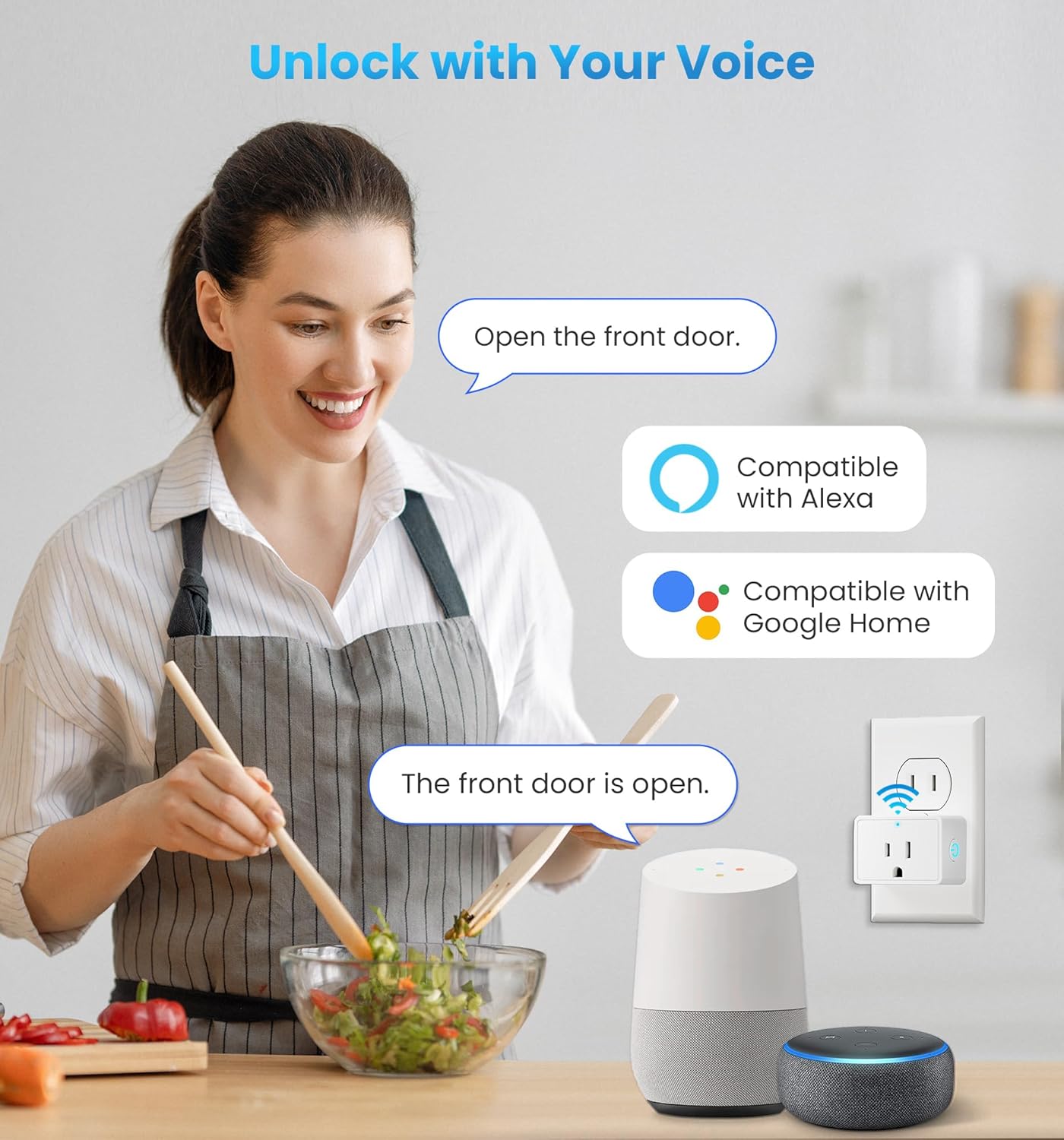
Image: A person using voice commands to unlock the Veise Smart Lock, demonstrating compatibility with Alexa and Google Home smart speakers via the G1 Gateway.
4.2 KK Home App Functions
The KK Home App provides comprehensive control and monitoring capabilities:
- Remote Access: Lock or unlock your door from anywhere.
- User Management: Add, modify, or delete fingerprints, PIN codes, and key fobs for various users (family, guests).
- Temporary Codes: Generate time-sensitive or one-time access codes for visitors.
- Activity Logs: View a history of lock and unlock events.
- Real-Time Alerts: Receive notifications for lock activity, low battery, or unauthorized access attempts.
- Voice Announcements: Customize voice prompts for lock status in English, Spanish, or French.

Image: A smartphone displaying the KK Home App interface, highlighting features such as convenient remote access, instant password management, real-time alerts, and live lock monitoring.

Image: A smartphone screen showing multiple real-time notifications from the KK Home App, indicating various lock activities such as auto-locking, unlocking by a user, and manual locking/unlocking of a garage door.
5. Maintenance
5.1 Battery Replacement
The smart lock requires batteries (typically AA, quantity specified in the installation guide). When the battery level is low, the lock will provide an alert via the app and/or an audible warning. Replace all batteries simultaneously with new, high-quality alkaline batteries.
5.2 Emergency Power
In case of complete battery depletion, an emergency charging port (usually Micro-USB or USB-C) is available on the exterior unit. Connect a power bank or a USB power source to temporarily power the lock and gain access.
5.3 Cleaning
Clean the lock's exterior surfaces with a soft, damp cloth. Avoid using abrasive cleaners, solvents, or chemical sprays, as these can damage the finish and electronic components. Regularly clean the fingerprint sensor to ensure optimal performance.
5.4 Weather Resistance
The lock has an IP55 rating, indicating protection against dust ingress and low-pressure water jets. While it can withstand various weather conditions, avoid direct and prolonged exposure to heavy rain or extreme temperatures to prolong its lifespan.
6. Troubleshooting
If you encounter issues with your Veise Smart Lock, refer to the following common solutions:
- Lock not responding: Check battery levels and replace if necessary. Use the emergency charging port if completely drained.
- Fingerprint not recognized: Ensure your finger is clean and dry. Re-register your fingerprint in the app if the issue persists.
- PIN code not working: Verify the correct code is entered. Ensure the keypad is clean and free from debris.
- App connectivity issues: Ensure your G1 Gateway is powered on and connected to a stable 2.4G Wi-Fi network. Check if your phone has internet access. Restart the app or your phone.
- Voice commands not working: Confirm your G1 Gateway is properly paired with your smart lock and linked to your voice assistant (Alexa/Google Home) account. Ensure the voice assistant device is online.
- Lock mechanism jammed: Do not force the lock. Check for any obstructions in the door frame or latch. Ensure the lock is properly installed and aligned.
For more detailed troubleshooting or persistent issues, consult the KK Home App's help section or contact Veise customer support.
7. Specifications
| Brand | Veise |
| Model | B0DTK5RQJZ |
| Color | Black |
| Exterior Finish | Nickel |
| Lock Type | Smart Lock |
| Handle Material | Stainless Steel |
| Batteries Required | Yes (not included) |
| Ingress Protection (IP) Rating | IP55 |
| G1 Gateway Working Voltage | 100-240V |
| G1 Gateway Max Current | 10A |
| G1 Gateway Rated Power | 2200W |
8. Warranty and Support
8.1 Warranty Information
For detailed warranty information, please refer to the warranty card included in your product packaging or visit the official Veise website. The warranty typically covers manufacturing defects for a specified period from the date of purchase.
8.2 Customer Support
If you require further assistance, technical support, or have questions not covered in this manual, please contact Veise customer support. Contact details can usually be found on the product packaging, the official Veise website, or within the KK Home App.


