
Introduction
This manual provides detailed instructions for the Tiqvi Wireless CarPlay Dongle, Model TVE10001. This device is designed to convert your vehicle's wired Apple CarPlay or Android Auto system into a wireless one, offering seamless connectivity via Bluetooth 5.0. Its compact design ensures easy integration into your car's interior.
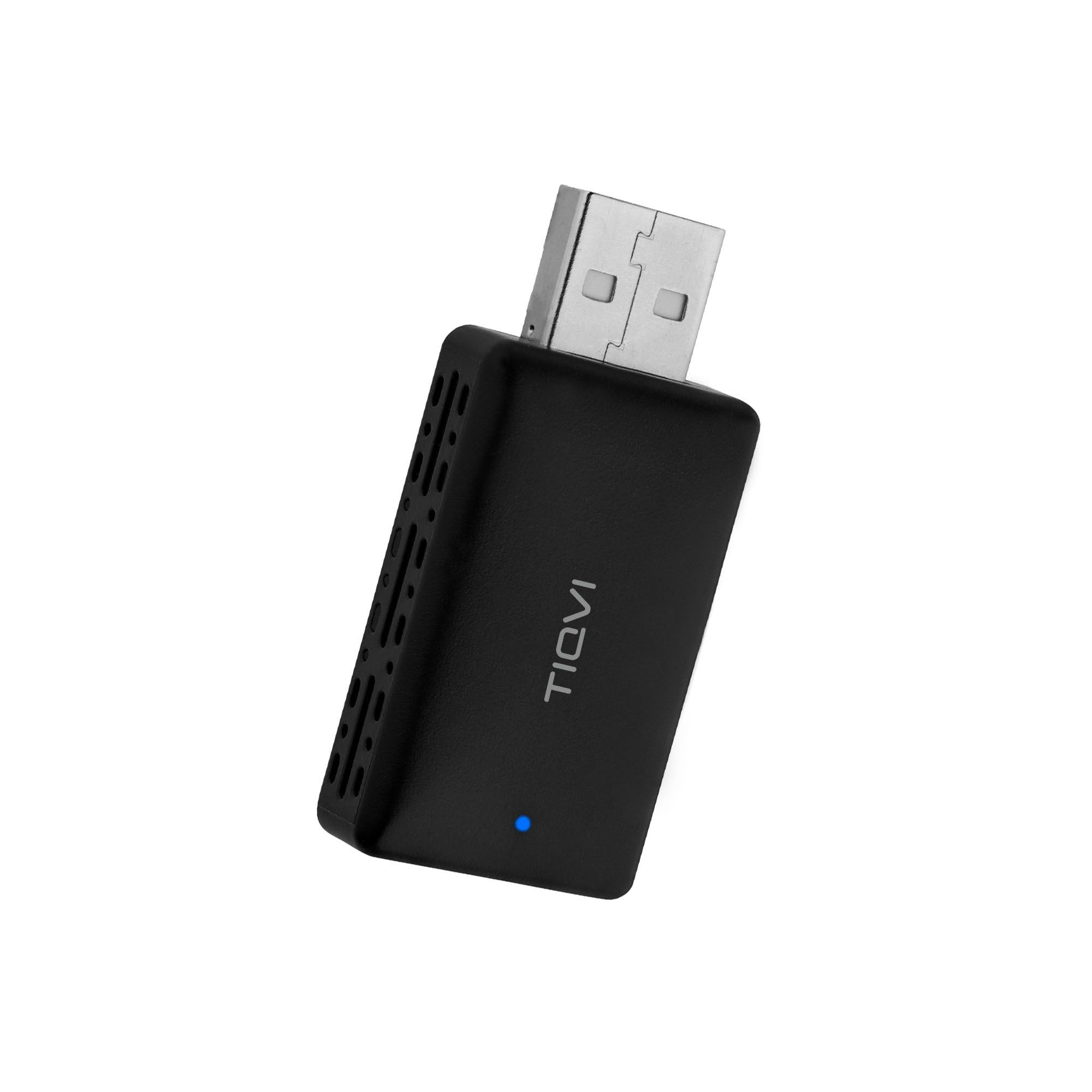
Image: The Tiqvi Wireless CarPlay Dongle, a compact black device with a USB-A connector, designed for wireless connectivity.
Package Contents
Before proceeding with the setup, please ensure all items are present in the package:
- Tiqvi Wireless CarPlay Dongle (Model TVE10001)
- USB-C Adapter
- User Manual (this document)

Image: The Tiqvi Wireless CarPlay Dongle shown alongside its included USB-C adapter, illustrating the complete package contents.
Setup Instructions
Follow these steps to set up your Tiqvi Wireless CarPlay Dongle:
- Vehicle Compatibility Check: Ensure your vehicle's infotainment system supports wired Apple CarPlay or Android Auto. The dongle requires an existing wired connection to function wirelessly.
- Connect the Dongle: Plug the Tiqvi dongle into your vehicle's USB port. If your vehicle has a USB-C port, use the provided USB-C adapter.
- Power On: Start your vehicle. The dongle's indicator light should illuminate, indicating it is powered on and ready for pairing.
- Smartphone Preparation: On your smartphone, enable both Bluetooth and Wi-Fi. Do not connect to any Wi-Fi networks at this stage; simply ensure Wi-Fi is active.
- Pair via Bluetooth: On your smartphone, go to Bluetooth settings and search for available devices. Select the device named "SmartBox" (or similar, refer to your car's screen if a different name appears) to pair.
- Confirm Connection: Follow any prompts that appear on your car's infotainment screen or your smartphone to confirm the connection. Once paired, your car's screen should automatically switch to the Apple CarPlay or Android Auto interface.

Image: A close-up of the Tiqvi dongle highlighting its mini size, plug & play functionality, and compatibility with both Apple CarPlay and Android Auto, along with the USB-C adapter.

Image: The Tiqvi dongle plugged into a car's USB port, illustrating its fast and wireless connection capability and automatic reconnection feature.
Operating Instructions
Once the Tiqvi Wireless CarPlay Dongle is successfully set up, operating it is straightforward:
- Automatic Connection: After the initial pairing, the dongle will automatically connect to your smartphone when you start your vehicle, provided Bluetooth and Wi-Fi are enabled on your phone.
- CarPlay/Android Auto Interface: Your car's infotainment screen will display the familiar Apple CarPlay or Android Auto interface.
- Navigation: Use your car's touchscreen, physical controls, or voice commands to navigate through applications such as maps, music, and communication tools.
- Calls and Messaging: Make and receive calls, send messages, and access your contacts directly from your car's display.
- Media Playback: Stream music, podcasts, and audiobooks from your preferred apps.

Image: A car's infotainment screen displaying both Apple CarPlay and Android Auto interfaces, with smartphones held below, demonstrating dual compatibility.

Image: A car's dashboard with multiple screens showing various Apple CarPlay functions simultaneously, including music playback, navigation, and phone calls.
Maintenance
To ensure the longevity and optimal performance of your Tiqvi Wireless CarPlay Dongle, please observe the following maintenance guidelines:
- Cleaning: Use a soft, dry cloth to clean the exterior of the dongle. Avoid using liquid cleaners or abrasive materials.
- Environmental Conditions: Store and operate the dongle within typical automotive temperature ranges. Avoid exposing it to extreme heat, cold, or direct sunlight for prolonged periods.
- Handling: Handle the dongle with care. Avoid dropping it or subjecting it to strong impacts.
- Disassembly: Do not attempt to disassemble or modify the dongle. This can void the warranty and may cause damage to the device.
Troubleshooting
If you encounter issues with your Tiqvi Wireless CarPlay Dongle, refer to the following common problems and solutions:
| Problem | Possible Cause | Solution |
|---|---|---|
| No Connection / Dongle Not Detected |
|
|
| Intermittent Connection / Disconnections |
|
|
| CarPlay/Android Auto Not Launching |
|
|
If the problem persists after trying these solutions, please contact customer support.
Specifications
| Feature | Detail |
|---|---|
| Brand | Tiqvi |
| Model | TVE10001 |
| Hardware Interface | Bluetooth 5 |
| Compatible Devices | Smartphone (Apple iOS 13+, Android) |
| Data Link Protocol | Bluetooth |
| Item Weight | 40 Grams |
| Product Dimensions | 10 x 7 x 7 cm |
Warranty and Support
For information regarding the product warranty, please refer to the documentation provided at the time of purchase or contact your retailer. For technical support or further assistance, please reach out to Tiqvi customer service through their official channels.