
1. Introduction
This manual provides detailed instructions for the setup, operation, and maintenance of your Tiqvi Smart Baby Monitor. Please read this manual thoroughly before using the device to ensure proper functionality and safety. The Tiqvi Smart Baby Monitor offers advanced features such as 1080P HD video, WiFi connectivity, remote control via the Calex Smart App, night vision, two-way audio, motion detection, and temperature monitoring.

Front view of the Tiqvi Smart Baby Monitor, featuring a camera lens and the Tiqvi logo.
2. What's in the Box
Carefully unpack your Tiqvi Smart Baby Monitor and verify that all items are present and in good condition. If any items are missing or damaged, please contact customer support.

An illustration showing the components included in the package: the Tiqvi Smart Baby Monitor camera, a silicone cover, a power adapter, a USB cable, and mounting screws.
- Tiqvi Smart Baby Monitor Camera
- Silicone Cover (with bear ears design)
- Power Adapter
- USB Power Cable
- Mounting Screws and Wall Plugs
3. Product Features
The Tiqvi Smart Baby Monitor is equipped with several features designed for comprehensive baby monitoring:
- 1080P HD Video Resolution: Provides clear, high-definition live video and recordings.
- 355° Pan & 90° Tilt: Offers a wide viewing angle to cover the entire room.
- WiFi Connectivity: Connects to your home 2.4 GHz WiFi network for remote access.
- Calex Smart App Control: Manage all camera functions, view live feed, and receive alerts via the dedicated smartphone application.
- Infrared Night Vision: Automatically activates in low light conditions to provide clear images in the dark.
- Motion Detection: Alerts you to movement within the camera's field of view.
- Two-Way Audio: Allows you to listen to your baby and speak back through the monitor.
- Temperature Monitoring: Built-in sensors track room temperature and send notifications for deviations.
- Expandable Storage: Supports local storage via a MicroSD card up to 128GB (card not included).
- Silicone Cover: Includes a playful silicone cover for added protection and aesthetic appeal.

A close-up of the Tiqvi Smart Baby Monitor with icons representing its key features: temperature detection, night vision, silicone cover, and 2-way audio.
4. Setup Instructions
4.1 Download the Calex Smart App
- Search for "Calex Smart" in the Apple App Store (iOS) or Google Play Store (Android).
- Download and install the app on your smartphone or tablet.
- Register for a new account or log in if you already have one.
4.2 Powering On the Device
- Connect the USB power cable to the baby monitor's power port.
- Plug the power adapter into a standard electrical outlet.
- The monitor will power on, and an indicator light will typically flash, indicating it's ready for pairing.
4.3 Pairing with the Calex Smart App
- Open the Calex Smart App.
- Tap the "+" icon in the top right corner to add a new device.
- Select "Camera" or "Smart Camera" from the device list.
- Follow the on-screen instructions in the app to connect the monitor to your 2.4 GHz WiFi network. This usually involves scanning a QR code displayed on your phone with the camera lens or entering your WiFi password.
- Once connected, the indicator light on the monitor will change (e.g., stop flashing and become solid), and the device will appear in your app.
4.4 Placement Recommendations
For optimal performance, place the baby monitor on a flat, stable surface or mount it on a wall, ensuring a clear line of sight to your baby. Avoid placing it too close to the crib where a child could reach it, or near sources of interference like other electronic devices.

The Tiqvi Smart Baby Monitor placed on a dresser in a baby's nursery, near a crib, showing a typical installation environment.
5. Operating Instructions
5.1 Live View and Camera Control
Once connected, open the Calex Smart App and select your baby monitor from the device list to access the live video feed. You can use the on-screen controls to pan (rotate horizontally) and tilt (rotate vertically) the camera for a full view of the room.

An image highlighting the monitor's connectivity (WiFi 2.4GHz), expandable storage (up to 128GB), and app controllability via Calex.
5.2 Two-Way Audio
To use the two-way audio feature, tap the microphone icon in the live view interface of the Calex Smart App. Hold the button to speak, and release it to listen. This allows you to comfort your baby remotely.

A visual representation of the two-way audio function, with the baby monitor and a smartphone displaying a live feed of a sleeping baby, indicating communication is possible.
5.3 Night Vision
The monitor automatically switches to infrared night vision mode in low-light conditions, providing a clear black-and-white image of your baby without disturbing their sleep.
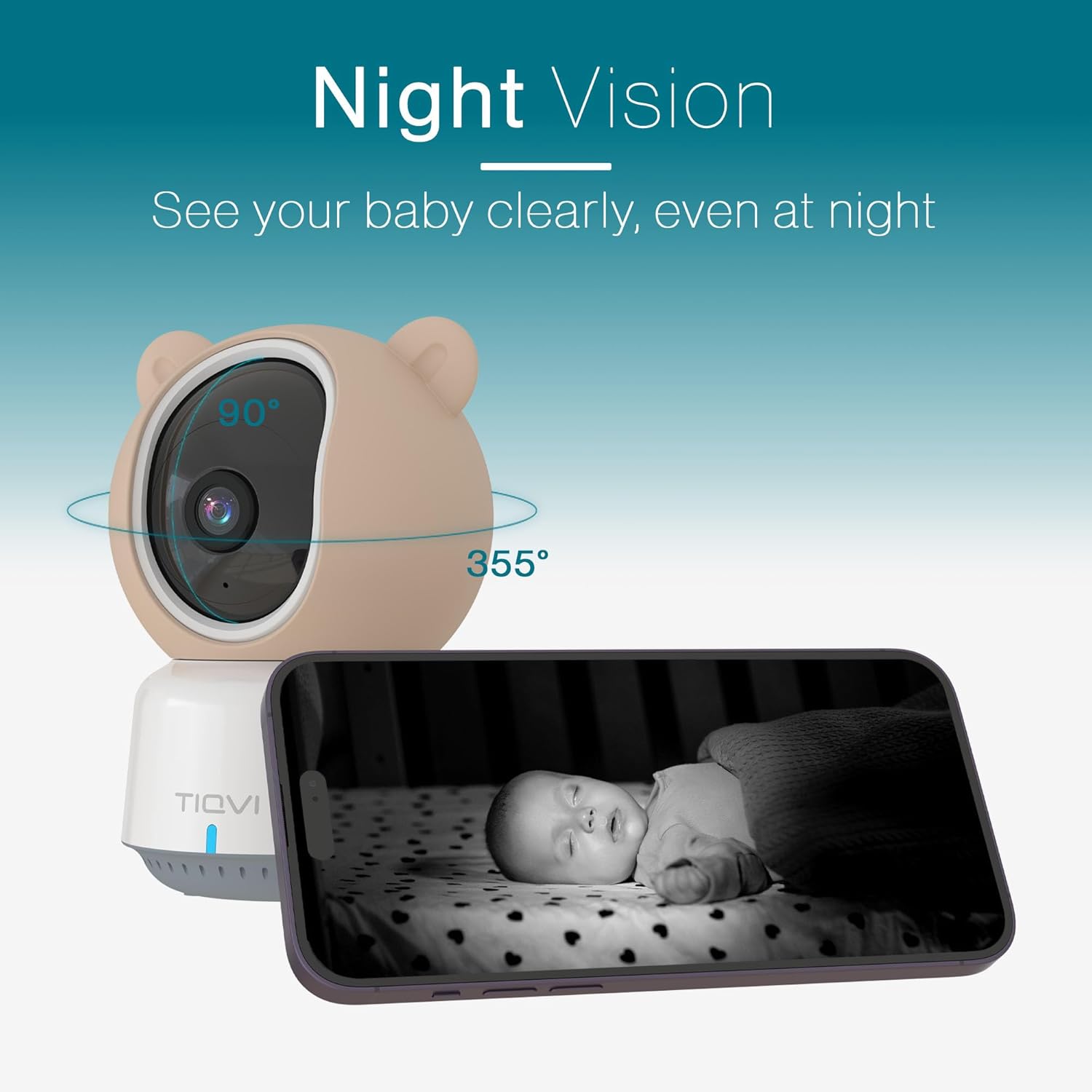
An image illustrating the night vision capability of the Tiqvi Smart Baby Monitor, showing a baby sleeping in a crib as seen through the camera's infrared lens on a smartphone screen.
5.4 Motion Detection
Enable motion detection in the app settings to receive alerts on your smartphone when movement is detected. You can adjust sensitivity levels to minimize false alarms.

An image demonstrating the motion detection feature, showing the baby monitor and a smartphone displaying children playing, with a highlighted area indicating detected movement.
5.5 Temperature Monitoring
The app displays the current room temperature detected by the monitor. You can set temperature thresholds in the app to receive alerts if the room becomes too hot or too cold.
5.6 Video Recording and Storage
If a MicroSD card is inserted, the monitor can record video based on motion detection or continuous recording settings configured in the Calex Smart App. Recorded footage can be reviewed directly from the app.
6. Maintenance
- Cleaning: Use a soft, dry cloth to clean the camera lens and the body of the monitor. Do not use liquid cleaners or aerosols.
- Silicone Cover: The silicone cover can be removed and gently wiped clean with a damp cloth if necessary. Ensure it is completely dry before reattaching.
- Storage: When not in use for extended periods, store the monitor in a cool, dry place away from direct sunlight.
7. Troubleshooting
- Monitor not powering on: Ensure the power cable is securely connected to both the monitor and the power adapter, and the adapter is plugged into a working electrical outlet.
- Unable to connect to WiFi:
- Ensure your WiFi network is 2.4 GHz. The monitor does not support 5 GHz networks.
- Check your WiFi password for accuracy.
- Move the monitor closer to your WiFi router.
- Restart your router and the baby monitor.
- No live video feed: Check your internet connection. If the connection is stable, try restarting the app and the monitor.
- Poor video quality: Ensure the camera lens is clean and free from obstructions. Check your internet speed; a slow connection can affect video quality.
- Two-way audio not working: Check the volume settings on your smartphone and ensure the microphone icon is enabled in the app.
- Motion detection alerts not received: Verify that motion detection is enabled in the app settings and that app notifications are allowed on your smartphone.
8. Specifications
| Brand | Tiqvi |
| Model Number | TVS40001 |
| Dimensions (L x W x H) | 6 x 4 x 3 cm |
| Weight | 400 Grams |
| Voltage | 230 Volts |
| Power Source | Electric |
| Connectivity Protocol | WiFi 2.4 GHz |
| Video Recording Resolution | HD 1080P |
| Indoor/Outdoor Use | Indoor |
| Mounting Type | Wall Mount |
| Color | White |
| Included Components | Smart Baby Monitor with Camera and Application - WiFi - 1080P |
| UPC | 8720874213598 |
9. Warranty and Support
For warranty information and customer support, please refer to the documentation included with your purchase or contact Tiqvi customer service directly. Keep your proof of purchase for warranty claims.

A side view of the product packaging, displaying the UPC barcode (8720874213598) and other product information.
