
iLovBee B75
iLovBee B75 Wireless Mechanical Keyboard Instruction Manual
Model: B75 | Brand: iLovBee
Introduction
The iLovBee B75 is a versatile 75% wireless mechanical keyboard designed for optimal performance and user customization. It offers multiple connectivity options including Bluetooth, 2.4GHz wireless, and USB-C wired, making it suitable for various devices and scenarios. Key features include a compact layout, vibrant RGB lighting, a convenient detachable volume knob, a premium gasket-mounted structure for a superior typing feel, and hot-swappable switches for personalized customization.

The iLovBee B75 keyboard showcasing its 75% layout and dynamic RGB backlighting.
What's in the Box
- Keycap Puller
- USB Cable
- End Keycap * 1
- Azure Switches * 3
- Gaming Keyboard
Setup
Charging the Keyboard
Before initial use, fully charge the keyboard using the provided USB-C cable. Connect the USB-C end to the keyboard's port and the USB-A end to a compatible power source (e.g., computer USB port, wall adapter). The keyboard features a 3150mAh rechargeable battery.
To check the battery level, long press FN + ENTER. The top row of number keys will illuminate to indicate the charge level (e.g., 1-0 for 100%, 1-3 for 30%).

Long press FN+ENTER to check the visible 3150mAh battery level.
Connecting the Keyboard
The iLovBee B75 supports three connection modes: Bluetooth, 2.4GHz wireless, and USB-C wired. Use the switch located on the side of the keyboard to select your desired mode.
- 2.4GHz Wireless: Slide the switch to 'G' (Gaming/2.4GHz). Insert the 2.4GHz USB dongle (found in the keyboard's back compartment) into your device's USB port. This mode offers faster response and lower latency.
- Bluetooth: Slide the switch to 'B' (Bluetooth). The keyboard can connect to up to 3 devices simultaneously in Bluetooth mode. Press FN + 1/2/3 to select a Bluetooth channel. Hold FN + 1/2/3 for 3 seconds to enter pairing mode (indicator light will flash). Select "iLovBee B75" on your device's Bluetooth settings. This mode offers faster transmission and lower power consumption.
- USB-C Wired: Slide the switch to the middle position (USB-C icon). Connect the keyboard directly to your device using the provided USB-C cable. This mode is detachable and easy to carry.

One-click switch mode for 2.4GHz, Type-C, and Bluetooth connections.
Software Installation
For advanced customization of RGB lighting, key mapping, and macros, download and install the iLovBee software from the official iLovBee website. The software is compatible with Windows operating systems.
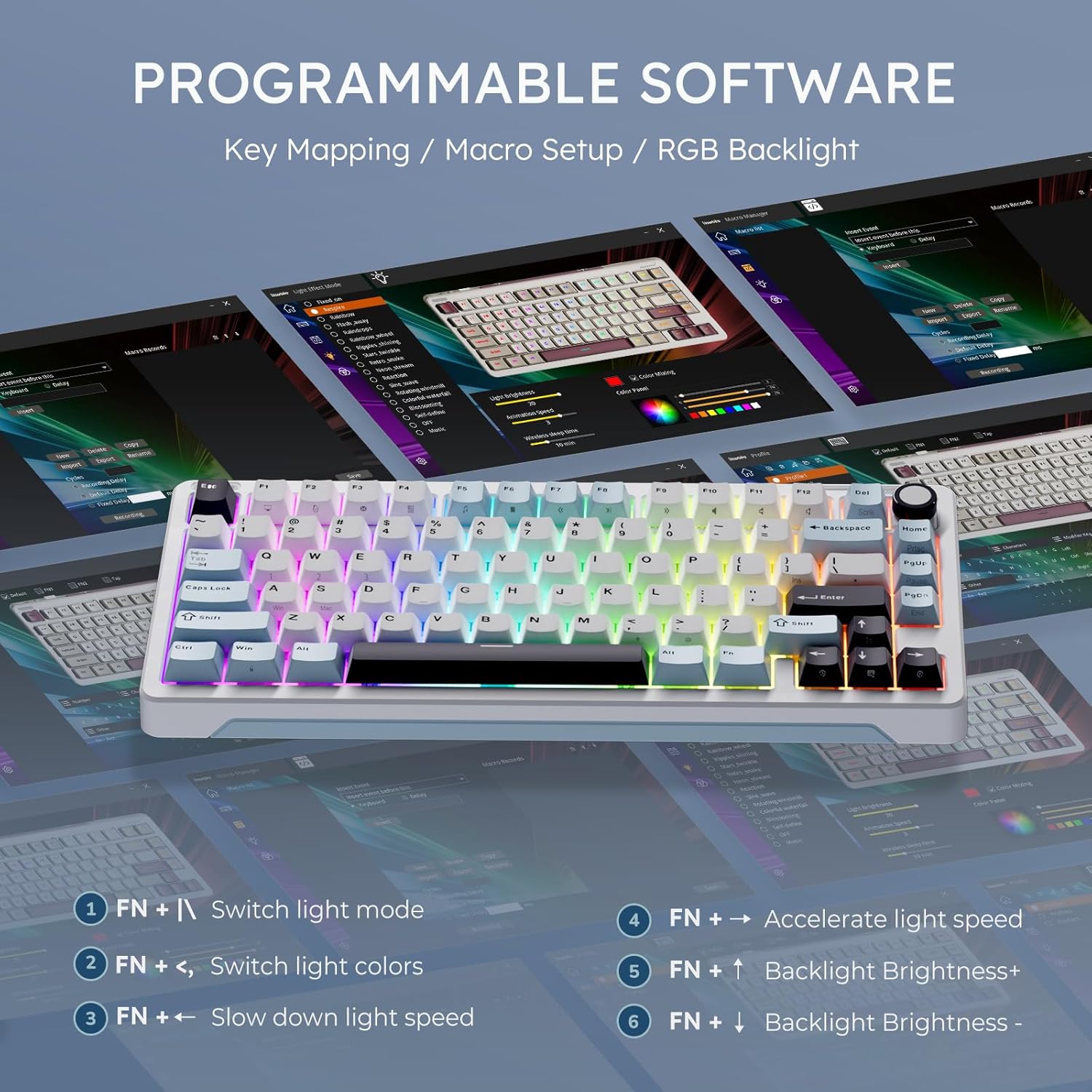
Customize RGB, key mapping, and macros with iLovBee software.
Operating Instructions
RGB Lighting Control
The iLovBee B75 features south-facing LEDs and 24 RGB lighting effects. Use the following key combinations to control the lighting:
- FN + \ : Switch light mode (24 effects available).
- FN + < : Switch light colors.
- FN + > : Slow down light speed.
- FN + ↑ : Increase backlight brightness.
- FN + ↓ : Decrease backlight brightness.
Volume Knob Functionality
The keyboard features a detachable volume knob for instant audio control. Rotate the knob to adjust volume. Press the knob to mute/unmute audio. If you prefer a standard layout, the knob can be swapped with the included 'End' key.

Quick volume control or replace with 'End' key using the removable keyboard knob.
Hot-Swappable Switches
The iLovBee B75 is equipped with hot-swappable Azure linear switches, providing a creamy and responsive typing feel. The PCB supports both 3-pin and 5-pin switches, allowing users to easily customize their typing experience by swapping out switches without soldering. Use the provided keycap puller and switch puller (if included) to safely remove and install switches.

The keyboard supports 3-pin/5-pin switches for easy customization.
Typing Experience
The keyboard features a gasket mount design with leaf spring technology and 5 layers of sound-dampening foam. This construction reduces hollow sounds and provides a smooth, even, and crisp typing experience, ideal for both gaming and extended typing sessions.

Gasket mounted design delivers a softer and more comfortable feel.
Maintenance
- Cleaning Keycaps: Use a keycap puller to remove keycaps. Clean them with a mild soap solution and a soft cloth, then air dry completely before reattaching.
- Cleaning Switches: Use compressed air to remove dust and debris from around the switches. For deeper cleaning, remove switches and use a small brush.
- General Care: Avoid exposing the keyboard to liquids or extreme temperatures. Store in a dry, cool place when not in use.
Troubleshooting
| Issue | Solution |
|---|---|
| Keyboard not connecting. | Ensure the connection mode switch is set correctly (G for 2.4GHz, B for Bluetooth, middle for wired). Check battery level. For Bluetooth, ensure the keyboard is in pairing mode and re-pair if necessary. Try wired connection to rule out wireless issues. |
| RGB lights not working or behaving unexpectedly. | Press FN + \ to cycle through light modes. Use FN + ↑/↓ to adjust brightness. Check iLovBee software settings for custom profiles or disabled lighting. |
| Certain keys are not responding. | As the keyboard is hot-swappable, ensure the switch for the non-responsive key is properly seated. Gently remove the keycap and switch, then reinsert firmly. Try swapping with a known working switch to diagnose if the issue is with the switch itself. |
Specifications
| Feature | Detail |
|---|---|
| Product Dimensions | 12.78 x 5.69 x 1.79 inches |
| Item Weight | 2.16 pounds |
| Manufacturer | iLovBee |
| Connectivity Technology | Bluetooth, 2.4Ghz Dongle, USB-C |
| Keyboard Description | Wireless Mechanical Keyboard with Knob |
| Special Feature | Portable, Ergonomic, Volume Roller, Backlit, Hot-Swappable |
| Color | White & Blue (RGB Backlighting) |
| Number of Keys | 81 |
| Batteries | 1 AAA batteries required (included) - *Note: Product description states 3150mAh rechargeable battery, specification lists 1 AAA. Follow product description for rechargeable battery.* |
| Battery Capacity | 3150mAh (up to 260 hours of use with RGB off) |
Warranty and Support
For warranty information, technical support, or further inquiries, please visit the official iLovBee store or contact their customer service. Details can typically be found on the product packaging or the brand's official website.
Visit the iLovBee Store on Amazon for more product information and support resources.
Related documentsB75

Ask a question about this manual
Ask about setup, troubleshooting, compatibility, parts, safety, or missing instructions. Manuals+ will review the question and use this page’s manual context to help answer it.