Introduction
This manual provides instructions for the installation, operation, and maintenance of your SIXWIN Android Car Stereo. This device features a 9-inch touchscreen, Android 13 operating system, wireless Apple CarPlay, Android Auto, Bluetooth connectivity, GPS navigation, WiFi, FM radio, and support for a backup camera. Please read this manual thoroughly before use to ensure proper functionality and safety.
Package Contents
Verify that all items listed below are included in your package:
- SIXWIN Android Car Stereo Unit (9-inch touchscreen)
- Power Cable
- USB Cables (x2)
- Rear Camera
- Mounting Bracket
- GPS Antenna
- RCA Cable
- User Manual

Figure 1: Package Contents. This image displays the main car stereo unit along with all included accessories: power cable, two USB cables, a rear camera, mounting brackets, a GPS antenna, an RCA cable, and the user manual.
Setup and Installation
Installation of this car stereo requires basic knowledge of automotive electrical systems. If you are unfamiliar with car audio installation, it is recommended to seek professional assistance.
General Installation Steps:
- Disconnect Battery: Before starting, disconnect the vehicle's negative battery terminal to prevent electrical shorts.
- Remove Old Head Unit: Carefully remove your existing car stereo.
- Connect Wiring Harness: Connect the provided power cable and RCA cables to the corresponding ports on the new stereo and your vehicle's wiring harness. Ensure all connections are secure.
- Install GPS Antenna: Mount the GPS antenna in a location with a clear view of the sky, typically on the dashboard or under the windshield.
- Install Backup Camera (Optional): If installing the backup camera, route its cable from the rear of the vehicle to the stereo unit and connect it to the designated input.
- Mount Stereo: Secure the SIXWIN Android Car Stereo into the dashboard using the provided mounting bracket.
- Reconnect Battery: Reconnect the vehicle's negative battery terminal.
- Test Functionality: Power on the stereo and test all functions (radio, Bluetooth, GPS, camera, etc.) before fully reassembling the dashboard.
For detailed wiring diagrams and vehicle-specific instructions, please refer to your vehicle's service manual or consult a professional installer.
Operating Instructions
1. Basic Operation
- Power On/Off: Press and hold the power button (usually on the left side of the unit) to turn the stereo on or off. A short press typically mutes or unmutes audio.
- Volume Control: Use the volume buttons or the on-screen controls to adjust audio levels.
- Touchscreen Interface: Navigate through menus and applications by tapping, swiping, and pinching on the 9-inch touchscreen.

Figure 2: Main User Interface. This image displays the home screen of the car stereo, featuring various application icons and system information, highlighting the Android 13 operating system and 2GB RAM + 32GB ROM configuration.
2. Wireless CarPlay & Android Auto
The stereo supports both wireless and wired Apple CarPlay and Android Auto. This allows seamless integration of your smartphone for navigation, music, calls, and messages.
- For Wireless Connection: Ensure Bluetooth and Wi-Fi are enabled on your smartphone. Pair your phone with the car stereo via Bluetooth. Once paired, the system will prompt you to enable CarPlay or Android Auto.
- For Wired Connection: Connect your smartphone to one of the stereo's USB ports using a compatible USB cable. The system should automatically detect and launch CarPlay or Android Auto.
- Voice Control: Activate Siri or Google Assistant through voice commands for hands-free operation.
Note: Samsung phones may not be fully supported for Mirror Link functionality.

Figure 3: CarPlay and Android Auto Interface. This image illustrates the user interfaces for Apple CarPlay and Android Auto as displayed on the car stereo, demonstrating smartphone integration for both iOS and Android devices.
3. Mirror Link
Mirror Link allows you to display your smartphone's screen directly onto the car stereo. This feature is supported for both iOS (via Wi-Fi) and Android (via Wi-Fi/USB).

Figure 4: Mirror Link Functionality. This image demonstrates the Mirror Link feature, where the content from a smartphone screen is duplicated onto the car stereo's display.
4. GPS Navigation
The stereo has built-in GPS navigation and supports both online and offline maps. It comes pre-installed with the "Here We Go" app.
- Offline Maps: Download desired regional maps within the "Here We Go" app for navigation without an internet connection.
- Online Navigation: Connect to Wi-Fi to use online navigation services and real-time traffic updates.

Figure 5: GPS Navigation. This image shows the car stereo displaying a detailed GPS navigation map, indicating its built-in navigation capabilities.
5. WiFi Functionality
Connect the stereo to a Wi-Fi hotspot (e.g., from your smartphone or a dedicated car Wi-Fi device) to access online features, download apps, and browse the internet.

Figure 6: WiFi Connectivity. This image illustrates the stereo's ability to connect to Wi-Fi, enabling access to online applications and services.
6. Bluetooth Hands-free & Music
Pair your smartphone via Bluetooth for hands-free calling and audio streaming.
- Pairing: Go to the Bluetooth settings on the stereo and your phone, search for available devices, and select the stereo to pair.
- Hands-free Calling: Answer or make calls directly from the stereo interface. The built-in microphone ensures clear communication.
- Bluetooth Music: Stream audio from your phone to the car stereo.

Figure 7: Bluetooth and FM Radio. This image displays the FM radio interface and the Bluetooth connectivity screen, showing options for hands-free calling and music streaming.
7. FM Radio
Access FM radio stations with 18 preset options. The frequency range is 87.50-108.0 MHz.
- Scanning: Use the on-screen controls to scan for available stations.
- Presets: Save your favorite stations to the preset buttons for quick access.
8. Steering Wheel Control
The stereo supports steering wheel controls. You will need to configure these settings within the stereo's menu.
- Configuration: Navigate to the settings menu and locate the "Steering Wheel Control" option. Follow the on-screen instructions to map your vehicle's steering wheel buttons to the stereo's functions. The default password for settings might be "000000".
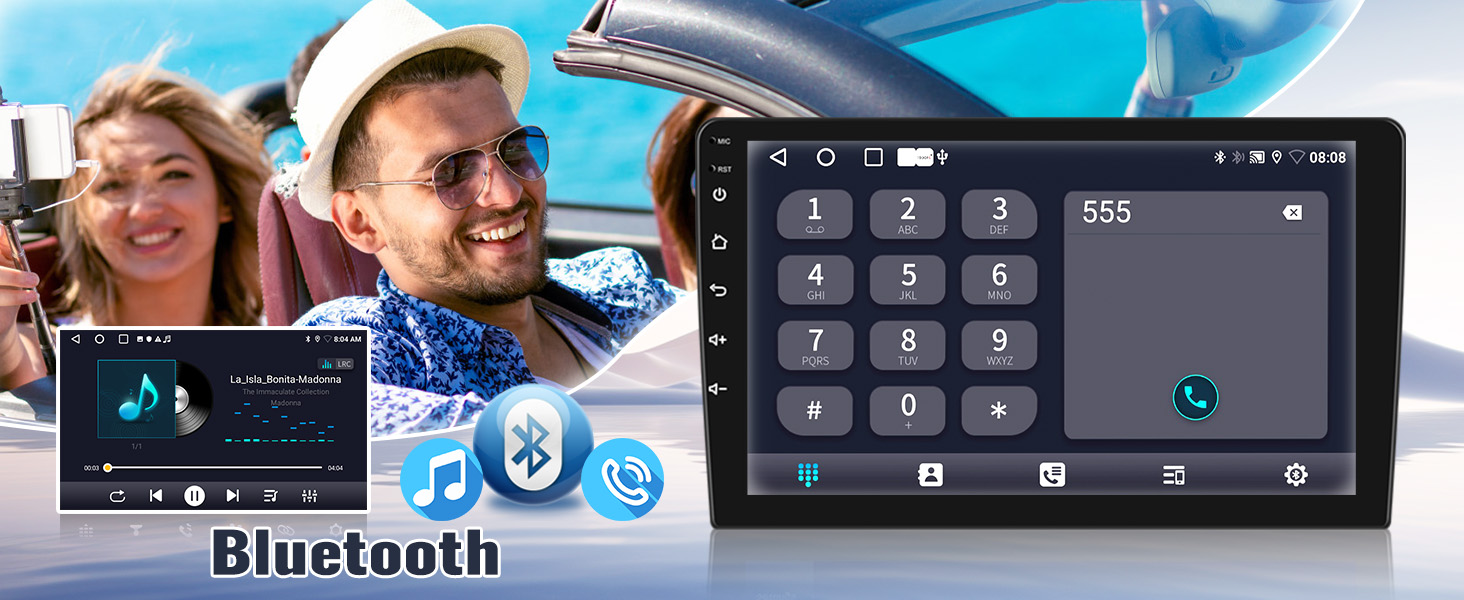
Figure 8: Steering Wheel Control Setup. This image illustrates the process of configuring steering wheel controls, allowing users to map vehicle buttons to stereo functions for convenience.
9. Backup Camera
The stereo is equipped to work with the included AHD backup camera, providing a clear view of the area behind your vehicle when reversing.
- Automatic Display: When the vehicle is shifted into reverse, the stereo display will automatically switch to the backup camera feed.
- Guidelines: Dynamic or static guidelines may be displayed on the screen to assist with parking.
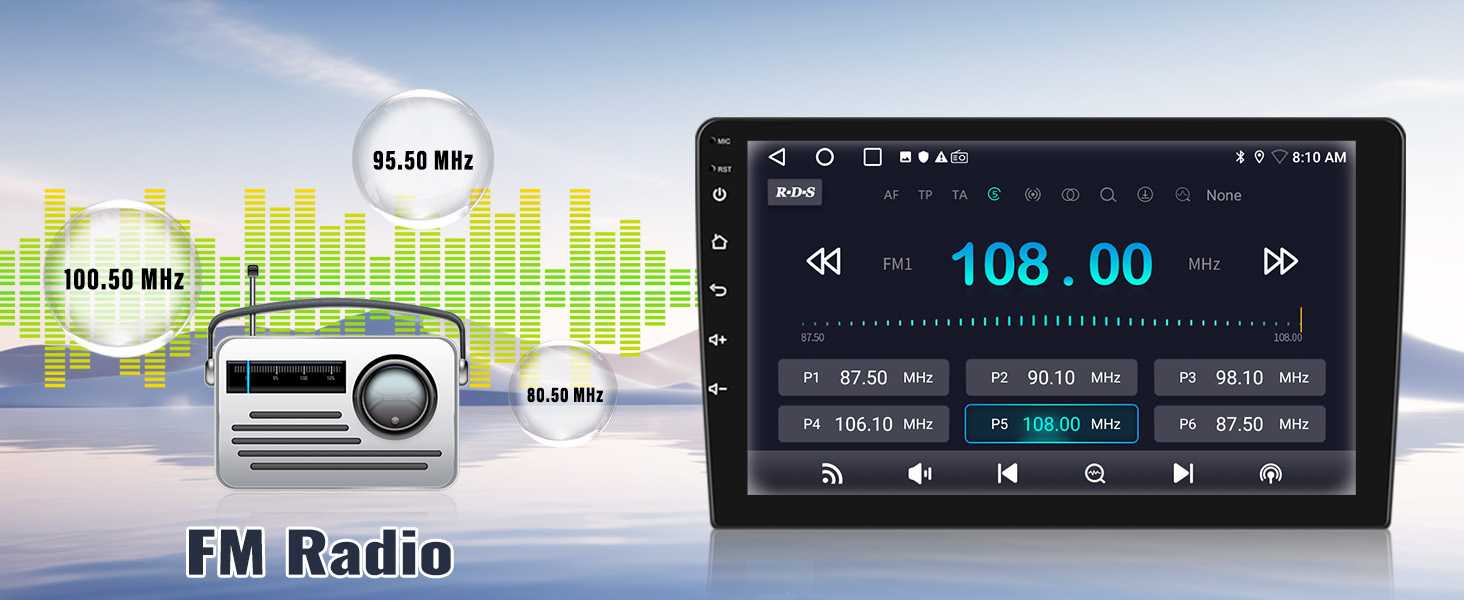
Figure 9: Backup Camera View. This image displays the car stereo showing the feed from the backup camera, complete with parking guidelines, and highlights features like waterproof, night vision, and wide-angle capabilities.
10. UI Themes and Customization
The stereo offers 26 unique gradient UI interfaces, allowing for personalization of the display's appearance.
- Changing Themes: Access the display settings to browse and select different UI themes.

Figure 10: Customizable UI Themes. This image showcases a selection of the 26 available user interface themes, demonstrating the personalization options for the stereo's display.
11. Split Screen Functionality
Utilize the split-screen feature to run two applications simultaneously, such as navigation and music playback.
- Activating Split Screen: Refer to the system's user interface for instructions on how to activate and manage split-screen mode, typically by long-pressing an app icon or using a dedicated button.
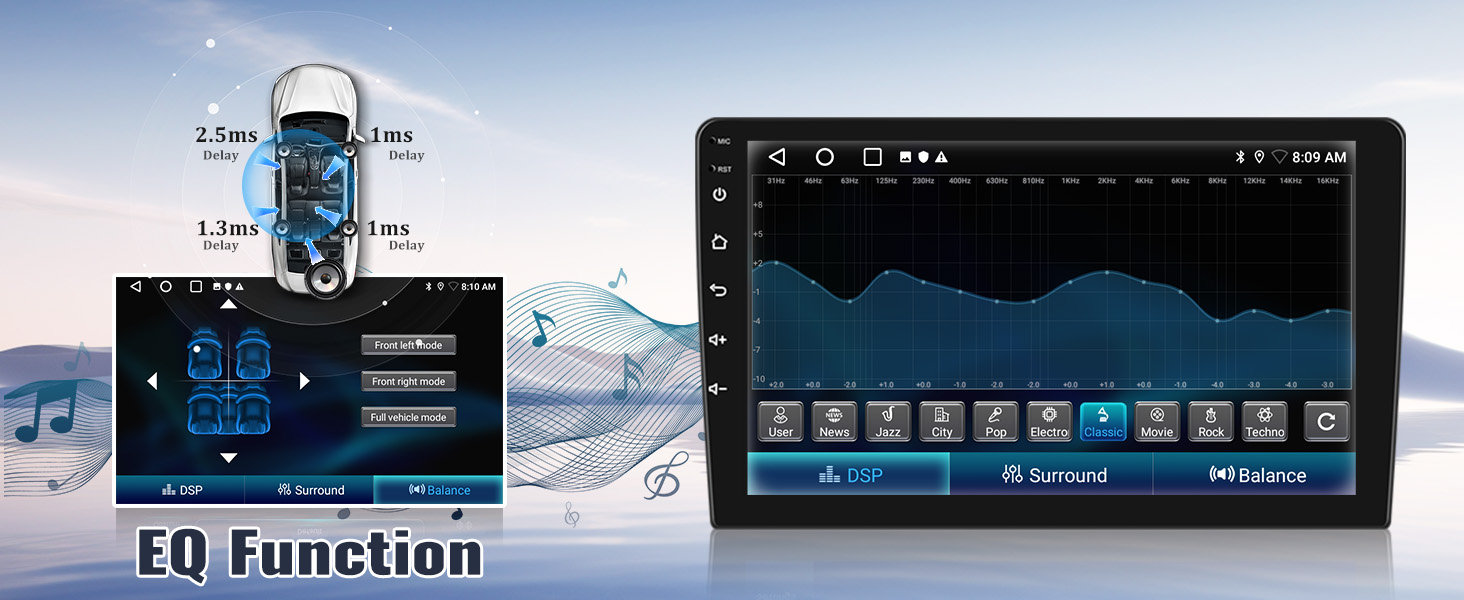
Figure 11: Split Screen Mode. This image demonstrates the split-screen feature, allowing two applications, such as navigation and music, to be viewed simultaneously on the display.
12. EQ Function
The built-in equalizer (EQ) function allows you to customize audio output for optimal sound quality.
- Adjusting EQ: Access the audio settings to adjust frequency bands, balance, fader, and select preset sound modes (e.g., Pop, Rock, Jazz).
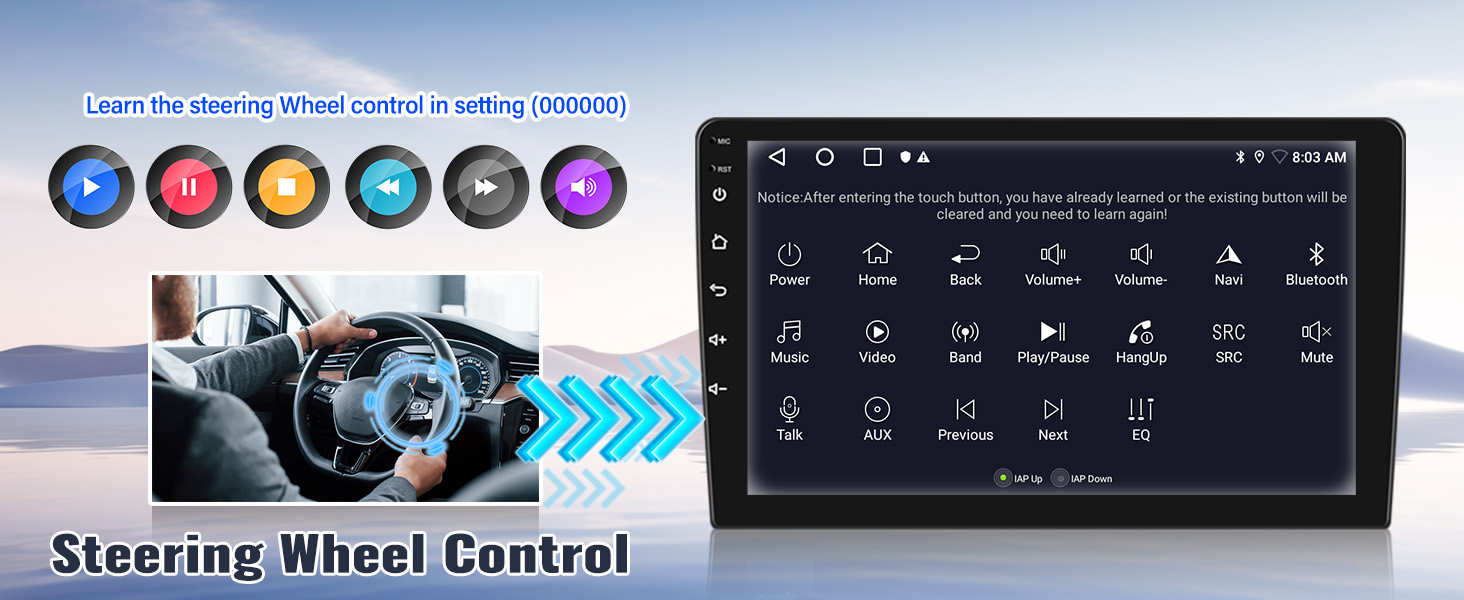
Figure 12: Equalizer (EQ) Settings. This image displays the stereo's equalizer interface, showing options for fine-tuning audio frequencies and sound distribution within the vehicle.
Maintenance
- Cleaning the Screen: Use a soft, lint-free cloth to gently wipe the touchscreen. Avoid abrasive cleaners or solvents.
- Software Updates: Periodically check for software updates via the system settings to ensure optimal performance and access to new features.
- Avoid Extreme Temperatures: Do not expose the unit to extreme heat or cold for prolonged periods.
Troubleshooting
| Problem | Possible Cause | Solution |
|---|---|---|
| No power | Loose power connection, blown fuse. | Check power cables and vehicle fuses. Ensure battery is connected. |
| No sound | Volume muted, incorrect audio source, loose speaker wires. | Check volume level, select correct audio source, verify speaker connections. |
| CarPlay/Android Auto not connecting | Bluetooth/Wi-Fi off, incompatible cable, phone software issue. | Ensure Bluetooth/Wi-Fi is on. Try a different USB cable. Restart phone and stereo. |
| GPS signal lost | GPS antenna obstructed or disconnected. | Ensure GPS antenna has a clear view of the sky and is securely connected. |
| Backup camera not displaying | Camera cable loose, incorrect wiring, camera malfunction. | Check camera connections. Ensure reverse trigger wire is correctly connected. |
| Touchscreen unresponsive | Temporary software glitch. | Perform a soft reset (refer to specific device instructions or power cycle). |
Specifications
- Model: A7907A3018A4MI2
- Operating System: Android 13
- Memory: 2GB RAM + 32GB ROM
- Screen Size: 9-inch Touchscreen
- Connectivity: Wireless CarPlay, Android Auto, Bluetooth, WiFi
- Navigation: Built-in GPS (supports online/offline maps)
- Radio: FM (87.50-108.0 MHz), 18 preset stations
- Audio Output: Stereo, RCA, Speakers
- Control Method: Touchscreen, Voice, Steering Wheel Control
- Compatible Devices: Smartphone
- Item Weight: 2.33 pounds
- Product Dimensions: 1 x 1 x 1 inches (Note: These dimensions seem generic, refer to actual product for precise fitment)
Warranty and Support
For technical assistance, warranty claims, or to obtain a digital copy of this user manual, please contact SIXWIN customer support.
Email Support: sixwin_vip@163.com
Please have your model number (A7907A3018A4MI2) and purchase details ready when contacting support.

Figure 13: Customer Support Contact. This image provides the email address for customer support, indicating where users can seek online help and user manuals.