
iLovBee B98
iLovBee B98 Creamy Keyboard User Manual
Model: B98
Introduction
This manual provides comprehensive instructions for the iLovBee B98 Creamy Keyboard. It covers setup, operation, maintenance, and troubleshooting to ensure optimal performance and user experience. The iLovBee B98 is a full-size mechanical keyboard featuring tri-mode connectivity (Bluetooth, 2.4GHz wireless, and USB wired), a gasket-mounted design, hot-swappable linear switches, and customizable RGB backlighting.

Image: The iLovBee B98 Creamy Keyboard, showcasing its full layout with number pad, volume knob, and RGB backlighting.
Package Contents
Please verify that all items are present in the package:
- iLovBee B98 Gaming Keyboard
- USB Cable (Type-C)
- Keycap Puller
- End Keycap (1 piece, for knob replacement)
- Azure Switches (3 spare pieces)
Setup
1. Charging the Keyboard
Before initial use, connect the keyboard to a USB power source using the provided USB-C cable. The keyboard features a 3150mAh rechargeable battery.
To check the battery level, press and hold FN + ENTER. The number row keys will illuminate to indicate the charge percentage. For example, keys 1-0 lit up means 100%, while keys 1-3 lit up means 30%.

Image: The iLovBee B98 keyboard demonstrating how to check battery level using FN+ENTER, with illuminated number keys indicating charge percentage.
2. Connectivity Modes
The iLovBee B98 keyboard supports three connection modes: 2.4GHz wireless, Bluetooth, and USB wired. A switch on the side of the keyboard allows you to select the desired mode.

Image: Close-up of the iLovBee B98 keyboard's side switch for selecting 2.4GHz, USB-C, or Bluetooth connectivity modes.
2.1. 2.4GHz Wireless Mode
- Locate the 2.4GHz USB receiver, typically stored in a compartment on the keyboard.
- Plug the USB receiver into an available USB port on your computer.
- Slide the mode switch on the keyboard to the "G" (2.4GHz) position.
- The keyboard should connect automatically.
2.2. Bluetooth Mode
The keyboard supports connecting up to 3 devices via Bluetooth.
- Slide the mode switch on the keyboard to the "B" (Bluetooth) position.
- To enter pairing mode, press and hold FN + 1, FN + 2, or FN + 3 for 3-5 seconds until the corresponding key flashes rapidly.
- On your device (computer, tablet, smartphone), open Bluetooth settings and search for "iLovBee B98".
- Select the keyboard to pair. The key will stop flashing once connected.
- To switch between paired Bluetooth devices, press FN + 1, FN + 2, or FN + 3 briefly.
2.3. USB Wired Mode
- Connect the provided USB-C cable to the keyboard's USB-C port and the other end to your computer.
- Slide the mode switch on the keyboard to the middle (USB-C) position.
- The keyboard will function as a wired device and charge simultaneously.
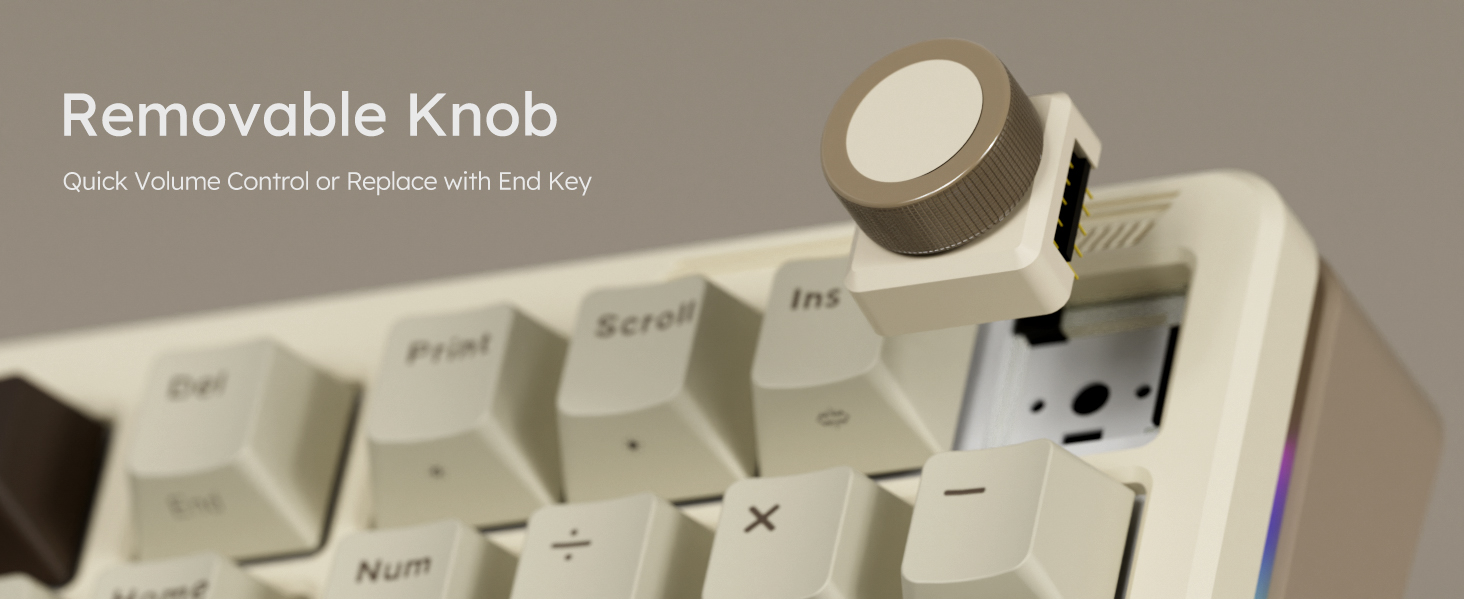
Image: The iLovBee B98 keyboard connected to a laptop via USB-C, demonstrating its versatile tri-mode connectivity options.
Operation
1. Volume Knob Functionality
The multi-function knob located on the top right of the keyboard controls system volume.
- Rotate the knob clockwise to increase volume.
- Rotate the knob counter-clockwise to decrease volume.
- Press the knob to mute/unmute audio.
The knob is removable and can be replaced with the included "End" keycap for users who prefer a standard key layout.

Image: A close-up view of the iLovBee B98 keyboard's removable volume knob, highlighting its design and functionality.
2. RGB Lighting Control
The iLovBee B98 features customizable RGB backlighting with 15 pre-set modes.
- FN + ScrLK: Switch between different RGB light modes.
- FN + PrtSc: Switch between different RGB light colors.
- FN + ←: Slow down light speed.
- FN + →: Accelerate light speed.
- FN + ↑: Increase backlight brightness.
- FN + ↓: Decrease backlight brightness.
3. Software Customization
For advanced customization, including key remapping, macro setup, and detailed RGB lighting effects, download the iLovBee software. This software is compatible with Windows operating systems. Refer to the official iLovBee website for download instructions.

Image: Screenshot of the iLovBee software interface, showing options for key mapping, macro setup, and RGB backlight customization for the B98 keyboard.
Maintenance
1. Cleaning the Keyboard
To maintain the keyboard's appearance and functionality:
- Disconnect the keyboard from all power sources before cleaning.
- Use a soft, lint-free cloth slightly dampened with water or a mild cleaning solution to wipe the keycaps and chassis.
- For dust and debris between keys, use compressed air or a small brush.
- Avoid harsh chemicals or abrasive materials.
2. Hot-Swappable Switches
The iLovBee B98 features a hot-swappable PCB, allowing you to change mechanical switches without soldering. It supports both 3-pin and 5-pin switches.
- Using the provided keycap puller, gently remove the desired keycap.
- Use the switch puller to carefully grip the switch from its top and bottom clips, then pull it straight up.
- Align the pins of the new switch with the holes on the PCB. Ensure the pins are straight to avoid bending.
- Press the new switch firmly into place until it clicks.
- Replace the keycap.

Image: A close-up view of the iLovBee B98 keyboard with several keycaps and switches removed, illustrating the hot-swappable feature.
Troubleshooting
| Issue | Possible Solution |
|---|---|
| Keyboard not responding in wireless mode. |
|
| RGB lighting not working or incorrect. |
|
| Keys not registering or double-typing. |
|
| Volume knob not functioning. |
|
Specifications
| Feature | Detail |
|---|---|
| Model | B98 |
| Layout | 98% Full Size with Number Pad |
| Connectivity | 2.4GHz Wireless, Bluetooth (BT5.1), USB-C Wired |
| Switches | Azure Linear Switches (Hot-Swappable, 3-pin/5-pin compatible) |
| Actuation Force | 45 ± 5gf |
| Pre-travel | 1.2 + 0.4 / -0.08mm |
| Total Travel | 3.40 + 0 / -0.4mm |
| Mounting Style | Gasket Mounted with Leaf Spring |
| Backlighting | RGB (South-facing LEDs, 15+ modes) |
| Battery Capacity | 3150mAh |
| Battery Life | Up to 260 hours (RGB off) |
| Compatible OS | Windows, macOS, Android |
| Dimensions | 15.96"L x 5.68"W x 1.87"H (40.54 x 14.43 x 4.75 cm) |
| Weight | 2.84 pounds (1.29 kg) |
| Material | Plastic |

Image: An exploded diagram illustrating the internal components of the iLovBee B98 keyboard, highlighting its gasket-mounted structure with multiple dampening layers.

Image: Detailed specifications for the Azure Linear Switches, including actuation force, pre-travel, and total travel distances.
Support
For further assistance, technical support, or warranty inquiries, please visit the official iLovBee website or contact their customer service.
Official Website: iLovBee Store on Amazon (This link directs to the brand's store page on Amazon, where further support information may be available.)
Related documentsB98


Ask a question about this manual
Ask about setup, troubleshooting, compatibility, parts, safety, or missing instructions. Manuals+ will review the question and use this page’s manual context to help answer it.