
1. Introduction
The Minisopuru MINI218B PRO Mac mini M4 Dock is an 8-in-1 vertical stand USB-C hub designed to expand the storage and connectivity options for your Mac mini M4 or M4 Pro (2024 models). This dock integrates an M.2 NVMe SSD enclosure, multiple USB ports, an SD/TF card reader, and an audio jack, all while providing a stable vertical orientation for your Mac mini.
Video 1: Minisopuru Mac Mini M4 Dock Unboxing. This video provides an initial overview of the product and its components.
2. Product Features
The Minisopuru MINI218B PRO Mac mini M4 Dock offers a range of features to enhance your Mac mini experience:
- M.2 NVMe SSD Enclosure: Supports up to 8TB M.2 PCIe NVMe SSDs (not included) with data transfer speeds up to 10Gbps. Compatible with M and B+M Key M.2 SSDs in sizes 2230, 2242, 2260, and 2280.
- High-Speed USB Ports: Includes 1 x 10Gbps USB-C 3.2 Gen2 port and 1 x 10Gbps USB-A 3.2 Gen2 port for rapid data transfer.
- Additional USB Ports: Features 2 x USB-A 2.0 ports for connecting peripherals like keyboards, mice, or printers.
- Integrated Card Reader: Equipped with an SD/TF card slot supporting UHS-I speeds up to 104MB/s for quick file transfers from memory cards.
- Audio Jack: A 3.5mm audio jack for connecting headphones or speakers.
- Vertical Stand Design: Positions your Mac mini vertically to optimize desk space, improve heat dissipation, and ensure unobstructed Wi-Fi signals.
- Protective Design: Features a non-slip and scratch-resistant silicone pad to securely hold and protect your Mac mini.
Note: The USB-C and USB-A ports on this dock support data transmission only. They do not support video output or device charging.
3. Setup
3.1 SSD Installation
To expand your Mac mini's storage, you can install an M.2 NVMe SSD into the dock's enclosure. Please ensure the SSD is compatible (M or B+M Key, sizes 2230/2242/2260/2280).
- Remove the bottom cover of the dock using the provided screwdriver.
- Insert your M.2 NVMe SSD into the slot at a 45-degree angle.
- Gently press the SSD down and fix it with the rubber cap.
- Apply the silicone thermal pad onto the SSD for optimal heat dissipation.
- Close the bottom cover securely.

Image 1: Step-by-step guide for installing an M.2 NVMe SSD into the dock.

Image 2: Illustration of compatible M.2 NVMe SSD types and sizes for the enclosure.
Video 2: How to install your SSD. This video demonstrates the physical installation process of an SSD.
3.2 Connecting the Dock to Mac mini
Place your Mac mini M4 or M4 Pro into the vertical stand. Connect the integrated USB-C cable from the dock to one of the Thunderbolt/USB 4 ports on your Mac mini. Ensure all connections are secure.
Video 3: Minisopuru MINI218B PRO Mac Mini Dock makes switching easy. This video demonstrates the ease of placing the Mac mini into the dock and connecting peripherals.
4. Operating Instructions
4.1 Using the Ports
The dock provides convenient access to various ports:
- 10Gbps USB-C 3.2 Gen2: Connect high-speed USB-C devices for data transfer.
- 10Gbps USB-A 3.2 Gen2: Connect high-speed USB-A devices for data transfer.
- USB-A 2.0 Ports (x2): Ideal for connecting standard peripherals like keyboards, mice, or USB drives.
- SD/TF Card Slot: Insert SD or TF (MicroSD) cards for quick data access.
- 3.5mm Audio Jack: Plug in your headphones or speakers.
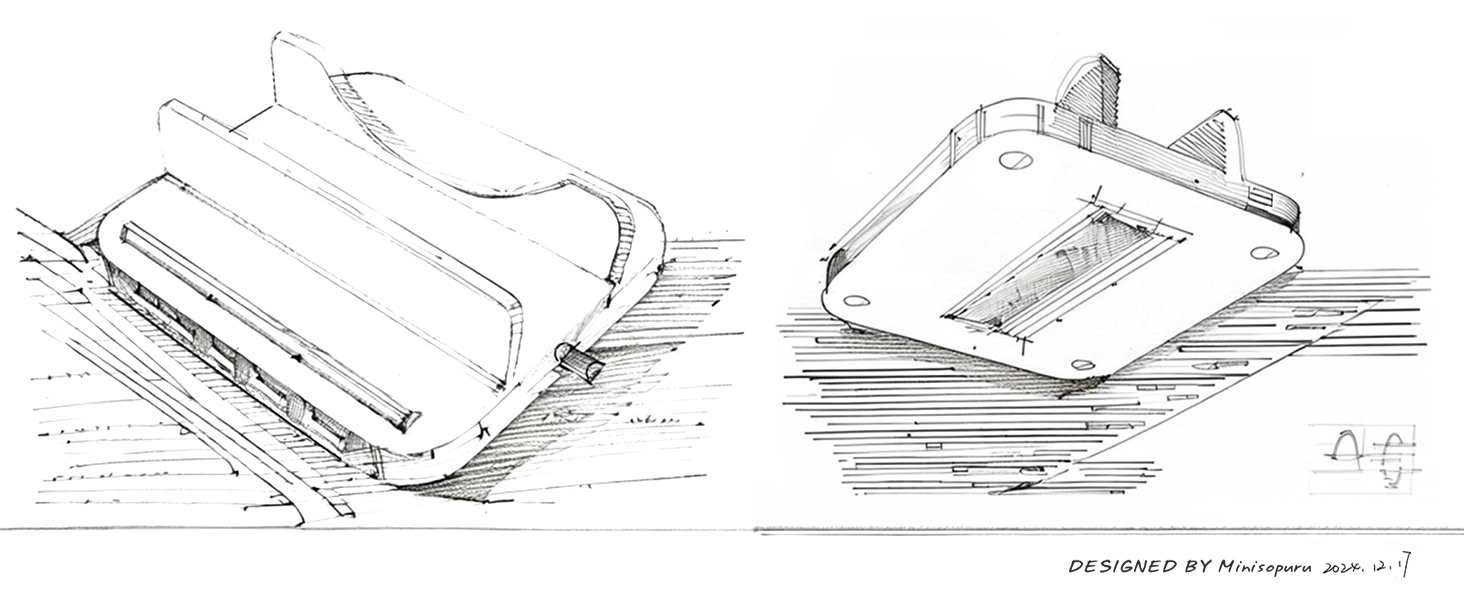
Image 3: Detailed diagram of all ports on the Minisopuru Mac mini M4 Dock.
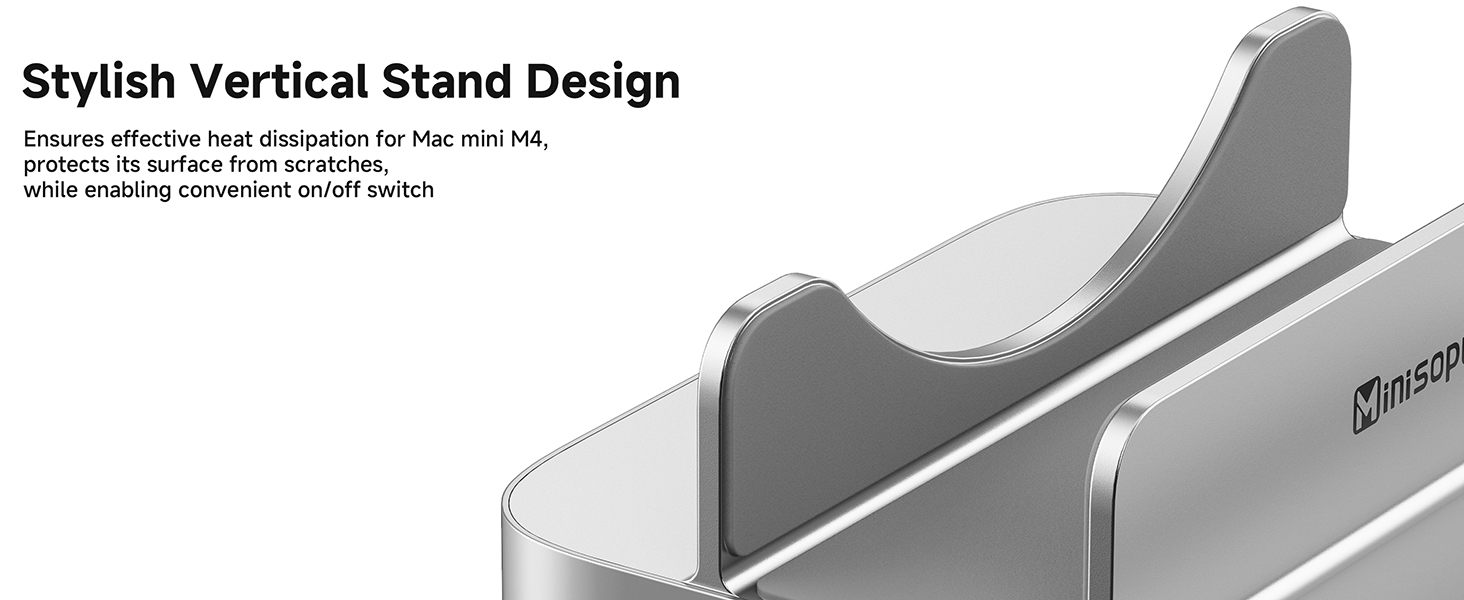
Image 4: Demonstrates connecting various devices to the dock for 10Gbps data transfers.
4.2 SD/TF Card Usage
Insert your SD or TF card into the corresponding slot. The card reader supports speeds up to 104MB/s, allowing for quick import and export of files. Ensure the card is inserted correctly to avoid damage.

Image 5: Illustrates the built-in SD/TF card slot and supported card types.
4.3 Audio Jack Usage
Connect your 3.5mm headphones or speakers to the audio jack on the dock. If you experience no sound, you may need to adjust your Mac mini's audio output settings.
5. Maintenance
The Minisopuru MINI218B PRO is designed for durability and optimal performance. To maintain its condition:
- Heat Dissipation: The innovative vertical design promotes better airflow around your Mac mini, aiding in heat dissipation. Ensure the dock's vents are not obstructed.
- Stability: The non-slip silicone pad at the base provides stability and protects your Mac mini from scratches. Keep the pad clean and free from debris.
- Cleaning: Wipe the dock with a soft, dry cloth. Avoid using harsh chemicals or abrasive materials.
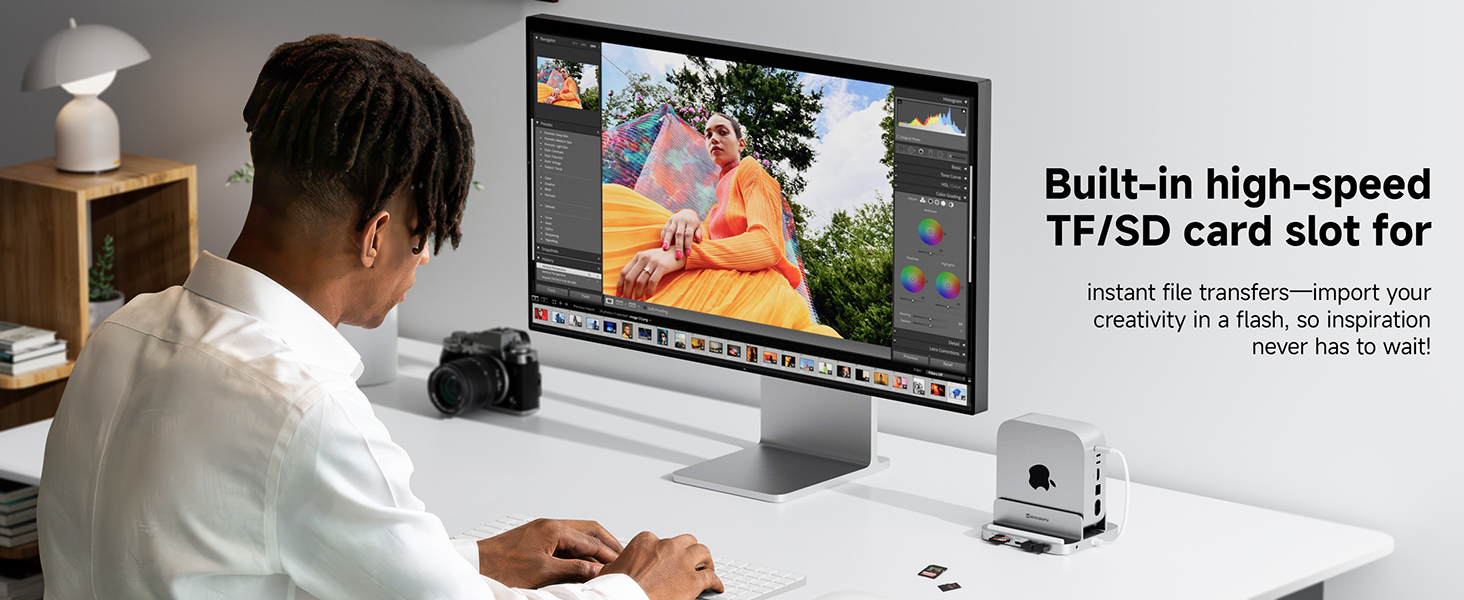
Image 6: Highlights the stylish vertical stand design and its benefits for heat dissipation and accessibility.
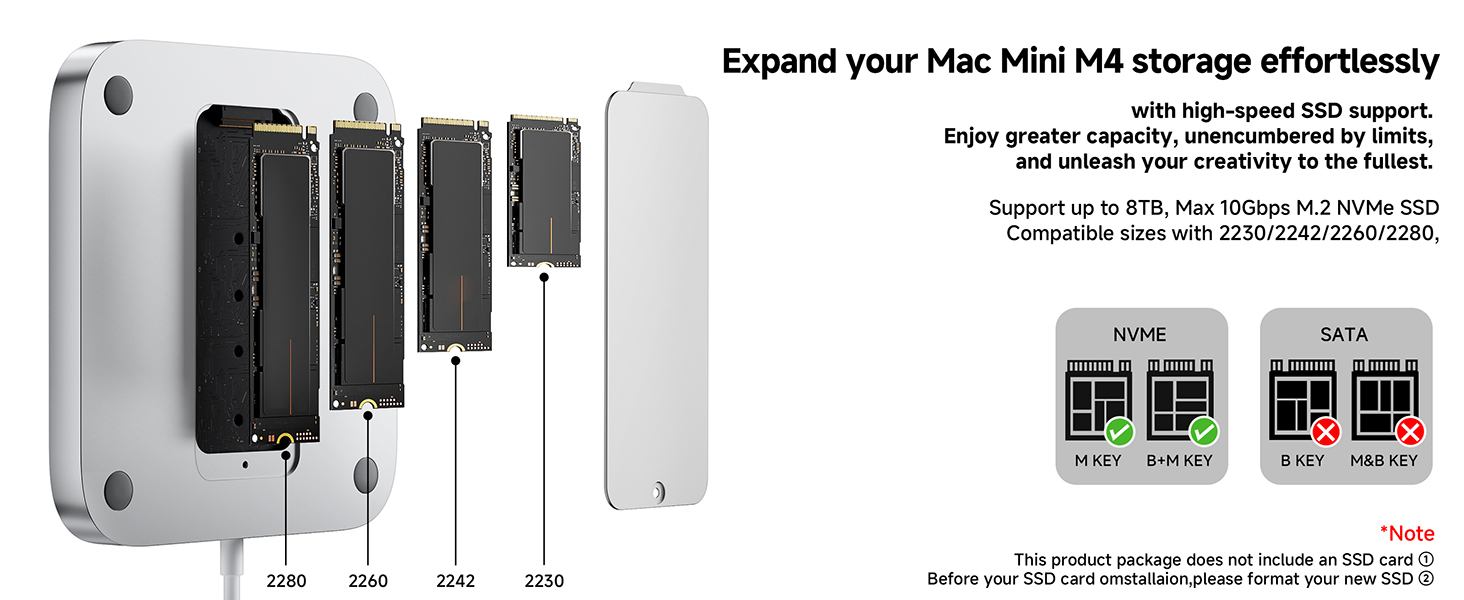
Image 7: Shows the anti-slip silicone ring on the bottom for enhanced stability.
6. Troubleshooting
6.1 SSD Not Appearing or Not Formatted
If your newly installed SSD does not appear in Finder or Disk Utility, it may need to be formatted. Follow these steps:
- Open Disk Utility on your Mac (Applications > Utilities > Disk Utility).
- Select the newly installed SSD from the sidebar.
- Click Erase and choose a format (e.g., APFS for macOS) and scheme (e.g., GUID Partition Map).
- Click Erase again to confirm.
Video 4: How to format SSD. This video guides you through the process of formatting an SSD on a Mac.
6.2 Audio Jack Not Working
If you connect headphones or speakers to the dock's audio jack and hear no sound, ensure the correct audio output device is selected in your Mac mini's system settings:
- Go to System Settings (or System Preferences on older macOS versions).
- Click on Sound.
- Under the Output tab, select "USB Audio SYSTEM" as your output device.

Image 8: Visual guide for adjusting audio output settings on macOS.
Video 5: Select the correct audio output. This video demonstrates how to select the proper audio output device in macOS settings.
6.3 General Connectivity Issues
If any connected device is not recognized, try the following:
- Ensure the dock's USB-C cable is securely connected to your Mac mini.
- Disconnect and reconnect the problematic device from the dock.
- Restart your Mac mini.
7. Specifications
| Brand | Minisopuru |
| Model | MINI218B PRO |
| Hardware Interface | MicroSD, USB 2.0, USB 3.0, USB Type C |
| Compatible Devices | 2024 Mac mini M4, Mac mini M4 Pro |
| Total USB Ports | 4 (1x USB-C 3.2 Gen2, 1x USB-A 3.2 Gen2, 2x USB-A 2.0) |
| Number of Ports (Total) | 8 (including SSD slot, SD/TF slot, Audio Jack) |
| Product Dimensions (L x W x H) | 5.1" x 4.7" x 2.3" |
| SSD Compatibility | M.2 PCIe NVMe (M, B+M Key) 2230/2242/2260/2280, up to 8TB |
| Card Reader Speed | UHS-I 104MB/s (SD/TF) |
8. Warranty and Support
Minisopuru provides a 24-month customer service guarantee for the MINI218B PRO Mac mini M4 Dock. Should you encounter any issues or require assistance, our dedicated 24/7 customer service team is available to provide timely and effective solutions. Please refer to the contact information provided in your product packaging for support.