
Introduction
This manual provides detailed instructions for the setup, operation, and maintenance of your PTHTECHUS Kids 4G Smartwatch, model LT49. Please read this manual thoroughly before using the device to ensure proper functionality and safety. This smartwatch is designed for children aged 4-12 years old, offering communication, educational, and entertainment features.
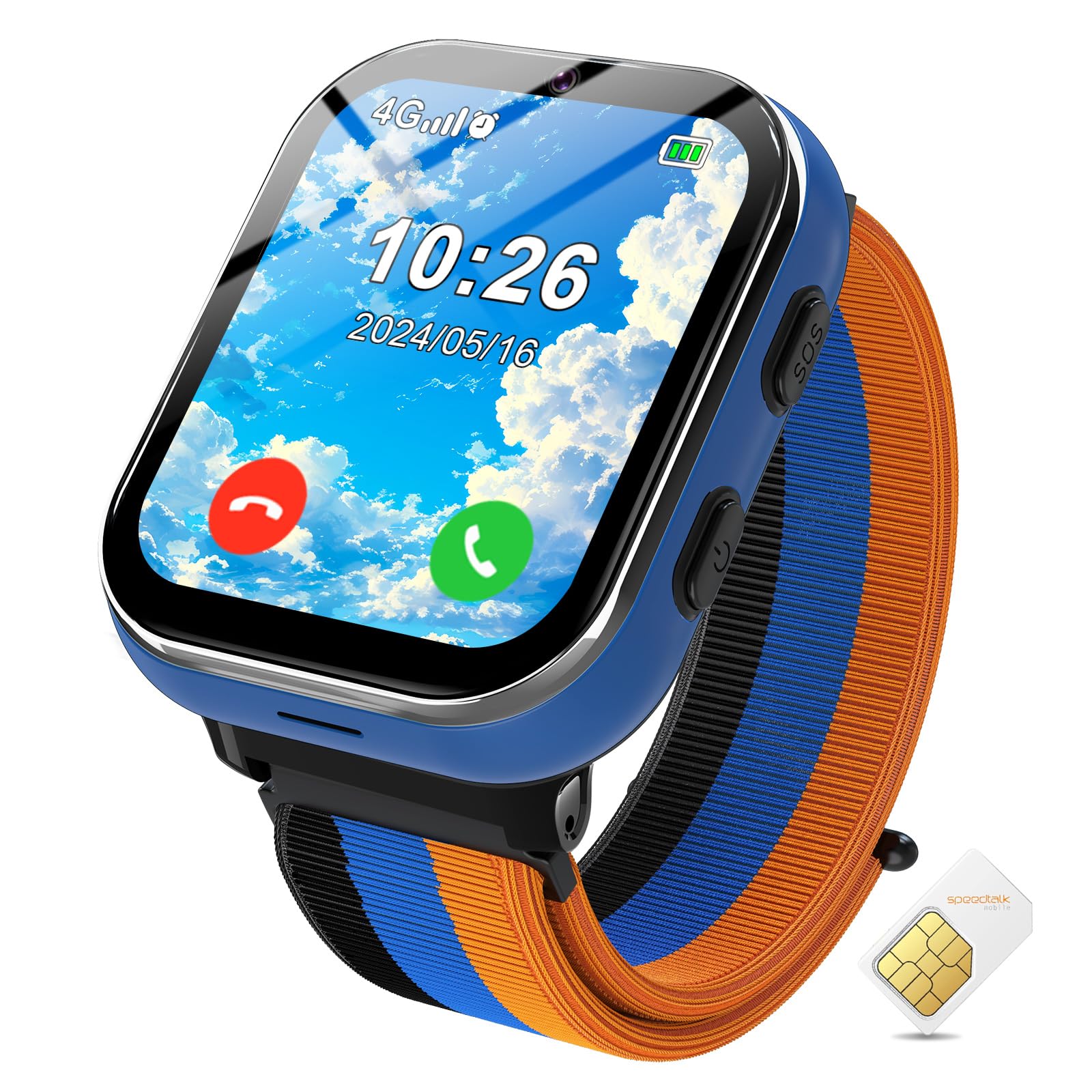
Image: PTHTECHUS Kids 4G Smartwatch LT49, blue variant.
Important Note: This Kids Smartwatch does not require connection to a smartphone application. The GPS function and video call function are not available on this model.
Package Contents
Please check the package for the following items:
- PTHTECHUS Kids 4G Smartwatch (Model LT49)
- USB Charging Cable
- SIM Card (pre-installed or included separately)
- User Manual
- Three Color Watch Frames (interchangeable)
Product Overview
Familiarize yourself with the physical components of your smartwatch.

Image: Key components of the PTHTECHUS Kids Smartwatch.
- HD Camera: Located at the top of the watch face for taking photos.
- SIM Card Slot: Located on the side for inserting the 4G SIM card.
- SOS Button: A dedicated button for emergency calls.
- Power Button: Used to turn the watch on/off and wake/sleep the screen.
- Colorful Soft Band: The comfortable and adjustable watch strap.
- Mental Watch Case: The durable casing protecting the watch's internal components.
Setup
1. SIM Card Installation and Activation
The smartwatch requires an activated 4G SIM card for calling features. A SIM card is included with your purchase.
- Ensure the smartwatch is powered off.
- Locate the SIM card slot on the side of the watch.
- Carefully insert the provided Nano SIM card into the slot. Ensure it is correctly oriented.
- To activate the SIM card, insert it into a smartphone and visit the SpeedTalk Mobile website to complete the activation process.
- Once activated, reinsert the SIM card into the smartwatch.

Image: SIM card installation and 2-way voice call feature.
2. Initial Power On/Off
- To Power On: Press and hold the Power Button until the screen lights up.
- To Power Off: Press and hold the Power Button, then select 'Power Off' on the screen.
3. Charging the Smartwatch
Before first use, fully charge the smartwatch.
- Connect the USB charging cable to the charging port on the smartwatch.
- Connect the other end of the USB cable to a standard USB power adapter (not included) or a computer's USB port.
- The screen will indicate charging status. A full charge typically takes 2-3 hours.
- The smartwatch features a 700 mAh high-capacity battery.
Operating Instructions
1. Two-Way Calling
With an activated 4G SIM card, your child can make and receive calls.
- Navigate to the 'Phone' icon on the watch screen.
- Select a contact from the address book or dial a number directly.
- To answer an incoming call, tap the green answer icon. To reject, tap the red hang-up icon.
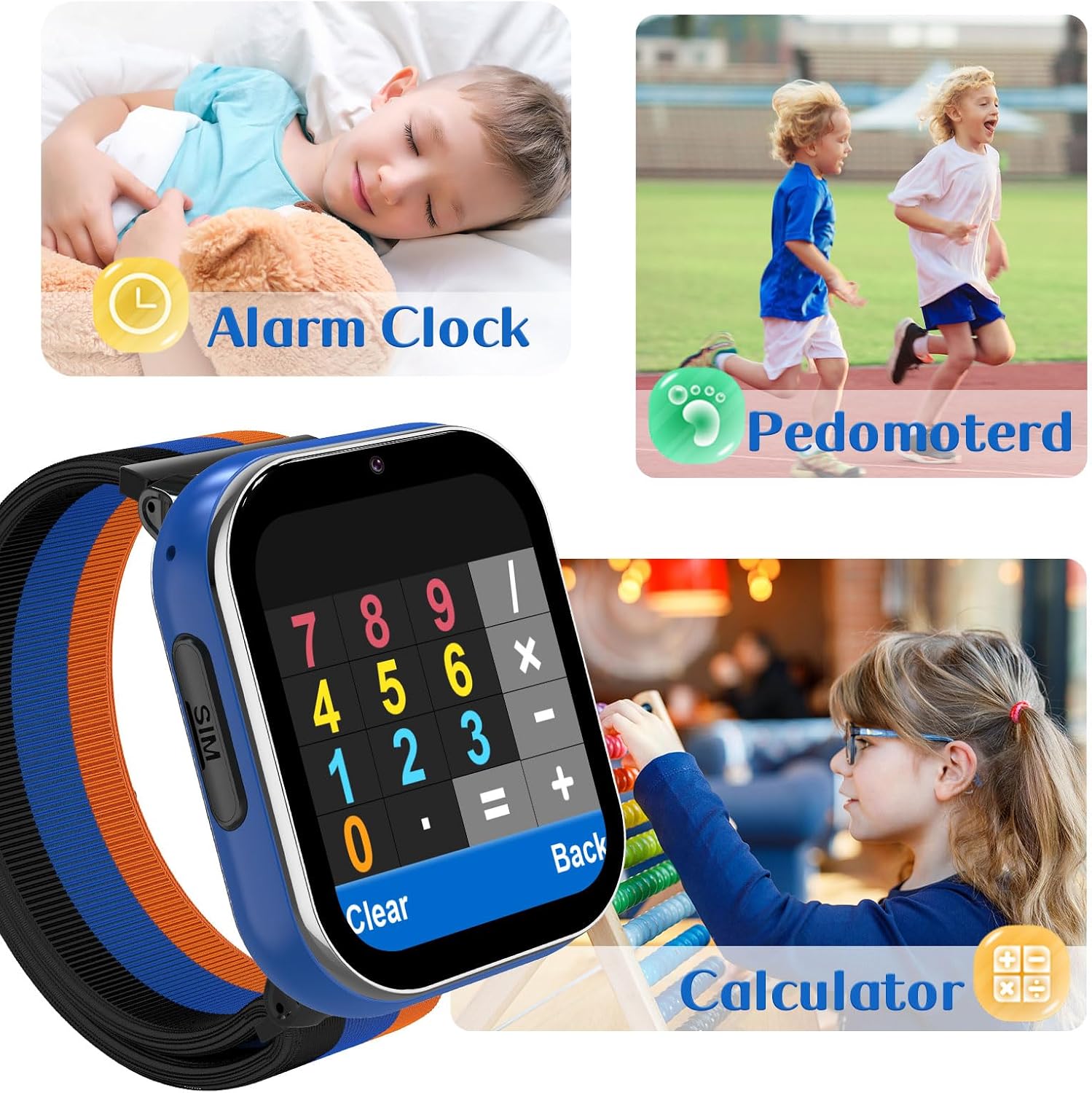
Image: Two-way calling and SOS function demonstration.
2. SOS Function
In an emergency, the SOS function allows your child to quickly contact pre-set numbers.
- Press and hold the SOS button for 3 seconds.
- The watch will automatically dial the pre-set emergency contacts in a loop until one is answered.
3. Camera
The built-in camera allows your child to capture photos.
- Tap the 'Camera' icon on the screen.
- Tap the capture button to take a photo.
- Photos are saved in the watch's gallery.

Image: Camera and Music Player features.
4. Music Player
The smartwatch includes a music player for entertainment.
- Tap the 'Music' or 'MP3' icon.
- Select a song from the list to play.
- Use the on-screen controls for play, pause, skip, and volume adjustment.
5. Learning Cards & Audio Books
Engage with educational content designed for early learning.
- Navigate to the 'Learning Cards' or 'Audio Books' section.
- Learning cards cover various topics like animals, vegetables, and colors.
- Audio books provide stories to enhance listening skills.

Image: Learning Cards and Audio Books features.
6. Puzzle Games
The smartwatch includes 7 built-in puzzle games to develop thinking and logic skills.
- Tap the 'Games' icon.
- Select a game from the list to start playing.

Image: Classroom Mode and Puzzle Games.
7. Classroom Mode
To minimize distractions during school hours, activate Classroom Mode.
- Access 'Settings' and locate 'Classroom Mode'.
- Set the desired time periods during which the watch will limit functions to prevent distractions.
- During Classroom Mode, only essential functions like time display and SOS calls may be available.
8. Alarm Clock
Set alarms for reminders or daily routines.
- Tap the 'Alarm' icon.
- Add a new alarm, set the time, and choose repetition options.

Image: Alarm Clock, Pedometer, and Calculator features.
9. Pedometer
Track daily steps to encourage physical activity.
- Access the 'Pedometer' function to view step count.
- The watch automatically tracks steps when worn.
10. Calculator
A basic calculator is available for quick calculations.
- Tap the 'Calculator' icon to open the application.
- Use the touch screen to input numbers and operations.
11. Customizing Wallpaper
Personalize the watch face with different wallpapers.
- Go to 'Settings' and find 'Wallpaper' or 'Display'.
- Choose from the available pre-loaded wallpapers.

Image: Customizable watch wallpapers.
12. Habit Tracking
The watch includes features to help guide children in developing good habits.
- Access the 'Habit Tracking' feature from the main menu.
- Review and set up daily routines or tasks.

Image: Habit Tracking feature with daily activity icons.
Maintenance
1. Cleaning
- Wipe the watch screen and body with a soft, dry, lint-free cloth.
- Avoid using harsh chemicals or abrasive materials.
- Note: The watch is not water resistant. Avoid exposure to water.
2. Battery Care
- Charge the watch regularly, even if not in use, to maintain battery health.
- Avoid extreme temperatures, which can affect battery performance.
- Use only the provided charging cable.
Troubleshooting
If you encounter issues with your smartwatch, refer to the following common solutions:
| Problem | Possible Solution |
|---|---|
| Watch does not power on | Ensure the watch is fully charged. Press and hold the Power Button for several seconds. |
| Cannot make/receive calls | Verify the 4G SIM card is correctly installed and activated. Check for network signal. Ensure sufficient balance on the SIM card. |
| Charging issues (e.g., not charging, loose connection) | Ensure the charging cable is securely connected to both the watch and the power source. Try a different USB power adapter or port. Inspect the charging port for debris. |
| Screen is unresponsive | Restart the watch. If the issue persists, ensure the screen is clean and dry. |
| Sound issues (no audio, low volume) | Check the volume settings on the watch. Ensure the speaker is not obstructed. |
Specifications
| Feature | Detail |
|---|---|
| Model Number | LT49 |
| Brand | PTHTECHUS |
| Cellular Technology | 4G |
| SIM Card Size | Nano |
| Battery Capacity | 700 mAh (Lithium Ion) |
| Display Type | LCD |
| Human Interface Input | Touchscreen |
| Band Material Type | Nylon |
| Water Resistance Level | Not Water Resistant |
| Memory Storage Capacity | 3.7 GB |
| Additional Features | Alarm Clock, Camera, Music Player, SOS Button, Touchscreen, Puzzle Games, Learning Cards, Habit Tracking, Classroom Mode, Pedometer, Calculator |
| GPS Functionality | No GPS |
| Video Call Functionality | No Video Call |
Warranty and Support
Warranty Information
This PTHTECHUS Kids 4G Smartwatch comes with a limited warranty. Please refer to the warranty card included in your package or contact the manufacturer for specific terms and conditions.
Customer Support
For further assistance, technical support, or inquiries regarding your smartwatch, please contact PTHTECHUS customer service through their official website or the contact information provided in your product packaging.


