
1. Introduction
Thank you for choosing the HGFRTEE 12.3 Inch Portable Monitor. This device is designed to enhance your productivity and entertainment experience with its high-resolution display and versatile connectivity. This manual provides essential information for setting up, operating, and maintaining your monitor.

Image: The HGFRTEE 12.3 Inch Portable Monitor, showcasing its sleek design and vibrant display.
2. Package Contents
Please check the package contents carefully. If any items are missing or damaged, contact customer support.
- HGFRTEE 12.3 Inch Portable Monitor
- USB-C to USB-C Cable (Full-function)
- Mini HDMI to HDMI Cable
- USB-A to USB-C Power Cable
- Power Adapter (if included)
- User Manual
3. Product Features
- 12.3 Inch FHD IPS Display: Enjoy crisp visuals with a 1920 x 1200 resolution and wide viewing angles.
- Ultra-Portable Design: Lightweight (0.35kg) and slim (1.2cm) for easy transport.
- Versatile Connectivity: Features dual USB-C ports and one Mini HDMI port for broad compatibility.
- Built-in Speakers: Integrated audio for convenience.
- Eye Care Technology: Low blue light and flicker-free features reduce eye strain.
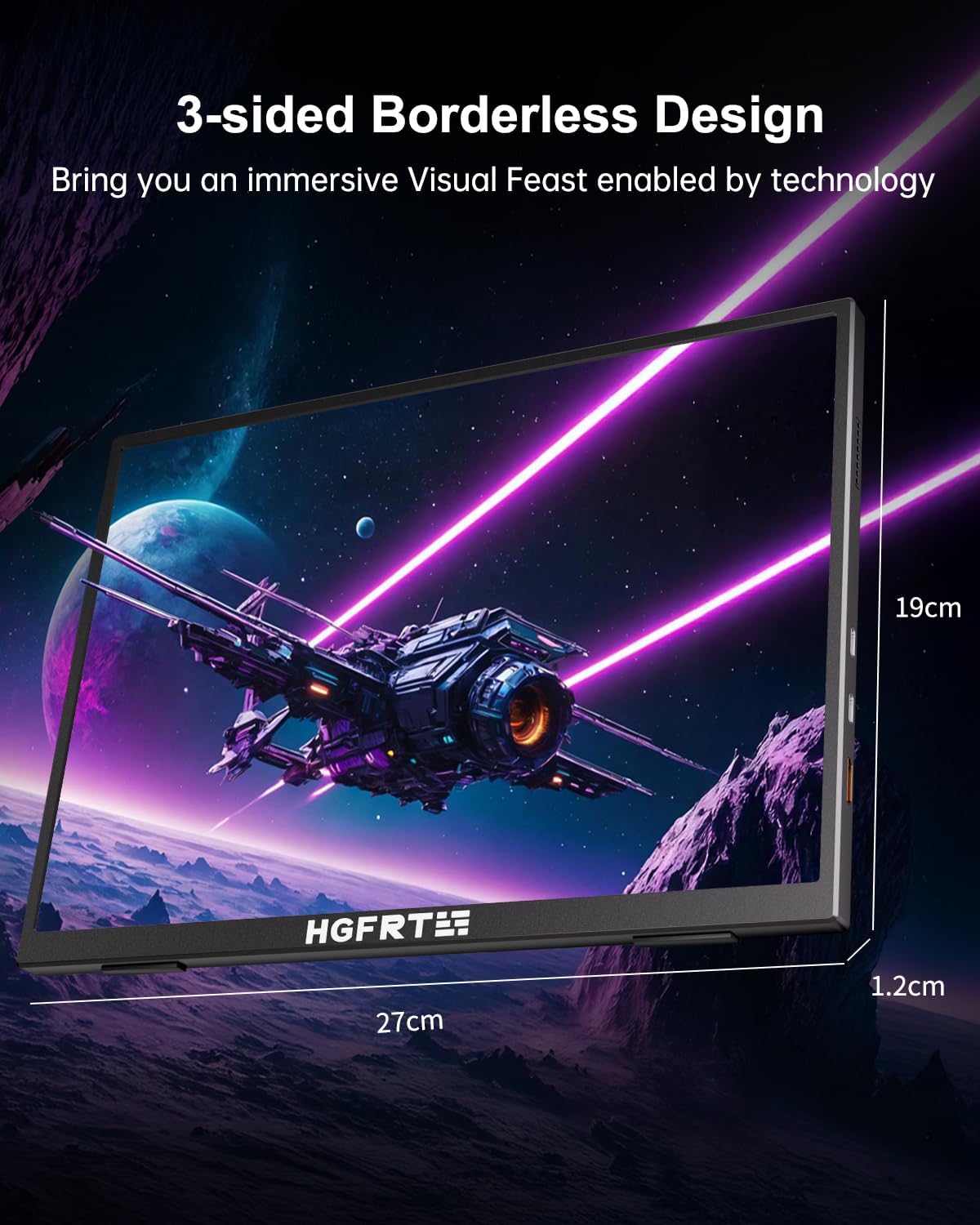
Image: The monitor's 3-sided borderless design, highlighting its dimensions (27cm width, 19cm height, 1.2cm thickness).

Image: Illustration of the monitor's ultra-portable nature, showing its 1.2cm thickness and 0.35kg weight.
4. Setup and Connectivity
4.1 Connecting to Devices
The HGFRTEE portable monitor offers flexible connectivity options for various devices.
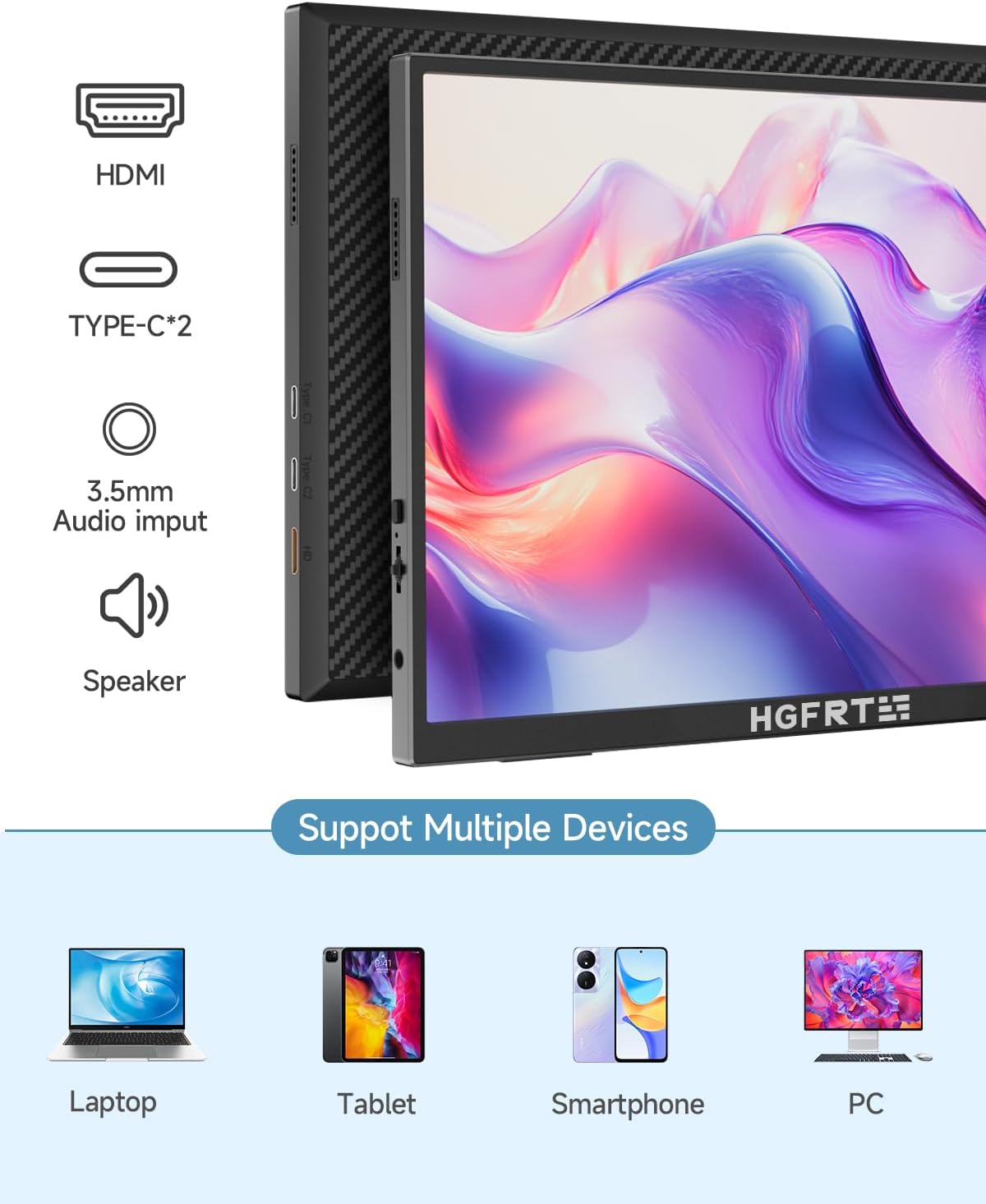
Image: The monitor supports multiple devices including laptops, tablets, smartphones, and PCs.
USB-C Connection (Full-function)
For devices with a full-function USB-C port (supporting both power and video output), a single USB-C to USB-C cable can provide both power and display signal.
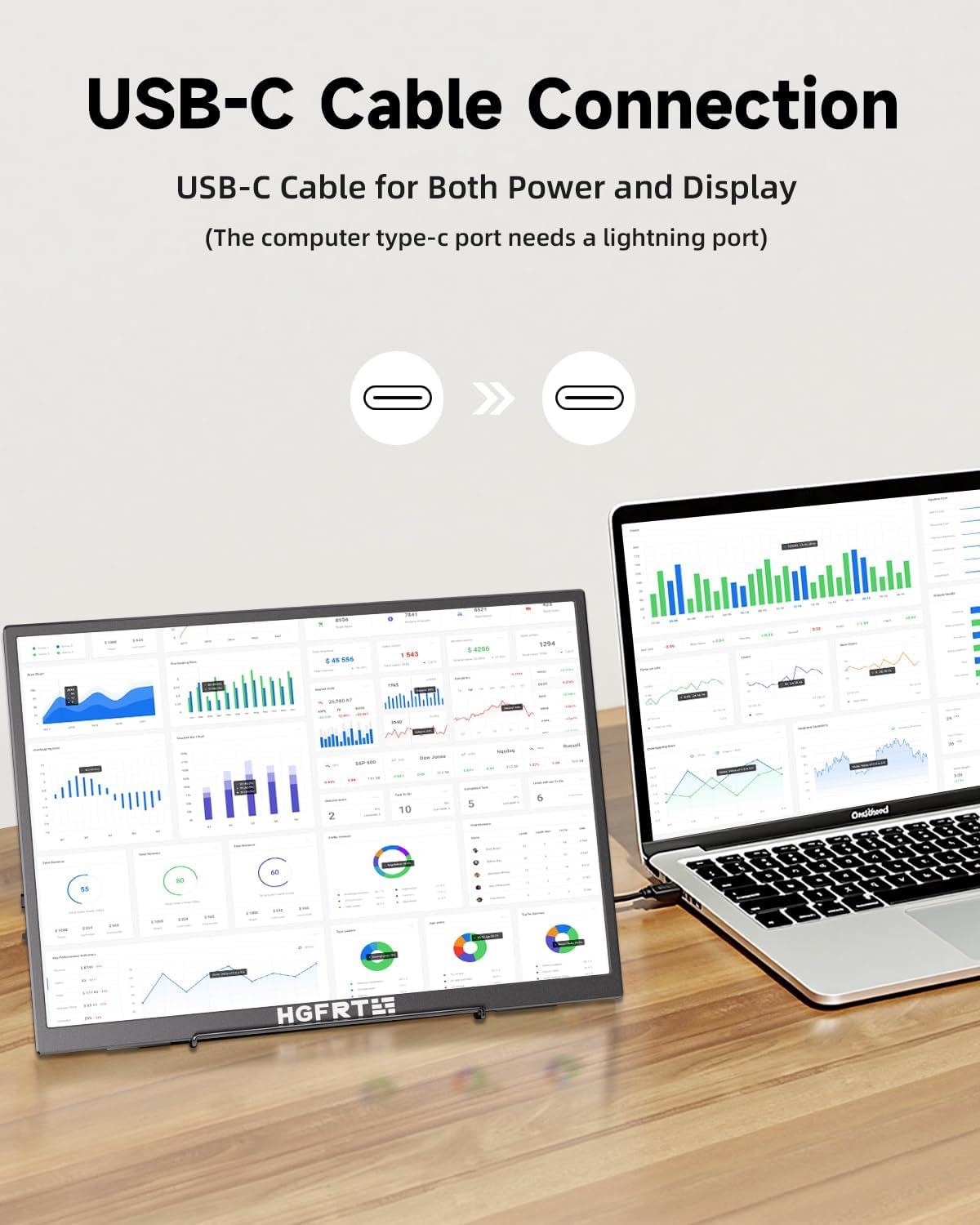
Image: A laptop connected to the portable monitor using a single USB-C cable for both power and display signal.
HDMI Connection
For devices with an HDMI output, use the Mini HDMI to HDMI cable for video signal. Power must be supplied separately via a USB-C to USB-A power cable connected to a power adapter or a device's USB-A port.

Image: Connection diagrams showing how to connect the monitor to a laptop using different cable combinations (Mini HD to HD, USB-A to C, Type-C to Type-C).
5. Operating Instructions
5.1 Power On/Off
Press and hold the power button (usually located on the side or back) for 3 seconds to turn the monitor on or off. A short press typically activates the On-Screen Display (OSD) menu.
5.2 OSD Menu Navigation
Use the control buttons (joystick or individual buttons) on the monitor to navigate the OSD menu. Common settings include:
- Brightness/Contrast: Adjust display luminance and color difference.
- Volume: Control the output level of the built-in speakers.
- Input Source: Manually select between USB-C and HDMI inputs.
- Color Settings: Adjust color temperature, hue, and saturation.
- Aspect Ratio: Switch between 16:9, 4:3, or auto.
6. Eye Care Features
The HGFRTEE monitor incorporates features designed to reduce eye strain during prolonged use.
- Low Blue Light Mode: Reduces the emission of harmful blue light, which can contribute to eye fatigue and sleep disruption. This mode can be activated through the OSD menu.
- Flicker-Free Technology: Eliminates screen flickering at all brightness levels, providing a more comfortable viewing experience.

Image: A visual comparison demonstrating the reduction of blue light emission in the monitor's anti-blue light display mode compared to an ordinary display.
7. Specifications
| Feature | Specification |
|---|---|
| Brand | HGFRTEE |
| Screen Size | 12.3 Inches |
| Resolution | FHD 1920 x 1200p |
| Aspect Ratio | 16:9 |
| Image Contrast Ratio | 1500:1 |
| Connectivity | 2x USB-C, 1x Mini HDMI, 1x 3.5mm Audio Input |
| Built-in Speakers | Yes |
8. Troubleshooting
8.1 No Signal / Black Screen
- Ensure all cables (USB-C, HDMI) are securely connected to both the monitor and the source device.
- Verify the source device is powered on and outputting a signal.
- Check if the monitor is receiving power. If using HDMI, ensure a separate USB-C power cable is connected.
- Try selecting the correct input source manually via the OSD menu.
- Test with a different cable or source device if possible.
8.2 No Sound
- Increase the monitor's volume via the OSD menu.
- Check the audio output settings on your source device to ensure sound is directed to the monitor.
- If using HDMI, ensure the source device is sending audio over HDMI.
- Test with headphones connected to the monitor's 3.5mm audio jack.
8.3 Display Flickering
- Ensure the power supply is stable and sufficient.
- Try a different cable.
- Adjust the refresh rate settings on your source device.
9. Maintenance
- Cleaning: Use a soft, lint-free cloth to clean the screen. For stubborn marks, lightly dampen the cloth with water or a screen-cleaning solution. Avoid harsh chemicals.
- Storage: When not in use, store the monitor in a cool, dry place, preferably in its original packaging or a protective sleeve to prevent dust and scratches.
- Handling: Avoid dropping or subjecting the monitor to strong impacts. Do not place heavy objects on top of it.
10. Warranty and Support
The HGFRTEE 12.3 Inch Portable Monitor comes with a standard manufacturer's warranty. Please refer to the warranty card included in your package for specific terms and conditions.
For technical support, troubleshooting assistance, or warranty claims, please contact HGFRTEE customer service through the retailer where you purchased the product or visit the official HGFRTEE website for contact information.


