
Introduction
Welcome to the GIGABYTE Radeon RX 9070 XT Gaming OC 16G Graphics Card user manual. This document provides essential information for the proper installation, operation, and maintenance of your new graphics card. Please read this manual thoroughly before installation to ensure optimal performance and safety.
Safety Information
Safety Precautions
- Ensure your computer's power supply is disconnected before installing or removing the graphics card.
- Handle the graphics card by its edges to avoid touching sensitive components.
- Wear an anti-static wrist strap to prevent electrostatic discharge (ESD) damage.
- Install the graphics card in a well-ventilated computer case to prevent overheating.
- Refer to your power supply unit's manual for proper power cable connections.
Package Contents
Verify that all items are present in your product package:
- GIGABYTE Radeon RX 9070 XT Gaming OC 16G Graphics Card
- User Manual (this document)
Product Overview
The GIGABYTE Radeon RX 9070 XT Gaming OC 16G Graphics Card features the AMD Radeon RX 9070 XT GPU, 16GB of GDDR6 memory, and the WINDFORCE cooling system for efficient heat dissipation. It supports PCI-E 5.0 and offers multiple display outputs.

An overview of the GIGABYTE Radeon RX 9070 XT Gaming OC 16G Graphics Card, shown alongside its retail box, highlighting the product's design and branding.

A direct front view of the graphics card, emphasizing the triple-fan WINDFORCE cooling system designed for efficient heat dissipation.
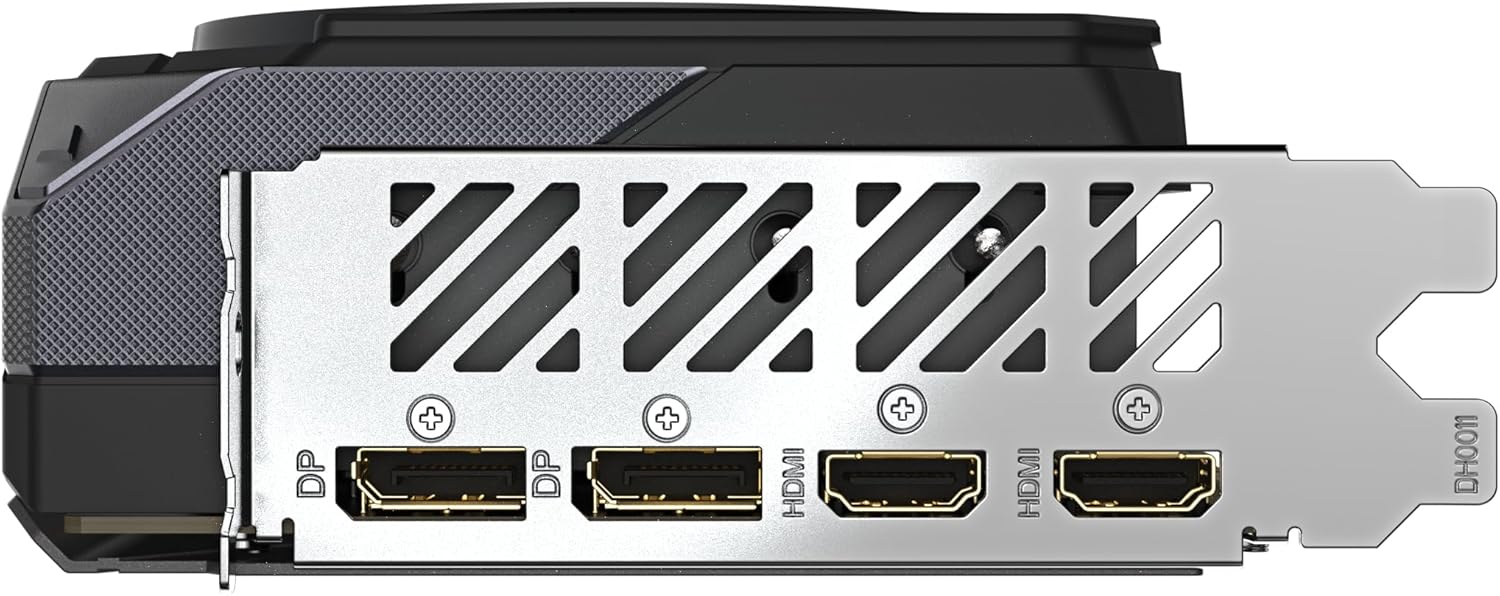
The rear I/O panel of the graphics card, featuring two DisplayPort and two HDMI connectors for monitor connectivity.

A view from the top of the graphics card, illustrating the three 8-pin PCIe power connectors required for operation, along with the GIGABYTE logo.
Setup and Installation
- Prepare Your System: Power off your computer and disconnect the power cord. Open your computer case.
- Locate PCIe Slot: Identify an available PCI Express x16 slot on your motherboard.
- Install the Graphics Card: Carefully align the graphics card with the PCIe slot and press down firmly until it is securely seated. Secure the card with the case screw.
- Connect Power Cables: The GIGABYTE Radeon RX 9070 XT Gaming OC 16G Graphics Card requires three separate 8-pin (6+2 pin) PCIe power connectors from your power supply unit. Ensure each connector is securely plugged into the card. It is recommended to use a power supply of at least 850W.
- Connect Display Cables: Connect your monitor(s) to the graphics card's DisplayPort or HDMI outputs. This card features two DisplayPort and two HDMI outputs.
- Close Case and Power On: Close your computer case, reconnect the power cord, and power on your system.
- Install Drivers: Once your operating system loads, install the latest AMD Radeon drivers from the official GIGABYTE or AMD website for optimal performance.
Operating Instructions
Driver Installation
After physical installation, download and install the latest graphics drivers from the official GIGABYTE or AMD website. This ensures full functionality and performance optimization.
GIGABYTE Control Center / AMD Software: Adrenalin Edition
Utilize GIGABYTE Control Center or AMD Software: Adrenalin Edition for advanced settings, monitoring, and customization. These applications allow you to:
- Monitor GPU temperature, clock speeds, and fan speeds.
- Adjust fan curves for optimal cooling and noise levels.
- Manage RGB lighting effects.
- Switch between Dual BIOS modes (Performance/Quiet) if applicable.
- Access overclocking features (use with caution).
Maintenance
- Keep Drivers Updated: Regularly update your graphics card drivers to ensure compatibility and performance improvements.
- Clean Dust: Periodically clean dust from the graphics card fans and heatsink using compressed air. Ensure the system is powered off and unplugged before cleaning.
- Monitor Temperatures: Use monitoring software to keep track of GPU temperatures during operation to prevent overheating.
Troubleshooting
If you encounter issues with your graphics card, refer to the following common solutions:
- No Display Output:
- Ensure all power cables (PCIe and display) are securely connected.
- Verify the graphics card is properly seated in the PCIe slot.
- Test with a different display cable or monitor.
- Ensure your monitor is set to the correct input source.
- System Instability/Crashes:
- Ensure your power supply meets the recommended wattage (850W or higher).
- Update your graphics drivers to the latest version.
- Check GPU temperatures to ensure it's not overheating.
- If overclocked, revert to default settings.
- Fan Noise:
- Check for dust accumulation on fans and heatsink.
- Adjust fan curves using GIGABYTE Control Center or AMD Software: Adrenalin Edition to find a balance between cooling and noise.
For further assistance, contact GIGABYTE customer support.
Specifications
| Feature | Detail |
|---|---|
| Graphics Processing Unit | AMD Radeon RX 9070 XT |
| Video Memory | 16 GB GDDR6 |
| Memory Interface | 256-bit |
| Core Frequency | Up to 3060 MHz (Boost Clock) |
| PCI Express | PCI-E 5.0 x16 |
| Display Outputs | 2 x DisplayPort, 2 x HDMI |
| Max Digital Resolution | 3840x2160 |
| Recommended PSU | 850W or higher |
| Dimensions (LxWxH) | 11.34 x 5.2 x 0.04 inches |
| Weight | 2.78 pounds |
| Cooling System | WINDFORCE Cooling System |
| Additional Features | RGB Lighting, Dual BIOS (Power/Quiet), Reinforced Structure |
Warranty and Support
For warranty information and technical support, please visit the official GIGABYTE website or contact your local GIGABYTE distributor. Keep your proof of purchase for warranty claims.


