
Introduction
The ZAZU Instant Digital Camera is designed to provide a fun and engaging photography experience for children. This versatile camera allows young photographers to capture high-resolution photos, record Full HD videos, and instantly print their favorite moments using inkless thermal printing technology.
Its user-friendly design, compact size, and creative features make it an ideal tool for fostering creativity and capturing memories.
- Instant Printing Fun: Capture and print photos instantly using inkless thermal printing technology. Includes 2 print rolls for up to 120 photos.
- Impressive Clarity: Record every moment in high-resolution 48MP photos and 1080P Full HD videos.
- Creative Design Options: Personalize photos and videos with fun filters.
- Versatile Design: Combines photography, video recording, and built-in games in a compact device.
- Portable and Robust: Lightweight (230g) with a 1200 mAh rechargeable battery and a lanyard for safe, on-the-go use. USB charging cable included.
Package Contents
Please ensure all items are present in the package:
- ZAZU Instant Digital Camera
- USB Charging Cable
- Lanyard
- 2 Thermal Print Rolls (5.7 cm width)
Note: A TF (MicroSD) card is not included and is required for saving photos and videos. The camera supports up to 64GB TF cards.
Setup
1. Charging the Camera
Before first use, fully charge the camera's built-in 1200 mAh rechargeable battery.
- Connect the provided USB charging cable to the camera's charging port.
- Connect the other end of the USB cable to a compatible USB power adapter (not included) or a computer's USB port.
- The charging indicator light will illuminate. Once fully charged, the light may change color or turn off.
2. Inserting a TF (MicroSD) Card
A TF card is necessary to store your photos and videos.
- Locate the TF card slot on the camera.
- Gently insert the TF card with the gold contacts facing down until it clicks into place.
- To remove, press the card gently until it springs out.
3. Loading Thermal Print Paper
The camera uses inkless thermal paper for instant prints.
- Open the paper compartment cover.
- Insert a roll of thermal paper, ensuring the paper feeds out from the top of the roll.
- Pull a small length of paper out of the slot and close the cover firmly.

Image: The ZAZU Instant Digital Camera showing how to load the thermal print paper roll into the designated compartment.
Operating Instructions
1. Power On/Off
Press and hold the Power button (usually marked with a power symbol) for a few seconds to turn the camera on or off.

Image: Front view of the ZAZU Instant Digital Camera, showing its 2-inch color screen and control buttons.
2. Taking Photos
The camera captures photos at 48MP resolution.
- Ensure the camera is in photo mode (check the icon on the screen).
- Frame your shot using the 2-inch color screen.
- Press the Shutter button (usually a prominent button on top or side) to take a picture.

Image: A child holding the ZAZU Instant Digital Camera, demonstrating its ease of use for capturing moments.
3. Recording Videos
Record Full HD 1080P videos.
- Switch to video recording mode (refer to the on-screen icons or menu).
- Press the Record button (often the same as the Shutter button, or a dedicated video button) to start recording.
- Press the Record button again to stop recording.

Image: A child actively using the ZAZU Instant Digital Camera to capture photos and videos.
4. Instant Printing
Print your captured photos instantly without ink.
- After taking a photo, or when viewing a photo in playback mode, look for the Print option on the screen.
- Select the Print option, and the camera will automatically print the image on the thermal paper.

Image: A child's hands holding the ZAZU Instant Digital Camera as it prints a black-and-white photo on thermal paper.
5. Using Filters and Creative Options
Enhance your photos and videos with various built-in filters and frames.
- Navigate through the camera's menu to find the "Filters" or "Frames" option.
- Select your desired filter or frame before taking a photo or recording a video.
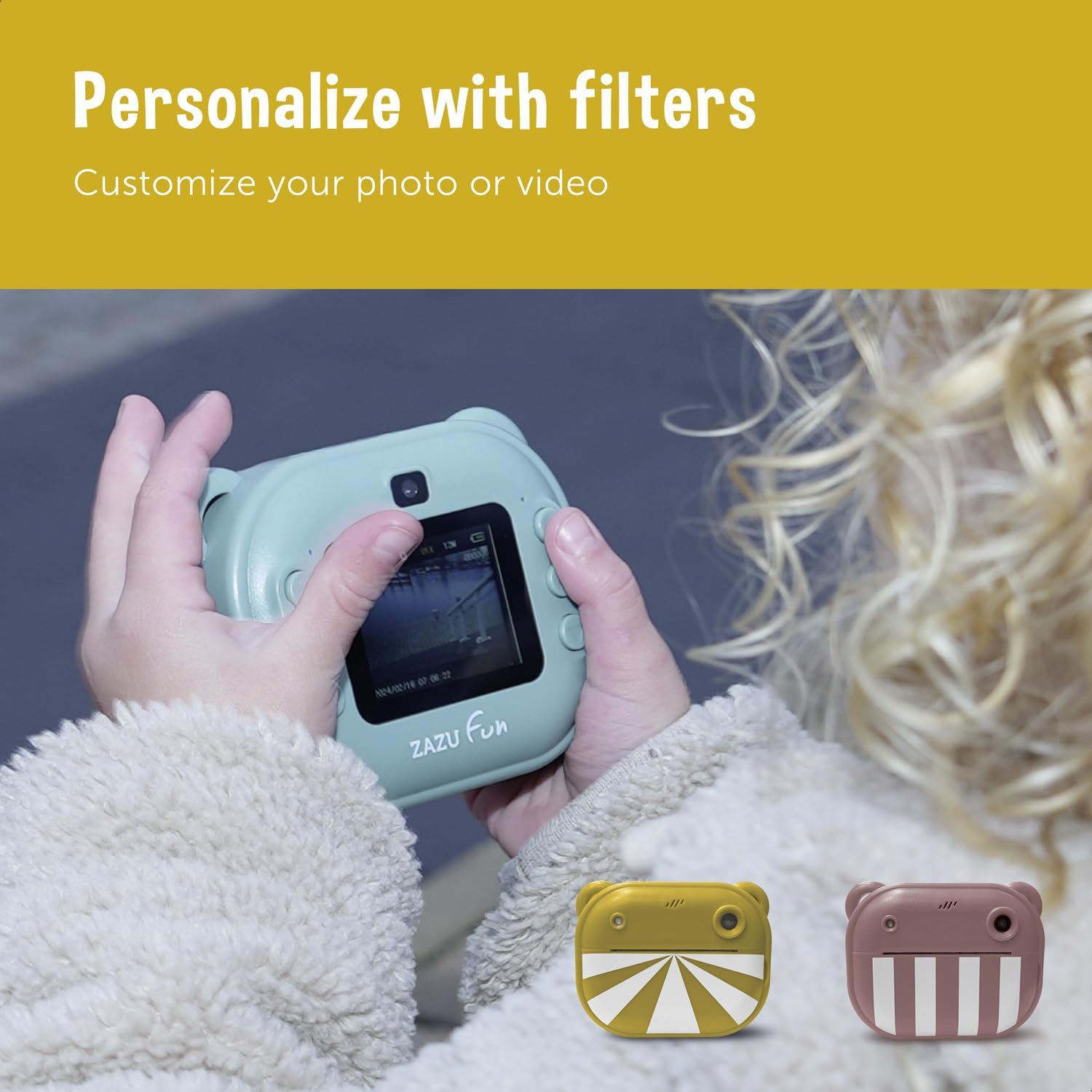
Image: A child interacting with the ZAZU Instant Digital Camera, demonstrating the use of creative filters on the screen.
6. Taking Selfies
The camera features a front-facing lens for easy selfies.
- Switch to the front-facing camera mode (usually an icon on the screen or a dedicated button).
- Hold the camera facing yourself and press the Shutter button.

Image: A child holding the ZAZU Instant Digital Camera to take a selfie, utilizing its front-facing camera feature.
7. Creative Activities with Prints
The black-and-white thermal prints can be colored and decorated.

Image: Examples of thermal prints from the ZAZU Instant Digital Camera, colored and decorated with pencils, encouraging creative engagement.
Maintenance
1. Cleaning the Camera
- Use a soft, dry cloth to wipe the camera body.
- For the lens and screen, use a specialized lens cleaning cloth. Avoid abrasive materials or harsh chemicals.
- Ensure no moisture enters the ports or openings.
2. Replacing Thermal Paper Rolls
When the paper roll is depleted, replace it with a new 5.7 cm wide thermal paper roll, following the instructions in the "Loading Thermal Print Paper" section.
3. Battery Care
- Recharge the camera regularly to maintain battery health.
- Avoid completely draining the battery frequently.
- Store the camera in a cool, dry place when not in use for extended periods.
Troubleshooting
| Problem | Possible Cause | Solution |
|---|---|---|
| Camera does not turn on. | Battery is depleted. | Charge the camera fully using the provided USB cable. |
| Cannot take photos/videos. | No TF card inserted or card is full/corrupted. | Insert a TF card, or check if the existing card has enough space. Format the card if corrupted (this will erase all data). |
| Prints are blank or faded. | Thermal paper loaded incorrectly or paper roll is empty. | Ensure the thermal paper is loaded with the correct side facing the print head. Replace the paper roll if empty. |
| Camera freezes or becomes unresponsive. | Software glitch or low battery. | Press and hold the Power button for 10-15 seconds to force a restart. Ensure the battery is charged. |
| Poor image quality. | Lens is dirty or insufficient lighting. | Clean the camera lens. Ensure adequate lighting when taking photos. |
Specifications
| Brand | ZAZU |
| Model | ZA-CAMERA |
| Color (Current Variant) | Yellow |
| Effective Still Resolution | 48 Megapixels |
| Video Resolution | 1080p Full HD |
| Screen | 2-inch TFT Color Screen |
| Optical Zoom | 3x |
| Connectivity Technology | USB |
| Battery | 1200 mAh Rechargeable Battery |
| Storage | Supports up to 64GB TF (MicroSD) Card (not included) |
| Printing Technology | Inkless Thermal Printing |
| Product Dimensions | Approximately 13 x 9 x 4 cm |
| Product Weight | 230 Grams |
| Model Year | 2024 |
Warranty and Support
Warranty Information
Specific warranty details for the ZAZU Instant Digital Camera are typically provided with your purchase documentation or can be found on the official ZAZU website. Please retain your proof of purchase for warranty claims.
Customer Support
For further assistance, technical support, or inquiries regarding your ZAZU Instant Digital Camera, please visit the official ZAZU website or contact their customer service department. Contact information can usually be found on the product packaging or the manufacturer's website.
