
1. Introduction
This manual provides detailed instructions for the installation, operation, and maintenance of your Lehwey 10.26 Inch Portable Wireless CarPlay Screen. This device integrates wireless CarPlay and Android Auto functionality with a 4K front dash camera and a 1080P rearview backup camera, offering enhanced driving safety and convenience. Please read this manual thoroughly before using the product to ensure proper function and to avoid damage.
2. Product Overview
The Lehwey Portable Wireless CarPlay Screen is designed to upgrade your vehicle's infotainment system with modern features. Key functionalities include:
- Wireless CarPlay & Android Auto: Seamless smartphone integration for navigation, music, calls, and messages.
- Miracast & Airplay: Screen mirroring from your smartphone to the display.
- Dual HD Cameras: 4K front dash cam (170° wide-angle) and 1080P rear backup camera (140° wide-angle) for comprehensive recording and parking assistance.
- 10.26-Inch IPS Touchscreen: High-resolution (1600*600) display with split-screen functionality and adjustable brightness.
- Multiple Audio Outputs: Bluetooth 5.0, FM radio transmission, AUX interface, and built-in speakers.
- G-Sensor & Loop Recording: Automatic incident detection and continuous video recording with a 64GB TF card included.
Package Contents:
- Lehwey 10.26 Inch Portable Wireless CarPlay Screen
- 4K Front Dash Camera (integrated)
- 1080P Rearview Backup Camera
- Car Mount (Adhesive and Suction Cup options)
- Charging Cable (Cigarette Lighter Power)
- AUX Input Cable
- 64GB TF Card
- User Manual

Figure 2.1: Lehwey 10.26 Inch Portable Wireless CarPlay Screen with integrated dashcam and rearview camera.

Figure 2.2: Package contents of the Lehwey Portable Wireless CarPlay Screen.
3. Setup & Installation
Follow these steps for proper installation of your device:
- Choose Mounting Location: Select a clean, dry, and flat surface on your dashboard or windshield. The device includes both adhesive and suction cup mounts. For uneven dashboards, the suction cup mount on the windshield is recommended for optimal stability.
- Attach Mount: Securely attach the chosen mount to the device and then to your desired location. Ensure it is stable and does not obstruct your view or vehicle controls.
- Connect Power: Plug the charging cable into the device and then into your vehicle's cigarette lighter port. The cigarette lighter port also functions as an in-car charger for other devices.
- Install Rearview Camera:
- Mount the rearview camera at the rear of your vehicle.
- Connect the camera cable to the AV input on the CarPlay screen.
- Connect the red wire of the rearview camera to your vehicle's reverse light positive terminal. This enables the screen to automatically display the rearview when reversing.
- Insert TF Card: Insert the provided 64GB TF card into the designated slot on the device. This is essential for dashcam recording.

Figure 3.1: Easy installation of the CarPlay screen using the cigarette lighter power.

Figure 3.2: Rearview camera installation diagram.
4. Operation
4.1 Wireless CarPlay & Android Auto
Connect your smartphone wirelessly to access navigation, music, calls, and messages. The device will attempt to automatically connect to the last paired phone.
- Ensure your phone is running iOS 12 or later (for CarPlay) or Android 11 or later (for Android Auto).
- On the CarPlay screen, select the "CarPlay" or "Android Auto" icon.
- On your smartphone, enable Bluetooth and search for the device (e.g., "F900_XXXXXXX").
- Pair your phone with the device. Confirm any pairing requests on both devices.
- Once connected, your phone's interface will appear on the CarPlay screen.
Video 4.1.1: Demonstration of CarPlay and AirPlay connection processes.
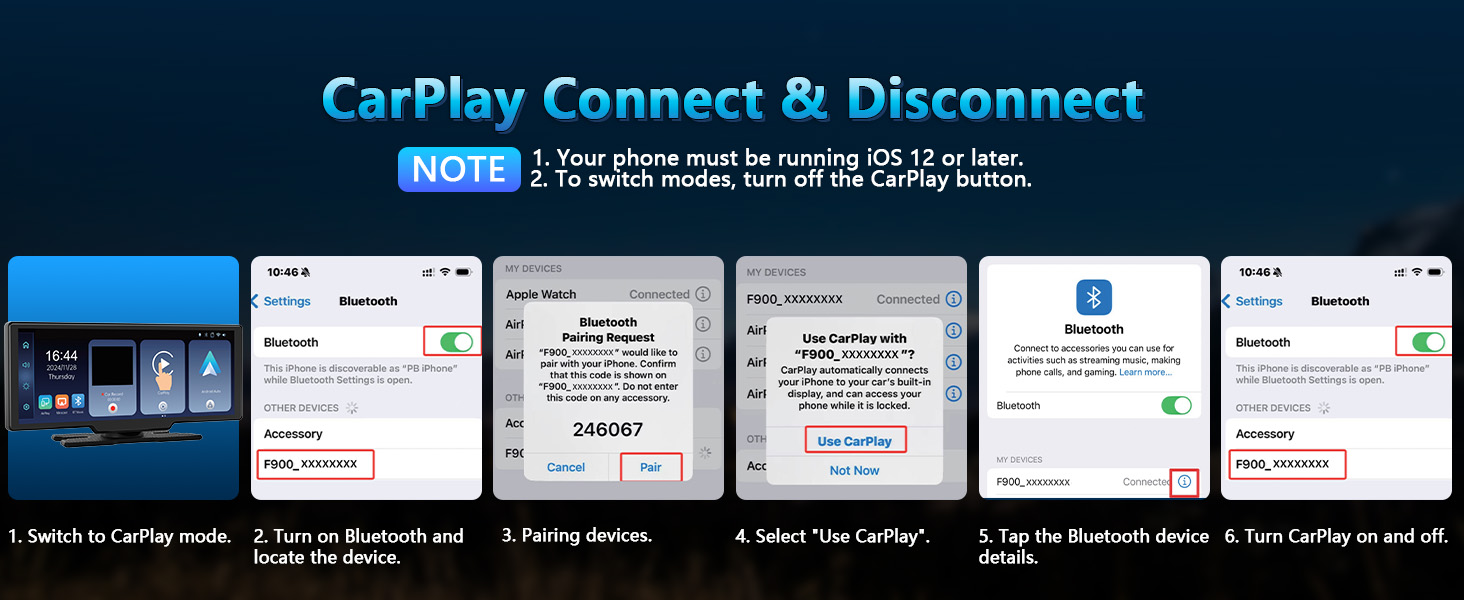
Figure 4.1.2: CarPlay connection and disconnection steps.
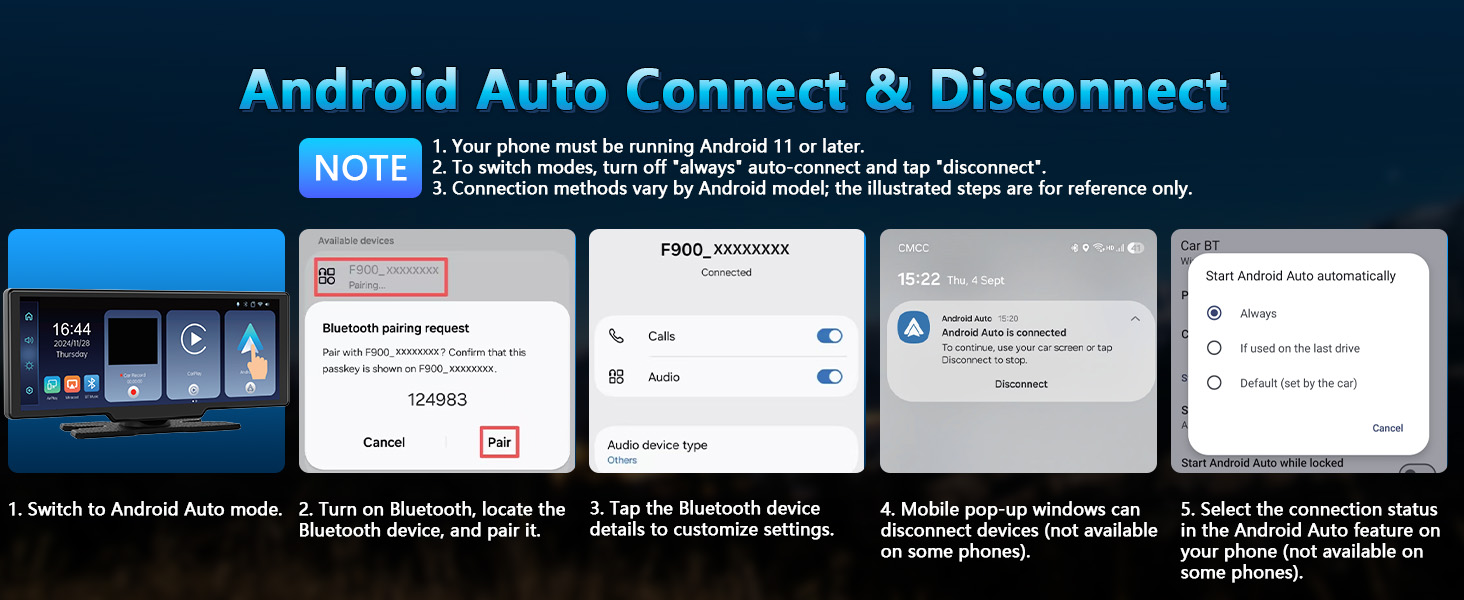
Figure 4.1.3: Android Auto connection and disconnection steps.
4.2 Miracast & Airplay
Mirror your smartphone screen to the CarPlay display for viewing maps, music, videos, and more.
- On the CarPlay screen, select the "Airplay" or "Miracast" icon.
- For Airplay (iOS): Connect your iPhone to the device's Wi-Fi network (e.g., "F900_XXXXXXX") and enter the password. Then, use the screen mirroring feature on your iPhone to select the device.
- For Miracast (Android): Ensure Wi-Fi is turned on (but do not search for devices in WLAN). Locate the screen mirroring or wireless projection feature on your Android phone and connect to the device.
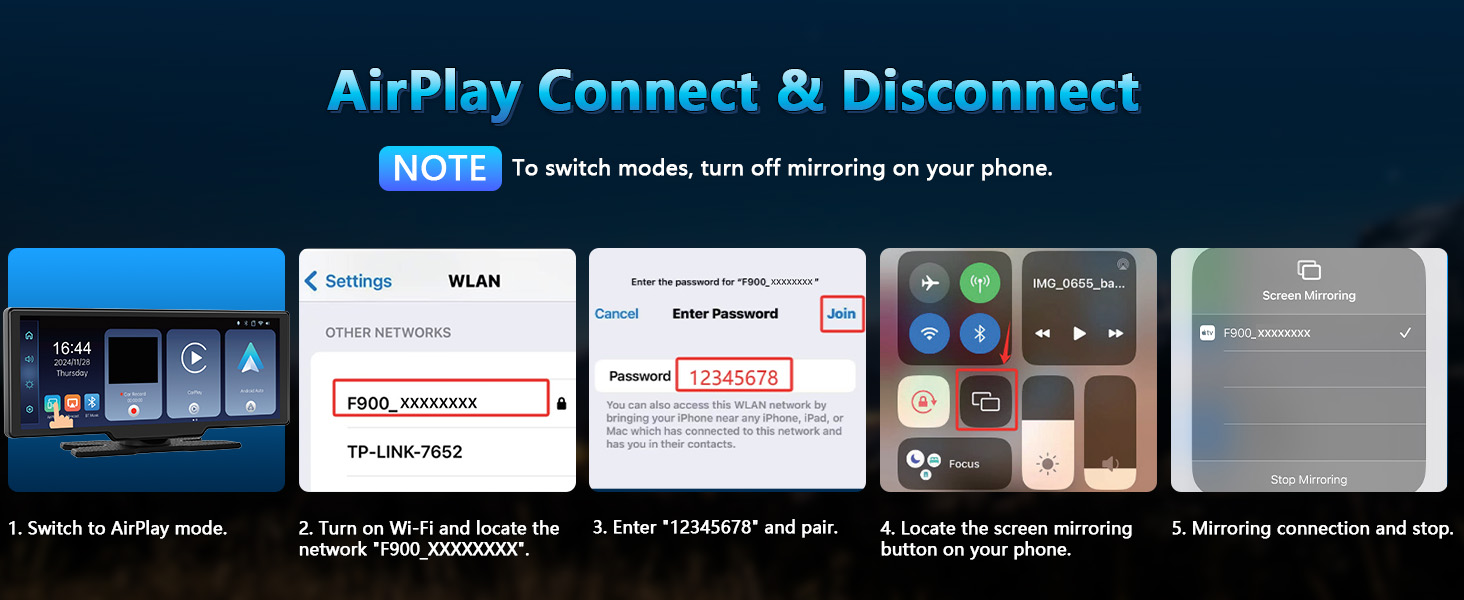
Figure 4.2.1: AirPlay connection and disconnection steps.
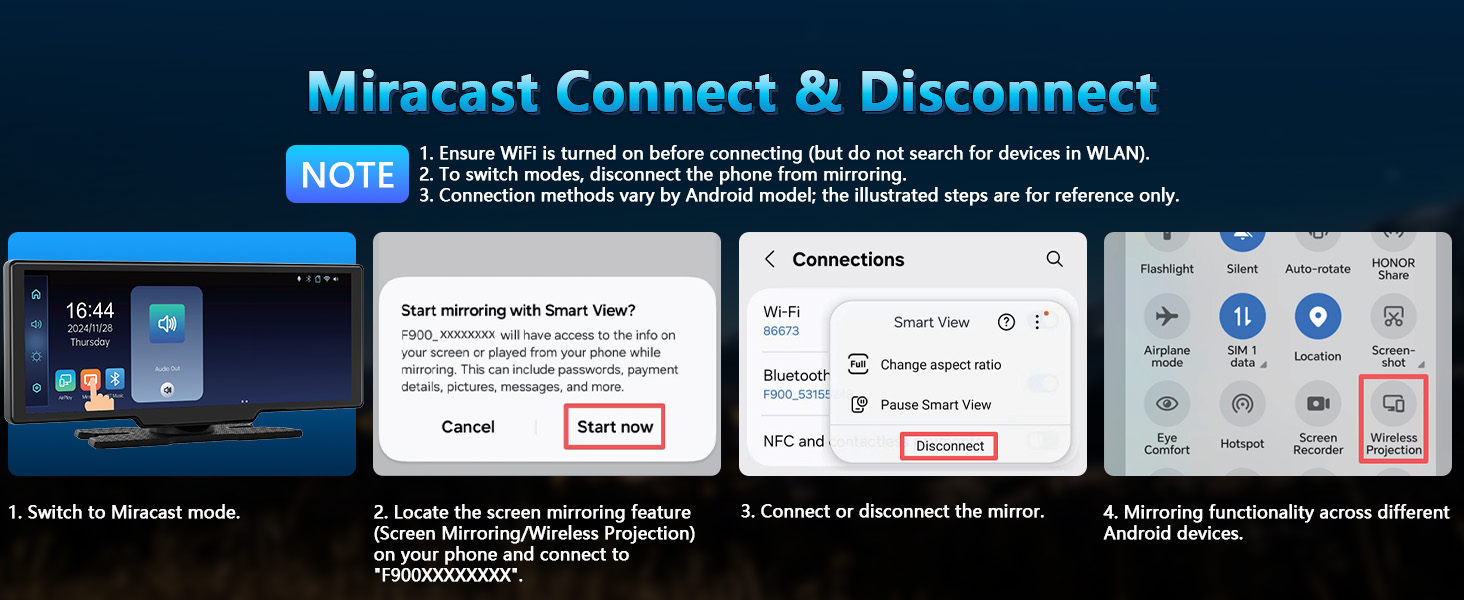
Figure 4.2.2: Miracast connection and disconnection steps.
4.3 Dual HD Cameras (Dashcam & Backup Camera)
The integrated 4K front camera and 1080P rear camera provide comprehensive video surveillance and parking assistance.
- Front Camera: Captures 4K video with a 170° ultra-wide angle. It can be vertically adjusted and extended/retracted to capture clear details.
- Rear Camera: Records 1080P video with a 140° wide-angle. When parking, it displays a real-time image with adjustable reversing lines on the screen. The rear camera is waterproof.
- Split-Screen Functionality: View front and rear camera feeds simultaneously or switch between single views in the settings.

Figure 4.3.1: Dual HD Camera overview and features.
4.4 10.26-Inch IPS Touchscreen with Split Function
The large, high-resolution display offers flexible viewing options.
- Resolution: 1600*600 pixels for clear images.
- Split-Screen: Display front and rear camera views side-by-side, or combine camera views with navigation/music.
- Brightness Adjustment: Adjust screen brightness in settings to adapt to different lighting conditions.

Figure 4.4.1: 10.26-inch IPS Touchscreen with split-screen functionality.
4.5 Multiple Audio Outputs
The device offers several options for audio output:
- Bluetooth 5.0: For high-quality hands-free calls and wireless music playback through your car's stereo.
- FM Radio Transmission: Transmit audio to your car's FM radio. Note: When using FM mode, the device's built-in speakers will not emit sound. You must either turn off FM or connect the audio to your car stereo.
- AUX Interface: Use the AUX input cable to stream music from your phone to the portable CarPlay screen and then to your car's audio system.
- Built-in Speakers: The device has integrated speakers for direct audio output with flexible volume control.

Figure 4.5.1: Four modes of audio output.
4.6 G-Sensor & Loop Recording
These features ensure critical video footage is captured and protected.
- G-Sensor: Automatically detects sudden impacts or collisions. When triggered, it locks the current video segment to prevent overwriting, providing evidence for accident liability determination.
- Loop Recording: Continuously records video. When the 64GB TF card storage is full, the oldest footage is automatically overwritten, ensuring continuous operation without manual management.
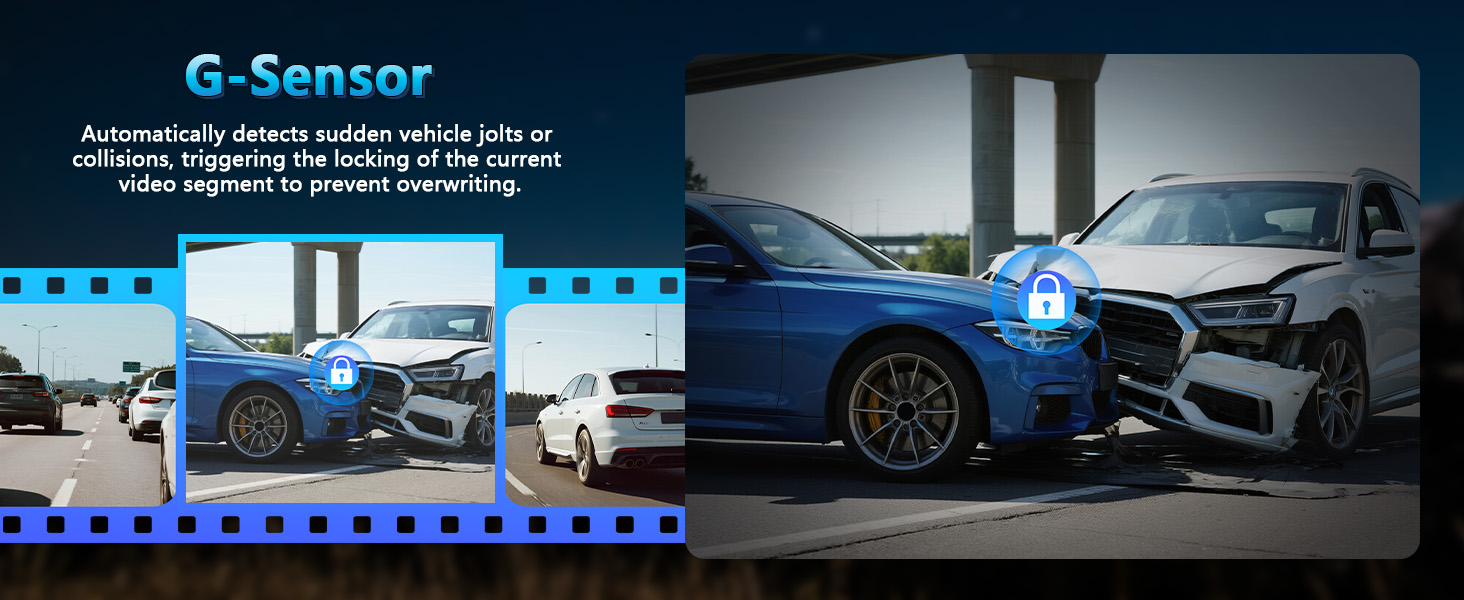
Figure 4.6.1: G-Sensor functionality for accident detection.
5. Troubleshooting
Refer to this section for solutions to common issues:
- Multiple Functions Not Operating Simultaneously: The device is designed to focus on one primary function at a time (e.g., CarPlay, Android Auto, Airplay, Miracast). To switch modes, disconnect the current mode via your phone's settings or the device's interface.
- No Sound in FM Mode: When using FM transmission, the device's built-in speakers will not produce sound. To hear audio, you must either turn off the FM function or connect the audio to your car's stereo system (via Bluetooth or AUX).
- Connection Issues with Android Phones: Connection methods for CarPlay/Android Auto can vary across different Android phone models. If you encounter compatibility or connection issues, ensure your phone's operating system is up to date and consult the device's settings for specific Android Auto connection options. If problems persist, contact customer support.
- Screen Not Turning On: Ensure the charging cable is securely connected to both the device and the cigarette lighter port, and that the vehicle's ignition is on.
- Poor GPS Signal: Ensure the device has a clear view of the sky. Metalized windshields or other electronic devices can interfere with GPS signals.
- Unstable Mount: If using the adhesive mount, ensure the dashboard surface is clean, dry, and flat before application. For uneven surfaces, use the suction cup mount on the windshield.
6. Specifications
| Feature | Detail |
|---|---|
| Brand | Lehwey |
| Model Number | B0DT71CSGP |
| Screen Size | 10.26 Inches |
| Display Type | IPS LCD Touchscreen |
| Resolution | 1600*600 |
| Connectivity Technology | Bluetooth 5.0, Wi-Fi, FM, AUX |
| Front Camera Resolution | 4K (170° Field of View) |
| Rear Camera Resolution | 1080P (140° Field of View) |
| Video Capture Resolution | 1080p (for recording) |
| Frame Rate | 30 FPS |
| Storage | 64GB TF Card (included) |
| Mounting Type | Dashboard Mount, Suction Cup Mount |
| Product Dimensions | 2.64"D x 9.44"W x 3.93"H |
| Item Weight | 1.14 Kilograms |
| Compatible Vehicle Type | Car (Most 12V-24V vehicles) |
7. Maintenance
- Cleaning the Screen: Use a soft, lint-free cloth to gently wipe the screen. Do not use abrasive cleaners or solvents.
- Camera Lenses: Keep camera lenses clean for optimal video quality. Use a lens cleaning solution and a microfiber cloth.
- Mounts: Periodically check the stability of the mounts. Re-apply adhesive or re-secure suction cups if they become loose.
- Software Updates: Check the manufacturer's website for any available firmware updates to ensure optimal performance and new features.
- TF Card Management: Regularly back up important footage from the TF card. Format the TF card periodically (e.g., once a month) to maintain performance, especially if you experience recording issues.
8. Warranty & Support
The Lehwey Portable Wireless CarPlay Screen comes with a 1-year manufacturer warranty. This warranty covers defects in materials and workmanship under normal use.
For technical support, warranty claims, or any questions regarding your product, please contact Lehwey customer service through the retailer where you purchased the device or visit the official Lehwey website for contact information.
Please retain your proof of purchase for warranty validation.