
Mibro DE-KidsWatch-Z5-Blue
Mibro Z5 Kids Smartwatch User Manual
Model: DE-KidsWatch-Z5-Blue
Introduction
The Mibro Z5 Kids Smartwatch is designed to provide communication, safety, and entertainment for children, while offering peace of mind for parents. This manual provides detailed instructions on how to set up, operate, maintain, and troubleshoot your Mibro Z5 smartwatch.
1. Setup
1.1 Unboxing
Carefully unpack the contents of the Mibro Z5 smartwatch box. You should find the following items:
- Mibro Z5 Kids Smartwatch (Blue)
- Magnetic Charging Cable
- SIM Card Removal Tool
- User Manual
1.2 SIM Card Installation
The Mibro Z5 requires a Nano SIM card for calling and 4G connectivity. Ensure the SIM card is active and has data services enabled.
- Locate the SIM card slot on the side of the smartwatch.
- Use the provided SIM card removal tool to open the SIM tray.
- Carefully place the Nano SIM card into the tray, ensuring correct orientation.
- Gently push the SIM tray back into the slot until it clicks into place.
1.3 Charging the Smartwatch
Before first use, fully charge the smartwatch. A full charge takes approximately 3 hours.
- Connect the magnetic charging cable to the charging port on the back of the smartwatch.
- Connect the other end of the USB cable to a compatible USB power adapter (not included) or a computer USB port.
- The screen will indicate charging status.

Image: The Mibro Z5 smartwatch screen showing full battery and indicating 14 days of standby time, highlighting its 900 mAh battery capacity.
1.4 App Configuration
To manage the smartwatch features and track your child's location, download the official Mibro app on your smartphone. Follow the in-app instructions to pair the smartwatch and configure settings such as contacts, whitelist, and safe zones.
2. Operating the Smartwatch
2.1 Power On/Off
- To power on: Press and hold the power button until the screen lights up.
- To power off: Press and hold the power button, then select 'Power Off' on the screen.
2.2 Making and Receiving Calls
The Mibro Z5 supports two-way voice and video calls with approved contacts.
- Voice Calls: Navigate to the 'Phone' application, select a contact from the whitelist, and initiate a call.
- Video Calls: Use the 'Video Call' function to connect with contacts, utilizing the dual 2MP cameras for real-time monitoring of your child's surroundings.

Image: The Mibro Z5 smartwatch displaying an incoming call from a contact labeled 'Mom', with options to answer or decline.

Image: Three children smiling, with the Mibro Z5 smartwatch in the foreground, emphasizing its front and side cameras for HD video calls, video recording, and photo capture.

Image: The Mibro Z5 smartwatch interface displaying three communication modes: phone call, video chat, and voice chat, illustrating versatile connectivity options.
2.3 SOS Emergency Function
In an emergency, your child can activate the SOS alarm.
- Press and hold the main button on the smartwatch for a few seconds.
- The smartwatch will send an immediate notification with the exact location to pre-set emergency contacts.

Image: The Mibro Z5 smartwatch displaying an SOS alert, with an illustration of a child activating the emergency function and a parent receiving a notification.
2.4 Call Whitelist and Blocking Unknown Numbers
For your child's safety, you can control who can contact them.
- Set up a call whitelist through the companion app. Only contacts on this list can call the smartwatch.
- Unknown numbers will be automatically blocked, preventing unwanted calls.

Image: A child wearing the Mibro Z5 smartwatch, with a smartphone screen showing the call whitelist settings, illustrating how parents can manage approved contacts and block unknown numbers.
2.5 GPS Tracking and Safe Zones
The smartwatch features a high-precision 7-in-1 localization system.
- Monitor your child's real-time location via the companion app.
- Set up safe zones (geofencing) in the app. You will receive alerts if your child enters or leaves these designated areas.

Image: A smartphone screen displaying a map with a GPS tracker pinpointing the location of the Mibro Z5 smartwatch, along with options for data storage, risk area alerts, and real-time transmission.
2.6 School Mode
To minimize distractions during school hours:
- Activate 'School Mode' through the app. This disables most functions, allowing only time display and SOS calls.

Image: Two children studying, with the Mibro Z5 smartwatch in the foreground displaying 'Anti-disturbing' mode, indicating its 'Class Mode' feature to prevent distractions during lessons.
2.7 Activity and Sports Tracking
The smartwatch includes various sensors to track physical activity.
- Pedometer: Counts steps taken throughout the day.
- Sports Modes: Supports tracking for activities like running, cycling, and rope skipping.

Image: Children engaged in various sports activities such as cycling, sit-ups, rope skipping, outdoor running, and walking, illustrating the Mibro Z5 smartwatch's sports monitoring functions.
2.8 Customization
Personalize the smartwatch with different watch faces.
- Choose from a variety of colorful and playful watch faces to suit your child's preference.
3. Maintenance
3.1 Water Resistance
The Mibro Z5 is 2 ATM waterproof, meaning it is resistant to splashes and light rain. It is not suitable for swimming or prolonged submersion.
- Avoid exposing the smartwatch to hot water, steam, or high-pressure water jets.
- Ensure the SIM card slot cover is securely closed to maintain water resistance.
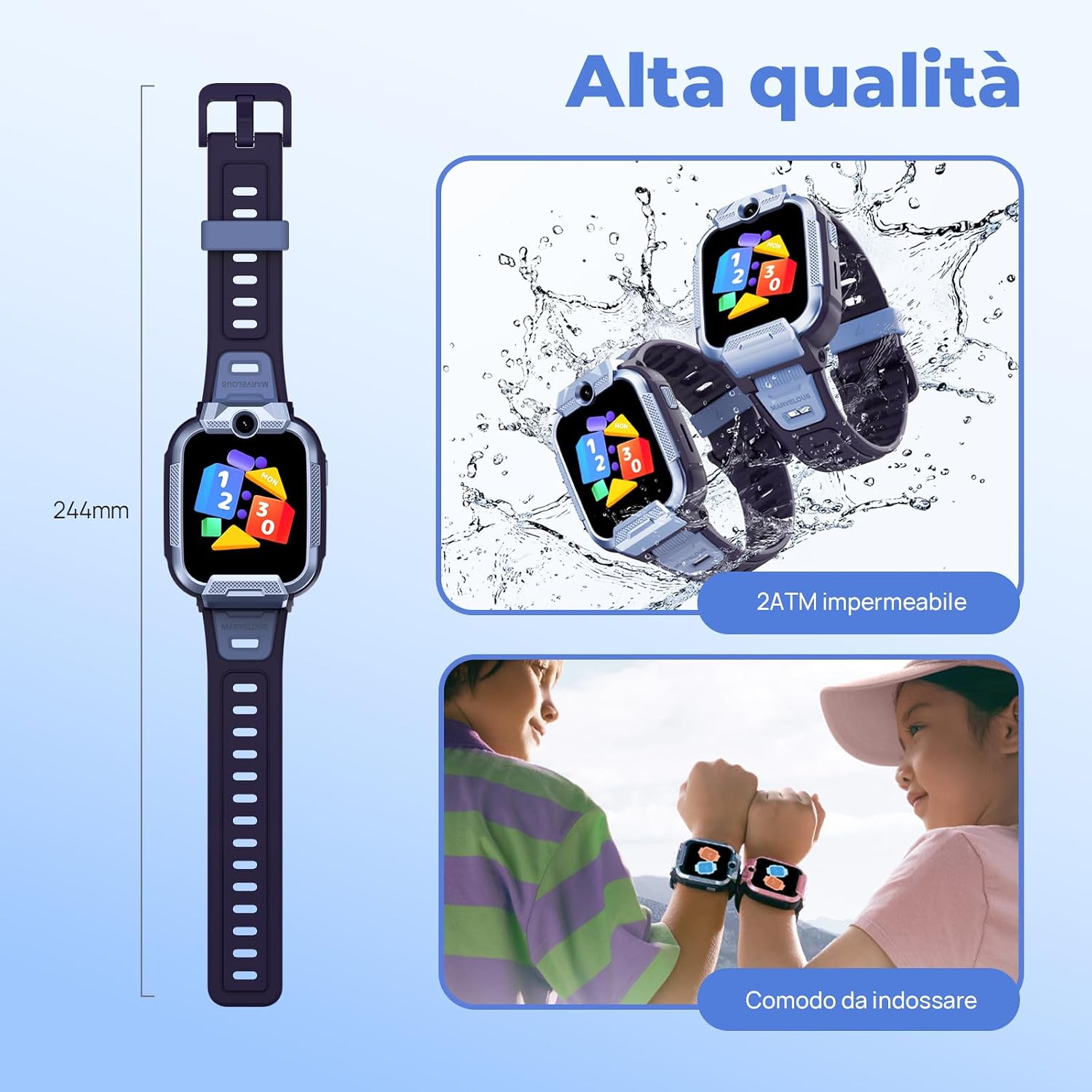
Image: The Mibro Z5 smartwatch being worn by children, with an inset showing the watch being splashed with water, emphasizing its 2ATM waterproof rating and comfortable design.
3.2 Cleaning
To keep your smartwatch clean:
- Wipe the screen and strap with a soft, damp cloth.
- Do not use harsh chemicals or abrasive materials.
3.3 Battery Care
To maximize battery life and performance:
- Avoid extreme temperatures.
- Charge the battery regularly, avoiding complete discharge.
- The 900 mAh battery provides approximately 5 days of normal use and up to 12 days in standby mode.
4. Troubleshooting
4.1 Smartwatch Not Turning On
- Ensure the battery is charged. Connect the smartwatch to the charger for at least 30 minutes.
- Press and hold the power button for 10-15 seconds to force a restart.
4.2 No Network Signal / Cannot Make Calls
- Check if the Nano SIM card is correctly inserted and activated.
- Ensure the SIM card has sufficient credit or an active plan for calls and data.
- Verify network coverage in your area.
- Restart the smartwatch.
4.3 Inaccurate GPS Location
- GPS accuracy can be affected by environment (e.g., indoors, dense buildings). Move to an open area.
- Ensure the smartwatch has a clear view of the sky for optimal GPS signal.
- Check the companion app settings to ensure location services are enabled for the smartwatch.
4.4 App Connection Issues
- Ensure Bluetooth is enabled on your smartphone and the smartwatch is within range.
- Update the Mibro app to the latest version.
- Restart both the smartwatch and your smartphone.
- If issues persist, try unpairing and re-pairing the smartwatch with the app.
5. Specifications
| Feature | Specification |
|---|---|
| Brand | Mibro |
| Model Name | Mibro Z5 |
| Model Number | DE-KidsWatch-Z5-Blue |
| Display | 1.69-inch HD Color Touchscreen |
| Camera | Dual 2MP (Front/Rear) |
| Battery Capacity | 900 mAh Lithium-Ion |
| Battery Life (Normal Use) | Up to 5 days |
| Battery Life (Standby) | Up to 12 days |
| Charging Time | Approx. 3 hours |
| Water Resistance | 2 ATM |
| Connectivity | 4G, Bluetooth |
| Positioning System | GPS, GLONASS, LBS, WLAN, Motion Sensor, AI, Photo Assistant |
| Operating System | RTOS |
| Memory Capacity | 128 MB |
| Weight | 260 g |
6. Warranty and Support
For warranty information and technical support, please refer to the documentation included with your purchase or visit the official Mibro website. Keep your proof of purchase for any warranty claims.
Related documentsDE-KidsWatch-Z5-Blue


Ask a question about this manual
Ask about setup, troubleshooting, compatibility, parts, safety, or missing instructions. Manuals+ will review the question and use this page’s manual context to help answer it.