
TRAUSI B0DT6TGKSS
TRAUSI Stylus Pen User Manual
Model: B0DT6TGKSS
1. Introduction
Thank you for choosing the TRAUSI Stylus Pen. This active pencil is designed to enhance your experience with compatible Apple iPad models, offering precise input, palm rejection, and fast charging capabilities. This manual provides detailed instructions for setup, operation, maintenance, and troubleshooting to ensure optimal performance of your stylus pen.
2. Product Overview
The TRAUSI Stylus Pen is a lightweight and portable tool for drawing, writing, and note-taking on your iPad. It features a 1.5mm fine point tip for accuracy and a smart touch switch for easy power control.

Image: TRAUSI Stylus Pen, including the pen itself, a USB-C charging cable, and two spare replacement nibs.
2.1. What's in the Box
- TRAUSI Stylus Pen
- USB-C Charging Cable
- Replacement Nibs (2 pieces)
- Owner's Manual (this document)
3. Compatibility
The TRAUSI Stylus Pen is specifically designed for use with a range of Apple iPad models released from 2018 to 2023. Please verify your iPad model before use.
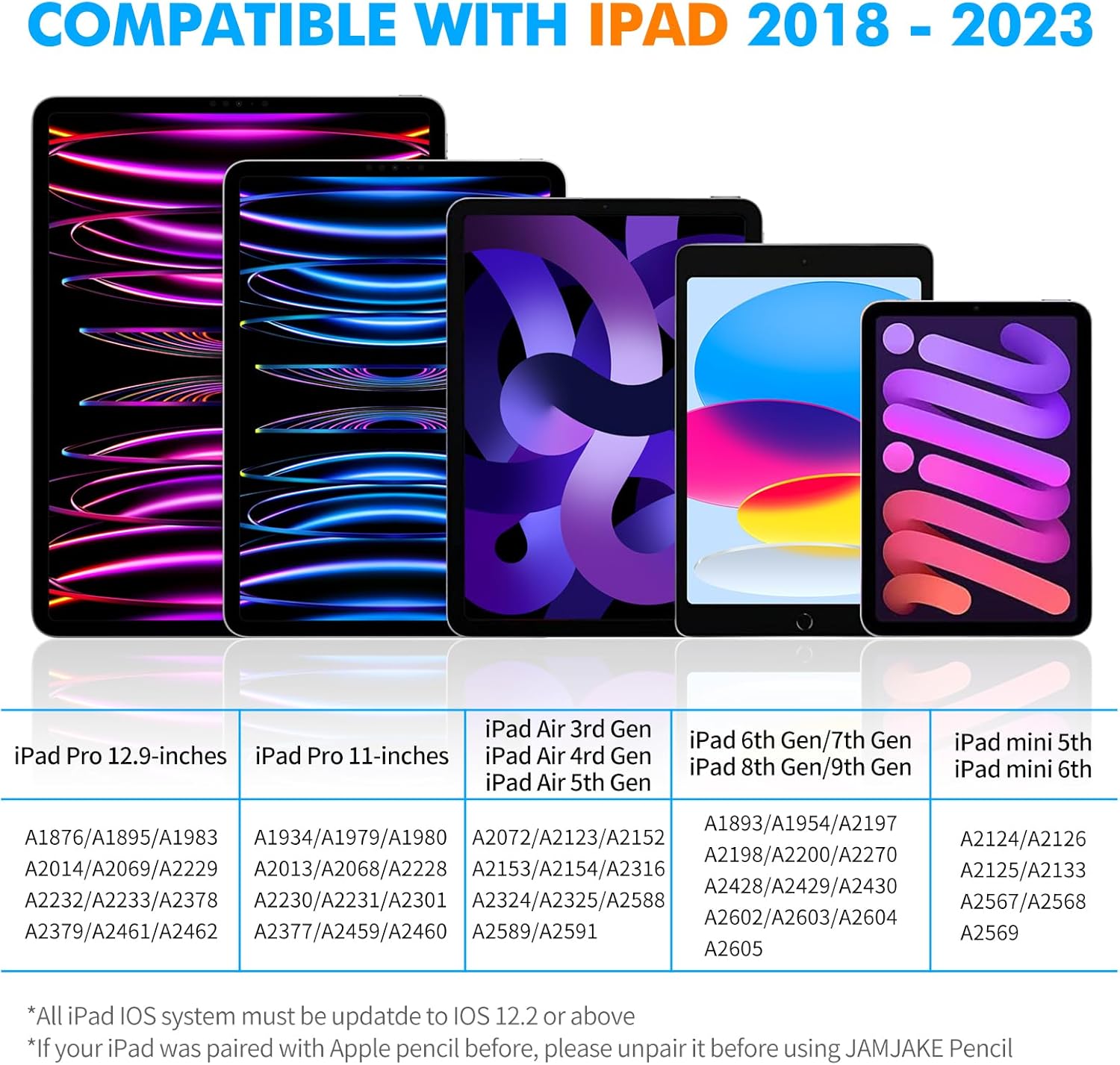
Image: A detailed compatibility chart displaying different iPad models (iPad Pro 12.9-inch, iPad Pro 11-inch, iPad Air 3rd/4th/5th Gen, iPad 6th/7th/8th/9th Gen, iPad mini 5th/6th Gen) and their respective model numbers (e.g., A1876, A1934).
3.1. Compatible Models (2018-2023)
- iPad 10th, 9th, 8th, 7th, 6th Generation
- iPad Air 3rd, 4th, 5th Generation
- iPad Pro 11-inch (All Generations)
- iPad Pro 12.9-inch (3rd, 4th, 5th, 6th Generation)
- iPad Mini 5th, 6th Generation
3.2. Non-Compatible Models
This stylus pen is NOT compatible with:
- iPad models released before 2018 (e.g., iPad Pro 1st & 2nd Gen, iPad Pro 10.5", iPad Pro 9.7", iPad 1 to 5 Gen, iPad mini 1 to 4 Gen, iPad Air 1st/2nd Gen)
- iPhone devices
- Android devices
- Microsoft devices
Note: iPad 10th generation does not support magnetic attraction for this stylus.
Important: Your iPad OS system must be updated to iOS 12.2 or above for proper functionality. If your iPad was previously paired with an Apple Pencil, please unpair it before using the TRAUSI Stylus Pen.
4. Setup
4.1. Charging the Stylus Pen
The TRAUSI Stylus Pen features fast charging. Use the provided USB-C cable to charge the pen.
- Connect the USB-C cable to the charging port on the stylus pen.
- Connect the other end of the cable to a USB power adapter (not included) or a compatible USB port.
- A full charge takes approximately 30 minutes.
- The pen provides up to 10 hours of working time on a full charge.
- It has a standby time of up to 180 days.
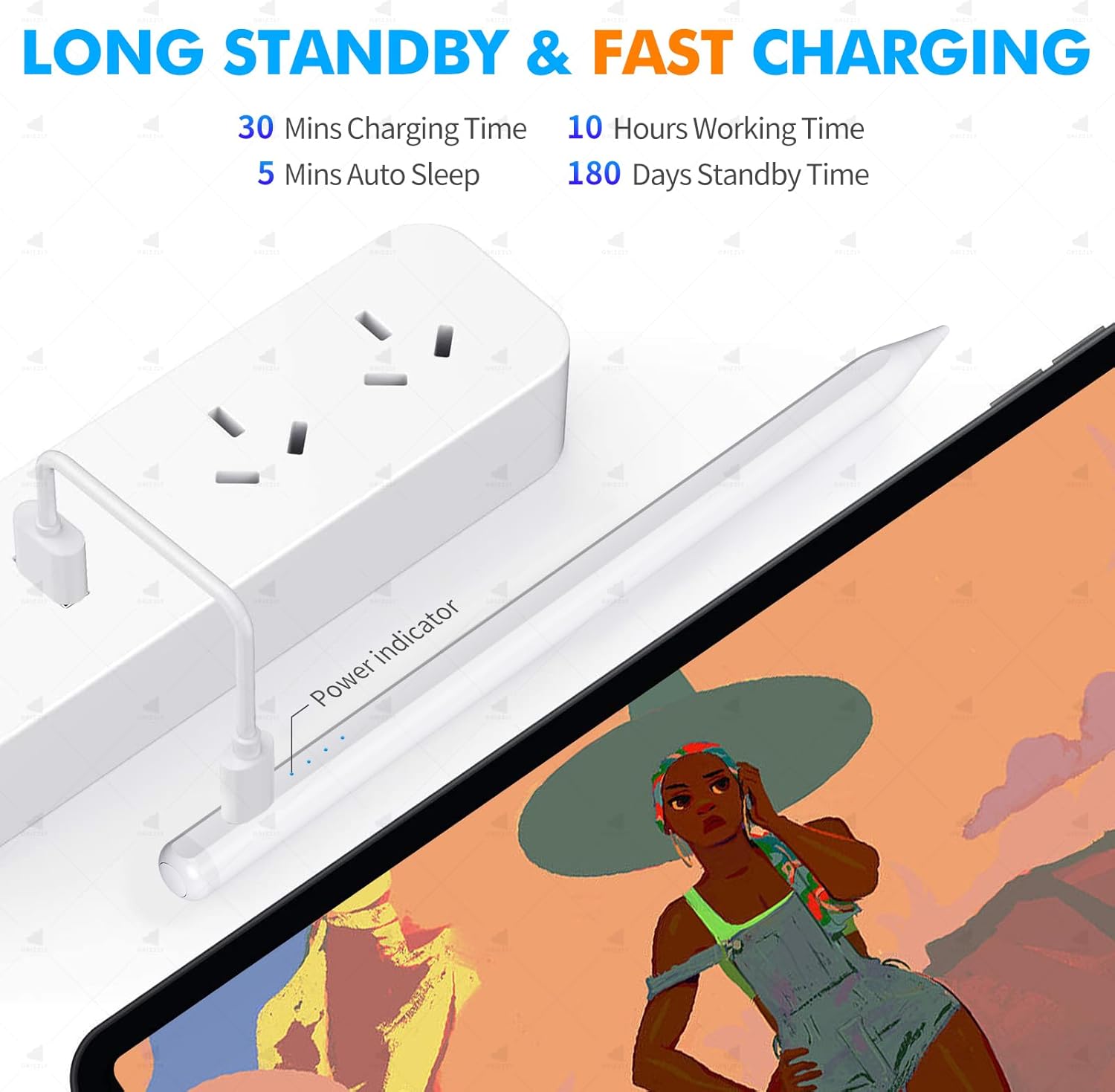
Image: The TRAUSI Stylus Pen connected to a power strip via its USB-C charging cable, illustrating the fast charging capability.
4.2. Powering On/Off
The stylus pen uses a smart touch switch for simple operation. No Bluetooth pairing or app is required.
- To turn on: Simply touch the top of the digital pen. The indicator light will illuminate.
- To turn off: Touch the top of the digital pen again. The indicator light will turn off.
- The pen will automatically enter sleep mode after 5 minutes of inactivity to conserve battery.
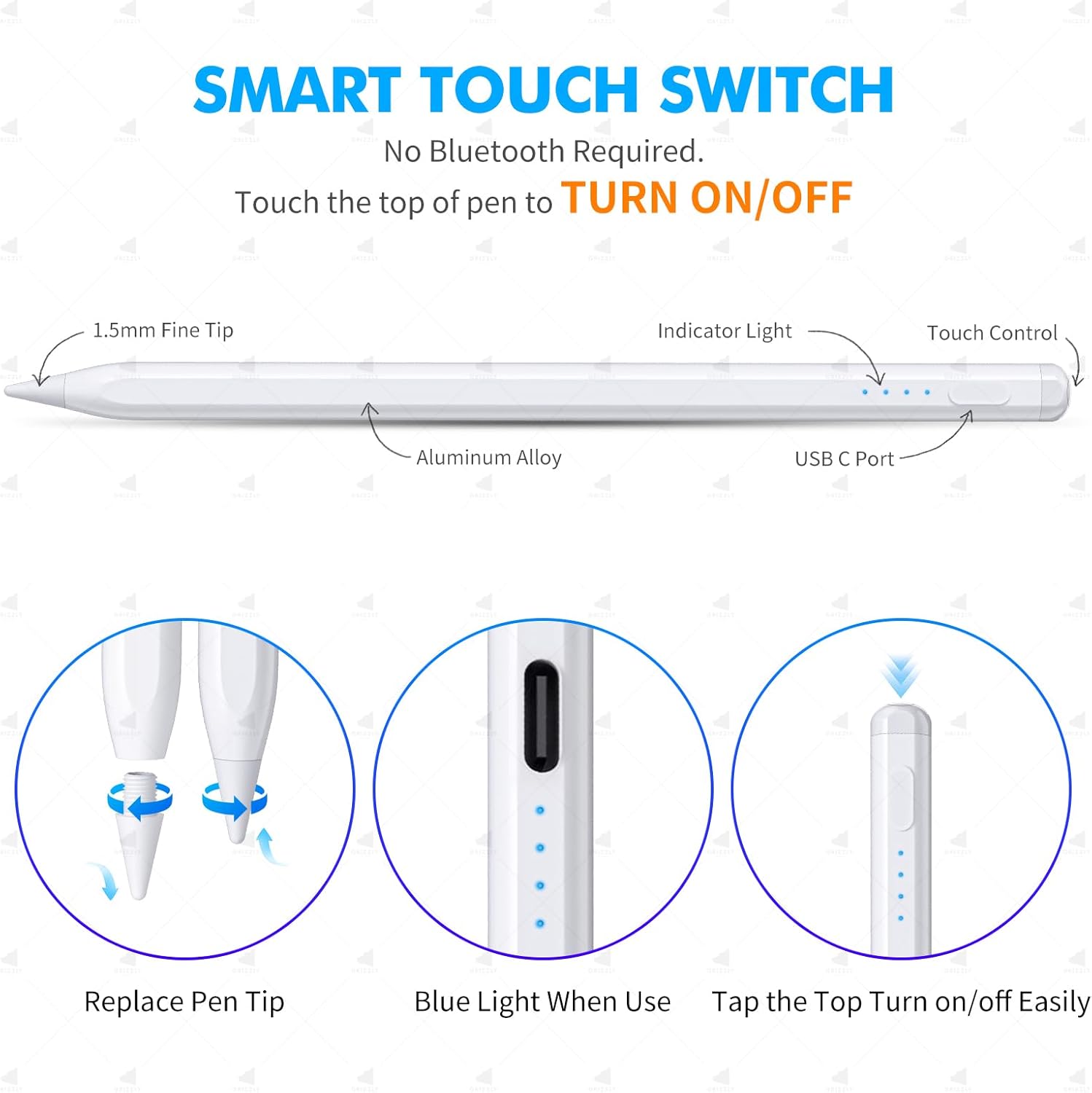
Image: A diagram highlighting the 1.5mm fine tip, aluminum alloy body, USB-C port, indicator light, and touch control area of the stylus pen. It also shows how to replace the pen tip, the blue light when in use, and how to tap the top to turn it on/off.
5. Operating Instructions
5.1. Basic Usage
Once powered on, the stylus pen is ready for immediate use on your compatible iPad screen. Simply touch the tip to the screen to begin drawing, writing, or navigating.
5.2. Palm Rejection Function
The stylus pen features palm rejection technology, allowing you to rest your palm comfortably on the iPad screen while writing or drawing, without causing unintended marks or interference. This eliminates the need for a stylus glove.

Image: A person using the stylus pen on an iPad, demonstrating the palm rejection feature by resting their hand on the screen while drawing. Icons below indicate no delay, no scratch, sensitivity, and smoothness.
5.3. Precision and Sensitivity
The 1.5mm wear-resistant nib ensures precise and smooth input, mimicking the feel of a traditional pen. You will experience no lagging, offset, or breaking lines, and no scratches to your screen.
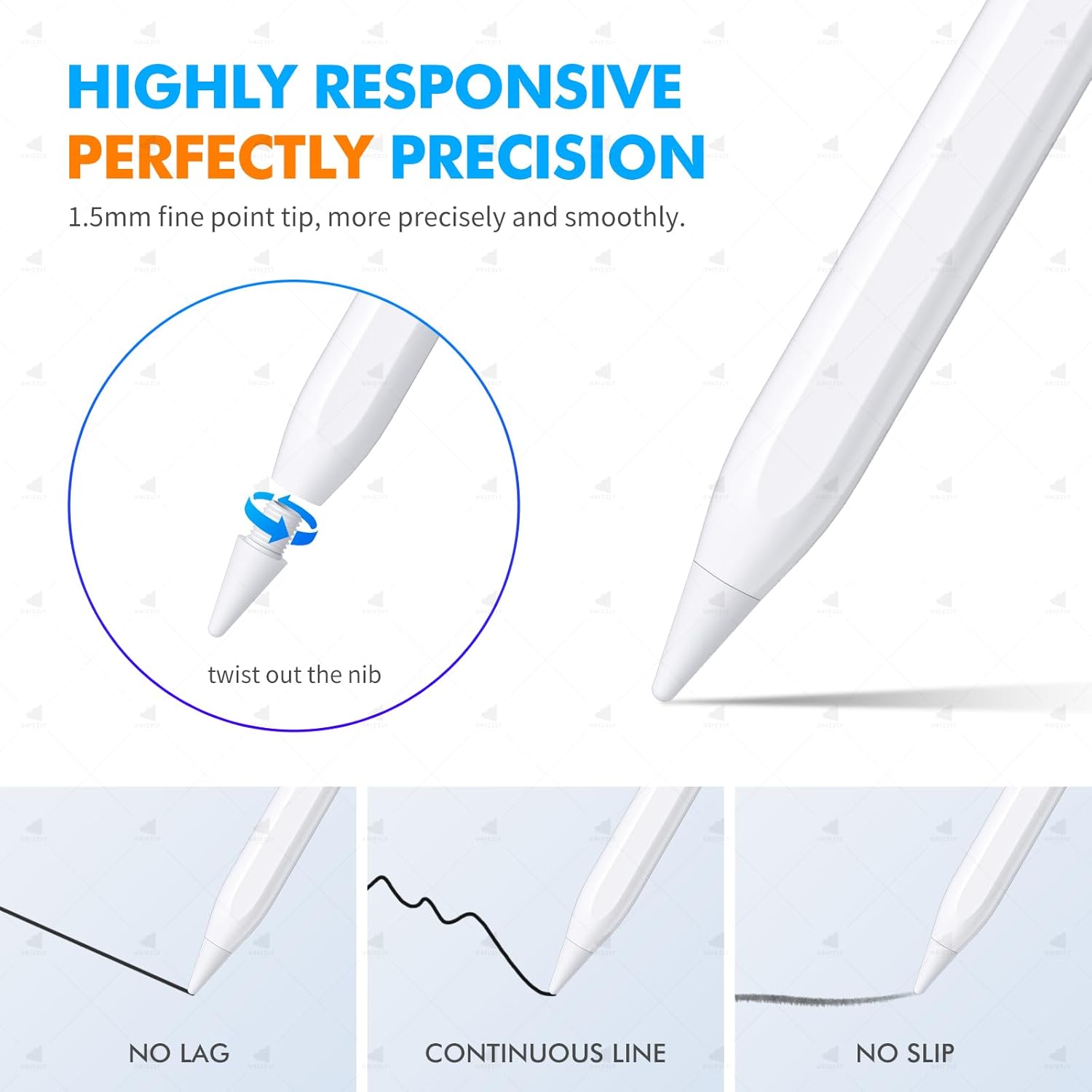
Image: A close-up view of the stylus pen's nib, showing how to twist it out for replacement. Below, illustrations demonstrate the pen's performance: no lag, continuous line drawing, and no slip.
5.4. Magnetic Adsorption
The stylus pen features magnetic adsorption, allowing it to conveniently attach to the side of compatible iPad models for easy storage and to prevent loss. Please note that iPad 10th generation does not support this feature.
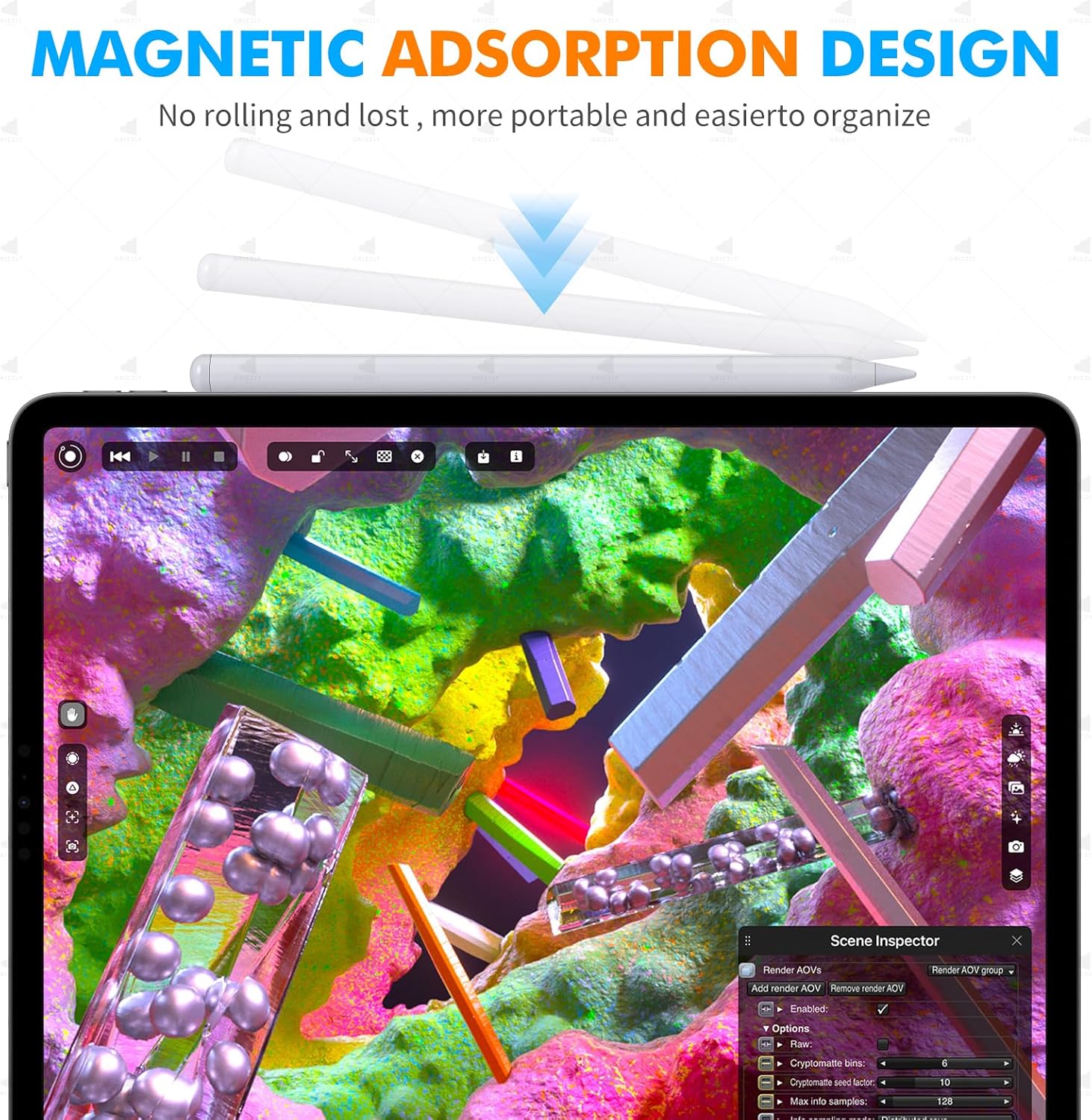
Image: The stylus pen shown magnetically attached to the top edge of an iPad, demonstrating its magnetic adsorption design for convenient storage.
6. Maintenance
6.1. Cleaning
- Wipe the stylus pen with a soft, dry, lint-free cloth.
- Do not use abrasive cleaners, alcohol, or chemical solvents.
6.2. Replacing the Nib
If the nib becomes worn or damaged, it can be easily replaced:
- Gently twist the old nib counter-clockwise to remove it.
- Align a new nib with the pen tip and twist it clockwise until securely fastened.
6.3. Storage
- Store the stylus pen in a cool, dry place when not in use.
- Avoid exposing the pen to extreme temperatures or direct sunlight.
- Keep out of reach of small children.
6.4. Battery Care
- Charge the pen regularly, even if not in frequent use, to maintain battery health.
- Avoid completely draining the battery before recharging.
7. Troubleshooting
7.1. Pen Not Turning On or Charging
- Ensure the USB-C cable is securely connected to both the pen and the power source.
- Try using a different USB-C cable or power adapter.
- Confirm the power source is active.
7.2. Pen Not Responding on iPad
- Ensure the stylus pen is powered on (check indicator light).
- Verify your iPad model is listed as compatible in Section 3.1.
- Check if your iPad's iOS is updated to version 12.2 or above.
- If you previously used an Apple Pencil, ensure it is unpaired from your iPad's Bluetooth settings.
- Restart your iPad.
7.3. Inaccurate or Lagging Input
- Check if the nib is worn out and replace it if necessary (refer to Section 6.2).
- Ensure your iPad's screen is clean and free of debris.
- Close any unnecessary apps running in the background on your iPad.
8. Specifications
| Feature | Description |
|---|---|
| Brand | TRAUSI |
| Model | B0DT6TGKSS |
| Material | Aluminum Alloy, Plastic |
| Color | White |
| Item Weight | 1 Grams |
| Parcel Dimensions | 20.1 x 5.3 x 1.7 cm |
| Power Source Type | Battery Powered |
| Battery Cell Composition | Lithium Ion (1 A battery included) |
| Charging Time | Approx. 30 minutes |
| Working Time | Approx. 10 hours |
| Standby Time | Approx. 180 days |
| Connector Type | USB-C |
| Special Features | Lightweight, Portable, Palm Rejection, Magnetic Adsorption (for compatible iPads), Smart Touch Switch |
9. Warranty and Support
For any questions, technical support, or warranty inquiries regarding your TRAUSI Stylus Pen, please contact TRAUSI customer service through the official TRAUSI store on Amazon or visit the brand's website. Please refer to your purchase receipt for specific warranty terms and conditions.
You can visit the TRAUSI Store at: TRAUSI Amazon Store
Ask a question about this manual
Ask about setup, troubleshooting, compatibility, parts, safety, or missing instructions. Manuals+ will review the question and use this page’s manual context to help answer it.