
1. Introduction
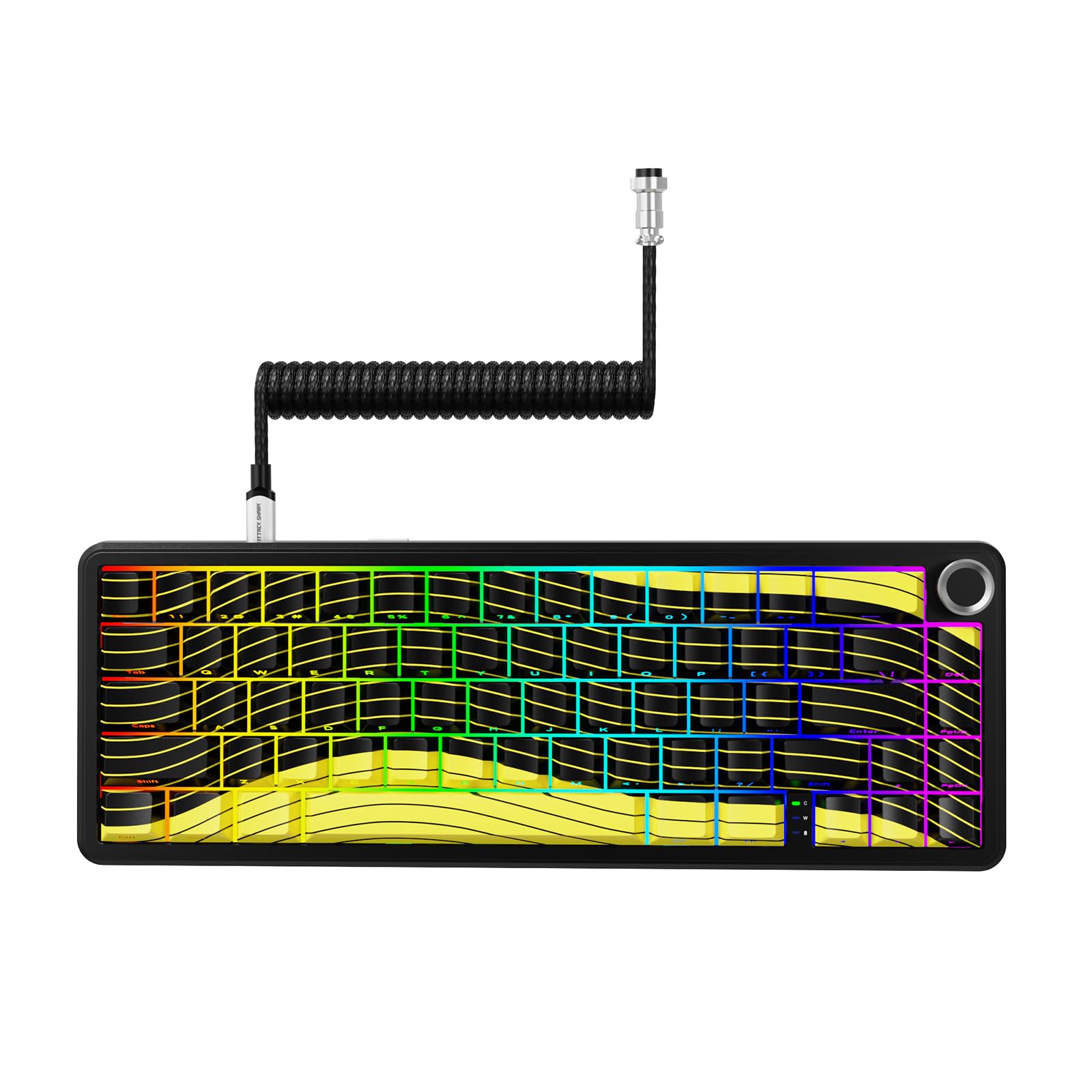
The MAMBASNAKE Attack Shark X65PRO HE is a high-performance 60% magnetic mechanical keyboard designed for gaming and productivity. It features Hall Effect magnetic switches for adjustable actuation, rapid trigger functionality, and a blazing 8,000Hz polling rate for ultra-fast response times. With triple-mode connectivity (wired, Bluetooth, 2.4GHz wireless), hot-swappable switches, and a customizable web-based driver, this keyboard offers unparalleled flexibility and precision.

2. Setup
2.1 Package Contents
- Attack Shark X65PRO HE Magnetic Mechanical Keyboard
- CNC Aluminum Volume Knob (pre-installed or separate)
- Coiled USB-C Cable
- User Manual (this document)
2.2 Initial Connection
The X65PRO HE supports three connection modes: wired, 2.4GHz wireless, and Bluetooth.
- Wired Mode: Connect the provided coiled USB-C cable to the keyboard's USB-C port and the other end to your computer's USB port. The keyboard will be automatically recognized.
- 2.4GHz Wireless Mode: Locate the 2.4GHz USB receiver (usually stored in a compartment on the keyboard). Plug the receiver into an available USB port on your computer. Switch the keyboard to 2.4GHz mode using the switch on the back or side of the keyboard. The keyboard should connect automatically.
- Bluetooth Mode: Switch the keyboard to Bluetooth mode using the switch on the back or side of the keyboard. On your computer or device, search for Bluetooth devices and select "X65PRO HE" to pair.
2.3 Ergonomic Adjustment
The keyboard features a two-stage adjustable kickstand with three height options. Adjust the kickstand to your preferred angle for optimal ergonomic comfort during extended use.
3. Operating Instructions
3.1 Hall Effect Magnetic Switches & Adjustable Actuation
The X65PRO HE utilizes Hall Effect magnetic switches, allowing for precise and customizable actuation points from 0.1mm to 3.4mm. This feature enables rapid trigger functionality, where keys reset instantly upon release, providing a competitive edge in fast-paced games.

To adjust actuation points and other switch settings, use the web-based driver software.
3.2 Web-Based Driver Software
The X65PRO HE features an innovative web-based driver for comprehensive customization. This driver allows you to:
- Adjust individual key actuation points (0.1mm to 3.4mm).
- Configure Rapid Trigger settings.
- Program macros.
- Customize RGB lighting effects.
- Remap keys.
Access the web driver by connecting your keyboard and navigating to the official MAMBASNAKE support website (refer to packaging or product page for URL). No software installation is required.

3.3 CNC Multifunctional Knob
The integrated CNC-machined knob provides quick control over various functions:
- Rotate: Adjust volume (default) or RGB brightness/speed.
- Press: Mute/unmute (default) or cycle through RGB modes.
The specific functions of the knob can be customized via the web-based driver.

3.4 RGB Lighting
The X65PRO HE features customizable RGB lighting with 16 million colors. Lighting effects can be adjusted using the web-based driver or through pre-programmed shortcuts (refer to the driver for specific key combinations).
3.5 Battery Management
The keyboard is equipped with a 3000mAh rechargeable battery for wireless operation.
- Charging: Connect the keyboard via the USB-C cable to a computer or a USB power adapter. The RGB lighting may indicate charging status.
- Battery Life: Battery life varies based on usage and RGB lighting intensity. For optimal battery life, consider reducing RGB brightness or disabling it when not needed.

4. Maintenance
4.1 Cleaning
- Keycaps: Use a soft, damp cloth with mild soap and water to clean the keycaps. Ensure they are completely dry before reattaching.
- Keyboard Body: Wipe the keyboard body with a dry or slightly damp cloth. Avoid excessive moisture.
- Dust Removal: Use compressed air to remove dust and debris from between the keycaps and switches.
4.2 Hot-Swappable Switches
The X65PRO HE features hot-swappable magnetic switches, allowing for easy replacement or customization without soldering.
- Removing a Switch: Use a switch puller tool (not included) to gently grip the switch and pull it straight up.
- Installing a Switch: Align the pins of the new switch with the holes on the PCB. Press down gently until the switch clicks into place. Ensure the switch is seated correctly and functions properly.

5. Troubleshooting
5.1 Keyboard Not Responding
- Check Connection: Ensure the USB-C cable is securely connected, or the 2.4GHz receiver is properly plugged in, or Bluetooth is paired.
- Power Switch: Verify the keyboard's power switch is in the "ON" position.
- Battery Level: If in wireless mode, ensure the battery is charged. Connect the USB-C cable to charge.
- Try Different Port/Device: Test the keyboard on a different USB port or computer to rule out port or device issues.
5.2 RGB Lighting Not Working Correctly
- Check Settings: Use the web-based driver to verify RGB settings and ensure lighting is enabled.
- Brightness: Adjust brightness using the CNC knob or driver.
- Reset: Perform a factory reset (if available via driver or specific key combination) to restore default lighting.
5.3 Keys Not Registering or Double-Typing
- Actuation Point: Adjust the actuation point for the affected key(s) using the web-based driver. A very low actuation point might cause unintended presses.
- Switch Seating: Ensure the magnetic switch is fully seated in its socket. Gently press down on the keycap.
- Switch Replacement: If a specific key continues to malfunction, consider replacing the hot-swappable switch.
6. Specifications
| Feature | Detail |
|---|---|
| Brand | MAMBASNAKE |
| Model | X65PRO HE |
| Connectivity Technology | USB-C (Wired), 2.4GHz Wireless, Bluetooth |
| Switch Type | Hall Effect Magnetic Switches (Hot-Swappable) |
| Actuation Point | Adjustable from 0.1mm to 3.4mm (0.01mm precision) |
| Polling Rate | 8,000Hz |
| Response Time | 0.125ms (wired mode) |
| Scan Rate | 128K (for all keys) |
| Layout | 60% (66 keys) |
| Keycaps | 5-Sided Dye-Sub PBT Keycaps |
| RGB Lighting | 16 Million Colors, Customizable |
| Battery Capacity | 3000mAh |
| Material | Aluminum, Plastic |
| Included Components | CNC Aluminum Volume Knob, Coiled Cable |
| Compatible Devices | PC (Windows, Mac, Linux, iOS) |
7. Warranty & Support
7.1 Product Warranty
The MAMBASNAKE Attack Shark X65PRO HE keyboard comes with a 1-year limited warranty from the date of purchase. This warranty covers manufacturing defects and workmanship under normal use. It does not cover damage caused by misuse, accidents, unauthorized modifications, or normal wear and tear. Please retain your proof of purchase for warranty claims.
7.2 Customer Support
For technical assistance, troubleshooting, or warranty inquiries, please contact MAMBASNAKE customer support.
- Online Support: Visit the official MAMBASNAKE website for FAQs, driver downloads, and contact information.
- Email Support: Refer to your product packaging or the official website for the customer support email address.
When contacting support, please have your product model (X65PRO HE) and proof of purchase ready.