Introduction
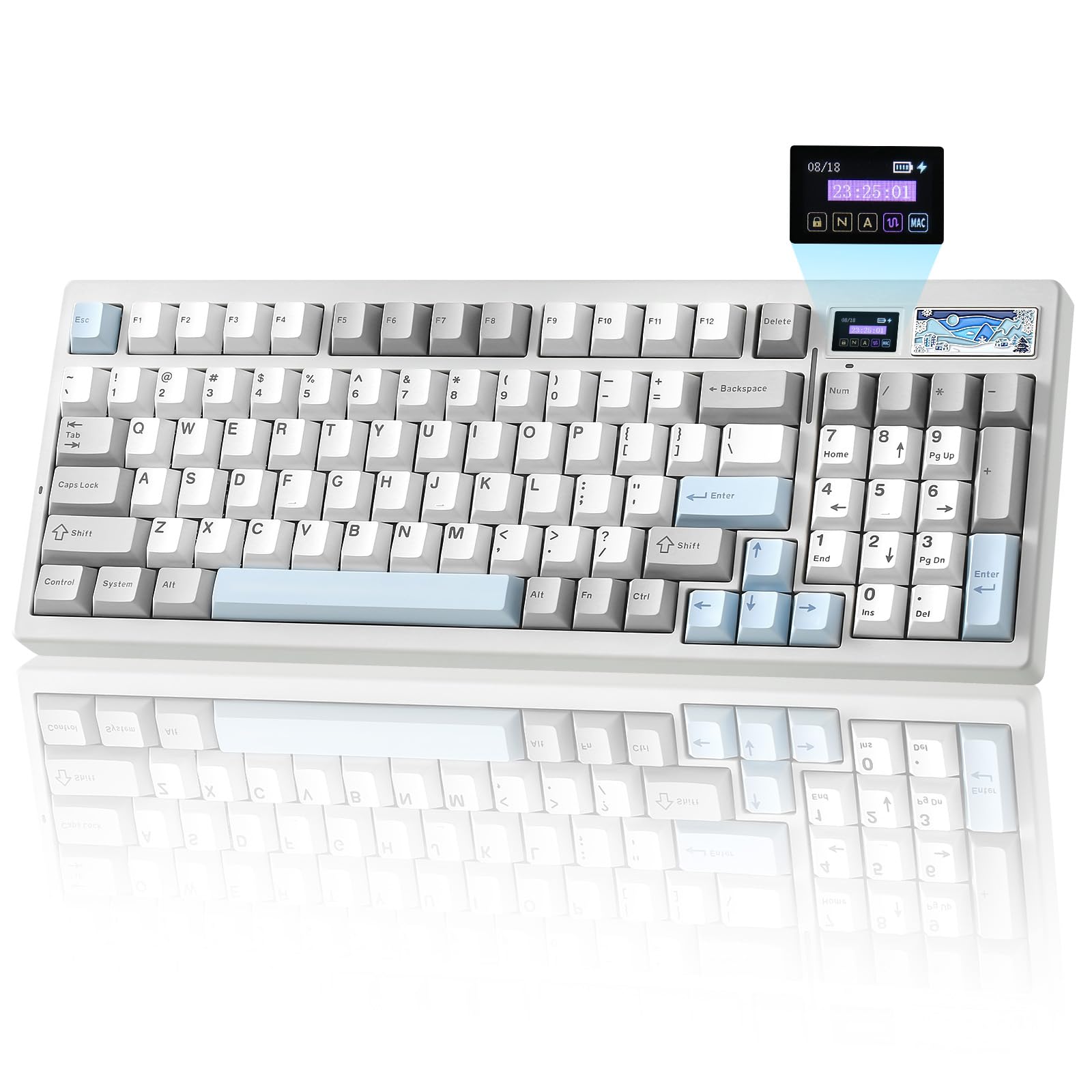
The YUNZII IF99 is a 96% layout wireless mechanical gaming keyboard designed for versatility and customization. It features tri-mode connectivity (Bluetooth, 2.4GHz wireless, and USB-C wired), a customizable LCD display, QMK/VIA programmability, hot-swappable switches, and vibrant RGB lighting. This manual provides instructions for setting up, operating, maintaining, and troubleshooting your IF99 keyboard.
Package Contents
Verify that all items are present in the package:
- IF99 Keyboard
- USB Cable (Type-C)
- Switch and Keycap Puller
- Function Card & Manual
- Dust Cover
- Extra Keycaps and Switches
Setup
Charging the Keyboard
The YUNZII IF99 keyboard is equipped with an 8000mAh battery. To charge, connect the provided USB Type-C cable to the keyboard's Type-C port and the other end to a power source (e.g., computer USB port, wall adapter). The LCD screen will indicate the battery status.
Connectivity Options
The IF99 supports three connection modes: USB-C wired, 2.4GHz wireless, and Bluetooth 5.0. You can connect up to 5 devices across these modes.

1. USB-C Wired Connection
Connect the USB Type-C cable from the keyboard to your computer. The keyboard will automatically switch to wired mode and begin charging.
2. Bluetooth Mode
- Locate the tri-mode switch on the back of the keyboard and slide it to the BT position.
- Short press Fn + 1/2/3 to select a Bluetooth channel.
- On your device (PC, tablet, phone), search for Bluetooth devices and select "YUNZII IF99 BT1/BT2/BT3" to connect.
- Once connected, the RGB lighting will remain steady.
3. 2.4GHz Wireless Connection
- Locate the tri-mode switch on the back of the keyboard and slide it to the 2.4G position.
- Long press Fn + 4 to activate 2.4GHz wireless mode.
- Retrieve the 2.4GHz dongle from its storage bin on the keyboard.
- Plug the 2.4GHz dongle into a USB port on your device. The keyboard should connect automatically.
Operating Instructions
Custom LCD Display
The IF99 features a customizable LCD screen that can display various information and personalized content:
- Home Page (Fn+8): Displays time, battery status, connection mode, and layout.
- Picture Page (Fn+9): Showcase uploaded pictures.
- GIF Page (Fn+0): Customize with GIFs using web software.

QMK/VIA Programmability
The IF99 is compatible with QMK and VIA software, allowing for extensive customization of key mappings, macros, and RGB lighting effects. This open-source platform provides full control over your typing experience.

How to Customize with QMK/VIA
- Connect the keyboard to your computer in wired mode.
- Download the .JSON file for the IF99 model from the official YUNZII website.
- Open the VIA website and click "Authorize device" to connect with the keyboard.
- In VIA settings, turn on the "Show Design Tab".
- Open the DESIGN page on the VIA website and upload the .JSON file downloaded from YUNZII.
- After successful connection, custom settings can be applied.

RGB Lighting
The IF99 features south-facing LEDs with 16.8 million RGB colors and 8 single backlit modes. Use the following shortcuts to control the lighting:
- Fn + Backspace: Backlight ON/OFF
- Fn + \|: Change Backlight Effect
- Fn + Enter: Change Backlight Color
- Fn + Up Arrow: Brightness Increase
- Fn + Down Arrow: Brightness Decrease
- Fn + Left Arrow: Blinking Speed Increase
- Fn + Right Arrow: Blinking Speed Decrease

Hot-Swappable Switches
The IF99 features a full-key hot-swappable PCB, allowing you to easily swap out 3-pin or 5-pin mechanical switches without soldering. This enables customization of the tactile feel and sound of your keyboard.

The keyboard comes with Gateron Zero Linear switches, which are pre-lubed for a smoother typing experience. Key specifications for these switches are:
- Type: Linear switch
- Pre-Lubed: Yes
- Pins: 5-pin
- Work Force: 45gf
- Total Travel: 3.60mm
- Work Travel: 2.00 ± 0.6mm
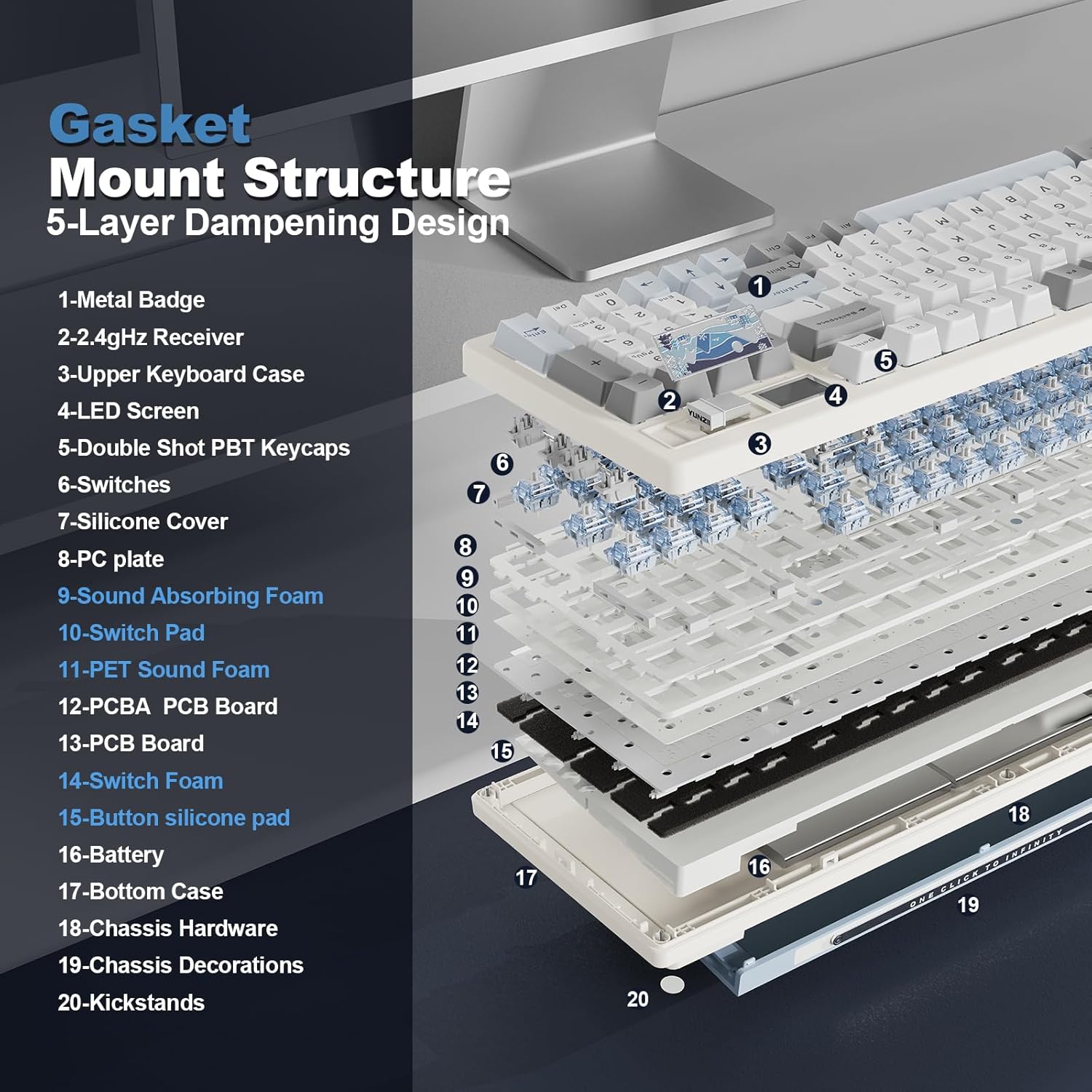
Gasket Mount Structure
The IF99 utilizes a gasket-mounted design with multiple layers of sound-absorbing material. This structure reduces noise and enhances typing comfort, contributing to a more pleasant acoustic profile.
Maintenance
- Cleaning: Use a soft, dry cloth to clean the keyboard surface. For keycaps, a damp cloth with mild soap can be used, ensuring no liquid enters the switches.
- Dust Protection: Use the provided dust cover when the keyboard is not in use to prevent dust accumulation.
- Switch Care: If replacing switches, handle them carefully to avoid bending pins. Ensure the switch is aligned correctly before pressing it into the PCB.
- Battery Longevity: Avoid fully discharging the battery frequently. Charge the keyboard when the battery indicator is low.
Troubleshooting
- Keyboard Not Responding: Ensure the keyboard is charged. Check the connection mode switch (wired, 2.4G, BT) is set correctly. For wireless modes, ensure the dongle is properly inserted or Bluetooth is paired.
- Keys Not Working: If specific keys are not responding, try reseating the keycap and switch. If the issue persists, the switch may need replacement.
- RGB Lighting Issues: Check RGB shortcuts (Fn + Backspace, Fn + \|, Fn + Enter) to ensure lighting is enabled and set to a visible effect/color. If using QMK/VIA, verify settings.
- Connectivity Drops: For 2.4GHz, ensure the dongle is not obstructed and is close to the keyboard. For Bluetooth, ensure no interference from other devices and that the keyboard is within range.
- QMK/VIA Not Connecting: Ensure the keyboard is in wired mode. Verify that the correct .JSON file for the IF99 is loaded in the VIA software.
Specifications
| Model | IF99 |
| Layout | 96% |
| Connectivity | Bluetooth 5.0, 2.4GHz Wireless, USB Type-C Wired |
| Switches | Hot-swappable (3-pin/5-pin), Gateron Zero Linear (pre-lubed) |
| Battery Capacity | 8000mAh |
| Backlighting | RGB (16.8 million colors, south-facing LEDs) |
| Programmability | QMK/VIA compatible |
| Special Features | Customizable LCD Display, Gasket Mount Structure, Double Shot PBT Keycaps |
| Compatible OS | Windows, macOS, Linux, Android |
| Dimensions | 16.97 x 7.99 x 2.72 inches |
| Item Weight | 0.035 ounces |
Official Product Videos
An unboxing and overview video of the YUNZII IF99 White Wireless Mechanical Gaming Keyboard, showcasing its design and features.
A demonstration of the typing sound produced by the YUNZII IF99 Wireless Mechanical Keyboard, highlighting its acoustic profile.
Warranty and Support
For warranty information, please refer to the documentation included in your product package or visit the official YUNZII website. For customer support, you can reach out directly through Amazon:
- Before placing an order: Visit the YUNZII product page, select the seller's name "Yunzii Keyboard", and click "Ask a question" to send a message.
- After placing an order: Go to your orders, select "Problem with order", and send a message.