
1. Introduction
This manual provides essential information for the safe and effective use of your NEWORK 75 Inch 4K Smart Board, model NewBoard 75E. Please read this manual thoroughly before operating the device and retain it for future reference. The NEWORK Smart Board is a Google EDLA-certified interactive whiteboard designed for various environments, including classrooms, offices, and home use, offering advanced features like a 4K display, multi-touch capabilities, and wireless screen sharing.

Image: The NEWORK Smart Board in a professional setting, highlighting its versatility for modern work and teaching methods.
2. Safety Information
Always follow basic safety precautions when using this product to reduce the risk of fire, electric shock, and injury. Do not expose the device to rain or moisture. Do not open the casing; refer all servicing to qualified personnel. Ensure proper ventilation and avoid blocking any ventilation openings. Use only attachments/accessories specified by the manufacturer.
3. Package Contents
Verify that all items are present in the package:
- Smart Board x 1
- Wall Mount x 1
- Touch Pen x 1
- Remote Control x 1
- HDMI Cable x 1
- USB-C Cable x 1
- Touch Cable x 1
- Power Cord x 1
4. Setup
4.1 Physical Installation
The NEWORK Smart Board supports both wall mount and mobile cart installations. Ensure the chosen mounting solution is appropriate for the size and weight of the 75-inch display.
4.1.1 Mobile Cart Assembly
If using a mobile cart (sold separately), follow the cart's specific assembly instructions. Ensure all screws are securely tightened for stability.
Video: Instructions on how to assemble the Mobile Cart for the NEWORK Smart Board. This video demonstrates the step-by-step process for setting up the mobile stand.
4.1.2 Wall Mount Installation
Attach the included wall mount bracket to a sturdy wall structure capable of supporting the display's weight. Carefully lift and secure the smart board onto the wall mount. It is recommended to have at least two people for safe installation.
4.2 Initial Power On
Connect the power cord to the smart board and a suitable power outlet. Press the power button located on the front or side of the display. The NEWORK logo will appear, followed by the Android operating system loading screen.
4.3 Network Connection
Upon first boot, you will be guided through the initial setup, including connecting to a Wi-Fi network or an Ethernet connection. A stable internet connection is required for Google services and software updates.
5. Operating Instructions
5.1 Google EDLA Certification & Android 14 OS
Your NEWORK Smart Board is Google EDLA-certified, providing full access to the Google Play Store, Google Workspace, and the Google Education Suite. It runs on the Android 14 operating system with 8 GB RAM and 64 GB ROM for smooth performance.
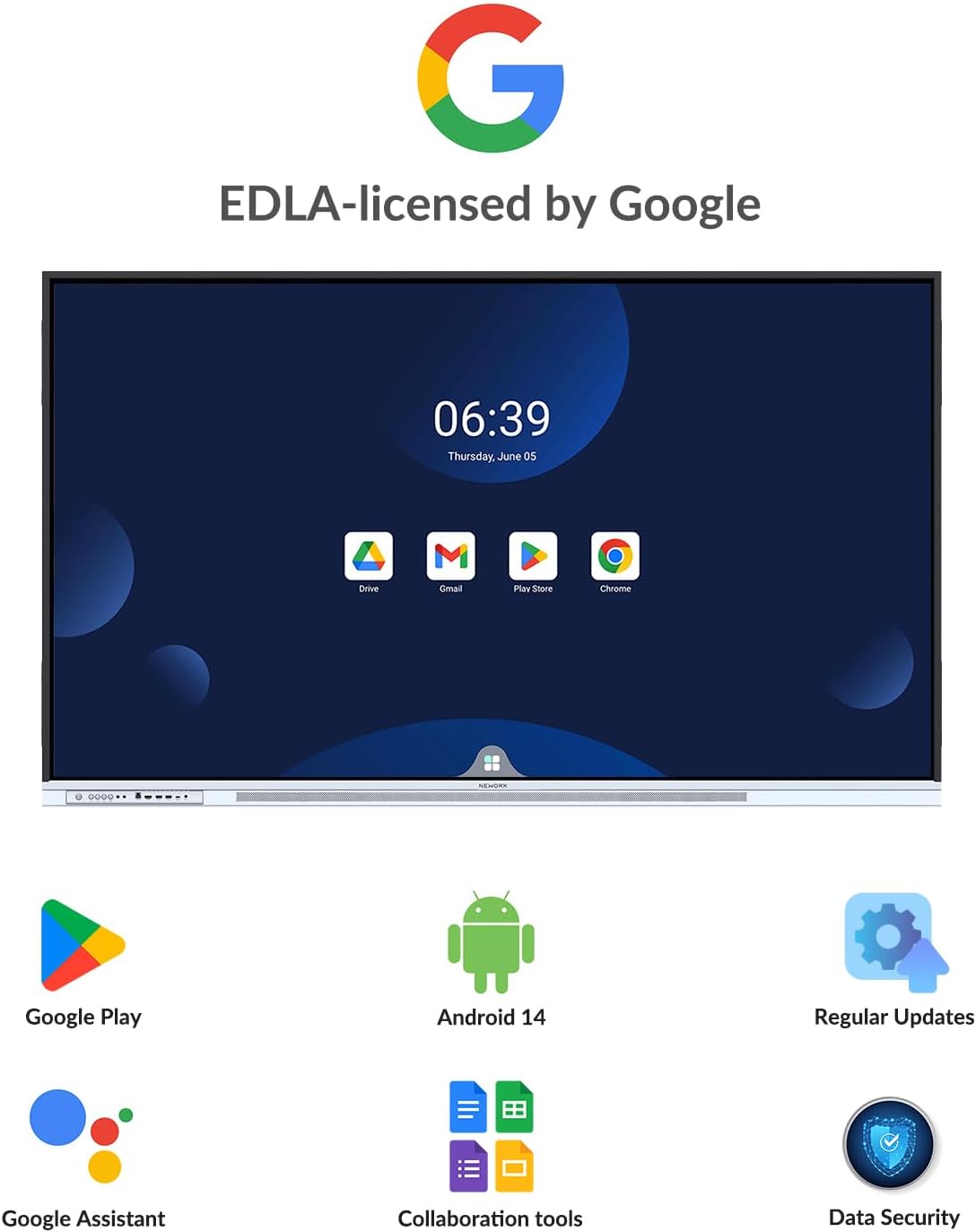
Image: The smart board's home screen, showcasing the Google EDLA-licensed interface with various Google applications.
Video: Demonstrates the NEWORK Smart Board's Google EDLA-Certified features, Android 14 OS, and access to Google Play Store.
5.2 Display Features
The 75-inch UHD display offers a 4K resolution (3840 x 2160 @ 60Hz) with a 178° wide viewing angle and 85% NTSC color gamut for clear and vibrant visuals.

Image: The 4K Ultra HD display showcasing a high-resolution image, emphasizing visual clarity.
5.3 Multi-Touch and Writing
The screen supports 50-point multi-touch, allowing up to 10 users to write simultaneously. This feature is ideal for collaborative activities and interactive presentations.

Image: Multiple children interacting with the smart board at once, illustrating its 50-point multi-touch and 10-pen writing features.
5.4 Wireless Screen Sharing
Easily cast content wirelessly from smartphones, tablets, and laptops. The board supports up to 16 devices simultaneously, enhancing collaboration in digital classrooms and hybrid workspaces.

Image: The smart board connected wirelessly to multiple devices, demonstrating its 16-device wireless casting capability.
5.5 Connectivity Ports
The smart board features a variety of front and rear interface ports for versatile connectivity:
- Front Interface: USB-A 3.0 x 2, Type-C, USB-B 3.0, HDMI
- Rear Interface: USB-A 3.0 x 2, Type-C, USB-B 3.0, HDMI x 2, DP In, LAN x 2, OPS

Image: A visual representation of the various input and output ports available on the front and rear of the smart board.
5.6 Integrated Whiteboard
Utilize the built-in digital whiteboard for brainstorming, note-taking, and interactive lessons. The smart recognition feature can convert handwritten shapes into perfect geometric forms.
Video: A demonstration of the integrated whiteboard feature, including smart recognition for shapes and text.
Video: Practical use of the NEWORK Smart Board in a weather forecast scenario, demonstrating interactive capabilities.
6. Maintenance
6.1 Cleaning
To clean the screen, power off the device and gently wipe with a soft, lint-free cloth. For stubborn marks, use a screen-specific cleaning solution applied to the cloth, not directly to the screen. Avoid abrasive cleaners or solvents.
6.2 Software Updates
The NEWORK Smart Board receives regular Over-The-Air (OTA) updates to ensure optimal performance and security. Ensure the board is connected to the internet to receive these updates. You can check for updates in the system settings.
7. Troubleshooting
If you encounter issues with your NEWORK Smart Board, try the following basic troubleshooting steps:
- No Power: Check if the power cord is securely connected and the power outlet is functional.
- No Display: Ensure all video cables (HDMI, USB-C, DP) are correctly connected to both the smart board and the source device.
- Touchscreen Unresponsive: Restart the smart board. If the issue persists, ensure the touch cable is properly connected.
- Network Connectivity Issues: Verify your Wi-Fi password or Ethernet cable connection. Restart your router if necessary.
- Wireless Casting Problems: Ensure both the smart board and the casting device are on the same network. Check the casting application settings.
For further assistance, refer to the support section or contact customer service.
8. Specifications
| Feature | Specification |
|---|---|
| Brand | NEWORK |
| Model Number | NewBoard 75E |
| Screen Size | 75 inches |
| Resolution | 3840 x 2160 (4K) @ 60Hz |
| Aspect Ratio | 16:9 |
| Screen Finish | Glossy |
| Contrast Ratio | 5000:1 |
| Refresh Rate | 60 hertz |
| Display Type | LCD (VA Technology) |
| Viewing Angle | 178 degrees |
| Brightness | 450 candela_per_square_meter |
| Color Gamut | 85% NTSC |
| Operating System | Android 14 |
| RAM | 8 GB |
| ROM | 64 GB |
| Multi-Touch Capability | 50-point |
| Power Consumption | 145 watts |
| Connectivity Technology | HDMI, USB-C, DP, LAN |
| Total HDMI Ports | 3 |
| Total USB Ports | 8 (4x USB 3.0) |
| Item Dimensions (D x W x H) | 67.2"D x 4.4"W x 41.3"H |
| Mounting Type | Wall Mount & Mobile Cart |
9. Warranty and Support
Your NEWORK Smart Board comes with a 1-Year Manufacturer Warranty (12 Months Warranty). For warranty claims or technical support, please contact NEWORK LLC customer service.
NEWORK is committed to providing excellent support. Our California-based repair center and hotline support are available to assist you with any inquiries or issues.

Image: Customer service representatives offering hotline support and remote demonstrations.

Image: A map indicating the location of the California Repair Center for service needs.