
MAONO PD300X+E2 Gen2+XLR180
MAONO Podcast Equipment Bundle User Manual
Model: PD300X+E2 Gen2+XLR180
Brand: MAONO
Introduction
This manual provides comprehensive instructions for the MAONO Podcast Equipment Bundle, featuring the PD300X dynamic microphone and E2 Gen2 audio interface. This bundle is designed for high-quality podcast recording, streaming, and general audio production, offering advanced features like 192kHz/24bit sampling, versatile connectivity, and intelligent noise reduction.
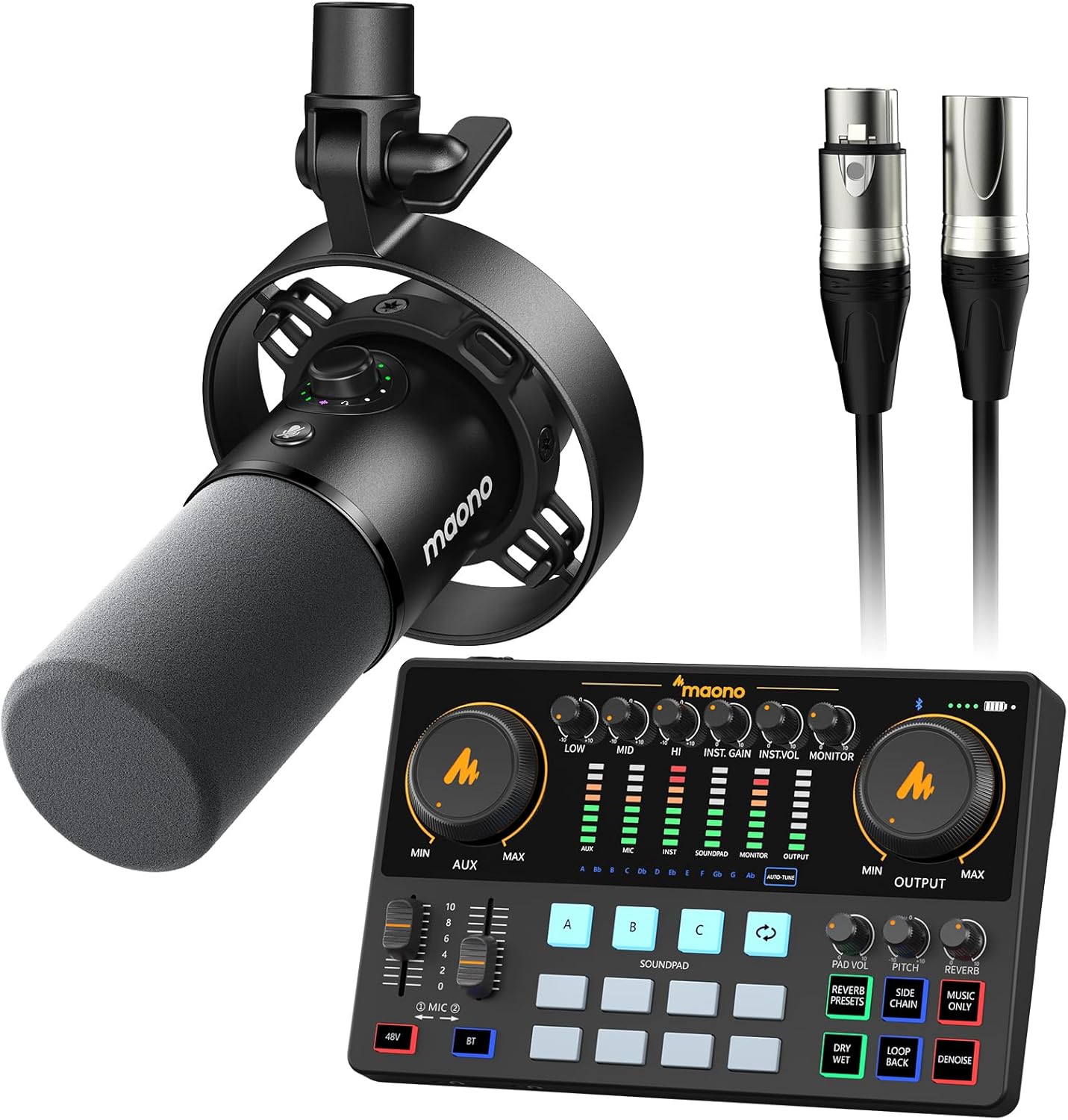
Image: The complete MAONO Podcast Equipment Bundle, showcasing the PD300X dynamic microphone, E2 Gen2 audio interface, and included XLR cables.
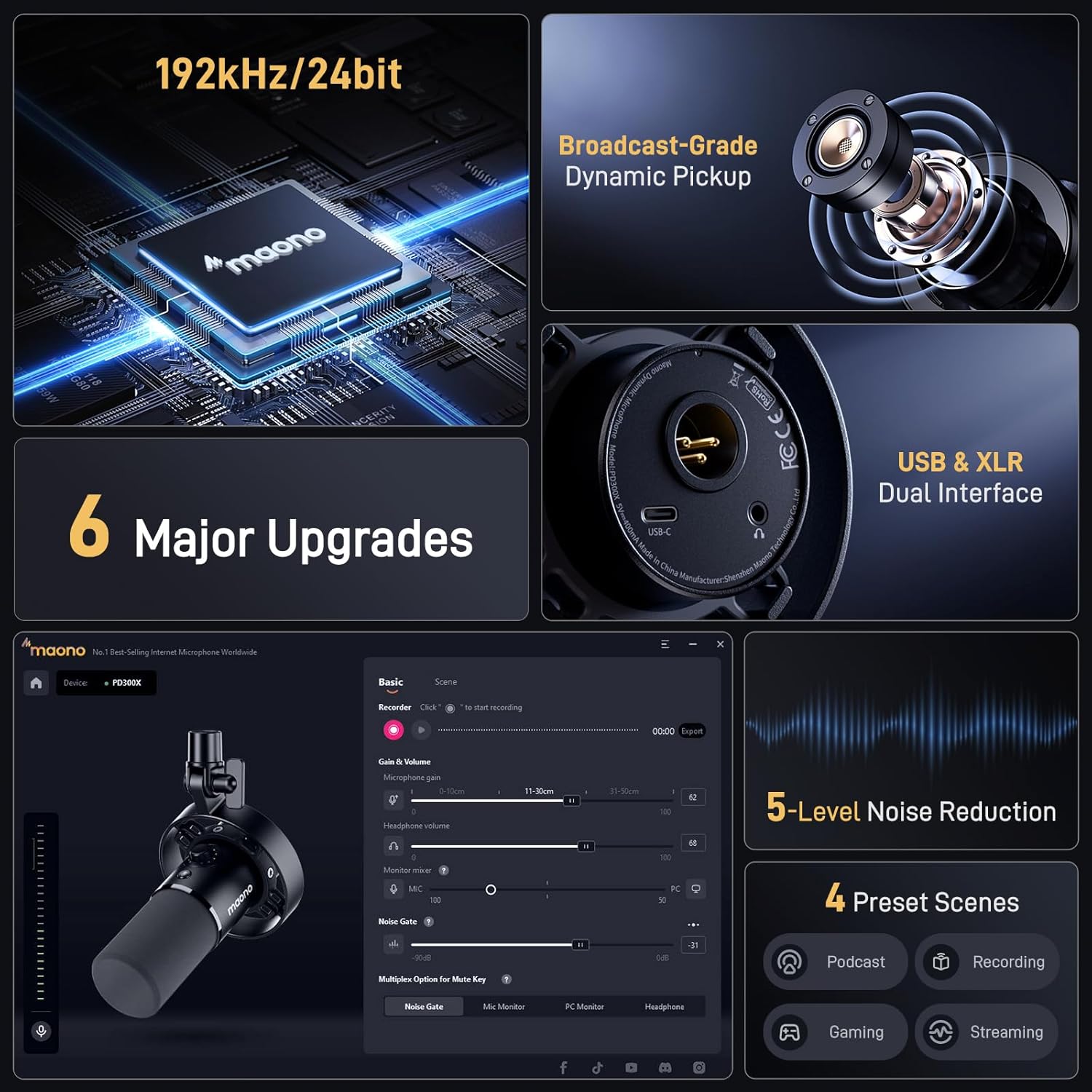
Image: An overview graphic highlighting the bundle's key features, such as 192kHz/24bit audio resolution, USB/XLR dual connectivity, 5-level noise reduction, and 4 preset scenes for various applications.

Image: Detailed close-up shots of the MAONO PD300X dynamic microphone, showcasing its robust construction, integrated controls, and connection ports.
Package Contents
Please ensure all items are present in your package:
- MAONO PD300X Dynamic Microphone
- MAONO E2 Gen2 Audio Interface
- XLR Cables (180cm)
- USB-C to USB-A Cable
- Microphone Shock Mount
- User Manual (this document)
Setup Guide
Follow these steps to set up your MAONO Podcast Equipment Bundle:
- Microphone Assembly: Attach the PD300X dynamic microphone to the included shock mount. If using a boom arm (sold separately), secure the shock mount to the arm.
- Connect Microphone to Audio Interface: Use one of the provided XLR cables to connect the PD300X microphone to an XLR input on the E2 Gen2 audio interface. Ensure a secure connection.
- Connect Audio Interface to Computer: Use the USB-C to USB-A cable to connect the E2 Gen2 audio interface to an available USB port on your computer. The interface will typically be recognized automatically by your operating system.
- Power On: Ensure the audio interface is powered on. Some interfaces draw power directly from USB, while others may require an external power supply (not included in this bundle, but check your specific model if issues arise).
- Software Installation (Optional but Recommended): Download and install the MAONO Link software from the official MAONO website. This software provides advanced control over microphone settings, EQ, and other audio parameters.
Image: The MAONO Podcast Equipment Bundle components laid out, illustrating the connections required for initial setup.
Operating Instructions
Audio Interface Controls (E2 Gen2)
The E2 Gen2 audio interface provides intuitive controls for managing your audio input and output:
- Gain Knobs: Adjust the input sensitivity for your microphone and other instruments.
- Volume Faders: Control the output levels for various channels.
- Monitor Output: Connect headphones to monitor your audio in real-time.
- Soundpads: Trigger pre-recorded sound effects or jingles. The bundle includes 8 customizable soundpads.
- Noise Reduction Button: Activate the 5-level intelligent noise reduction system to minimize background noise.
- Preset Modes: Switch between 4 optimized preset modes for different applications: Podcast, Gaming, Streaming, and Recording.
- Pitch Control: Adjust the pitch of your voice.
- Reverb Presets: Apply various reverb effects to your vocals.
- Auto-Tune: Engage auto-tune for vocal correction.

Image: Close-up view of the MAONO E2 Gen2 audio interface, highlighting its various knobs, faders, and buttons for audio control.

Image: Visual representation of the 2-level intelligent noise reduction feature on the MAONO E2 Gen2 audio interface, demonstrating its effect on audio clarity.
Image: The MAONO E2 Gen2 audio interface displaying its 8 customizable soundpads, which can be used to trigger various audio effects during live sessions or recordings.
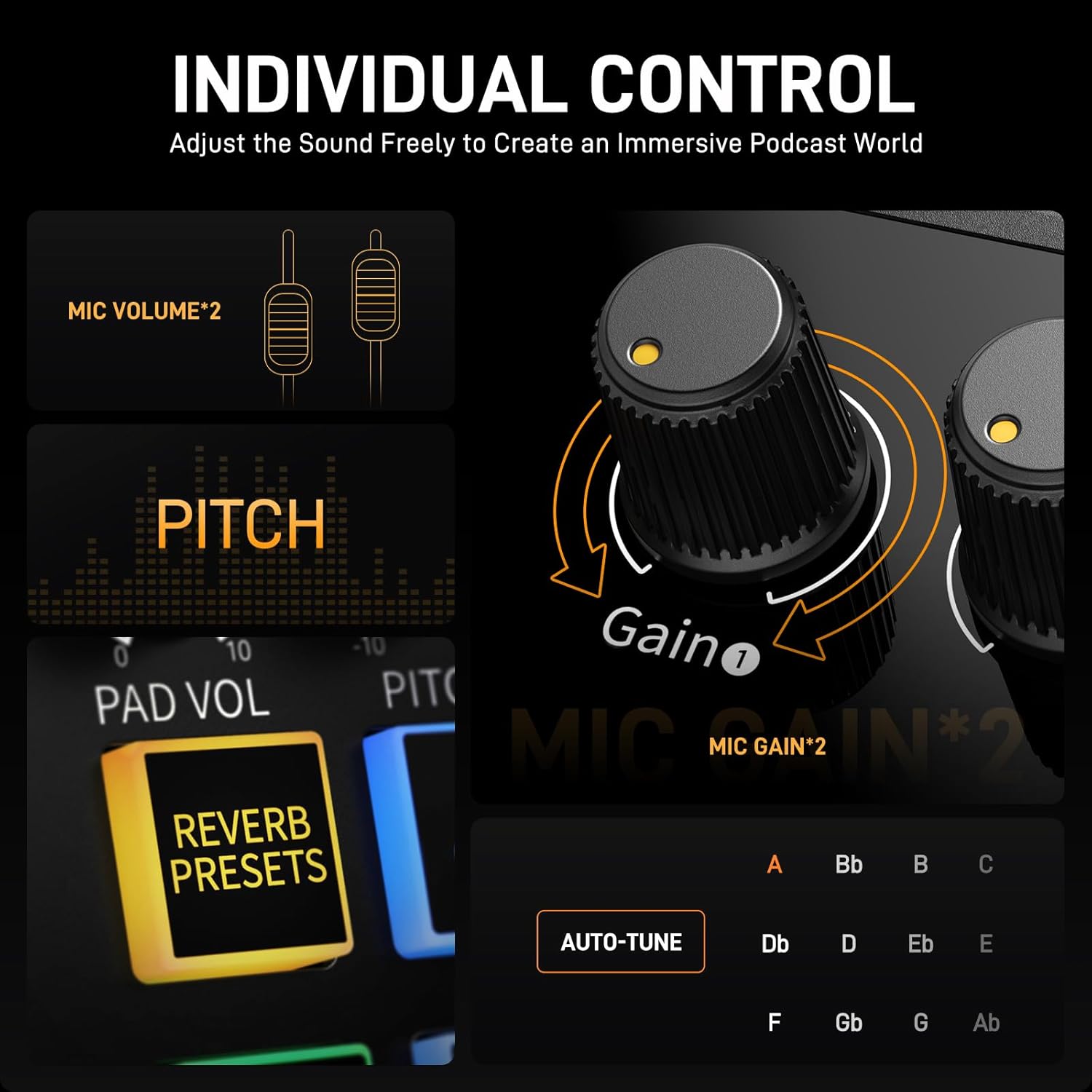
Image: Detailed view of the individual control knobs on the MAONO E2 Gen2 audio interface, including adjustments for microphone volume, pitch, gain, reverb presets, and auto-tune.
Audio Performance
The MAONO PD300X dynamic microphone features ultra-high-definition 192kHz/24bit sampling, surpassing traditional CD recording standards. This allows it to capture higher-frequency sound details and reproduce exceptional audio quality, ensuring your voice is clear, nuanced, and vibrant.
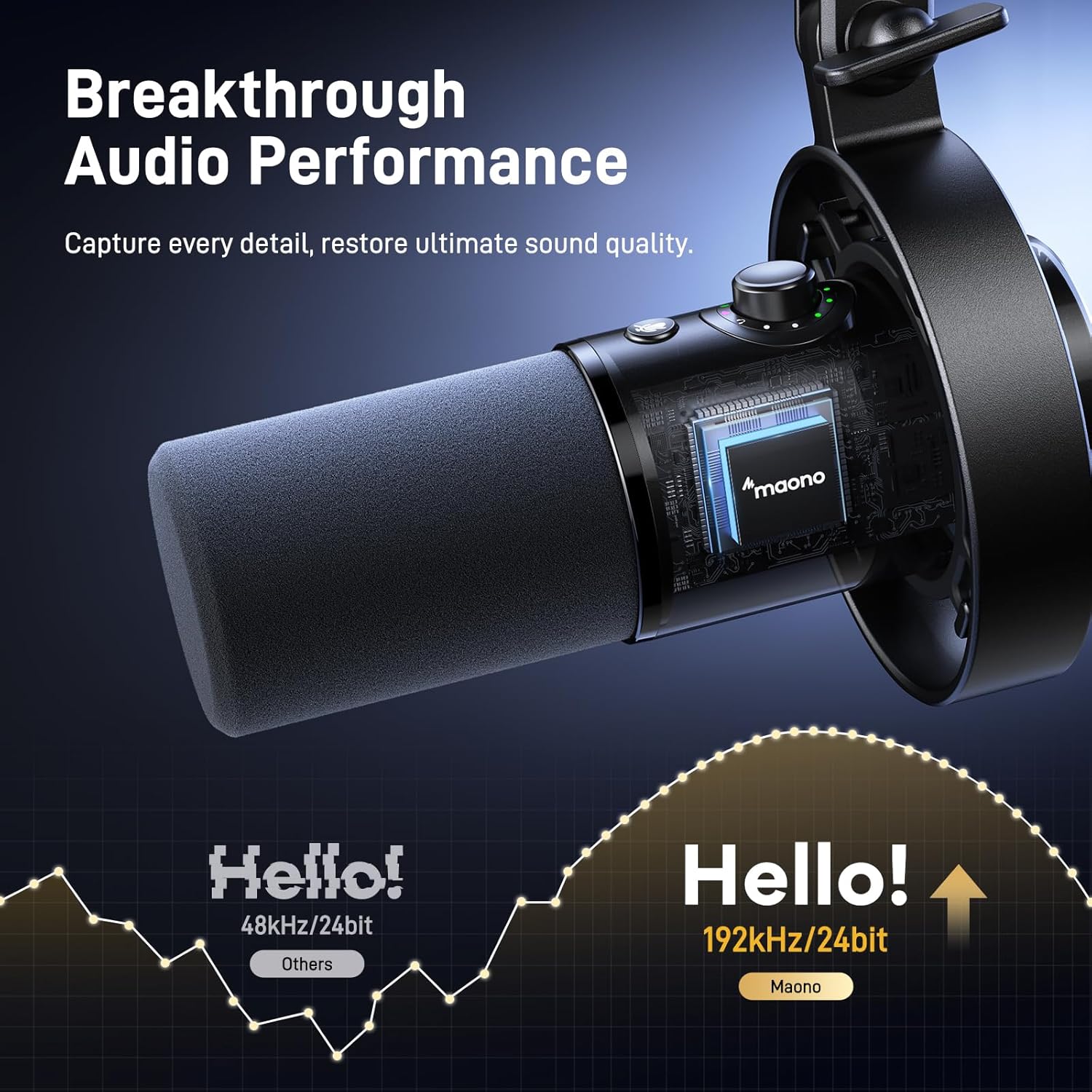
Image: A visual comparison demonstrating the superior audio detail captured at 192kHz/24bit sampling rate compared to lower resolutions, highlighting the breakthrough audio performance of the PD300X microphone.
MAONO Link Software
The MAONO Link software provides advanced digital signal processing (DSP) capabilities for fine-tuning your audio:
- Graphic EQ: Customize your sound profile with a visual equalizer.
- Limiters & Compressors: Control dynamic range for consistent audio levels.
- High-Pass Filters: Remove unwanted low-frequency rumble.
- Customizable Parameters: Adjust various settings to achieve your desired sound.

Image: Screenshot of the MAONO Link Software interface, demonstrating the graphic equalizer (EQ) for precise audio adjustments.
Maintenance
Proper maintenance ensures the longevity and optimal performance of your MAONO equipment:
- Cleaning: Use a soft, dry cloth to wipe down the microphone and audio interface. Avoid liquid cleaners or abrasive materials.
- Storage: Store the equipment in a cool, dry place away from direct sunlight and extreme temperatures.
- Cable Care: Avoid sharp bends or kinks in cables. Disconnect cables by gripping the connector, not the cable itself. The included XLR cables are designed for superior durability with a 10,000 bend lifespan.
- Microphone Protection: When not in use, consider covering the microphone with a dust cover to protect the diaphragm.
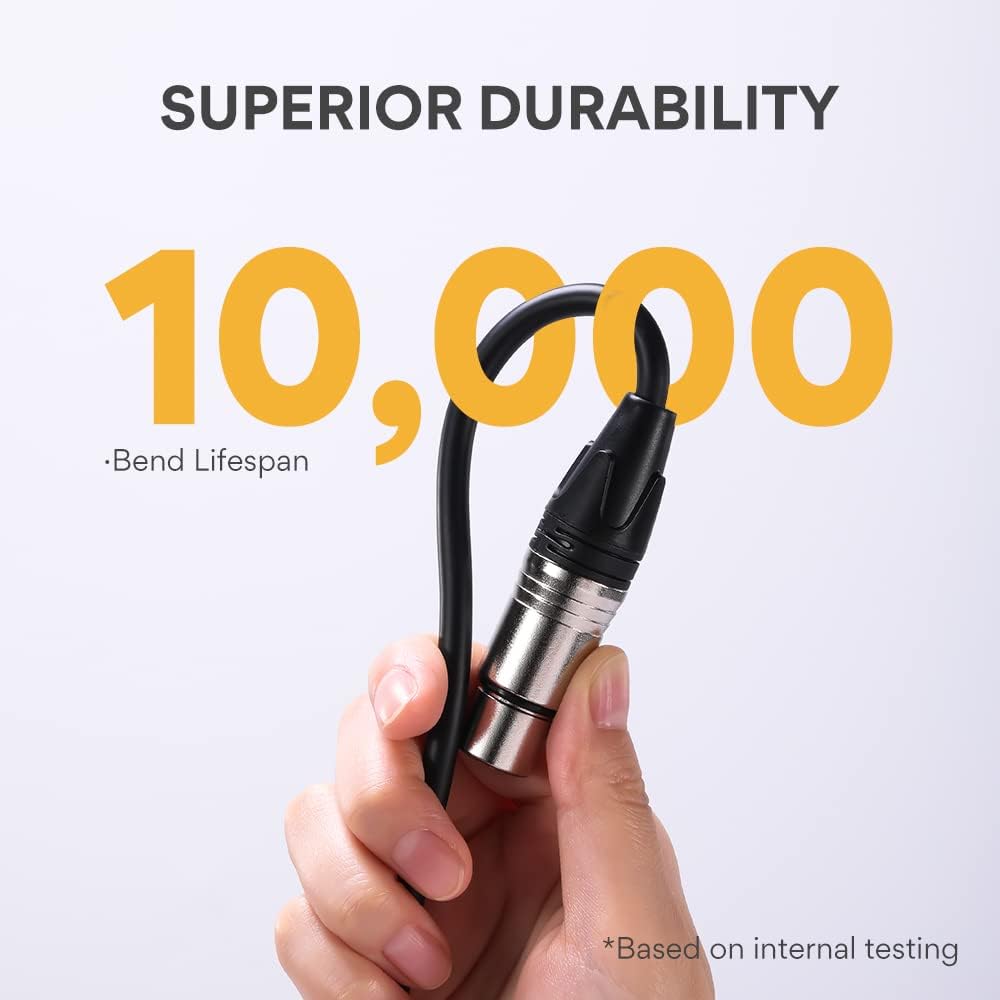
Image: A close-up of an XLR cable, illustrating its robust construction and highlighting its superior durability with a tested bend lifespan of 10,000 cycles.
Troubleshooting
If you encounter issues with your MAONO Podcast Equipment Bundle, refer to the following common problems and solutions:
| Problem | Possible Cause | Solution |
|---|---|---|
| No sound from microphone |
|
|
| Distorted or crackling sound |
|
|
| Background noise is present |
|
|
| MAONO Link software not detecting device |
|
|
Specifications
| Feature | Detail |
|---|---|
| Model | PD300X (Microphone), E2 Gen2 (Audio Interface) |
| Connectivity Technology | USB, XLR |
| Sampling Rate | Up to 192kHz/24bit |
| Microphone Type | Dynamic |
| Signal-to-Noise Ratio | 70 dB |
| Noise Reduction | 5-Level Intelligent Noise Reduction |
| Software Compatibility | MAONO Link (for advanced settings) |
| Soundpads | 8 Customizable Soundpads |
| Preset Modes | 4 (Podcast, Gaming, Streaming, Recording) |
| ASIN | B0DT6D56YK |
| Date First Available | January 16, 2025 |
Warranty and Support
For warranty information and technical support, please refer to the documentation included with your product or visit the official MAONO website. MAONO is committed to providing excellent customer service and support for their products.
You can typically find support resources, FAQs, and contact information on the MAONO brand store page or their official website.
Related documentsPD300X+E2 Gen2+XLR180


Ask a question about this manual
Ask about setup, troubleshooting, compatibility, parts, safety, or missing instructions. Manuals+ will review the question and use this page’s manual context to help answer it.