1. Introduction
Thank you for choosing the UGEE M908 Drawing Tablet. This manual provides detailed instructions on how to set up, operate, and maintain your new digital drawing tablet. The UGEE M908 is designed to provide a large creative space and precise control for digital artists, featuring a 10x6.25-inch active area, a battery-free stylus with 16384 levels of pressure sensitivity, and customizable shortcut keys.

Image: The UGEE M908 drawing tablet, showcasing its sleek design, large active area, and the included battery-free stylus.
2. Package Contents
Please verify that all items listed below are included in your package:
- UGEE M908 Drawing Tablet
- PH23 Battery-Free Stylus
- Pen Holder
- 8 Replacement Pen Nibs
- Nib Replace Ring (Pen Nib Clip)
- 2-Finger Glove
- Normal Gloves
- Cleaning Brush
- Cleaning Cloth
- USB-C Cable
- Quick Start Guide (not included in this digital manual)
3. Getting Started: Setup Guide
3.1 System Requirements & Compatibility
The UGEE M908 drawing tablet is compatible with a wide range of operating systems and creative software:
- Operating Systems: Windows 11/10/8/7, Mac OS 10.10 or above, Linux, Chromebook.
- Software Compatibility: Supports most creative software including Adobe Photoshop, Illustrator, Fireworks, Macromedia Flash, Comic Studio, SAI, Infinite Stratos, 3D MAX, Autodesk MAYA, Pixologic ZBrush, GIMP, Clip Studio Paint, Corel Painter, and more.
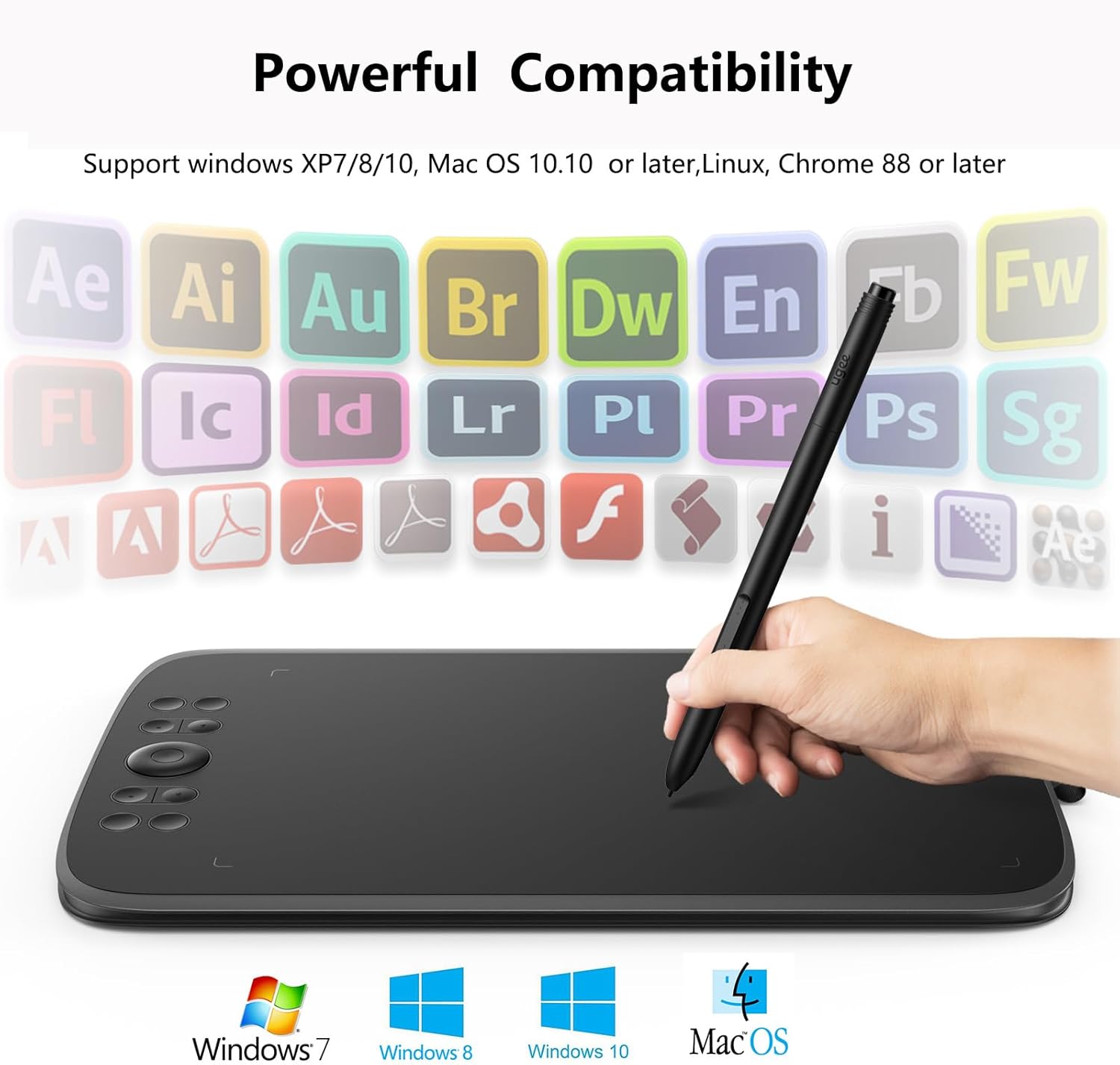
Image: Visual representation of the UGEE M908's broad compatibility with various operating systems (Windows, macOS) and popular creative software applications.
3.2 Connecting Your Tablet
- Connect the UGEE M908 tablet to your computer using the provided USB-C cable. Ensure the connection is secure.
- For Android devices, use the appropriate adapter (Micro-B or Type-C) to connect the tablet.

Image: The UGEE M908 tablet demonstrating connectivity options for Android devices, showing both Micro-B and Type-C cable connections.
3.3 Driver Installation
To ensure optimal performance and access to all features, it is crucial to install the latest driver for your UGEE M908 tablet.
- Download Driver: Visit the official UGEE website (www.ugee.com) and navigate to the 'Support' or 'Downloads' section. Locate the driver for the M908 model compatible with your operating system.
- Install Driver: Follow the on-screen instructions to install the driver. It is recommended to close all drawing software before installation.
- Restart Computer: After successful installation, restart your computer to ensure the driver is properly loaded.
- Verify Installation: Open the UGEE driver software (usually found in your system tray or applications folder) to customize settings and verify the tablet is recognized.
4. Using Your Tablet
4.1 The PH23 Battery-Free Stylus
The UGEE M908 comes with a PH23 battery-free stylus, eliminating the need for charging and ensuring uninterrupted creative flow. It offers advanced features for precise drawing and painting.
- 16384 Levels of Pressure Sensitivity: This allows for incredibly fine control over line weight, opacity, and brush effects, mimicking traditional art tools.
- Tilt Support (up to 60°): Detects the angle of the stylus, enabling natural shading and brush strokes, similar to using a real pencil or brush.
- Two Programmable Shortcut Buttons: Located on the stylus, these buttons can be customized via the driver software for quick access to functions like undo, redo, brush toggle, or eraser.

Image: An illustration highlighting the key features of the PH23 stylus, including its 16384 pressure levels, 60-degree tilt support, and battery-free operation.
4.2 Customizable Shortcut Keys and Scroll Wheel
The M908 tablet features 8 customizable shortcut keys and a scroll wheel to enhance your workflow efficiency.
- 8 Shortcut Keys: These keys can be programmed through the UGEE driver software to perform various functions, such as switching tools, zooming in/out, undo/redo, or opening specific applications.
- Scroll Wheel: The scroll wheel allows for quick adjustments like canvas zooming, brush size modification, or scrolling through documents, providing intuitive control without needing to access menus.

Image: A top-down view of the UGEE M908 drawing tablet, clearly showing the arrangement of the 8 shortcut keys and the central scroll wheel on the left side of the active area.
4.3 Active Drawing Area
The UGEE M908 provides a generous 10x6.25-inch active drawing area, offering ample space for detailed artwork and broad strokes.
- Large Workspace: The spacious active area minimizes the need for frequent zooming and panning, allowing for a more natural and continuous drawing experience.
- Optimal Proportions: The aspect ratio of the active area is designed to align well with common monitor resolutions, ensuring accurate representation of your work.

Image: An overhead view of the UGEE M908 tablet with an overlay indicating its 10x6.25-inch active drawing area, emphasizing the large workspace available for creative tasks.
4.4 Android Mode
When connected to an Android device, the UGEE M908 offers two distinct working areas to suit your preference and the application being used. This allows for flexible usage on mobile platforms.
5. Care and Maintenance
Proper care and maintenance will extend the lifespan of your UGEE M908 drawing tablet.
- Cleaning the Tablet: Use the provided cleaning cloth or a soft, lint-free cloth slightly dampened with water to wipe the tablet surface. Avoid using harsh chemicals, abrasive cleaners, or solvents.
- Cleaning the Stylus: Gently wipe the stylus with a dry, soft cloth. Do not immerse the stylus in water or any cleaning solutions.
- Nib Replacement: If the stylus nib becomes worn, use the nib replace ring (clip) to carefully pull out the old nib and insert a new one. Ensure the new nib is fully seated.
- Storage: Store the tablet and stylus in a dry, cool place away from direct sunlight and extreme temperatures. Avoid placing heavy objects on the tablet.
- Avoid Liquids: Keep the tablet away from liquids to prevent damage to internal components.
6. Troubleshooting
If you encounter issues with your UGEE M908 tablet, please refer to the following common solutions:
6.1 No Pen Response / Cursor Not Moving
- Check Cable Connection: Ensure the USB-C cable is securely connected to both the tablet and your computer. Try a different USB port.
- Driver Installation: Verify that the UGEE driver is correctly installed. Reinstall the driver if necessary, ensuring all drawing software is closed during installation.
- Restart Computer: A system restart can often resolve driver conflicts or recognition issues.
- Test in Different Software: Try using the tablet in a different application (e.g., Paint, Photoshop) to determine if the issue is software-specific.
- Check Stylus Nib: Ensure the stylus nib is not worn down or stuck. Replace it if needed.
6.2 Pressure Sensitivity Not Working
- Driver Issue: This is most commonly caused by an incorrect or corrupted driver. Reinstall the latest driver from the official UGEE website.
- Software Settings: Check the pressure sensitivity settings within your drawing software (e.g., Photoshop's brush settings).
- Tablet Driver Settings: Open the UGEE tablet driver software and ensure pressure sensitivity is enabled and calibrated correctly.
6.3 Shortcut Keys Not Functioning
- Driver Software: Open the UGEE tablet driver software and verify that the shortcut keys are properly assigned and enabled. Reconfigure them if necessary.
- Application Focus: Ensure the drawing application is the active window when using the shortcut keys.
6.4 Tablet Not Recognized by Android Device
- OTG Adapter: Ensure you are using a compatible OTG (On-The-Go) adapter for your Android device's USB port (Micro-B or Type-C).
- Android Version: Confirm your Android device is running Android 6.0 or above.
- USB Debugging: In some cases, enabling USB debugging in your Android device's developer options might help.
If these steps do not resolve your issue, please contact UGEE customer support.
7. Product Specifications
| Feature | Specification |
|---|---|
| Product Dimensions | 14 x 9 x 0.1 inches |
| Item Weight | 1.83 pounds |
| Model Number | UG-M908-US |
| Connectivity Technology | USB (Type-C) |
| Pressure Sensitivity | 16384 Levels |
| Tilt Support | 80° (Stylus) |
| Shortcut Keys | 8 Programmable Keys |
| Additional Features | Scroll Wheel, Battery-Free Stylus |
| Operating System Compatibility | Windows 11/10/8/7, Mac OS 10.10 or above, Linux, Chromebook |
8. Warranty and Customer Support
UGEE is committed to providing high-quality products and excellent customer service.
- Warranty: The UGEE M908 Drawing Tablet comes with a 12-month warranty from the date of purchase, covering manufacturing defects. Please retain your proof of purchase for warranty claims.
- Customer Support: For any technical assistance, troubleshooting, or warranty inquiries, please contact UGEE customer support. We offer 24/7 support to assist you.
Contact Information:
Please visit the official UGEE website for the most up-to-date contact methods, including email, live chat, or phone support.


