
ViewSonic VP2788-5K
ViewSonic VP2788-5K 27 Inch 5K Mac-Ready Monitor User Manual
Model: VP2788-5K
1. Introduction
The ViewSonic ColorPro VP2788-5K is a high-performance 27-inch monitor designed for professional use, particularly with Mac systems. It features a stunning 5K (5120x2880p) resolution, ensuring exceptional detail and clarity for creative and productivity tasks. The monitor boasts a wide color gamut, including 100% sRGB and 99% DCI-P3, and is Pantone Validated for precise color reproduction. Advanced connectivity options, including Thunderbolt 4, USB-C, HDMI, and DisplayPort, provide versatile integration with various devices. Its ergonomic stand allows for extensive adjustments to enhance user comfort.
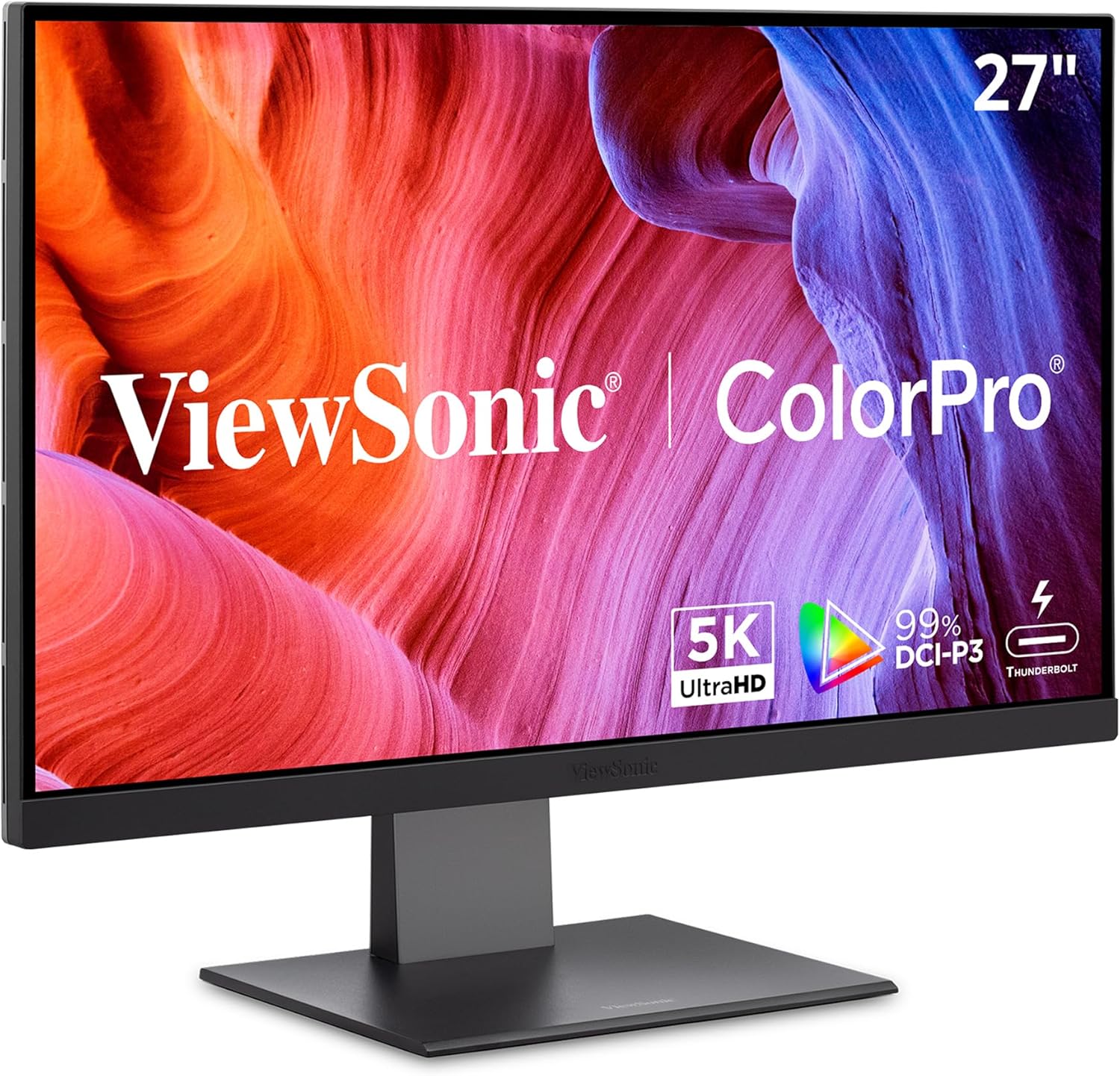
Figure 1.1: The ViewSonic VP2788-5K monitor, showcasing its sleek design and vibrant display capabilities.
2. What's in the Box
Verify that all items listed below are included in your product packaging. If any items are missing or damaged, please contact ViewSonic customer support.
- ViewSonic VP2788-5K Monitor
- 3-pin Power Plug (IEC C13 / CEE22)
- DisplayPort Cable (v1.4; Male-Male)
- HDMI Cable (v2.1; Male-Male)
- Thunderbolt 4 Cable (Male-Male)
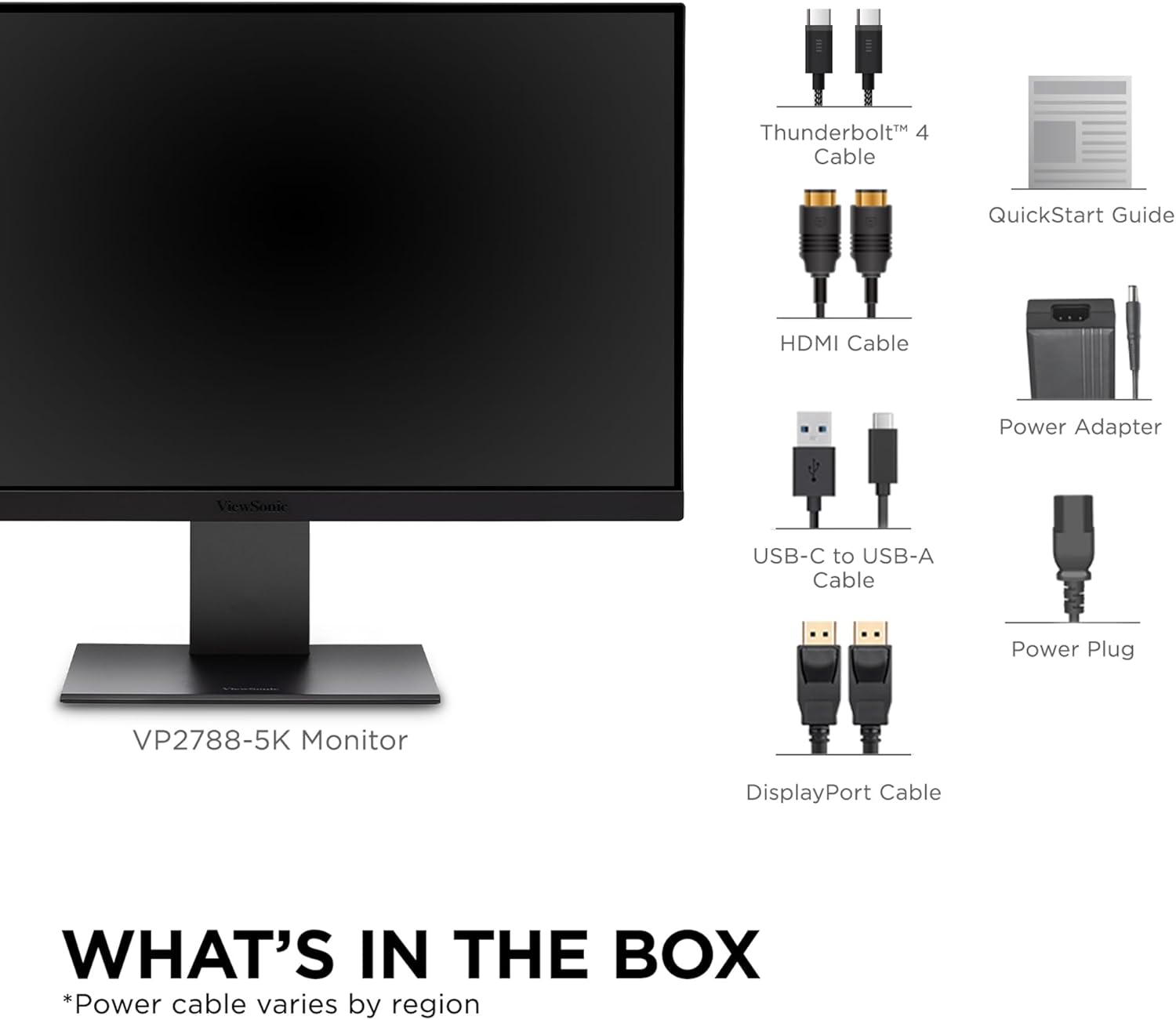
Figure 2.1: Illustration of the ViewSonic VP2788-5K monitor and its included accessories, such as various cables and the power adapter.
3. Setup Guide
3.1 Assembling the Monitor Stand
- Carefully remove the monitor and stand components from the packaging.
- Attach the stand base to the stand column, securing it with the provided screw.
- Align the stand column with the mounting slot on the back of the monitor. Gently push until it clicks into place. Ensure it is securely fastened.
3.2 Connecting to Your Device
The VP2788-5K offers multiple connectivity options. Choose the appropriate cable for your device.
- Thunderbolt 4: For Mac and compatible PCs, connect the supplied Thunderbolt 4 cable from your device to the Thunderbolt 4 input on the monitor. This single cable supports 5K video, data transfer, and up to 100W power delivery to your laptop.
- HDMI: Connect an HDMI cable from your device to the HDMI 2.1 port on the monitor.
- DisplayPort: Connect a DisplayPort cable from your device to the DisplayPort input on the monitor.
- USB Hub: Utilize the integrated USB-C and USB-A ports on the monitor for connecting peripherals like keyboards, mice, or external storage, and for charging mobile devices.

Figure 3.1: Rear view of the monitor showing the various input ports, including Thunderbolt 4, USB-C, HDMI, and DisplayPort.
3.3 Powering On
- Connect the power cable to the monitor's power input and then to a power outlet.
- Press the power button located on the monitor to turn it on.
4. Operating the Monitor
4.1 On-Screen Display (OSD) Menu
The OSD menu allows you to adjust various monitor settings. Access it using the control buttons typically located on the back or bottom of the monitor.
- Input Select: Switch between connected video sources (Thunderbolt 4, HDMI, DisplayPort).
- Picture Settings: Adjust brightness, contrast, sharpness, and color temperature.
- Color Settings: Fine-tune color modes, including sRGB, DCI-P3, and custom profiles. This monitor is Pantone Validated for accurate color reproduction.
- Audio: Control volume for the integrated 5-watt speakers.
- System Settings: Configure OSD language, OSD timeout, and reset to factory defaults.
4.2 Ergonomic Adjustments
The VP2788-5K features an advanced ergonomic stand for optimal viewing comfort:
- Height Adjustment: Raise or lower the monitor to eye level.
- Tilt: Adjust the screen angle vertically to reduce glare and improve viewing.
- Swivel: Rotate the monitor horizontally on its base.
- Pivot: Rotate the screen 90 degrees for portrait mode viewing, ideal for coding or document review.

Figure 4.1: Diagram illustrating the various ergonomic adjustments available on the monitor stand, including height, tilt, swivel, and pivot.
4.3 Daisy Chaining Multiple Monitors
The Thunderbolt 4 port supports daisy chaining, allowing you to connect a second compatible 5K monitor to the VP2788-5K for an extended desktop experience. Connect the Thunderbolt 4 output of the first monitor to the Thunderbolt 4 input of the second monitor.

Figure 4.2: An example of a dual monitor setup utilizing the daisy chain feature via Thunderbolt 4, showing two VP2788-5K monitors connected to a single laptop.
5. Maintenance and Care
5.1 Cleaning the Monitor
- Always power off the monitor and unplug it from the power outlet before cleaning.
- Use a soft, lint-free cloth lightly dampened with water or a non-abrasive screen cleaner.
- Wipe the screen gently. Avoid applying excessive pressure.
- Do not use alcohol, benzene, thinners, or any harsh chemicals, as these may damage the screen surface.
- For the monitor casing, use a soft, dry cloth.
5.2 Storage
When storing the monitor for an extended period, ensure it is powered off, unplugged, and stored in a cool, dry place away from direct sunlight and extreme temperatures. It is recommended to use the original packaging for protection.
6. Troubleshooting
| Problem | Possible Cause | Solution |
|---|---|---|
| No image on screen | Power cable not connected; Video cable not connected; Incorrect input selected. | Ensure power cable is securely connected. Check video cable connection (Thunderbolt 4, HDMI, DisplayPort). Use the OSD menu to select the correct input source. |
| Image is blurry or distorted | Incorrect resolution setting; Loose video cable. | Set the display resolution to 5120x2880 (5K) in your device's display settings. Ensure video cable is securely connected. |
| No audio from speakers | Volume too low or muted; Incorrect audio output selected on device. | Adjust monitor volume via OSD. Check your device's audio settings to ensure the monitor is selected as the output device. |
| Monitor not charging laptop via Thunderbolt 4 | Laptop not compatible with 100W PD; Cable issue. | Ensure your laptop supports charging via Thunderbolt 4/USB-C Power Delivery. Verify the Thunderbolt 4 cable is fully functional. |
7. Specifications
| Feature | Detail |
|---|---|
| Brand | ViewSonic |
| Model Number | VP2788-5K |
| Screen Size | 27 Inches |
| Resolution | 5K UHD (5120x2880p) |
| Refresh Rate | 75Hz |
| Panel Type | IPS |
| Color Gamut | 100% sRGB, 99% DCI-P3 |
| HDR Support | HDR400 |
| Color Validation | Pantone Validated |
| Connectivity | 2x Thunderbolt 4, 2x USB Type-C, 1x HDMI 2.1, 1x DisplayPort |
| USB Hub | Integrated USB-C and USB-A hub |
| Power Delivery | Up to 100W via Thunderbolt 4 |
| Speakers | 2x 5-watt integrated speakers |
| Ergonomics | Height, Tilt, Swivel, Pivot adjustment |
| Item Weight | 14 pounds (approx. 6.35 kg) |
| Product Dimensions (LxWxH) | 8.26 x 24.13 x 21.44 inches (approx. 21 x 61.3 x 54.5 cm) |
| Country of Origin | China |
8. Warranty and Support
8.1 Warranty Information
ViewSonic provides a standard warranty for the VP2788-5K monitor. Please refer to the official ViewSonic website or the warranty card included with your product for detailed terms and conditions, including warranty duration and coverage specifics. Typically, ViewSonic monitors come with a 3-year limited warranty.
8.2 Customer Support
For technical assistance, troubleshooting, or warranty claims, please contact ViewSonic customer support. You can find contact information, including phone numbers and online support resources, on the official ViewSonic website:
When contacting support, please have your monitor's model number (VP2788-5K) and serial number ready. The serial number is usually located on a sticker on the back of the monitor.
Ask a question about this manual
Ask about setup, troubleshooting, compatibility, parts, safety, or missing instructions. Manuals+ will review the question and use this page’s manual context to help answer it.