Comprehensive guide for your 10.1-inch Android 13 Tablet.
Introduction
Welcome to the user manual for your new XISKT Android 13 Tablet. This guide provides essential information on setting up, operating, maintaining, and troubleshooting your device. Please read this manual thoroughly to ensure optimal performance and longevity of your tablet.
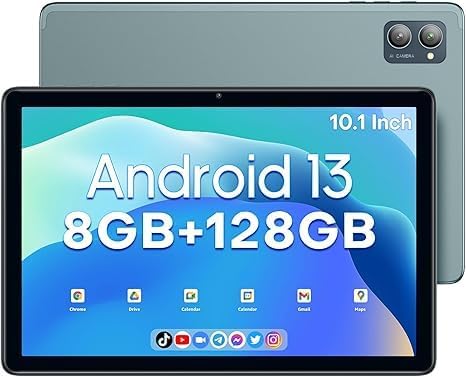
This image displays the XISKT Android 13 Tablet, featuring its 10.1-inch screen with the operating system and memory specifications visible. The rear view of the tablet shows the dual camera module.
What's in the Box
Please check the package contents upon unboxing:
XISKT 10.1 inch Android tablet
Tablet charger
Type-C cable
User manual (this document)
Setup Guide
1. Charging the Tablet
Before first use, fully charge your tablet. Connect the provided Type-C cable to the tablet's charging port and the other end to the tablet charger. Plug the charger into a power outlet.
A full charge typically takes several hours.
The battery indicator on the screen will show charging status.
The tablet is equipped with a 6800mAh battery for extended use.
2. Powering On/Off
To power on, press and hold the power button located on the side of the tablet until the XISKT logo appears. To power off, press and hold the power button until the power options menu appears, then select "Power off".
3. Initial Setup Wizard
Upon first power-on, the Android 13 setup wizard will guide you through essential configurations:
Language Selection: Choose your preferred language.
Wi-Fi Connection: Connect to a Wi-Fi network to access the internet. The tablet supports both 2.4G and 5G Wi-Fi.
Google Account: Sign in with your Google account or create a new one. This is necessary for accessing the Google Play Store and other Google services.
Date & Time: Set the correct date and time, or allow automatic network synchronization.
Security: Set up a screen lock (PIN, pattern, or password) for device security.
4. Expanding Storage
The tablet comes with 128GB of internal storage. If you require more space, you can expand it up to 512GB using a TF (microSD) card. Locate the TF card slot on the tablet and insert the card gently until it clicks into place.
Operating Your Tablet
Display and Navigation
The 10.1-inch IPS display offers a resolution of 1280x800 pixels, providing clear and vibrant visuals. Navigate the tablet using touch gestures:
Tap: Select an item or open an app.
Swipe: Scroll through pages or menus.
Pinch-to-Zoom: Zoom in or out on images and web pages.
Long Press: Access contextual menus or move app icons.
Cameras
Your tablet is equipped with dual cameras:
Rear Camera: 13 MP, suitable for capturing photos and videos.
Front Camera: 5 MP, ideal for video calls and selfies.
Open the "Camera" application to start taking pictures or recording videos. Explore the settings within the app for various modes and options.
Multitasking with Android 13
The Android 13 operating system enhances multitasking capabilities. You can open and use two applications simultaneously using the split-screen feature. To activate:
Open the first app.
Swipe up from the bottom of the screen to access the recent apps view.
Tap the app icon at the top of the first app's card, then select "Split screen".
Choose the second app from your recent apps or app drawer to fill the other half of the screen.
Connectivity
The tablet supports various connectivity options:
Wi-Fi: Connect to 2.4GHz or 5GHz wireless networks for internet access. Go to Settings > Network & internet > Wi-Fi.
Bluetooth 5.0: Pair with Bluetooth headphones, speakers, or other devices. Go to Settings > Connected devices > Connection preferences > Bluetooth.
GPS: Utilize the built-in GPS for navigation and location-based services.
Maintenance and Care
Proper care ensures the longevity and optimal performance of your XISKT tablet:
Cleaning: Use a soft, lint-free cloth to clean the screen and body. For stubborn smudges, slightly dampen the cloth with water or a screen cleaner. Avoid harsh chemicals.
Temperature: Do not expose the tablet to extreme temperatures (hot or cold) or direct sunlight for prolonged periods.
Water Exposure: The tablet is not waterproof. Avoid contact with liquids.
Storage: When not in use for extended periods, store the tablet in a cool, dry place.
Software Updates: Keep your tablet's software updated to ensure security and performance improvements. Check for updates in Settings > System > System update.
Troubleshooting
Here are solutions to common issues you might encounter:
Tablet Not Turning On
Ensure the tablet is sufficiently charged. Connect it to the charger and wait a few minutes before attempting to power on.
Press and hold the power button for at least 10-15 seconds to force a restart.
Wi-Fi Connectivity Issues
Toggle Wi-Fi off and on in Settings.
Restart your Wi-Fi router.
Forget the network and reconnect by re-entering the password.
If issues persist, a factory reset can resolve many software-related problems. Warning: This will erase all data on your tablet. Back up important data before proceeding.
Go to Settings > System > Reset options.
Select "Erase all data (factory reset)".
Confirm your decision.
Technical Specifications
Feature
Specification
Brand
XISKT
Model
A5505
Operating System
Android 13
CPU
2.0 GHz Quad-Core (Unisoc)
RAM
8GB (4GB original + 4GB expandable)
Internal Storage (ROM)
128GB (Expandable up to 512GB via TF card)
Screen Size
10.1 Inches
Screen Resolution
1280 x 800 Pixels (IPS)
Front Camera
5 MP
Rear Camera
13 MP
Battery Capacity
6800mAh
Charging Port
Type-C
Wi-Fi
2.4GHz + 5GHz (802.11ac)
Bluetooth
5.0
GPS
Supported
Item Weight
1.1 pounds
Product Dimensions (LxWxH)
9.44 x 6.29 x 0.31 inches
Warranty and Support
XISKT is committed to providing excellent customer service. Your tablet comes with the following support:
Return Policy: 30 days no-reason return policy.
Service Warranty: Free one-year service.
Technical Support: Lifetime after-sales service and technical support.
For any issues, questions, or technical assistance, please contact XISKT customer support directly. Refer to the contact information provided with your purchase or on the official XISKT website. When contacting support, please have your model number (A5505) and purchase details ready.
Note: "No matter you encounter any problems, please contact us at the first time through the mailbox, XISKT wants to ensure all our customers would have a pleasant shopping experience."
Documents and downloads
Ask a question about this manual
Ask about setup, troubleshooting, compatibility, parts, safety, or missing instructions. Manuals+ will review the question and use this page’s manual context to help answer it.