
1. Introduction
This manual provides detailed instructions for the setup, operation, and maintenance of your NEWORK EasyCam 501 Kit 4K Webcam with Tripod. Designed for high-quality video communication, this webcam features 4K Ultra HD resolution, stable autofocus, dual noise-cancelling microphones, and a privacy cover. It offers universal compatibility and a flexible adjustable design for various uses.
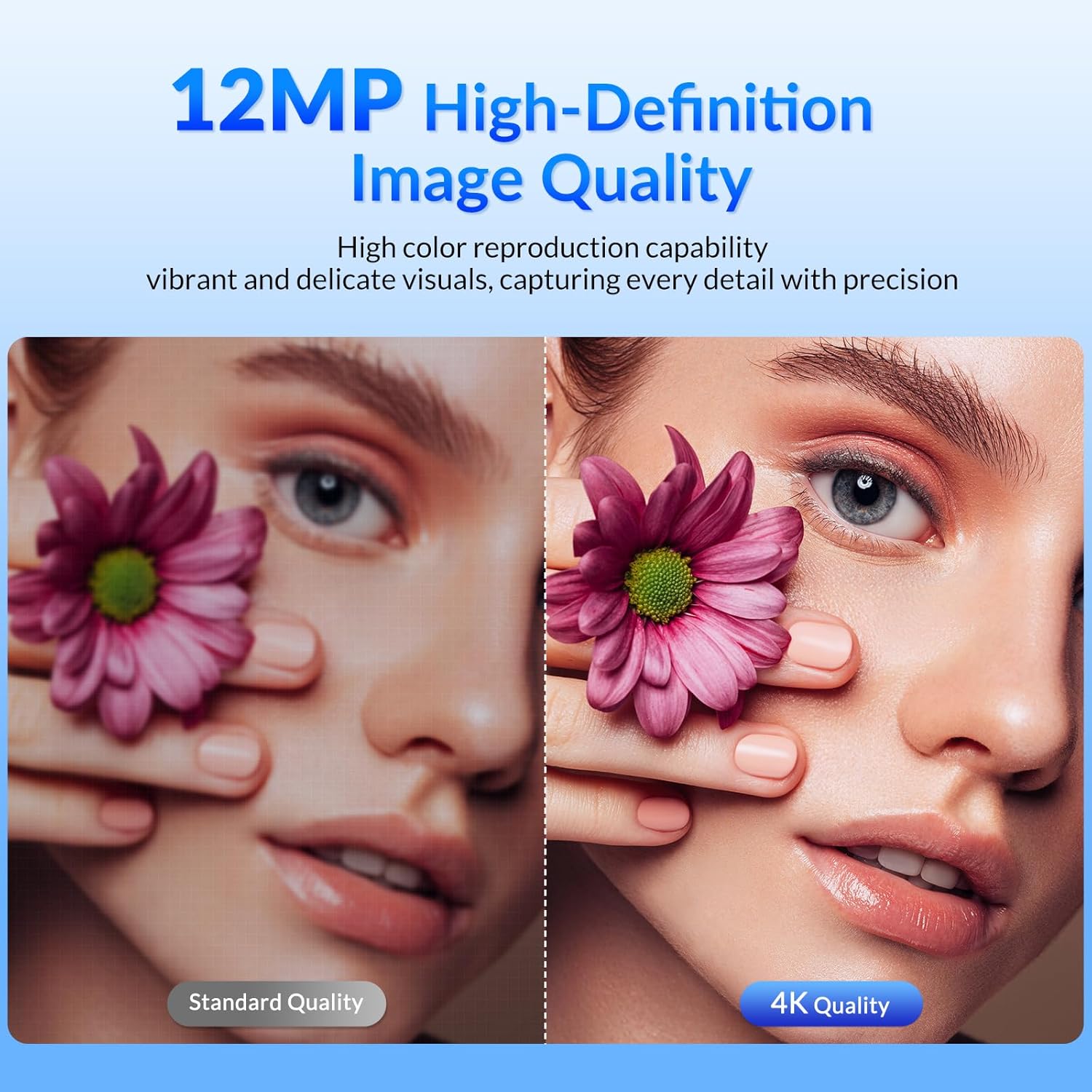
Figure 1: NEWORK EasyCam 501 Kit 4K Webcam with Tripod
2. What's in the Box
Verify that all items are present in the package before proceeding with the setup.
- EasyCam 501 Webcam x 1
- Privacy Cover x 1
- Tripod x 1
- Instruction Manual x 1
Video 1: Unboxing the EasyCam 501 Kit, showing all included components.
3. Setup
The NEWORK EasyCam 501 Kit is designed for simple USB plug-and-play functionality, requiring no additional drivers or software for most operating systems.
3.1 Mounting the Webcam
The webcam features a flexible adjustable clip that allows for secure mounting on various devices. It can be placed on top of a laptop screen, desktop monitor, or used with the included tripod.
- On a Monitor/Laptop: Open the clip and place the webcam on top of your screen. Adjust the clip to ensure it sits securely. The soft padding on the clip prevents scratches.
- With the Tripod: Screw the webcam onto the tripod mount. The tripod is extendable and features an adjustable angle for optimal positioning.

Figure 2: Webcam securely mounted on a laptop.
3.2 Connecting to Your Device
Connect the integrated USB-A 2.0 cable from the webcam to an available USB port on your computer (PC, Mac, or smart TV). The device will be automatically recognized.

Figure 3: USB Plug & Play connection.
4. Operating Instructions
Once connected, your NEWORK EasyCam 501 Kit is ready for use with various video conferencing and streaming applications.
4.1 Using with Video Conferencing Software (Zoom, Skype, Teams, etc.)
After plugging in the webcam, open your preferred video conferencing application. Navigate to the audio/video settings within the application and select "EasyCam 501" as your camera and microphone source.
- Camera Selection: In the video settings, choose "EasyCam 501" from the camera dropdown menu.
- Microphone Selection: In the audio settings, select "Microphone (EasyCam 501)" as your input device.
- Adjusting Settings: Most applications allow for basic adjustments like resolution (HD/Original Ratio), mirroring, and advanced camera controls (brightness, contrast, white balance, exposure, low light compensation). Experiment with these settings to achieve optimal video quality for your environment.
Video 2: Demonstration of video quality and settings with the EasyCam 501 webcam.
4.2 Privacy Cover
The integrated flip privacy cover allows you to easily block the lens when the webcam is not in use, ensuring your privacy and protecting the lens from dust and scratches.
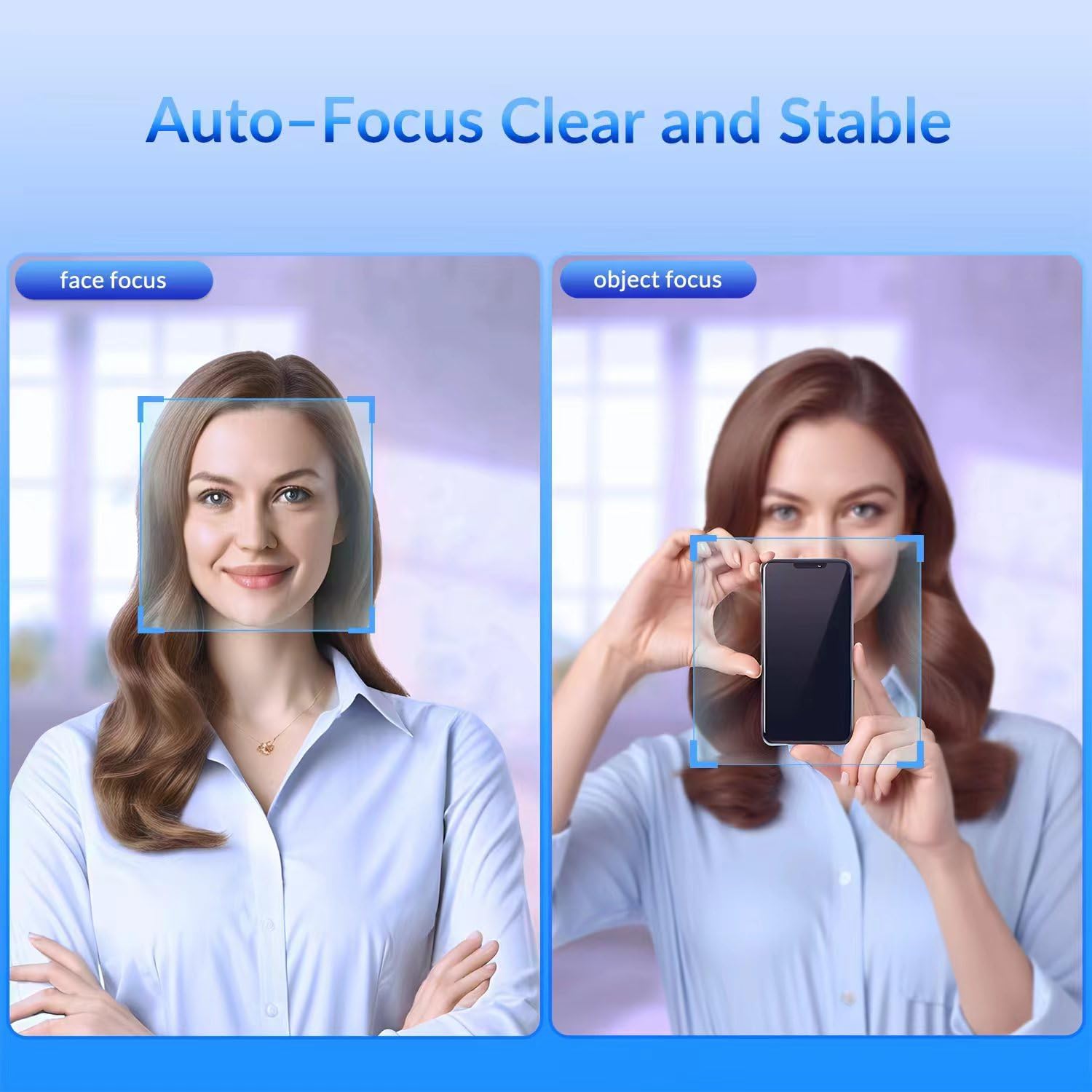
Figure 4: Integrated privacy cover for enhanced security.
5. Product Features
- 4K Ultra HD Resolution: Experience clear visuals with 3840×2160 resolution. Intelligent low-light noise reduction ensures vibrant colors even in dim settings.
- Stable Auto Focus: The webcam features a smooth auto-focus system for consistent image clarity, ideal for online teaching, meetings, and video calls.
- Dual Microphones with Noise Reduction: Built-in dual mics intelligently filter out background noise and pick up clear audio within 3 meters.
- 77° Wide-Angle Lens: Supports natural framing for 3–5 people, suitable for team calls and video chats.
- 360° Adjustable Design: Supports 360° horizontal rotation and 100° vertical tilt for flexible positioning.
- Universal Compatibility: Connects instantly to laptops, desktops, or smart TVs. Compatible with Windows, macOS, and various platforms like Zoom, Skype, and Teams.

Figure 5: Visual comparison of 4K Ultra HD image quality.

Figure 6: Webcam's stable autofocus in action.

Figure 7: Dual microphones with noise reduction technology.
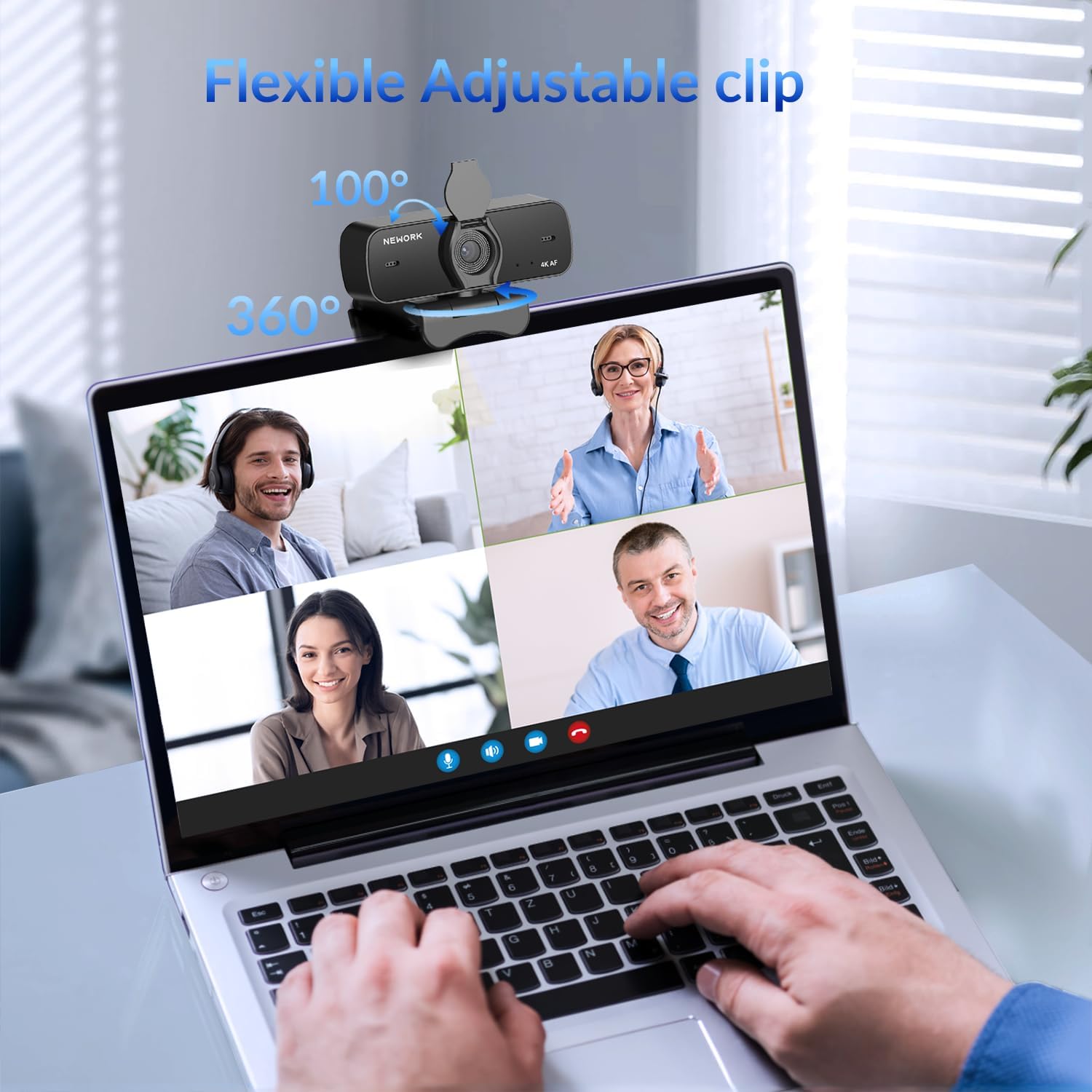
Figure 8: Wide 77° field of view for group calls.

Figure 9: Webcam with 360° rotation and 100° tilt.
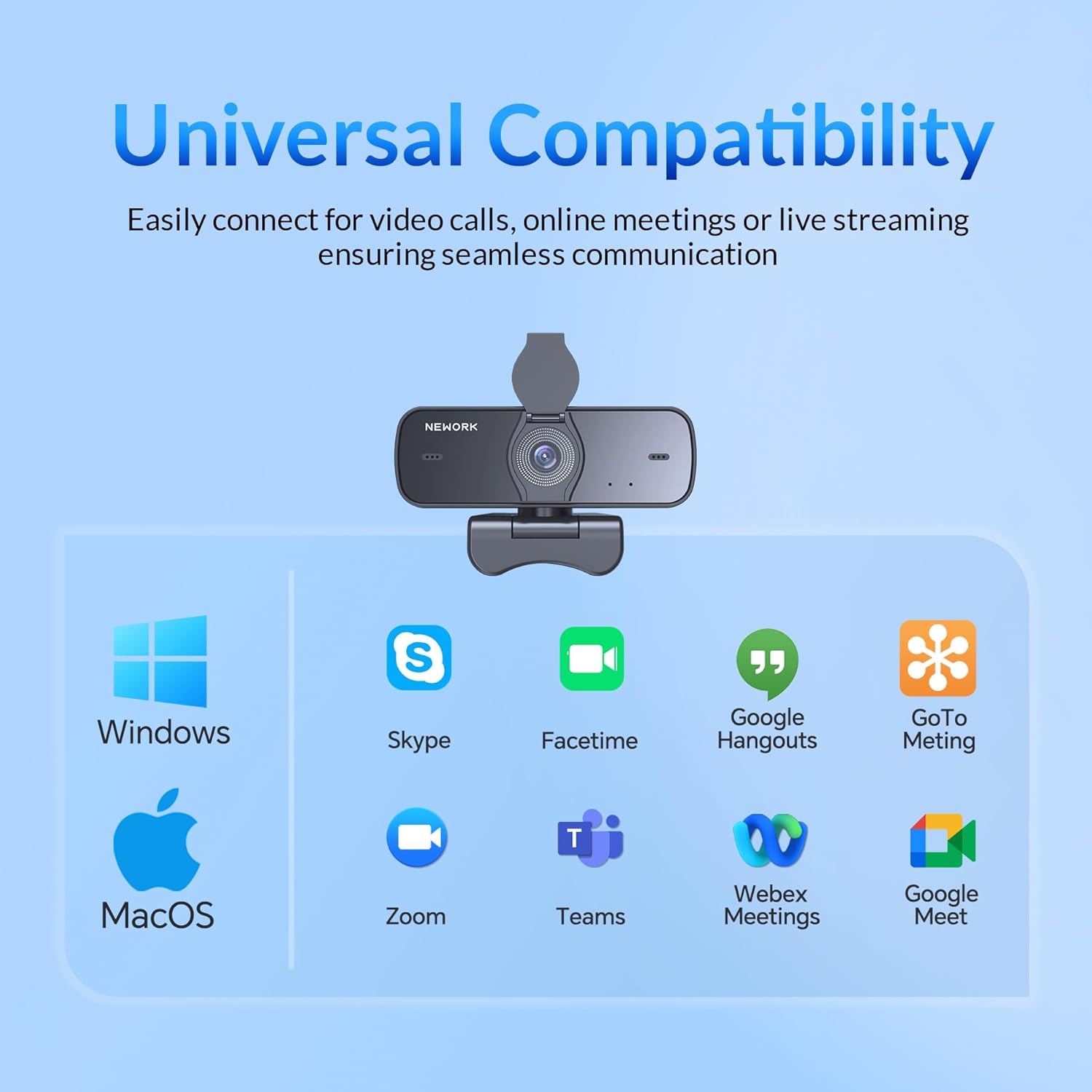
Figure 10: Webcam compatibility with various operating systems and applications.
6. Specifications
| Feature | Detail |
|---|---|
| Brand | NEWORK |
| Model Number | EasyCam 501 Kit |
| Resolution | 4K Ultra HD (3840×2160) |
| Photo Sensor Technology | CMOS |
| Special Features | 4K Ultra HD Resolution, Auto-Focus, Privacy Cover, Sturdy Metal Tripod, USB Plug-and-Play |
| Connectivity Technology | USB |
| Field of View (FOV) | 77° |
| Microphones | Dual Noise-Cancelling Mics |
| Item Weight | 4.9 ounces |
| Product Dimensions | 2.05 x 3.54 x 2.44 inches |
7. Maintenance
To ensure the longevity and optimal performance of your webcam, follow these maintenance guidelines:
- Cleaning: Use a soft, dry cloth to clean the lens and body of the webcam. Avoid abrasive cleaners or solvents.
- Storage: When not in use, close the privacy cover to protect the lens. Store the webcam in a cool, dry place away from direct sunlight and extreme temperatures.
- Handling: Avoid dropping the webcam or subjecting it to strong impacts. Do not attempt to disassemble the device.
8. Troubleshooting
If you encounter issues with your NEWORK EasyCam 501 Kit, refer to the following common solutions:
- Webcam Not Detected:
- Ensure the USB cable is securely plugged into a working USB port on your computer.
- Try plugging the webcam into a different USB port or a different computer to rule out port or computer issues.
- Restart your computer.
- Poor Video Quality / Blurry Image:
- Ensure the lens is clean and free of dust or smudges.
- Check the lighting in your environment. Adequate lighting is crucial for optimal video quality.
- Verify that the webcam is selected as the primary camera in your application's settings.
- If autofocus is inconsistent, try adjusting camera settings within your application (e.g., Zoom/Teams video settings) to ensure white balance and exposure are correctly set for your environment.
- No Audio / Poor Audio Quality:
- Ensure "Microphone (EasyCam 501)" is selected as the input device in your application's audio settings.
- Check the microphone volume levels in both your computer's sound settings and the application's audio settings.
- Ensure there are no obstructions blocking the webcam's microphones.
9. Warranty and Support
Your NEWORK EasyCam 501 Kit comes with a manufacturer's warranty. For specific warranty details, please refer to the warranty card included in your package or visit the official NEWORK website. For technical support, product inquiries, or assistance with troubleshooting, please contact NEWORK customer service through their official channels.
Official Website: www.nework.us