1. Introduction
This manual provides detailed instructions for the MAIWO NVMe SATA M.2 to SATA 2.5/3.5 Inch Hard Drive Enclosure (Model MAIWO-K10635P2). This device is designed to facilitate external access, data transfer, and backup for various types of storage drives, including M.2 NVMe SSDs, M.2 SATA SSDs, 2.5-inch SATA SSDs/HDDs, and 3.5-inch SATA HDDs. It offers a tool-free design and high-speed USB-C 10Gbps connectivity.
Package Contents
Please verify that all items are present in the package:
- MAIWO NVMe SATA M.2 to SATA 2.5/3.5 Inch Converter Enclosure
- 12V/2A Power Adapter
- USB-C to USB-C Cable
- USB-A to USB-C Cable
- Silicone Plugs (for M.2 SSD fixation)
- User Manual

Image: The MAIWO NVMe SATA M.2 to SATA 2.5/3.5 Inch Converter Enclosure and its included accessories, including power adapter, USB cables, silicone plugs, and user manual.
2. Product Features
The MAIWO-K10635P2 enclosure offers versatile compatibility and high-speed data transfer capabilities:
- Universal Compatibility: Supports M.2 NVMe SSDs, M.2 SATA SSDs (M Key & B+M Key, sizes 2230/2240/2260/2280), 2.5-inch SATA SSDs/HDDs, and 3.5-inch SATA HDDs.
- High-Speed Data Transfer: USB 3.1 Gen2x1 Type-C interface provides up to 10Gbps for NVMe SSDs, up to 6Gbps for M.2 SATA SSDs, and up to 5Gbps for 2.5/3.5-inch SATA HDDs/SSDs.
- Tool-Free Design: Allows for easy installation and removal of drives without the need for tools.
- External Access: Enables external access and storage for various M.2 and SATA drives.
- Independent Power Adapter: Ensures stable and sufficient power supply for all connected drives.

Image: Visual representation of data transfer speeds: Max 10Gbps for M.2 NVMe SSD, Max 6Gbps for M.2 SATA SSD, and Max 5Gbps for 2.5"/3.5" SATA HDD/SSD.
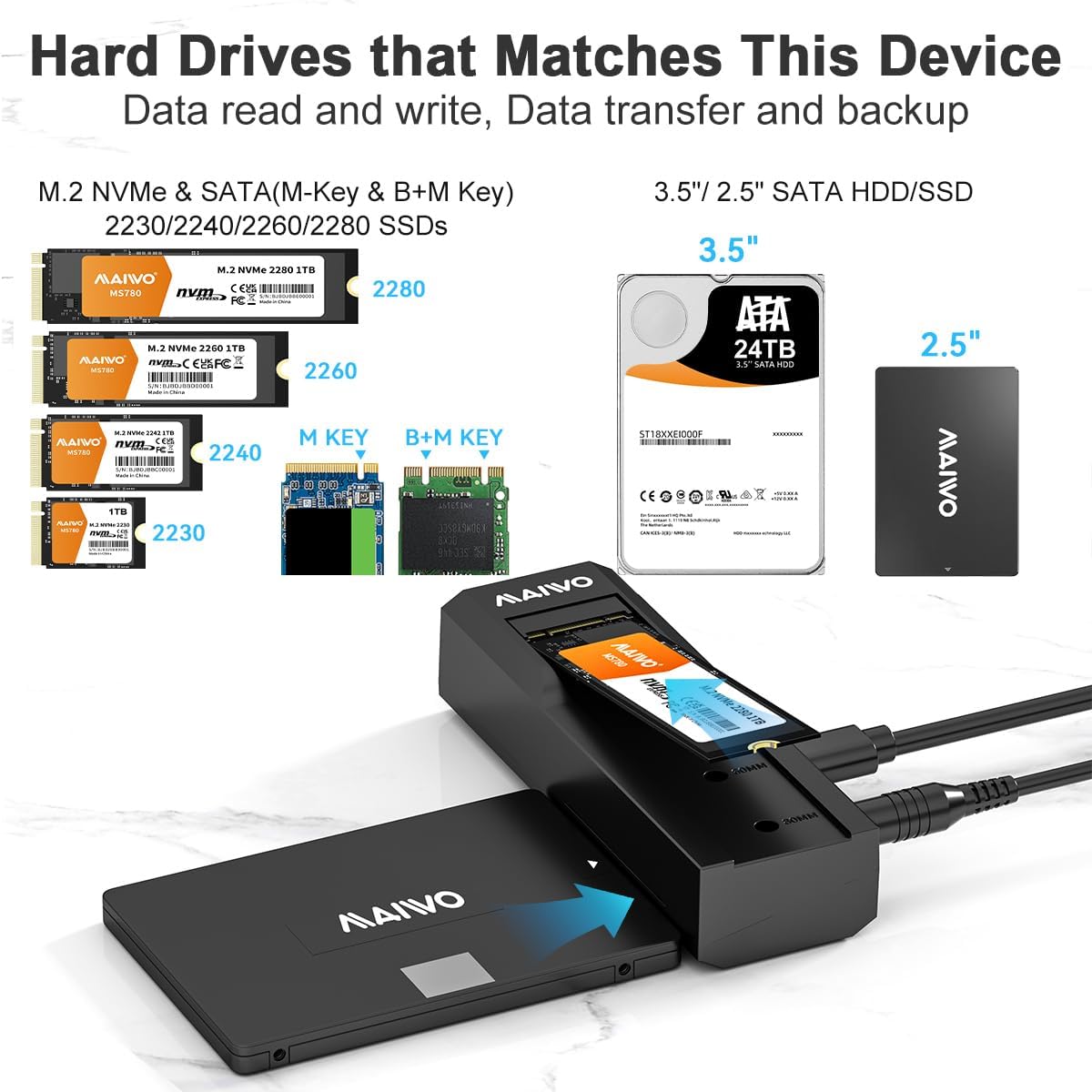
Image: Illustration of compatible hard drive types, including M.2 NVMe & SATA (M-Key & B+M Key) SSDs in 2230, 2240, 2260, 2280 sizes, and 3.5"/2.5" SATA HDD/SSD.
3. Setup Guide
Follow these steps to set up your MAIWO hard drive enclosure and connect your storage drives:
Component Overview

Image: Detailed view of the enclosure's ports and buttons, including the 3.5"/2.5" SATA connector, M.2 NVMe/SATA slot with 2230, 2242, 2260, 2280 markings, DC 12V power jack, HDD/SSD indicator, Type-C data port, Power button, and Clone button.
Installation Steps for Read and Write Function
- Step 1: Insert Drive
Insert your 2.5"/3.5" SATA drive into the SATA port, or insert your M.2 NVMe/SATA SSD into the M.2 slot. Ensure the M.2 SSD is properly aligned with the keying and secured with the provided silicone plug. - Step 2: Secure M.2 SSD (if applicable)
If installing an M.2 SSD, spin the silicone cork to fix the M.2 hard drive firmly in place. - Step 3: Connect to Computer
Connect the enclosure to your computer using the provided USB-C to USB-C or USB-A to USB-C cable. - Step 4: Connect Power
Connect the independent 12V/2A power adapter to the DC 12V jack on the enclosure and plug it into a power outlet. Turn on the power switch. Important: Do not reverse steps 4 and 5. Ensure the device is powered before connecting to the computer.

Image: Four-step visual guide for setting up the enclosure for read and write operations, showing insertion of drives, securing M.2 SSD, connecting to PC via USB, and connecting the power adapter.

Image: Examples of external access and storage for 2.5-inch SATA, 3.5-inch SATA, M.2 SATA, and M.2 NVMe drives connected to the enclosure.

Image: The MAIWO enclosure connected to a laptop, with a 3.5-inch HDD inserted, and its independent 12V 2A power adapter plugged into a wall socket.
4. Operating Instructions
Data Access (Read and Write)
Once the enclosure is properly connected to your computer and powered on, the inserted drive will be recognized as an external storage device. You can then access, read, and write data to the drive as you would with any other external storage.
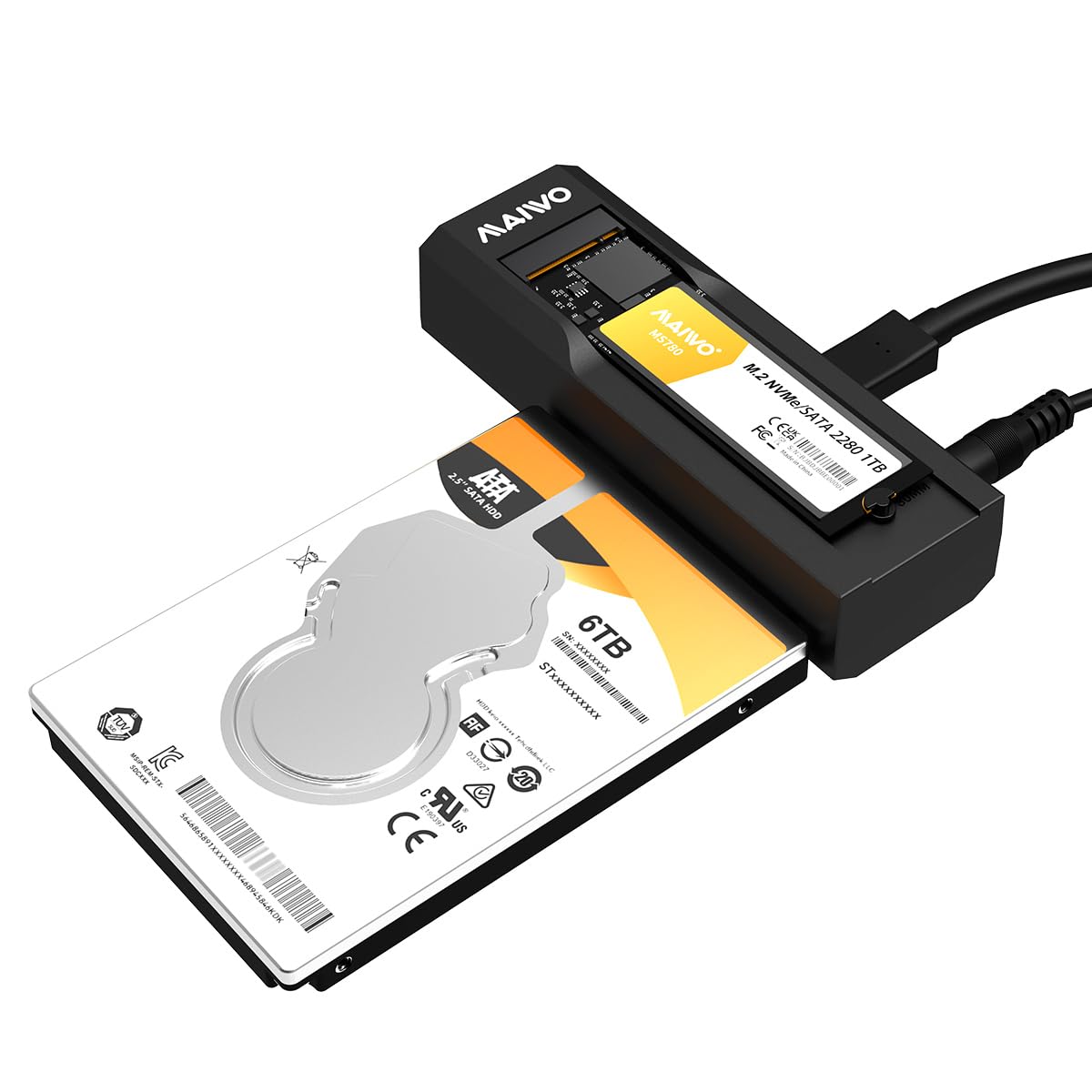
Image: The MAIWO enclosure connected to a laptop via USB-C, with an M.2 NVMe SSD and a 2.5-inch SATA drive inserted, demonstrating data transfer capabilities.
LED Indicator Status
The enclosure features an LED indicator to show the status of the hard disk:
- Power On: Blue light is on.
- HDD/SSD Recognized: Blue light remains on.
- Read/Write Activity: HDD/SSD indicator flashes.
- Sleep State: Light goes out when the device enters sleep mode due to inactivity.

Image: Diagram explaining the LED indicator behavior for power on, drive recognition, read/write activity, and sleep state.
Data Backup (Example Use Case)
The enclosure can be used to back up data from M.2 NVMe & SATA SSDs to SATA SSDs/HDDs. This allows for convenient data management and transfer between different drive types. The device also supports connection to mobile phones for quick data access, depending on phone compatibility and required adapters (not included).

Image: Two scenarios: on the left, an M.2 NVMe SSD and a 2.5-inch SATA HDD are connected to the enclosure for data backup; on the right, the enclosure is connected to a mobile phone for quick data access.
5. Maintenance
To ensure the longevity and optimal performance of your MAIWO enclosure, follow these maintenance guidelines:
- Cleaning: Use a soft, dry cloth to clean the exterior of the enclosure. Avoid using liquid cleaners or solvents.
- Storage: Store the device in a cool, dry place away from direct sunlight and extreme temperatures.
- Handling: Handle the enclosure and inserted drives with care to prevent physical damage.
- Power Disconnection: Always safely eject the drive from your operating system before disconnecting the USB cable or power adapter.
6. Troubleshooting
If you encounter issues with your MAIWO enclosure, refer to the following common problems and solutions:
- Drive Not Detected:
- Ensure the power adapter is connected and the device is powered on.
- Verify that the USB cable is securely connected to both the enclosure and the computer.
- Check if the drive is properly seated in its slot (M.2 or SATA). For M.2, ensure the silicone plug is securing it.
- Test with a different USB port on your computer.
- Try a different USB cable.
- Ensure the drive itself is functional by testing it in another device if possible.
- For new drives, they may need to be initialized and formatted in Disk Management (Windows) or Disk Utility (macOS) before they appear in File Explorer/Finder.
- Slow Data Transfer Speed:
- Ensure you are using a USB 3.0/3.1 port on your computer. Connecting to a USB 2.0 port will limit speeds.
- Verify the USB cable supports USB 3.0/3.1 speeds.
- The actual speed depends on the drive's performance and your computer's USB controller.
- Avoid transferring many small files simultaneously, as this can reduce overall speed.
- Enclosure Disconnects Randomly:
- Ensure the power adapter is providing stable power.
- Check for loose USB cable connections.
- Disable USB selective suspend settings in your computer's power options (Windows).
7. Specifications
| Feature | Specification |
|---|---|
| Model Number | MAIWO-K10635P2 |
| Compatible Devices | Desktop, Laptop, Tablet |
| Hard Disk Form Factor | M.2 NVMe/SATA, 2.5 Inches SATA, 3.5 Inches SATA |
| Data Transfer Rate | Up to 10 Gigabits Per Second (USB 3.1 Gen2x1) |
| Hardware Interface | USB 3.0 Type C |
| Product Dimensions | 5.35 x 1.57 x 7.2 inches (13.59 x 3.99 x 18.29 cm) |
| Item Weight | 9.5 ounces (269.32 grams) |
| Material | Plastic |
| Power Supply | External 12V/2A Power Adapter |
| Supported M.2 Sizes | 2230, 2240, 2260, 2280 |
8. Warranty and Support
MAIWO products are designed for reliability and performance. For warranty information, please refer to the warranty card included in your product packaging or visit the official MAIWO website. If you require technical assistance or have questions not covered in this manual, please contact MAIWO customer support through their official channels.
Please retain your proof of purchase for warranty claims.