
1. Product Overview
The BOOX Tablet Go 10.3 is an advanced ePaper E Ink tablet designed for an immersive and comfortable reading and writing experience. Featuring a 10.3-inch HD Carta 1200 glass screen with 300 ppi resolution, it offers crisp, clear text and images. This device operates on Android 12, providing access to a wide range of third-party applications. It supports both BOOX stylus touch with 4,096 levels of pressure sensitivity and capacitive touch for versatile interaction. With 4GB RAM and 64GB ROM, along with Wi-Fi and Bluetooth 5.0 connectivity, it's built for productivity and seamless integration into your digital life. Please note, this model does not include a front light, making it ideal for use in well-lit environments or direct sunlight.

Figure 1: BOOX Tablet Go 10.3 ePaper E Ink Tablet
2. Setup Guide
2.1 What's in the Box
- BOOX Tablet Go 10.3 Device
- USB-C Cable
- BOOX Stylus
- Quick Start Guide
2.2 Initial Power On
To power on your BOOX Tablet Go 10.3 for the first time, press and hold the Power Button located on the side of the device until the BOOX logo appears on the screen. The device will then guide you through the initial setup process, including language selection and Wi-Fi connection.

Figure 2: User interacting with the tablet
2.3 Charging the Device
The BOOX Tablet Go 10.3 is equipped with a 3,700mAh Li-ion Polymer battery. To charge the device, connect the provided USB-C cable to the USB-C port on the tablet and plug the other end into a compatible USB power adapter (not included) or a computer's USB port. A full charge typically takes a few hours. The battery indicator on the status bar will show the charging progress.
3. Operating Your BOOX Tablet Go 10.3
3.1 Screen and Display
The tablet features a 10.3-inch HD Carta 1200 glass screen with a flat cover-lens, offering a resolution of 2480x1860 (300 ppi) for exceptional clarity. The ePaper display provides a paper-like reading experience, reducing eye strain. This model does not have a front light, making it ideal for environments with ample natural or artificial light.

Figure 3: Close-up of the tablet's ePaper display
3.2 Touch and Stylus Interaction
The BOOX Tablet Go 10.3 supports both capacitive touch for finger navigation and BOOX stylus touch with 4,096 levels of pressure sensitivity. This allows for precise writing, drawing, and annotation directly on the screen, mimicking the feel of pen on paper.
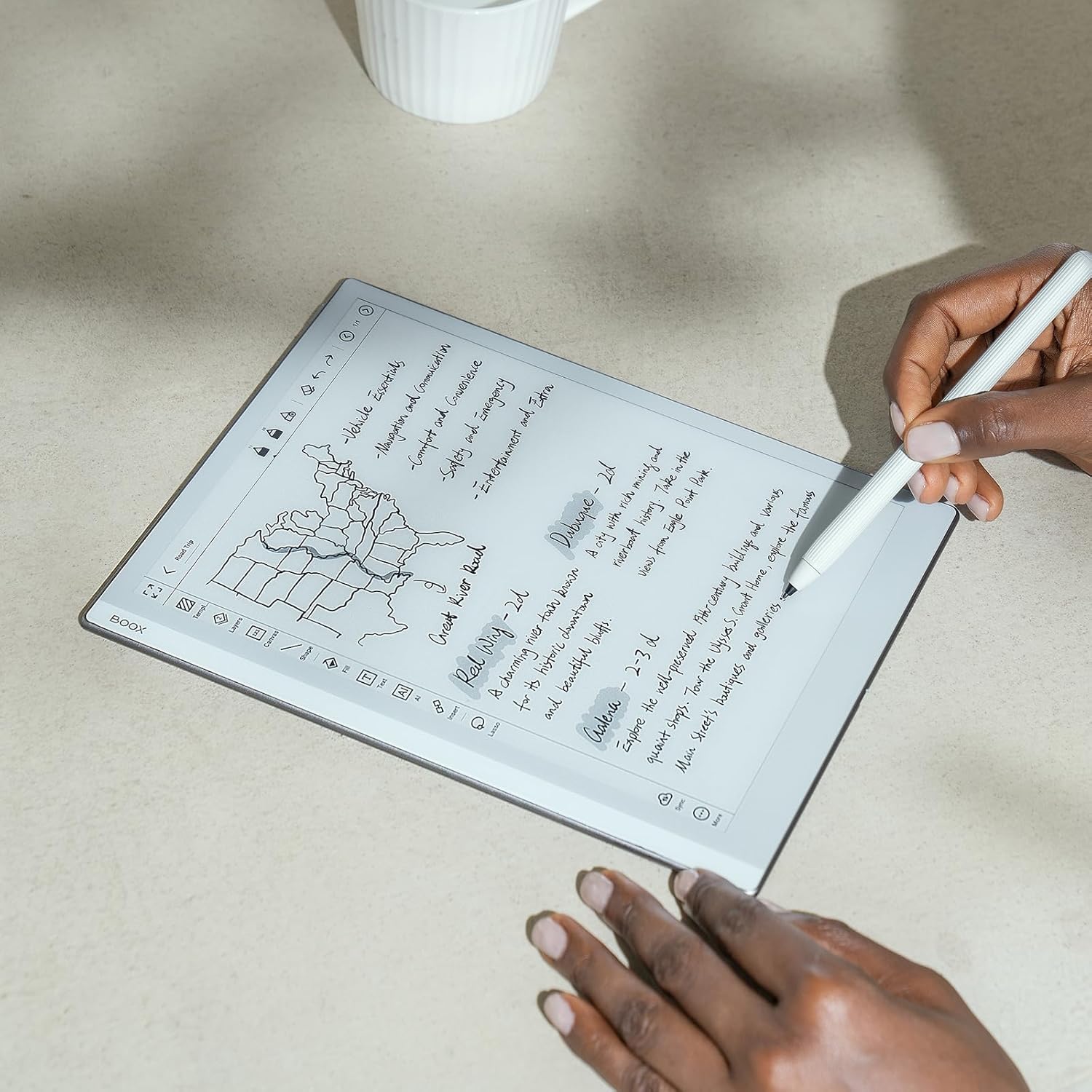
Figure 4: User writing on the tablet with the BOOX stylus
3.3 Operating System and Apps
Running on Android 12, the tablet offers a familiar and customizable user interface. You can download and install various third-party applications from the Google Play Store, expanding the device's functionality beyond just reading and writing. The tablet's octa-core CPU and 4GB RAM ensure smooth performance for most applications.
Video: Learn how to write and manage effectively on your BOOX Tablet Go 10.3, showcasing its note-taking and organizational features.
3.4 Document and Media Formats
The BOOX Tablet Go 10.3 supports a wide array of document, image, and audio formats:
- Document Formats: PDF, CAJ, DJVU, CBR, CBZ, EPUB, AZW3, MOBI, TXT, DOC, DOCX, FB2, CHM, RTF, HTML, ZIP, PRC, PPT, PPTX, EPUB3
- Image Formats: PNG, JPG, BMP, TIFF
- Audio Formats: WAV, MP3
3.5 Connectivity
The device offers robust connectivity options:
- Wi-Fi: Supports 2.4GHz and 5GHz bands for fast and reliable internet access.
- Bluetooth: Features BT 5.0 for connecting wireless accessories like headphones or keyboards.
- USB-C Port: Supports OTG (On-The-Go) functionality and can also be used as an audio jack with a compatible adapter.
4. Device Maintenance
4.1 Cleaning the Screen
To clean the ePaper screen, gently wipe it with a soft, lint-free cloth. For stubborn smudges, slightly dampen the cloth with water or a screen-safe cleaning solution. Avoid using harsh chemicals or abrasive materials, as they can damage the screen surface.
4.2 Battery Care
To prolong the life of your 3,700mAh Li-ion Polymer battery:
- Avoid fully discharging the battery frequently.
- Store the device in a cool, dry place when not in use for extended periods.
- Use the provided USB-C cable for charging.
5. Troubleshooting Common Issues
5.1 Screen Not Responding
- Restart Device: Press and hold the Power Button for about 10 seconds to force a restart.
- Clean Screen: Ensure the screen is clean and free of debris that might interfere with touch input.
- Software Update: Check for available system updates in the settings, as software bugs can sometimes cause responsiveness issues.
5.2 Connectivity Problems
- Toggle Wi-Fi/Bluetooth: Turn Wi-Fi or Bluetooth off and on again from the quick settings panel.
- Restart Router: If Wi-Fi issues persist, try restarting your wireless router.
- Forget Network: For Wi-Fi, try forgetting the network and reconnecting.
5.3 Device Freezing
- Force Restart: If the device becomes unresponsive, press and hold the Power Button for approximately 10-15 seconds until it powers off, then release and press again to restart.
- Close Apps: If possible, close any background applications that might be consuming too many resources.
6. Technical Specifications
| Feature | Specification |
|---|---|
| Screen Size | 10.3 Inches |
| Screen Resolution | 2480x1860 (300 ppi) |
| Touch | BOOX stylus touch (4,096 levels) + capacitive touch |
| CPU | 2.4Ghz Octa-core |
| RAM | 4GB |
| ROM | 64GB |
| Operating System | Android 12 |
| Connectivity | Wi-Fi (2.4GHz + 5GHz) + BT 5.0 |
| Battery | 3,700mAh Li-ion Polymer |
| Dimensions | 235*183*4.6mm (9.3" x 7.2" x 0.18") |
| Weight | Approx. 375g (13.2oz) |
7. Warranty and Support
For warranty information and technical support, please refer to the documentation included with your purchase or visit the official BOOX website. You can also find additional support and resources on the BOOX Store on Amazon.
Protection plans are available for extended coverage. Please check the product page for details on 2-Year and 4-Year Protection Plans, as well as the Complete Protect monthly plan.