
1. Product Overview
The FD EK8870 Wireless Keyboard and Mouse Combo offers a full-sized, 105-key keyboard with a retro typewriter design and a comfortable, silent mouse. Utilizing 2.4G wireless technology, this combo provides a stable and responsive connection for various computing tasks. Its ergonomic design and power-saving features enhance user experience and battery life.

Image: The FD EK8870 Wireless Keyboard and Mouse Combo, showcasing its purple gradient design and compact form factor on a clean desk setup.
2. Setup Instructions
2.1 Battery Installation
- Keyboard: Open the battery compartment on the underside of the keyboard. Insert two (2) AAA batteries, ensuring correct polarity. Close the compartment.
- Mouse: Open the battery compartment on the underside of the mouse. Insert one (1) AA battery, ensuring correct polarity. Close the compartment.

Image: A visual guide demonstrating the correct way to insert AAA batteries into the keyboard and an AA battery into the mouse.
2.2 Connecting the USB Receiver
- Locate the Nano USB receiver, which is conveniently stored inside the mouse's battery compartment.
- Plug the USB receiver into an available USB-A port on your computer (PC, laptop, desktop, Chromebook, Smart TV, etc.).
- The keyboard and mouse will automatically connect to your device. No additional software or drivers are required for basic functionality.
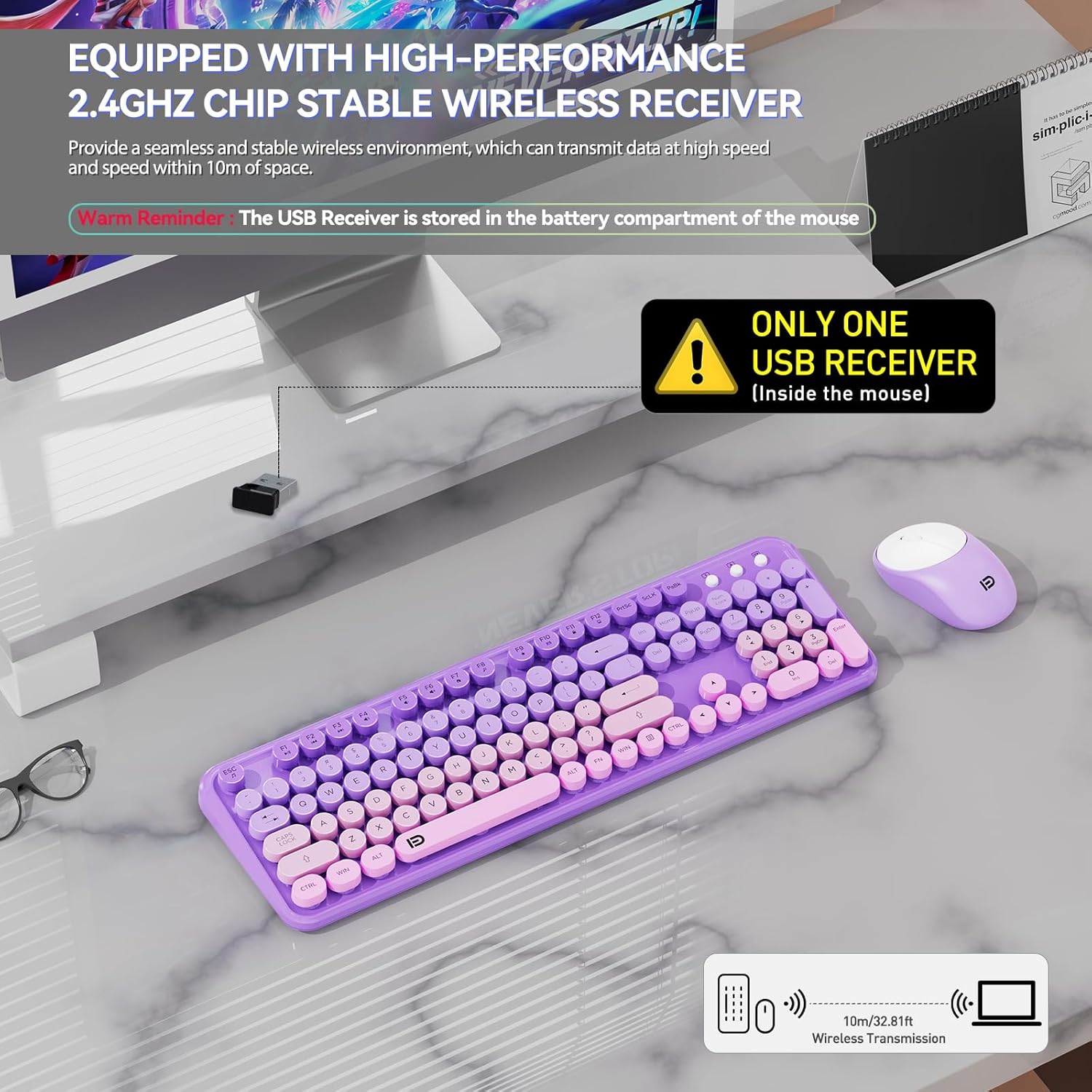
Image: A close-up view of the mouse's underside, showing the dedicated storage slot for the Nano USB receiver.

Image: A hand plugging the USB-A receiver into a laptop's USB port, illustrating the simple plug-and-play setup.
2.3 Compatibility
This keyboard and mouse combo is compatible with various operating systems, including Windows XP/ME/Vista/7/8/10/11. It works seamlessly with devices that have a USB slot, such as PCs, laptops, desktops, Chromebooks, and Smart TVs. Please note that some hotkeys may not be fully compatible with Mac systems.

Image: Icons representing compatibility with various operating systems including Mac OS, Windows, Chrome OS, and Linux.
3. Operating Instructions
3.1 Keyboard Features
- 105 Round Keys: Full-sized layout with a retro typewriter aesthetic.
- 12 Function Keys: Quick access to multimedia controls, volume, mail, and more.
- Ergonomic Tilt Angle: Designed with a comfortable tilt angle to reduce wrist strain during prolonged use.
- Power-Saving Switch: An on/off button is located on the keyboard to conserve battery power when not in use.

Image: A side view of the keyboard highlighting its ergonomic tilt angle for comfortable typing.
3.2 Mouse Features
- Silent Clicks: Micro-motion technology ensures quiet operation, minimizing disturbance.
- 1600 DPI: Provides fast and precise cursor control.
- Ergonomic Design: Sweat-resistant and skin-friendly finish with a contoured shape for comfortable use.

Image: An illustration showing the mouse's automatic power-saving states: working, stand-by, auto-sleep, and press to activate.
3.3 Power Saving Mode
Both the keyboard and mouse are designed with automatic power-saving features:
- The keyboard enters auto-sleep mode after 5 seconds of inactivity.
- The mouse enters auto-sleep mode after 3 seconds of inactivity.
- Press any key on the keyboard or click the mouse to reactivate the devices immediately.

Image: A visual representation of the keyboard and mouse entering auto-sleep mode after periods of inactivity to conserve battery.
4. Maintenance
4.1 Cleaning
To clean your keyboard and mouse, use a soft, damp cloth. Avoid using harsh chemicals or abrasive materials. For the keyboard, the keycaps are removable, allowing for easier cleaning underneath. The design also incorporates splash resistance with a waterproof conductive film, allowing minor liquid spills to drain.

Image: A close-up showing individual keycaps removed from the keyboard, illustrating the removable design for cleaning.
4.2 Battery Replacement
Replace batteries when performance degrades or devices become unresponsive. Refer to section 2.1 for battery type and installation instructions.
5. Troubleshooting
| Problem | Possible Cause | Solution |
|---|---|---|
| Keyboard/Mouse not responding | Low or dead batteries; USB receiver not properly connected; device in sleep mode. | Replace batteries. Ensure USB receiver is securely plugged into a working USB port. Press any key or click the mouse to wake from sleep mode. |
| Intermittent connection | Interference from other wireless devices; receiver too far from devices. | Move the receiver closer to the keyboard and mouse. Avoid placing the receiver near large metal objects or other strong wireless signals. |
| Hotkeys not working on Mac | Limited compatibility with Mac OS. | Some hotkeys may not function as intended on Mac systems. Basic typing and mouse functions should work. Consider remapping keys if supported by your Mac OS. |
6. Specifications
- Brand: FD
- Model: EK8870
- Color: Purple Gradient
- Connectivity: 2.4GHz Wireless (USB receiver)
- Keyboard Keys: 105
- Mouse DPI: 1600
- Power Source: Keyboard: 2 AAA batteries (included); Mouse: 1 AA battery (included)
- Operating System Compatibility: Windows XP/ME/Vista/7/8/10/11, PCs, laptops, desktops, Chromebooks, Smart TVs (Limited Mac hotkey compatibility)
- Wireless Range: Up to 10 meters (393.7 inches)
- Keyboard Dimensions: 17.5 x 5.5 x 1.3 inches
- Mouse Dimensions: 4.1 x 2.5 x 1.0 inches
- Keyboard Net Weight: 1.57 LB
- Mouse Net Weight: 0.15 LB
7. Warranty and Support
FD offers a three-year worry-free warranty for this product. Additionally, a 60-day money-back guarantee or replacement option is available. If you have any inquiries or concerns regarding your wireless keyboard and mouse set, or if you encounter any issues, please do not hesitate to contact us via Amazon email. Your satisfaction is our top priority, and we are committed to providing satisfactory solutions.
8. Product Video
Video: An official product video showcasing the features and design of the EK8870 Purple Colorful keyboard and mouse combo.