
1. Introduction
This manual provides instructions for the setup, operation, and maintenance of your Machenike G1 Pro Wireless PC Gaming Controller. This controller features TMR Effect Sticks and Triggers, 1000Hz polling rate, and tri-mode connectivity (2.4G, Bluetooth, Wired) for multi-platform compatibility across PC, Windows, Android, iOS, and Nintendo Switch devices.
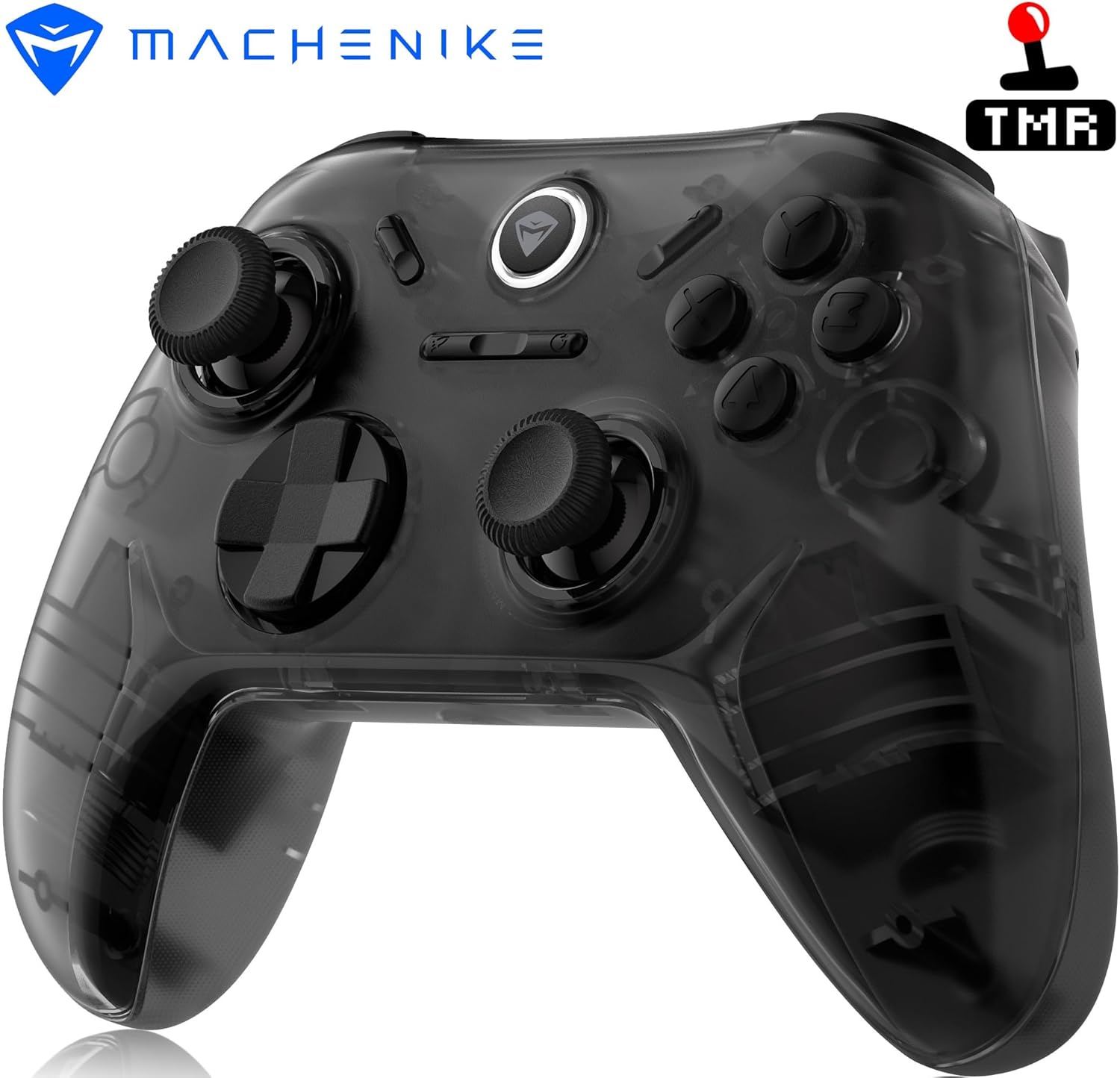
Image: Front view of the Machenike G1 Pro Wireless Gaming Controller.
2. Package Contents
Verify that all items are present in the package:
- Machenike G1 Pro Wireless Gaming Controller
- USB-C Charging/Data Cable
- 2.4GHz Wireless Dongle
- User Manual (this document)
3. Controller Layout
The Machenike G1 Pro features an Xbox-style asymmetrical layout for ergonomic comfort and precise control. Familiarize yourself with the button placement:

Image: Detailed front view of the Machenike G1 Pro controller, showing joysticks, D-pad, ABXY buttons, and function buttons.
- Left Joystick: Asymmetrical placement for natural thumb positioning.
- Right Joystick: Standard placement.
- D-Pad: Directional input.
- ABXY Buttons: Premium conductive silicone buttons, force-tested for durability.
- Shoulder Buttons (LB, RB) & Triggers (LT, RT): Located on the top edge. The triggers utilize TMR Effect technology for precise input.
- Function Buttons: Start, Select, Home, and other specific buttons for various platforms.
- USB-C Port: For wired connection and charging, located on the top edge.

Image: Side view of the Machenike G1 Pro controller, highlighting the USB-C port and shoulder buttons/triggers.
4. Setup and Connectivity
4.1 Charging the Controller
Before first use, fully charge the controller. Connect the supplied USB-C cable to the controller's USB-C port and the other end to a USB power source (e.g., PC, wall adapter). The LED indicator will show charging status and turn off or change color when fully charged. The 600mAh battery provides up to 8 hours of wireless gameplay.
4.2 Tri-Mode Connectivity
The G1 Pro supports three connection modes:
- Wired (USB-C): Connect the controller directly to your device using the USB-C cable. This mode supports a 1000Hz polling rate for ultra-low latency.
- 2.4GHz Wireless: Use the included 2.4GHz wireless dongle for a stable, high-performance connection with a 1000Hz polling rate.
- Bluetooth: For convenient wireless connectivity with various devices.

Image: Diagram showing the three connectivity modes: Wired, 2.4GHz Wireless, and Bluetooth.
4.3 Pairing Instructions
Specific pairing methods vary by connection mode and platform:
- 2.4GHz Wireless: Insert the 2.4GHz dongle into a USB port on your PC or compatible device. Turn on the controller. It should automatically connect.
- Bluetooth:
- Ensure the controller is powered off.
- Press and hold the X button and the Home button simultaneously until the central LED indicator begins to flash rapidly.
- On your device (PC, Android, iOS, Switch), navigate to Bluetooth settings and search for new devices.
- Select "Machenike G1 Pro" or a similar name from the list to pair.
- The LED indicator will become solid when successfully paired.
- Wired: Connect the USB-C cable from the controller to your device. The controller will be recognized automatically.
4.4 Multi-Platform Compatibility
The G1 Pro is compatible with a wide range of platforms:
- PC (Windows 7/10/11, SteamOS, Linux)
- Nintendo Switch
- Android devices
- iOS devices

Image: Visual representation of the G1 Pro's compatibility with PC, Nintendo Switch, TV, Mobile/Tablet, and In-Car systems.
5. Operation and Features
5.1 TMR Effect Joysticks and Triggers
The G1 Pro incorporates Quad TMR (Tunnel MagnetoResistance) technology in both joysticks and triggers. This design provides drift-free accuracy, high resolution, and consistent performance, surpassing traditional potentiometer and Hall Effect sensors in sensitivity and lifespan.

Image: Diagram detailing the Dual TMR Joysticks with POM material, wear-resistant rings, and independent customization options.

Image: Diagram explaining Dual TMR Triggers, highlighting sub-millimeter precision and linear output compared to Hall Triggers.
5.2 1000Hz Polling Rate
Experience ultra-low latency with a 1000Hz polling rate (1ms response time) when using wired USB-C or 2.4GHz wireless connections. This ensures rapid input registration for competitive gaming.

Image: Diagram showing the controller with blue rings indicating the 1000Hz wireless polling rate.
5.3 Dual Vibration Motors
Asymmetric rotor motors provide immersive vibration feedback, synchronized with in-game events, to enhance your gaming experience.

Image: Diagram showing the controller with blue rings indicating the location and effect of dual vibration motors.
5.4 Optimized ABXY Buttons
The ABXY buttons are constructed with premium conductive silicone, engineered for durability and a responsive tactile feel. Each button is rigorously tested for over 1 million presses.

Image: Diagram explaining the optimized ABXY button feel, including a force testing curve and lifespan claim.
5.5 Laser-Textured Grip
The controller features a laser-textured grip designed for ergonomic comfort, ensuring a secure hold and reducing strain during extended gaming sessions.

Image: Diagram showing a hand gripping the controller, highlighting the laser-textured grip for ergonomic comfort.
6. Keylinker 2.0 App Customization
Personalize your gaming experience using the Keylinker 2.0 App. This application allows for detailed adjustments to various controller settings:
- Button Setting: Remap buttons to suit your preferences.
- Vibration Intensity: Adjust the strength of the dual vibration motors.
- Joystick Sensitivity: Fine-tune joystick response for precision control.
- Trigger Functionality: Customize trigger response and dead zones.
- Turbo Functions: Configure turbo settings for rapid button presses.
- Testing: Perform diagnostic tests on controller inputs.

Image: Screenshots of the Keylinker 2.0 App, displaying options for button settings, joystick sensitivity, and vibration intensity.
7. Maintenance
To ensure the longevity and optimal performance of your Machenike G1 Pro controller, follow these maintenance guidelines:
- Cleaning: Use a soft, dry cloth to clean the controller. For stubborn dirt, slightly dampen the cloth with water. Avoid harsh chemicals or abrasive materials.
- Storage: Store the controller in a cool, dry place away from direct sunlight and extreme temperatures.
- Battery Care: To preserve battery life, avoid fully discharging the controller frequently. If storing for an extended period, charge the battery to approximately 50% every few months.
- Avoid Physical Impact: Protect the controller from drops or strong impacts, which can damage internal components.
8. Troubleshooting
If you encounter issues with your G1 Pro controller, refer to the following common solutions:
- Controller Not Connecting:
- Ensure the controller is charged.
- Verify the correct connection mode (2.4GHz, Bluetooth, Wired) is selected and properly initiated.
- For Bluetooth, ensure the device's Bluetooth is enabled and the controller is in pairing mode. Try removing and re-pairing the device.
- For 2.4GHz, ensure the dongle is securely inserted and try a different USB port.
- Try connecting via USB-C cable to confirm basic functionality.
- Input Lag or Unresponsiveness:
- Ensure you are within range for wireless connections.
- Minimize interference from other wireless devices.
- For optimal performance, use wired or 2.4GHz wireless modes which offer a 1000Hz polling rate.
- Check battery level; low battery can affect performance.
- Joystick Drift or Inaccurate Input:
- The G1 Pro uses TMR technology designed to prevent drift. If issues occur, use the Keylinker 2.0 App's testing feature to calibrate or diagnose the joysticks.
- Ensure the controller's firmware is up to date (check the Machenike website for updates).
- Buttons Not Responding:
- Use the Keylinker 2.0 App's testing feature to verify button functionality.
- Ensure no button remapping has inadvertently occurred.
9. Specifications
| Feature | Detail |
|---|---|
| Model Name | Machenike G1 Pro Tri-mode Wireless Gaming Controller |
| Item Model Number | G5 PRO V2 |
| Connection Modes | 2.4G / Bluetooth / Wired (USB-C) |
| Battery Capacity | 600mAh Lithium Metal |
| Vibration | Adjustable Dual Asymmetric Motors |
| Platform Support | PC (Windows/SteamOS/Linux), Nintendo Switch, Android, iOS, HarmonyOS, Car Systems |
| Triggers | TMR Triggers (Contactless, 255-level linear adjustment) |
| Joysticks | TMR Joysticks (Zero Drift, Ultra-Smooth, Highly Durable) |
| Main Buttons | Conductive Silicone (1 Million+ press lifespan) |
| D-Pad | Conductive Silicone |
| Joystick Polling Rate | Wired: 1000Hz, 2.4G: 1000Hz, Bluetooth: 125Hz |
| Joystick Sampling Resolution | Linear 512 levels (12-bit analog sticks) |
| Product Dimensions | 17 x 13.5 x 6 cm |
| Item Weight | 205 g |
| Manufacturer | Machenike |
| Country of Origin | China |
10. Warranty and Support
For warranty information and technical support, please refer to the official Machenike website or contact your local retailer. Keep your proof of purchase for warranty claims.
Manufacturer: Machenike
Importer (India): Machenike India, Qingdao Thunderbot Machenike Technology, Qingdao


