
ProtoArc T1 Plus
ProtoArc T1 Plus Wireless Bluetooth Trackpad User Manual
Model: T1 Plus
1. Introduction
The ProtoArc T1 Plus Wireless Bluetooth Trackpad is a high-precision, multi-gesture touchpad designed to enhance your productivity on Windows 10 and Windows 11 PCs, laptops, and desktops. Its large touch surface and multi-device switching capabilities provide a seamless and intuitive user experience. This manual will guide you through the setup, operation, maintenance, and troubleshooting of your new trackpad.

Image: The ProtoArc T1 Plus Wireless Bluetooth Trackpad, showcasing its sleek black surface and minimalist design.
2. Package Contents
- ProtoArc T1 Plus Wireless Bluetooth Trackpad
- USB-C Charging Cable
- User Manual
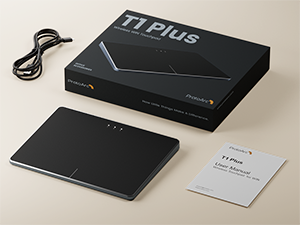
Image: The ProtoArc T1 Plus trackpad, its retail box, USB-C charging cable, and user manual, as typically found in the product packaging.
3. Setup
3.1 Charging the Trackpad
Before first use, fully charge the trackpad. Connect the included USB-C charging cable to the trackpad's Type-C port and the other end to a USB power source (e.g., computer USB port, wall adapter). The charging indicator light will show charging status.

Image: A close-up view of the ProtoArc T1 Plus trackpad with a USB-C cable plugged into its charging port, illustrating the Type-C fast charging capability.
3.2 Power On/Off
Locate the power switch on the side or back of the trackpad. Slide it to the 'ON' position to power on the device. Slide it to 'OFF' to power off.
3.3 Bluetooth Pairing and Multi-Device Switching
The T1 Plus trackpad supports connection to up to three devices simultaneously via Bluetooth. Follow these steps to pair your device:
- Ensure the trackpad is powered on.
- Press the mode switch button (usually labeled 1, 2, or 3) to select an available Bluetooth channel. The corresponding indicator light will blink, indicating it's in pairing mode.
- On your Windows 10/11 PC:
- Go to Settings > Devices > Bluetooth & other devices.
- Ensure Bluetooth is turned On.
- Click Add Bluetooth or other device > Bluetooth.
- Select "ProtoArc T1 Plus" (or similar name) from the list of discovered devices.
- Follow any on-screen prompts to complete the pairing process. The indicator light on the trackpad will become solid once connected.
- To switch between paired devices, simply press the mode switch button (1, 2, or 3) corresponding to the desired device.

Image: The ProtoArc T1 Plus trackpad positioned on a desk, illustrating its ability to connect to and switch between multiple devices like a laptop, tablet, and desktop PC via Bluetooth channels 1, 2, and 3.

Image: The ProtoArc T1 Plus trackpad on a desk next to a monitor displaying Windows 10 and Windows 11 logos, emphasizing its compatibility with these operating systems.
4. Operating Instructions
4.1 Basic Functions
- Tap to Click: Tap once with one finger to perform a left-click.
- Drag: Double-tap and hold with one finger, then drag to move items.
- Secondary Click (Right-Click): Tap with two fingers simultaneously.
4.2 Multi-Gesture Support
The T1 Plus supports various multi-touch gestures for enhanced navigation on Windows 10/11:
- Scroll: Slide two fingers up or down to scroll content.
- Zoom In/Out: Pinch with two fingers to zoom in or out.
- Three-finger Tap: By default, opens the taskbar search box.
- Mission Switch: Slide three fingers left/right to switch between open applications or desktops.
- Four-finger Gesture (Windows 10/11): Tap with four fingers to activate operation (e.g., Action Center). Swipe with four fingers to change desktops.

Image: A visual guide illustrating various multi-touch gestures supported by the ProtoArc T1 Plus trackpad, including tap to click, drag, secondary click, zoom, scroll, three-finger tap, mission switch, and four-finger gestures.
4.3 Physical Clicks
The T1 Plus includes built-in physical left and right mouse buttons located at the bottom edge of the trackpad. These provide tactile feedback for precise clicks, text selection, and document editing.

Image: The ProtoArc T1 Plus trackpad on a desk, highlighting the areas for the physical left and right click buttons at the bottom of the touch surface.

Image: A comparison showing the ProtoArc T1 Plus trackpad's 6.4-inch large touch surface relative to a standard laptop touchpad, emphasizing its ample workspace.
5. Maintenance
5.1 Battery Life and Charging
The T1 Plus features a rechargeable 500mAh lithium battery, providing up to 50 hours of use on a single charge. Recharge the device when the battery indicator is low. Charging typically takes 1-2 hours.
5.2 Cleaning and Storage
To clean the trackpad, use a soft, dry, lint-free cloth. Avoid using abrasive cleaners or solvents. When not in use for extended periods, power off the trackpad and store it in a cool, dry place. The ultra-thin design makes it easy to carry.
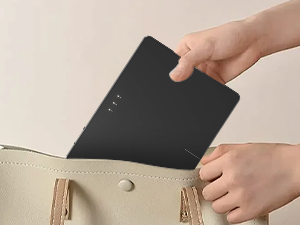
Image: A hand placing the slim ProtoArc T1 Plus trackpad into a bag, demonstrating its portability.

Image: A view of the ProtoArc T1 Plus trackpad from the top and bottom, highlighting its 0.4-inch anti-slip pads and ultra-slim metallic design.
6. Troubleshooting
6.1 Connectivity Issues
- Trackpad not connecting: Ensure the trackpad is charged and powered on. Make sure Bluetooth is enabled on your computer. Try unpairing and re-pairing the device.
- Interference: Keep the trackpad away from other wireless devices that might cause interference.
6.2 Cursor Speed and Sensitivity
If the cursor movement feels too fast, too slow, or imprecise, you can adjust its settings in Windows:
- Go to Settings > Bluetooth & devices > Touchpad (or Mouse).
- Adjust the "Cursor speed" slider to your preference.
- For more advanced settings, search for "Mouse settings" in the Windows search bar and navigate to the "Pointer Options" tab to adjust pointer speed and enhance pointer precision.
6.3 Clicking Issues
If tap-to-click is not working as expected, ensure it is enabled in your Windows touchpad settings. If physical clicks are unresponsive, ensure you are pressing the designated areas at the bottom of the trackpad. Check for any debris that might obstruct the click mechanism.
7. Specifications
| Feature | Detail |
|---|---|
| Brand | ProtoArc |
| Model | T1 Plus |
| Color | Black Grey |
| Connectivity Technology | Bluetooth |
| Special Features | Wireless, Portable, Ergonomic Design, Rechargeable |
| Movement Detection Technology | Optical |
| Item Weight | 11.7 ounces |
| Package Dimensions | 7.13 x 5.16 x 1.61 inches |
| First Available Date | January 17, 2025 |
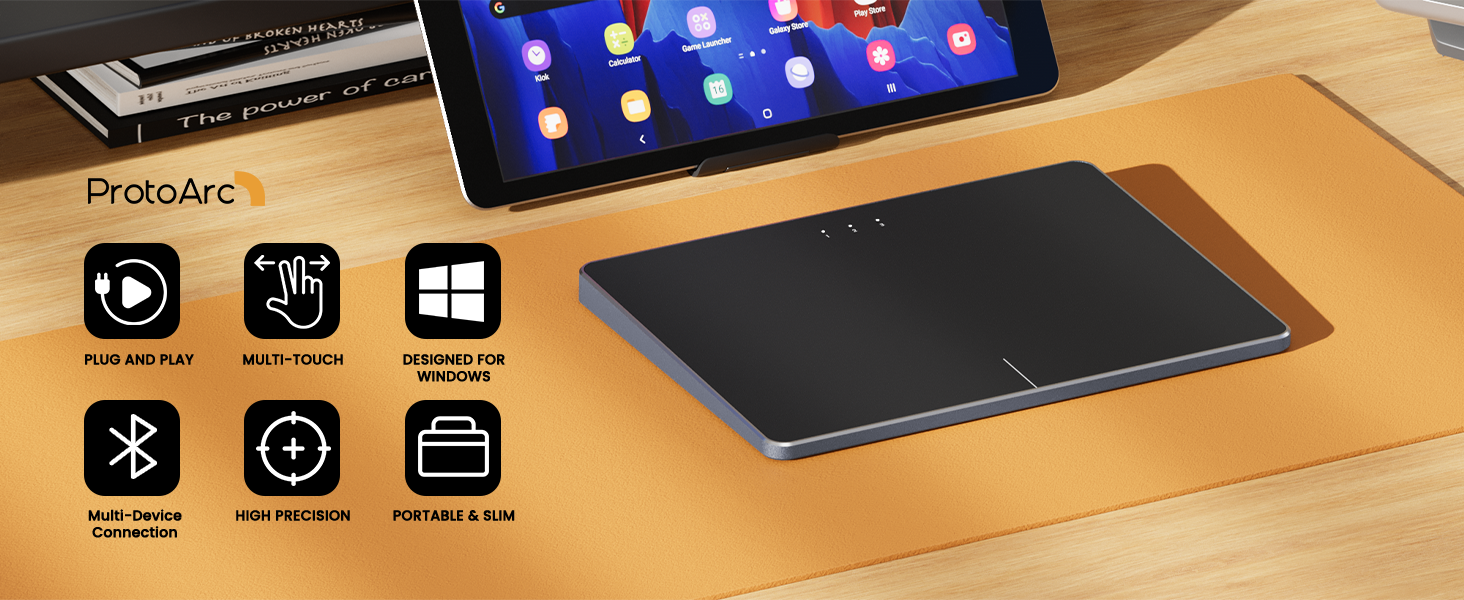
Image: An overview of the ProtoArc T1 Plus trackpad, highlighting its key features such as plug and play, multi-touch, Windows design, multi-device connection, high precision, and portable & slim form factor.
8. Warranty and Support
For warranty information and technical support, please refer to the official ProtoArc website or contact their customer service directly. Keep your purchase receipt for warranty claims.
Ask a question about this manual
Ask about setup, troubleshooting, compatibility, parts, safety, or missing instructions. Manuals+ will review the question and use this page’s manual context to help answer it.