
1. Introduction and Overview
The XIXIMENG P30 Max Smart Video Game Projector (64G) is a versatile device designed to deliver an immersive entertainment experience. It combines a high-definition projector with a built-in gaming console, offering a vast library of games and advanced connectivity options. This manual provides essential information for setting up, operating, and maintaining your projector to ensure optimal performance and enjoyment.
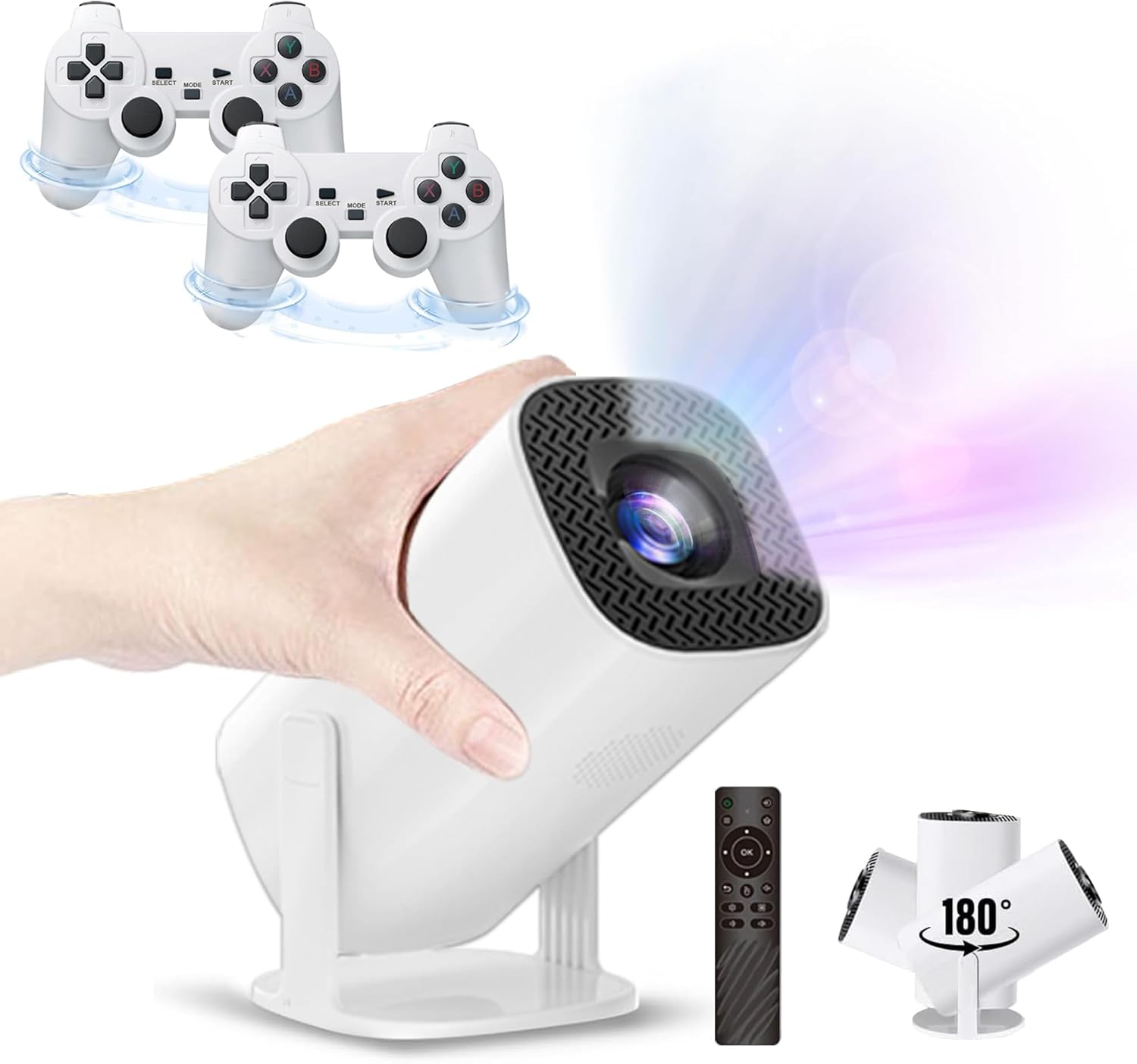
Figure 1.1: The P30 Max projector displaying a large screen image in a living room environment.
2. Package Contents
Please verify that all items listed below are included in your package. If any items are missing or damaged, please contact customer support.
- 1 x P30 Max Smart Video Game Projector
- 2 x Wireless Controllers
- 1 x Game Stick
- 1 x HDMI Cable
- 1 x Power Cord
- 1 x Remote Control
- 1 x USB Receiver
- 1 x USB Charging Cable
- 1 x User Manual (this document)
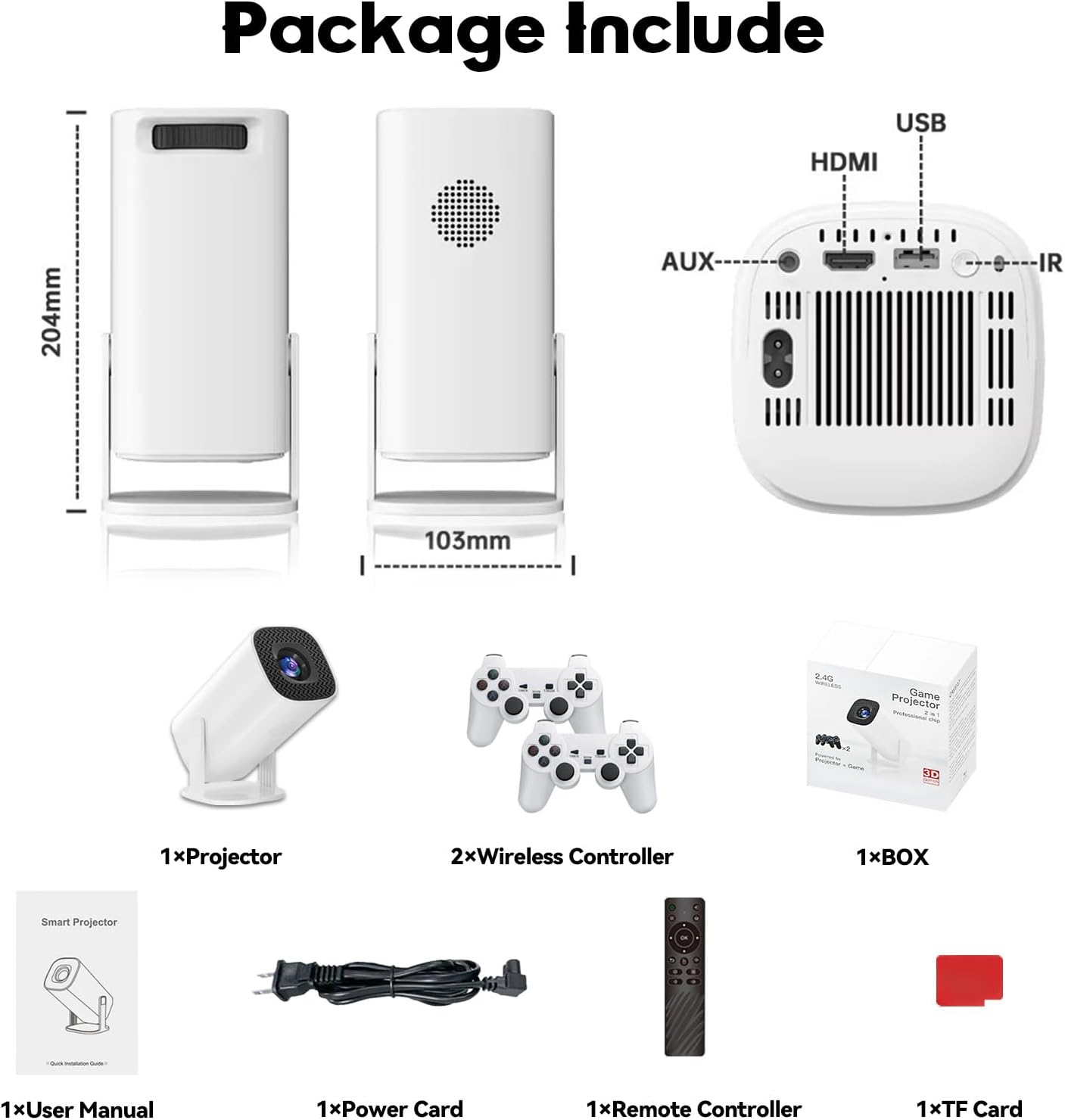
Figure 2.1: Diagram of the P30 Max package contents.

Figure 2.2: Photo of the P30 Max package contents.
3. Product Features
- Immersive Gaming: Built-in game console with over 35,000 3D games, offering low latency, high frame rates, and 4K UHD visuals.
- High-Quality Home Theater: Supports 4K video with native 1280x720P resolution, 50% zoom function, and a high dynamic contrast ratio. Operates quietly at 25 dB.
- Advanced Connectivity: Equipped with WiFi 6 for faster, smoother connections and Bluetooth 5.4 for easy pairing with external audio devices.
- Portable and Flexible Design: Lightweight and portable with a 180° adjustable stand for versatile projection angles.
- Precise Control: Includes two wireless controllers with multiple keys and sensitive rockers for enhanced gaming and navigation.
4. Setup
4.1 Initial Placement
Place the projector on a stable, flat surface. The 180° adjustable stand allows you to direct the projection onto a wall or ceiling. Ensure there are no obstructions in front of the lens.
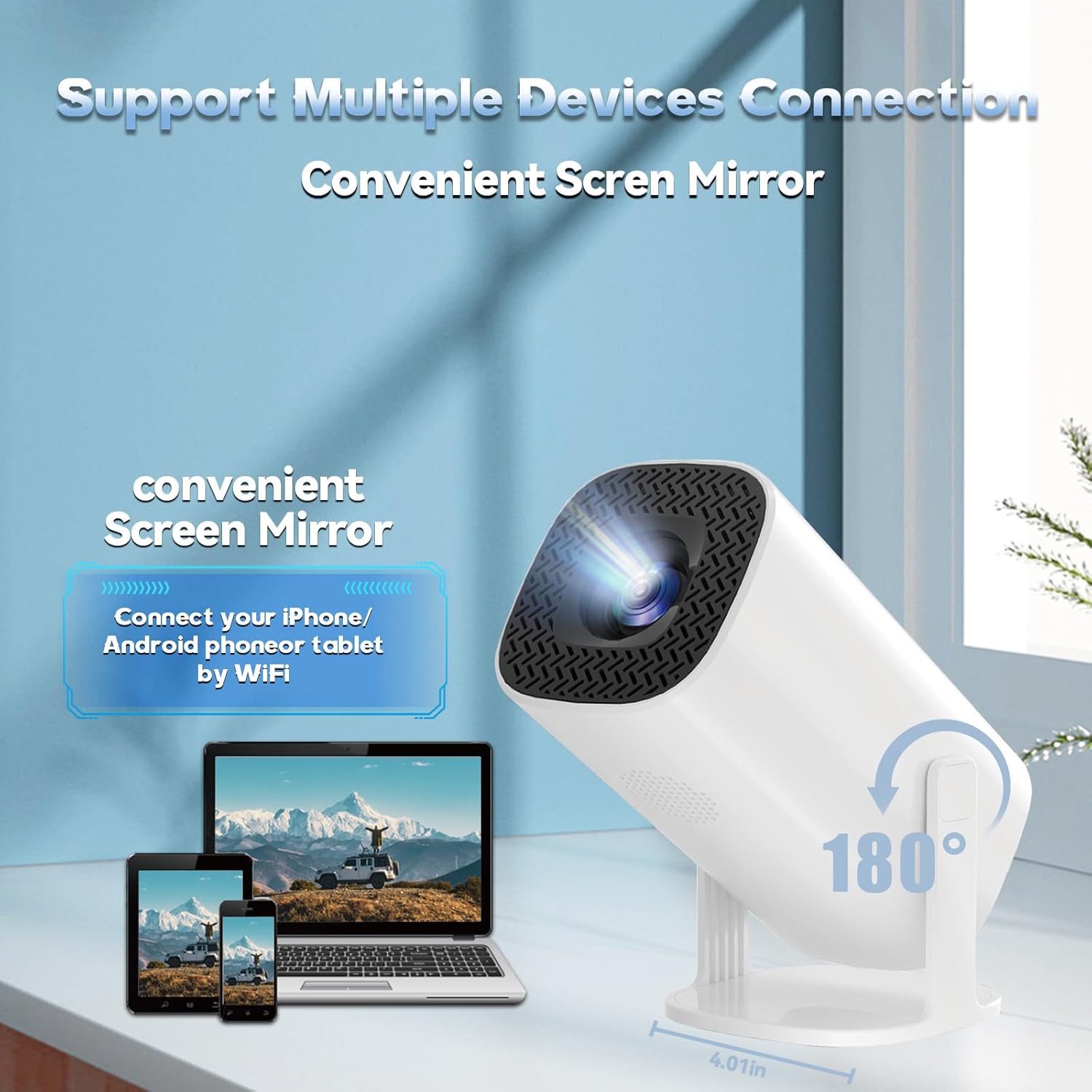
Figure 4.1: The projector's 180° adjustable stand for flexible placement.
4.2 Power Connection
Connect the provided power cord to the projector's power input and then to a power outlet. The projector will typically power on or enter standby mode.
4.3 Focus and Keystone Correction
The projector features automatic keystone correction to adjust the image shape. For optimal clarity, manual focus adjustment may be required. Use the remote control to fine-tune the focus until the image is sharp.
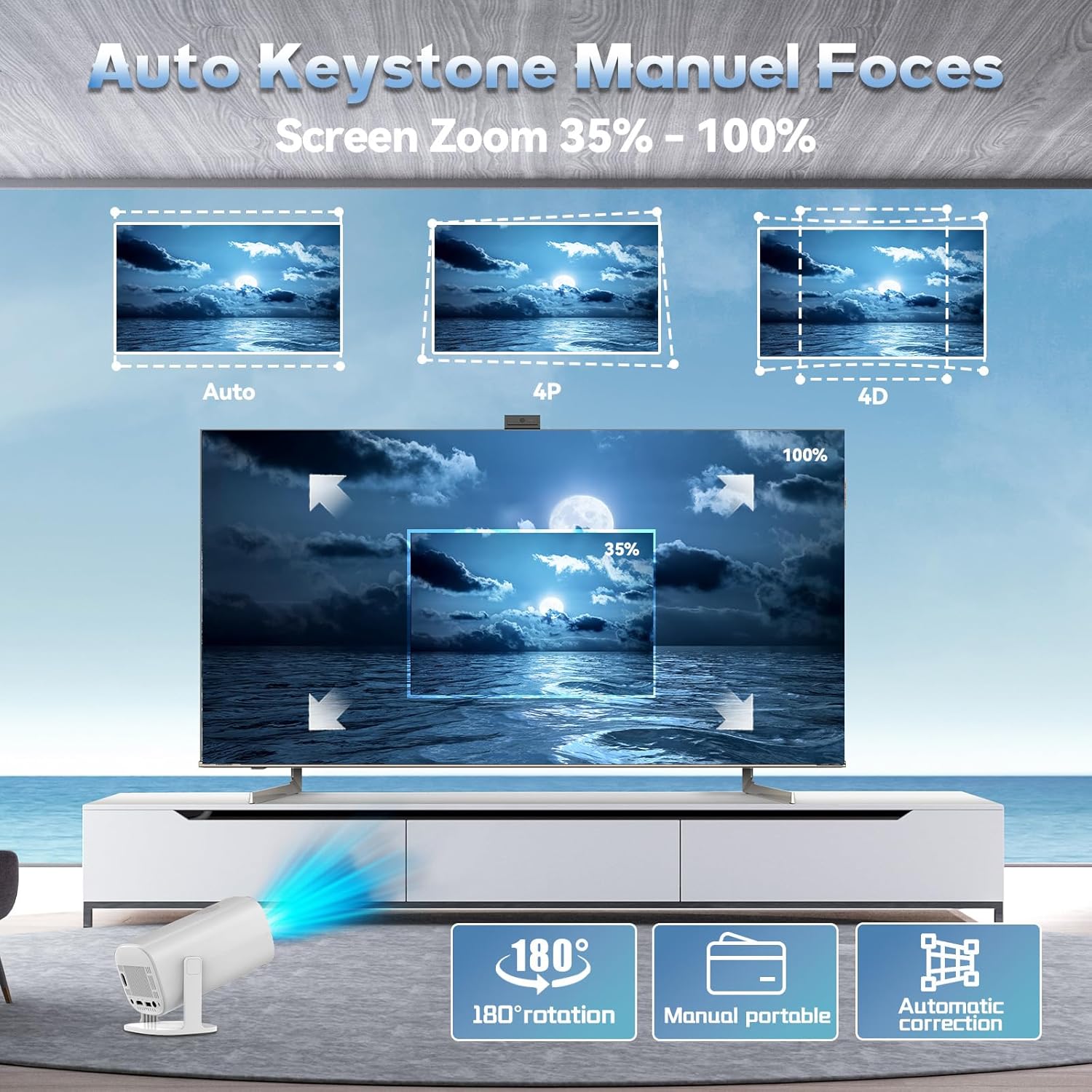
Figure 4.2: Automatic keystone correction and manual focus options.
5. Operating Instructions
5.1 Power On/Off
Press the power button on the projector or the remote control to turn the device on or off.
5.2 Navigating the Interface
Use the included remote control to navigate the projector's smart interface. The interface provides access to applications, settings, and the built-in game library.
5.3 Input Sources
The projector supports various input sources. You can connect external devices via HDMI or USB. For wireless connections, refer to the 'Connectivity' section.
5.4 Screen Mirroring
The P30 Max supports 5G+2.4G WiFi screen mirroring, allowing you to cast content from your smartphone, tablet, or other compatible devices. Access the screen mirroring function from the main menu and follow the on-screen instructions to connect your device.
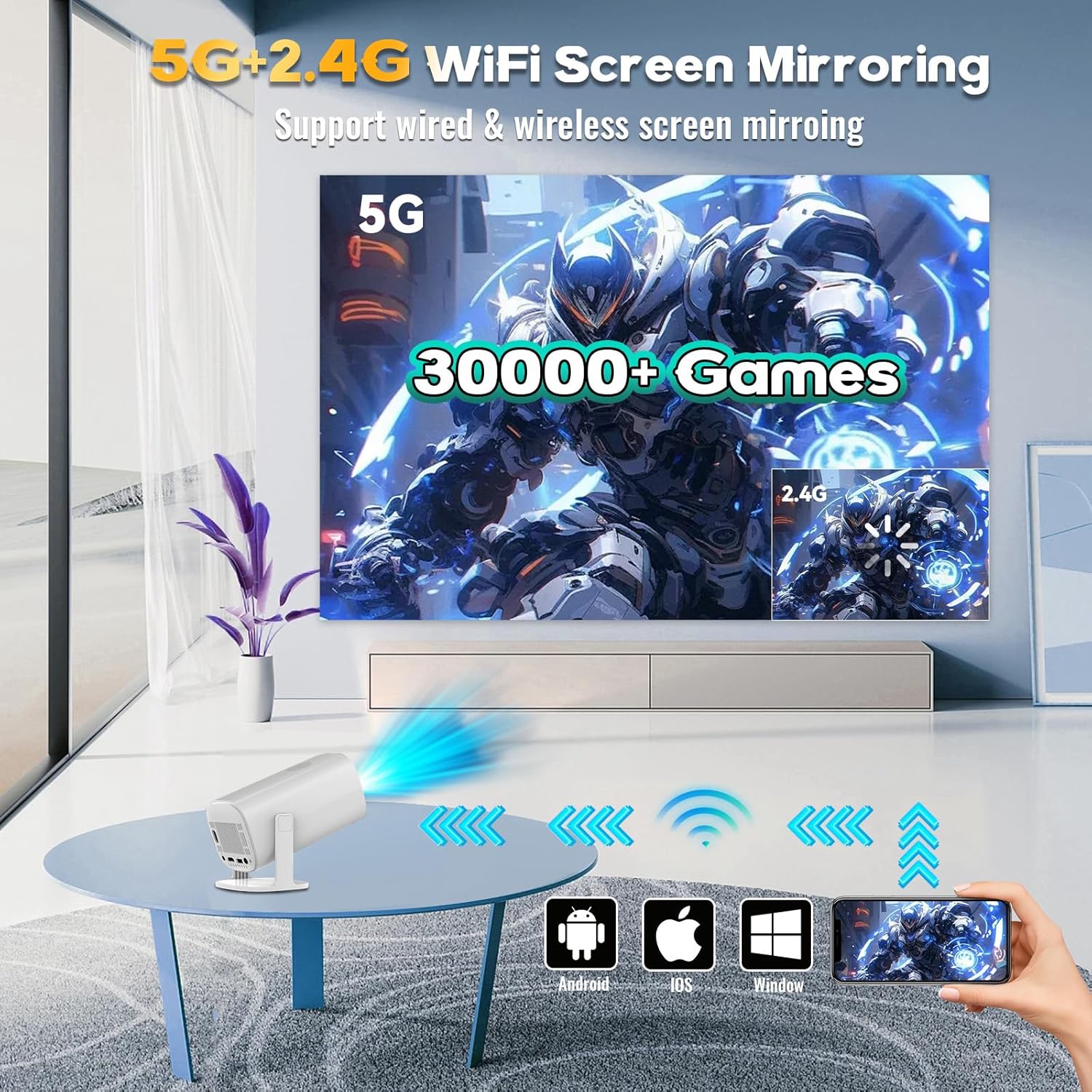
Figure 5.1: Screen mirroring from various devices using 5G+2.4G WiFi.
6. Gaming Features
The P30 Max comes with a built-in game console featuring over 35,000 3D games. To access the game library, select the 'Game Box' or 'Gamer' application from the main interface.
6.1 Connecting Wireless Controllers
The package includes two wireless controllers. Insert the USB receiver into an available USB port on the projector. The controllers should automatically pair. If not, refer to the controller's specific pairing instructions.
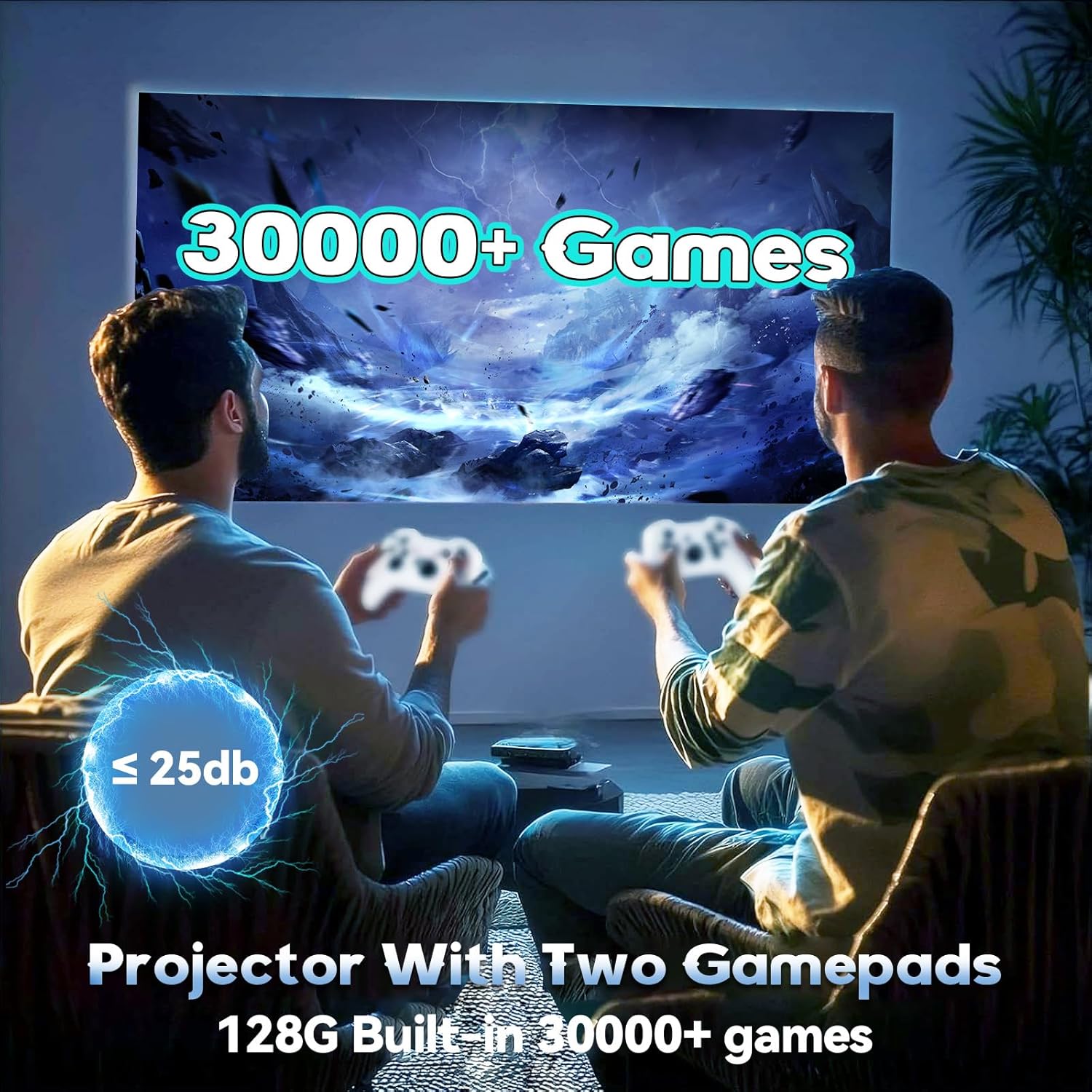
Figure 6.1: Enjoying games with the P30 Max projector and wireless controllers.
6.2 Game Selection and Play
Navigate through the game library using the wireless controllers. Select your desired game and follow the on-screen prompts to start playing. The projector is optimized for a smooth gaming experience with minimal latency.
7. Connectivity
- WiFi 6: For high-speed internet access and seamless streaming.
- Bluetooth 5.4: Connect Bluetooth speakers, headphones, or other audio devices for an enhanced sound experience.
- HDMI: Connect to laptops, gaming consoles, TV boxes, and other HDMI-enabled devices.
- USB: For connecting USB drives, external storage, or the wireless controller receiver.
8. Maintenance
8.1 Cleaning the Lens
Gently wipe the projector lens with a soft, lint-free cloth. Avoid using abrasive materials or harsh chemicals that could scratch the lens.
8.2 Cleaning the Exterior
Use a soft, dry cloth to clean the exterior of the projector. Do not use liquid cleaners directly on the device.
8.3 Storage
When not in use for extended periods, store the projector in a cool, dry place, away from direct sunlight and extreme temperatures. Use the original packaging or a protective case to prevent dust accumulation and damage.
9. Troubleshooting
If you encounter any issues with your P30 Max projector, please refer to the following common solutions:
| Problem | Possible Cause | Solution |
|---|---|---|
| No Power | Power cord not connected properly; Power outlet issue. | Ensure power cord is securely connected. Test the outlet with another device. |
| No Image | Incorrect input source selected; Device not connected. | Select the correct input source (HDMI, USB, Screen Mirroring). Verify device connection. |
| Blurry Image | Out of focus; Incorrect keystone correction. | Adjust manual focus using the remote. Check automatic keystone correction settings. |
| No Sound | Volume too low; External audio device not connected/paired. | Increase volume. Ensure Bluetooth audio device is correctly paired or connected via AUX. |
| Controllers Not Responding | USB receiver not connected; Controllers not paired. | Ensure USB receiver is plugged in. Re-pair controllers if necessary. |
10. Specifications
| Feature | Detail |
|---|---|
| Brand | XIXIMENG |
| Model Number | 64G |
| Product Dimensions | 4.06 x 3.67 x 9.45 inches |
| Display Resolution | Native 1280 x 720P (Supports 4K HD) |
| Special Features | Auto Focus, Portable, 180° Adjustable Stand |
| Connectivity Technology | Bluetooth 5.4, Wi-Fi 6 |
| Recommended Uses | Gaming, Home Cinema |
| Built-in Games | Over 35,000 3D Games |
11. Warranty and Support
For warranty information and customer support, please refer to the warranty card included in your product packaging or visit the official XIXIMENG website. Keep your purchase receipt for warranty claims.