
1. Introduction
This manual provides detailed instructions for the setup, operation, maintenance, and troubleshooting of your FD Wireless Keyboard and Mouse Combo, Model EK8870. This full-sized 2.4G wireless set features a 104-round key retro-style keyboard and a matching mouse, designed for comfortable and efficient use across various computing platforms.
The combo utilizes a single USB receiver for both devices, ensuring a stable and delay-free wireless connection. Key features include an ergonomic design, silent mouse clicks, and power-saving functions to extend battery life.
2. Package Contents
- Wireless Keyboard x 1
- Wireless Mouse x 1
- USB Receiver x 1 (stored inside the mouse)
- User Manual x 1
- AAA Batteries x 2 (for keyboard)
- AA Battery x 1 (for mouse)
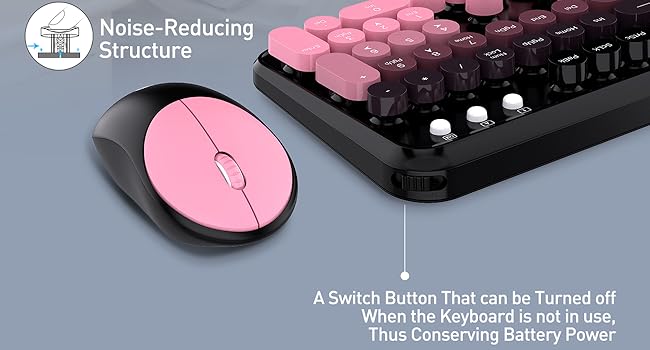
Figure 1: Package Contents
3. Setup Instructions
3.1 Battery Installation
- Open the battery compartment on the underside of the keyboard and mouse.
- Insert two AAA batteries into the keyboard, ensuring correct polarity (+/-).
- Insert one AA battery into the mouse, ensuring correct polarity (+/-).
- Close the battery compartments securely.
3.2 Connecting the Devices
The keyboard and mouse connect wirelessly to your computer via a single 2.4G USB receiver. The receiver is conveniently stored in the battery compartment of the mouse.
- Remove the USB receiver from the mouse's battery compartment.
- Plug the USB receiver into an available USB-A port on your computer. If your device lacks a USB-A port, a USB adapter (not included) will be required.
- The devices are plug-and-play and should automatically connect within a few seconds. No additional software installation is required.

Figure 2: Step-by-step connection guide
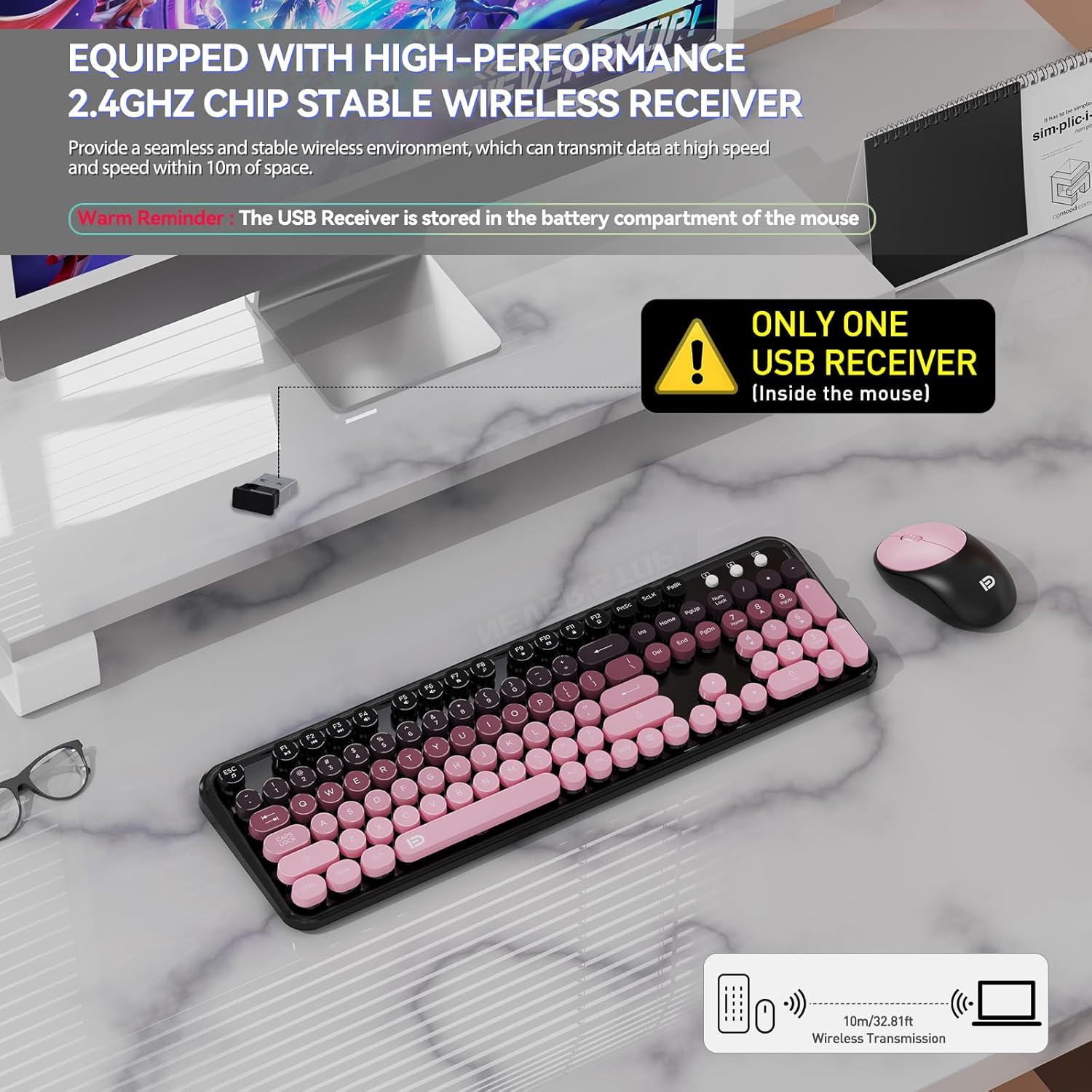
Figure 3: Single USB receiver for both devices

Figure 4: 2.4GHz Wireless Receiver
4. Operating Instructions
4.1 Power On/Off
The keyboard features an on/off switch to conserve battery power when not in use. The mouse also has an automatic power-saving mode.
- Keyboard: Locate the power switch on the keyboard and slide it to the 'ON' position for use. Slide to 'OFF' when not in use.
- Mouse: The mouse enters an auto-sleep mode after 3 seconds of inactivity and a deeper sleep after 5 minutes of inactivity. Press any button or move the mouse to reactivate it.

Figure 5: Auto-Sleep and Energy Saving

Figure 6: Mouse Automatic Power Saving
4.2 Keyboard Functions
The keyboard features 105 round keys and 12 function keys for quick access to various commands.
- Function Keys: Use the F1-F12 keys for media control, volume adjustment, email access, and other shortcuts. Note that hotkey functionality may vary or not be fully compatible with Mac systems.
- Ergonomic Design: The keyboard is designed with a comfortable tilt angle to reduce wrist strain during prolonged typing.

Figure 7: Ergonomic Tilt Angle
4.3 Mouse Functions
The mouse provides precise cursor control with silent clicks.
- Silent Clicks: The mouse utilizes silent micro-motion technology to minimize clicking noise, suitable for quiet environments.
- DPI: The mouse operates at 1600 DPI for fast and accurate cursor movement.
- Ergonomic Shape: The contoured shape and sweat-resistant finish ensure comfortable use for extended periods.

Figure 8: Silent Mouse Operation
4.4 Compatibility
The FD Wireless Keyboard and Mouse Combo is compatible with a wide range of operating systems and devices.
- Operating Systems: Windows XP/ME/Vista/7/8/10/11.
- Devices: PCs, laptops, desktops, Chromebooks, Smart TVs, and any device with an available USB slot.
- Note: Hotkeys may not be fully compatible with Mac systems.
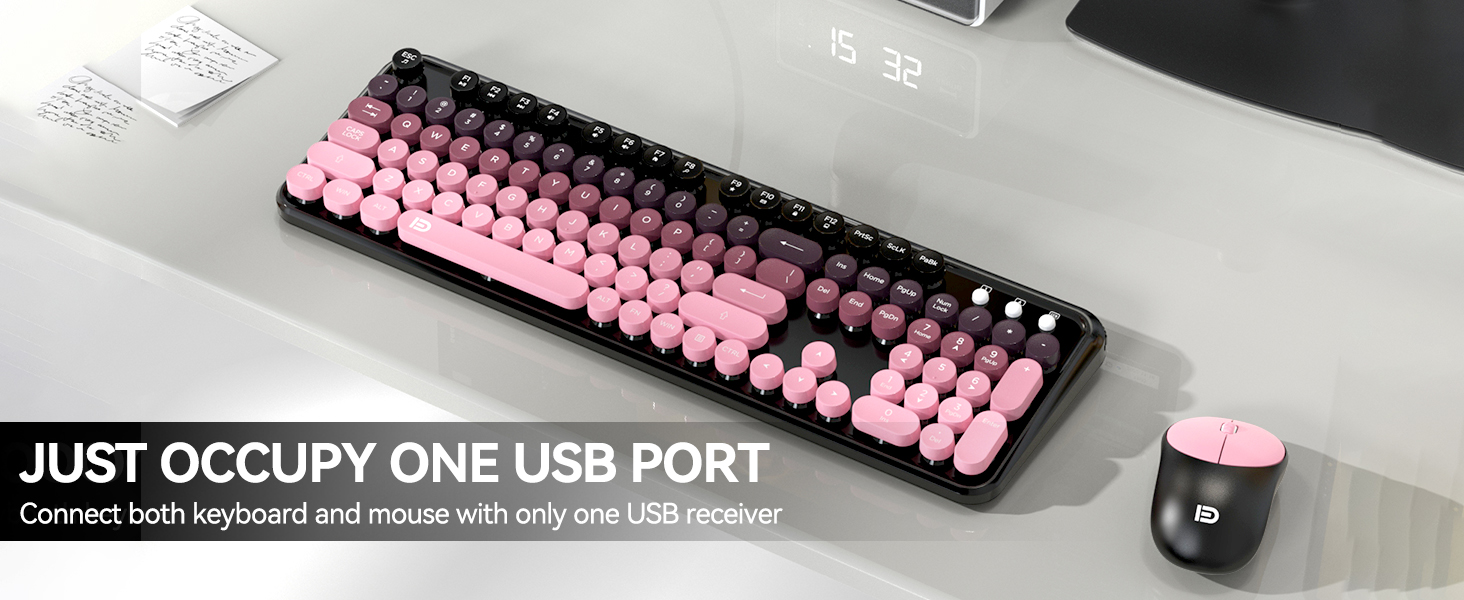
Figure 9: Wide Compatibility
4.5 Product Video
Video 1: Overview of the EK8870 Pink Colorful Keyboard and Mouse Combo. This video demonstrates the product's design and features.
5. Maintenance
5.1 Cleaning
- Use a soft, dry cloth to clean the surfaces of the keyboard and mouse.
- For stubborn dirt, slightly dampen the cloth with water or a mild cleaning solution. Avoid excessive moisture.
- Do not use abrasive cleaners or solvents, as these may damage the finish.
5.2 Keycap Care
The keyboard features laser-engraved, injection-molded keycaps designed to prevent fading.
- The keycaps are removable for deeper cleaning if necessary. Gently pull them upwards to remove and press firmly to reattach.
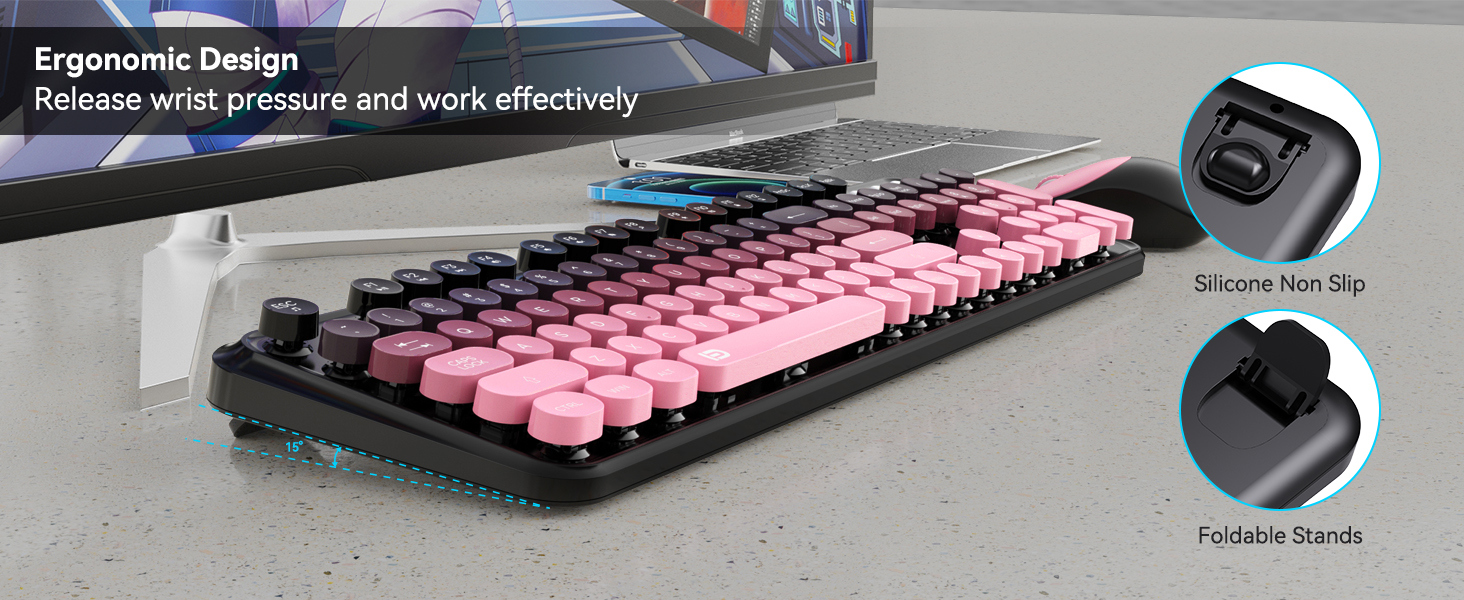
Figure 10: Removable Keycaps
5.3 Spill Resistance
The keyboard is designed with splash resistance, featuring a waterproof conductive film that allows liquids to drain out from within the keyboard membrane. In case of a spill, turn off the keyboard immediately, disconnect it, and allow it to dry completely before reuse.
6. Troubleshooting
If you encounter issues with your FD Wireless Keyboard and Mouse Combo, please refer to the following common solutions:
| Problem | Possible Cause | Solution |
|---|---|---|
| Keyboard/Mouse not responding | Low or dead batteries, USB receiver not connected, power switch off. | Replace batteries. Ensure USB receiver is securely plugged into a working USB port. Turn on the keyboard's power switch. |
| Lag or delayed response | Too far from receiver, interference, low battery. | Move devices closer to the USB receiver (within 10 meters). Avoid placing receiver near strong electromagnetic sources. Replace batteries. |
| Mouse cursor erratic | Dirty sensor, unsuitable surface. | Clean the mouse sensor with a soft cloth. Use the mouse on a clean, non-reflective surface or a mouse pad. |
| Hotkeys not working on Mac | Compatibility limitation. | Some hotkeys may not be fully compatible with Mac operating systems. This is expected behavior. |
7. Specifications
- Brand: FD
- Model: EK8870
- Color: Pink Gradient
- Connectivity: 2.4GHz Wireless (USB Receiver)
- Keyboard Keys: 105 (Full-sized, Round Keys)
- Keyboard Layout: QWERTY
- Keyboard Dimensions: 17.5 x 5.5 x 1.3 inches
- Keyboard Weight: 1.57 lbs
- Mouse DPI: 1600
- Mouse Dimensions: 4.1 x 2.5 x 1.0 inches
- Mouse Weight: 0.15 lbs
- Power Source: Keyboard: 2x AAA batteries (included); Mouse: 1x AA battery (included)
- Compatibility: Windows XP/ME/Vista/7/8/10/11, PCs, Laptops, Desktops, Chromebooks, Smart TVs
- Special Features: Ergonomic tilt angle, silent mouse clicks, power-saving switch, splash resistance, laser-engraved keycaps.
8. Warranty and Support
8.1 Warranty Information
FD offers a three-year worry-free warranty for this product. Additionally, a 60-day money-back guarantee or replacement option is available from the date of purchase. This warranty covers manufacturing defects and ensures product functionality under normal use.
8.2 Customer Support
For any inquiries, concerns, or issues regarding your FD Wireless Keyboard and Mouse Combo, please contact our customer support team. We are committed to providing satisfactory solutions.
- Contact Method: Please reach out to us via Amazon email as your first point of contact.