
1. Introduction
The HOgardenME Tuya Smart Din Rail Power Monitor 200A is a sophisticated device designed for comprehensive electrical parameter monitoring. It provides real-time data on voltage, current, power factor, active power, and frequency, offering a complete overview of energy consumption and production. This manual guides you through the installation, operation, and maintenance of your power monitor, ensuring safe and efficient use.
2. Product Overview
2.1 Features
- Comprehensive Power Monitoring: Real-time measurement of voltage, current, power factor, active power, and frequency.
- Smart Connectivity: Seamless integration with Tuya/Smart-Life app for remote control, data viewing, and historical consumption tracking.
- Overload Protection: Configurable overload monitoring with alarm push notifications to safeguard devices.
- Versatile Compatibility: Supports both single-phase and three-phase electrical systems.
- Easy Installation: Lightweight design, suitable for mounting on standard 35mm DIN rails.
- Energy Trend Analysis: Measures energy consumption and production trends by hour, day, and month.
- Voice Control & Automation: Enhance home setup with voice control and configurable on/off schedules.
- 16A Dry Contact Output: Provides an output for better external device control.
- Bidirectional Measurement: Ideal for solar systems, allowing real-time monitoring of both energy consumption and production.
- Safety Features: Incorporates power-on status settings to protect devices from voltage spikes and overloads.
2.2 Components
The package includes the following components:
- 1x Wifi Energy Meter Unit
- 3x Current Transformers (CTs)
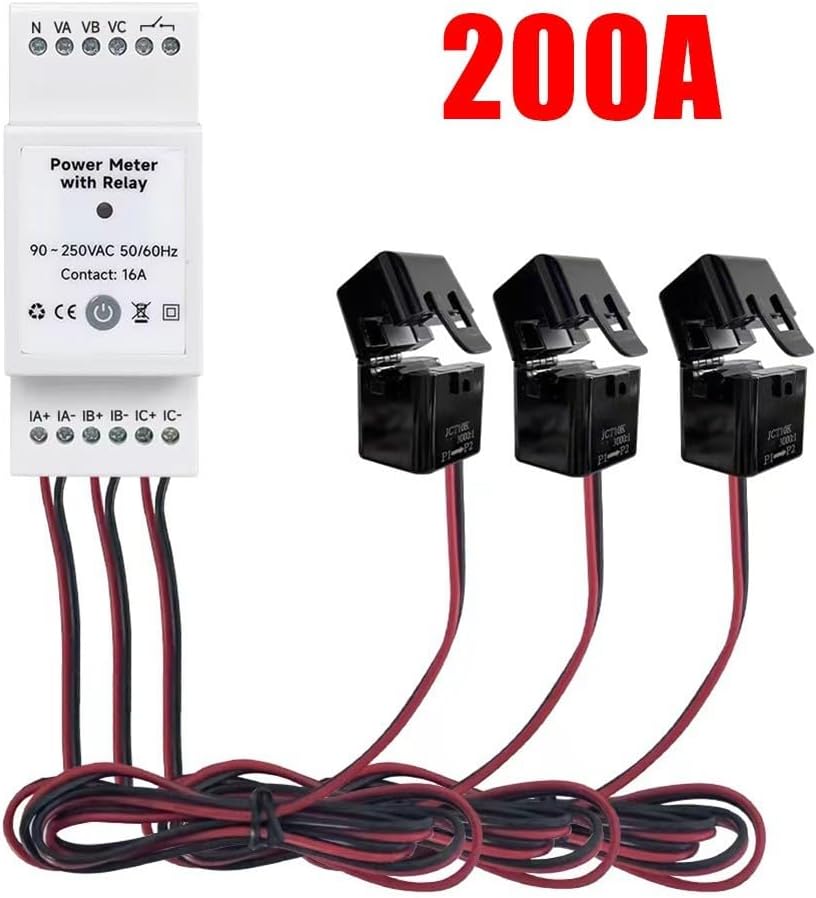
Figure 1: HOgardenME Tuya Smart Din Rail Power Monitor 200A with included Current Transformers.
3. Setup
3.1 Physical Installation and Wiring
- Mounting: Securely mount the Wifi Energy Meter unit onto a standard 35mm DIN rail in your electrical panel.
- Power Connection: Connect the main power lines (Neutral, Phase A, Phase B, Phase C) to the designated N, VA, VB, VC terminals on the top of the meter. Ensure all connections are tight and correct according to local electrical codes.
- Current Transformer (CT) Connection: Connect the three Current Transformers to the IA+, IA-, IB+, IB-, IC+, IC- terminals at the bottom of the meter. Ensure correct polarity (indicated on the CTs) and match each CT to its corresponding phase wire. The CTs should be clamped around the load wires, not the neutral wire.
- Dry Contact Output (Optional): If external device control is desired, connect the 16A dry contact output terminals to the control circuit of the device.

Figure 2: Example wiring diagram for bidirectional energy measurement in single-phase and three-phase systems.
3.2 App Connection
- Download App: Download the "Tuya" or "Smart-Life" app from your mobile device's app store (available on iOS and Android).
- Register/Login: Open the app and register for a new account or log in with an existing one.
- Add Device: Power on the Wifi Energy Meter. The device will typically enter pairing mode automatically (indicated by a blinking LED). In the app, tap the "+" icon to add a new device. Select "Electrical" > "Power Monitor" or "Energy Meter".
- Wi-Fi Configuration: Follow the in-app instructions to connect the device to your 2.4GHz Wi-Fi network. Enter your Wi-Fi password when prompted.
- Device Renaming: Once connected, you can rename the device for easier identification within the app.
4. Operating Instructions
4.1 Real-time Monitoring
- Open the Tuya/Smart-Life app and select your HOgardenME Power Monitor.
- The main screen will display real-time data for voltage, current, active power, power factor, and frequency for each phase.
- Navigate through the app interface to view historical consumption and production trends, broken down by hour, day, and month.
4.2 Remote Control and Automation
- Remote On/Off: If you have connected an external device to the 16A dry contact, you can remotely switch its on/off status via the app.
- Schedules: Set up custom schedules within the app to automate the on/off operation of connected devices at specific times.
- Voice Control: Integrate the Tuya/Smart-Life app with popular voice assistants (e.g., Amazon Alexa, Google Assistant) to control the power monitor and connected devices using voice commands.
- Automation Scenes: Create smart scenes to trigger actions based on various conditions, such as power consumption thresholds or time of day.
4.3 Bidirectional Measurement
For installations with solar panels or other energy generation systems, the HOgardenME Power Monitor supports bidirectional measurement. This allows you to monitor both the energy consumed from the grid and the energy produced and fed back into the grid, providing a complete picture of your energy flow.
5. Maintenance
- Cleaning: Keep the device clean and free from dust using a dry, soft cloth. Do not use liquid cleaners.
- Ventilation: Ensure proper ventilation around the unit to prevent overheating.
- Firmware Updates: Regularly check the Tuya/Smart-Life app for available firmware updates to ensure optimal performance, security, and access to new features.
- Connection Inspection: Periodically inspect all wiring connections for tightness and integrity to prevent loose connections or potential hazards.
6. Troubleshooting
- No Power/Display:
- Check the main power connections to the N, VA, VB, VC terminals.
- Verify that the circuit breaker supplying power to the device is in the ON position.
- No App Connection:
- Ensure your Wi-Fi network is 2.4GHz. The device does not support 5GHz Wi-Fi.
- Verify that the correct Wi-Fi password has been entered in the app.
- Move the device closer to your Wi-Fi router to improve signal strength.
- Restart the power monitor by cycling its power, then attempt the pairing process again.
- Incorrect Readings:
- Verify that the Current Transformers (CTs) are connected with the correct polarity (indicated by arrows or markings on the CTs).
- Ensure each CT is clamped around the correct phase wire (IA to Phase A, IB to Phase B, IC to Phase C).
- Make sure the CTs are fully closed and securely clamped around the wires.
- Overload Alarm Triggered:
- The device's overload protection has activated. Check the connected loads and reduce power consumption if it exceeds the configured limits.
- Review the overload settings in the Tuya/Smart-Life app.
7. Specifications
| Product Name | Wifi Energy Meter |
| Model Number | SYZ5MEBH9L1KD8YLVS9X |
| Brand | HOgardenME |
| Material | PC |
| Dimensions (Device) | 90 x 35 x 60mm (approx. 3.54 x 1.38 x 2.36 inches) |
| Color | White |
| App Compatibility | Tuya / Smart-Life |
| Operating Voltage | 90~250 Vac 50/60 Hz |
| Calibrated Metering | ≤ 100W (Within ±2W) |
| Accuracy | >100W (Within ±2%) |
| Max. Load Current | 16A Dry contact |
| Current Rating (Model) | 200A |
| Number of Phases | 3-Phase (Supports both single-phase and three-phase) |
| Certification | CE |
| Item Weight | 1.42 pounds |
8. Warranty and Support
For detailed warranty information, technical support, and customer service, please refer to the official HOgardenME website or contact your authorized retailer. Keep your purchase receipt as proof of purchase for any warranty claims.