
1. Introduction
The MSR X6 Smart Fingerprint Door Lock (Model H8P) provides a secure and convenient entry system for your home, office, or apartment. This lock offers multiple unlocking methods including fingerprint, Tuya Smart App, keypad password, IC cards, and mechanical keys. This manual will guide you through the setup, operation, and maintenance of your new smart lock.
2. Product Features
- 6-in-1 Smart Entry System: Unlock using fingerprint, Tuya Smart App, keypad password, 4 IC cards, 2 mechanical keys, and smartwatch app (requires Tuya app).
- Advanced AI Fingerprint Sensor: Features AI self-learning biometric technology for 0.2-second recognition with 99.9% accuracy. Supports up to 50 fingerprints.
- Total Smart Home Control: Manage users, add/delete passwords or fingerprints, enable auto-lock, use Bluetooth for keyless entry, and view unlock records via the Tuya app. Generate one-time or timed codes.
- Modern Design & DIY Installation: Fits most US standard doors (1-3/8" to 2-1/8" thick with 2-3/8" and 2-1/8" backset). No drilling required; replaces current door handle/knob with a screwdriver. Compatible with both left and right-handed doors.
- Reliable Power: Operates for up to 180 days on 4 AAA alkaline batteries (not included). Features a low battery alarm and a Type-C emergency power supply port for temporary unlocking.
3. Setup and Installation
Follow these steps to install your MSR X6 Smart Fingerprint Door Lock. A screwdriver is the only tool required.
3.1 Installation Steps
- Prepare the Door: Ensure your door meets the thickness and backset requirements (1-3/8" to 2-1/8" thick, 2-3/8" or 2-1/8" backset).
- Install Screw Bolts: Insert the screw bolts into the front handle assembly.
- Thread the Wire: Carefully thread the data cable through the hollow square bar of the front handle.
- Install Front Handle: Insert the front handle into the door, ensuring the wire passes through the door hole.
- Install Rear Handle: Remove the battery cover fixing screw from the rear handle. Connect the data cable from the front handle to the rear handle's circuit board.
- Secure the Lock: Tighten the door lock with two screws to secure both front and rear handles.
- Insert Batteries: Correctly install 4 AAA alkaline batteries into the rear handle's battery compartment.
- Align and Close: Align the head of the rear handle with the latch and install the battery cover, securing it with the fixing screw.
3.2 Installation Video Guide
For a visual guide, please refer to the installation video below:
Video: Installation Guide for MSR X6 Fingerprint Door Knob. This video demonstrates the step-by-step process of installing the smart door lock.
3.3 Door Handing Adjustment
The MSR X6 lock is ambidextrous and compatible with both left and right-handed doors. No specific adjustment is typically needed during installation for door handing.
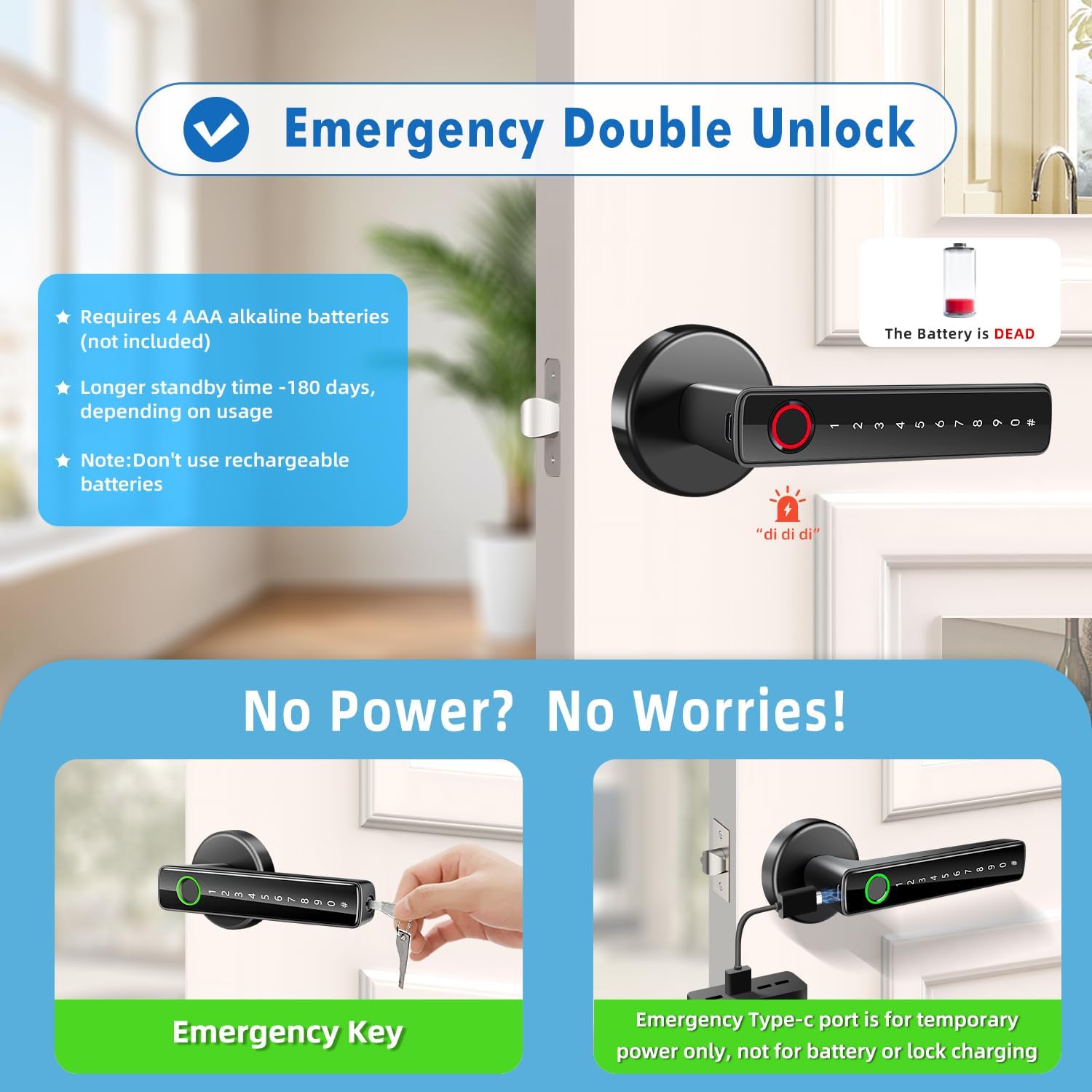
Image: Diagram illustrating the MSR X6 Smart Lock's compatibility with standard door dimensions and both left and right-handed door configurations.
4. Operating Instructions
The MSR X6 Smart Fingerprint Door Lock offers multiple ways to unlock and manage access.
4.1 Unlocking Methods
- Fingerprint: Place a registered finger on the sensor for quick access. The lock identifies registered users in 0.2 seconds.
- Keypad Password: Enter your programmed password on the illuminated touchscreen keypad.
- Tuya Smart App: Use the app on your smartphone via Bluetooth for keyless entry.
- IC Card: Tap a registered IC card to unlock.
- Mechanical Key: Use one of the two provided mechanical keys for traditional unlocking.
- Smartwatch App: Unlock via a smartwatch app (requires Tuya app).

Image: Visual representation of the six different unlocking methods available for the MSR X6 Smart Fingerprint Door Lock.
4.2 Tuya Smart App Control
Manage your lock settings and access logs using the Tuya Smart App. Ensure Bluetooth is enabled on your smartphone.
- User Management: Add or delete users, fingerprints, and passwords.
- Temporary Codes: Generate one-time or timed access codes for guests or service providers.
- Auto-Lock: Configure the lock to automatically secure after a set period.
- Unlock Records: View a history of all lock and unlock events.
- Mute Mode: Adjust or mute the lock's sound alerts.
4.3 App Setting Tutorial Video
Learn how to set up and manage your lock through the Tuya Smart App:
Video: Tutorial on setting up the MSR X6 Fingerprint Door Lock with the Tuya Smart App, including adding fingerprints and codes.
4.4 Secure and Convenient Timed Access
The lock allows for various access codes to be generated for different needs:
- Service Providers Time-Limited Codes: Codes with a specific validity period (e.g., 6 hours).
- Friends One-Time Codes: Codes that can be used once or for a limited number of times.
- Tenants Dynamic Codes: Codes with an effective time and expiration time.

Image: Screenshot of the mobile application interface demonstrating how to create and manage various types of temporary access codes for the smart lock.
4.5 Anti-Peeping Password
To enhance security, you can enter random digits before or after your actual password. This feature prevents others from easily guessing your code by observing your input.
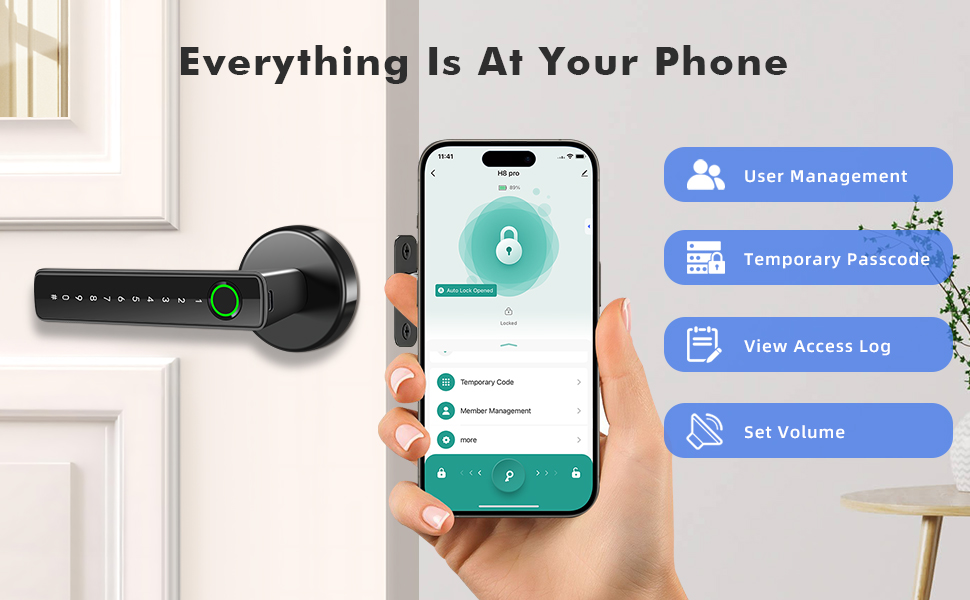
Image: Illustration of the anti-peeping password function, where random digits can be entered before or after the actual code to obscure it.
5. Maintenance
Proper maintenance ensures the longevity and optimal performance of your MSR X6 Smart Fingerprint Door Lock.
5.1 Battery Replacement
- The lock requires 4 AAA alkaline batteries (not included). Do not use rechargeable batteries.
- The lock will provide a low battery alarm when power is critically low. Replace batteries promptly to ensure continuous operation.
- The battery life is approximately 180 days, depending on usage.

Image: Depiction of the emergency unlocking methods, including the use of a mechanical key and the Type-C emergency power port, alongside a low battery warning.
5.2 Emergency Power Supply
In case of complete battery depletion, a Type-C emergency power supply port is available. This port is for temporary unlocking only and not for charging the lock or its batteries. Use a standard Type-C cable and power source to temporarily power the lock and gain access, then replace the AAA batteries immediately.
6. Troubleshooting
If you encounter issues with your MSR X6 Smart Fingerprint Door Lock, refer to the following common troubleshooting steps:
- Fingerprint Recognition Issues: Ensure your finger is clean and dry. The sensor area should also be clean. Try re-registering your fingerprint if issues persist.
- Keypad Not Responding: Check battery levels. If the keypad does not illuminate or respond, replace the batteries.
- App Connectivity Problems: Ensure Bluetooth is enabled on your phone and the lock is within range. Restart the app and try reconnecting.
- Lock Not Unlocking/Locking: Verify that the latch mechanism is not obstructed. Check battery levels. If using a code, ensure it is entered correctly.
- Low Battery Alarm: Replace all 4 AAA alkaline batteries immediately.
- Complete Power Failure: Use the mechanical key or connect a Type-C power source to the emergency port for temporary access, then replace batteries.
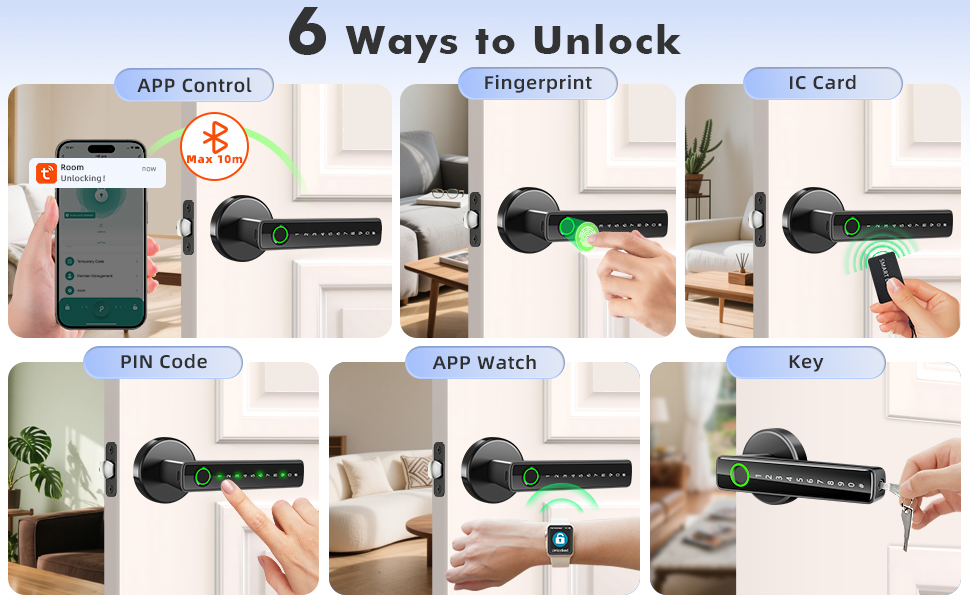
Image: Explanation of the LED indicator lights on the smart lock: Green for successful verification, Blue for active mode, and Red for failed verification.
7. Specifications
| Feature | Detail |
|---|---|
| Model Number | H8P |
| Material | Aluminum |
| Color | Black |
| Product Dimensions | 5.7"L x 2.75"W |
| Item Weight | 1.5 pounds (0.68 Kilograms) |
| Door Thickness Compatibility | 1-3/8" to 2-1/8" (35mm to 55mm) |
| Backset Compatibility | 2-3/8" and 2-1/8" |
| Power Source | 4 AAA Alkaline Batteries (not included) |
| Emergency Power | Type-C Port |
| Unlocking Methods | Fingerprint, Keypad, Tuya App, IC Card, Mechanical Key, Smartwatch App |
| Fingerprint Capacity | Up to 50 |
| Password Capacity | Up to 100 |
| Hand Orientation | Ambidextrous |
8. Warranty and Support
For any after-sales issues, installation assistance, or technical support, please contact the manufacturer or seller directly. Refer to your purchase documentation for specific warranty details.