1. Product Overview
The Alxum S1235D is a versatile 2-in-1 tool-free external enclosure designed for both M.2 NVMe and SATA SSDs. It provides a portable solution for accessing, transferring, and managing data from various hard drives with high-speed connectivity.
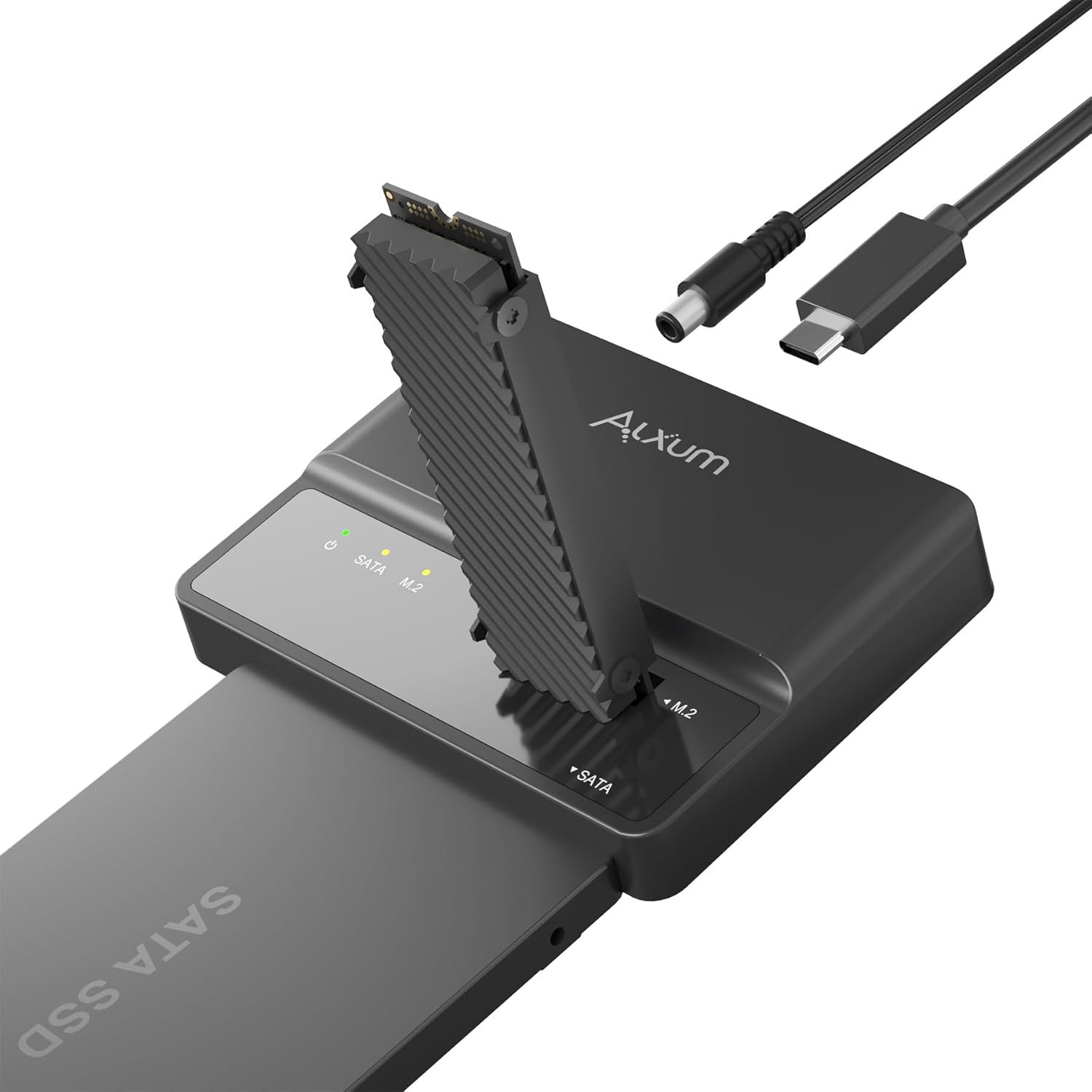
Image: Alxum S1235D Enclosure with M.2 and SATA SSDs.
2. Package Contents
Verify that all items are present in your package:
- 1 x USB C to SATA/M.2 Adapter (Alxum S1235D Enclosure)
- 1 x USB C-C Cable
- 1 x 12V/2A Power Adapter
- 1 x User Manual
3. Product Features
- Dual Interface Support: Supports both PCIe NVMe M.2 SSDs and 2.5-inch/3.5-inch SATA hard disks, allowing for dual-disk display and simultaneous read access.
- Tool-Free Installation: Designed for easy, tool-free setup, enabling quick installation and removal of drives.
- High-Speed Data Transfer: Equipped with a USB 3.1 Gen 2 Type-C interface, offering data transfer rates up to 10Gbps. It supports UASP (USB Attached SCSI Protocol) and TRIM protocols for enhanced performance.
- Vertical Cooling Design: Features a vertical open interface to improve heat dissipation for M.2 SSDs, preventing overheating during operation.
- NCQ Technology: Utilizes Native Command Queuing (NCQ) technology to optimize data processing sequences, reducing latency and ensuring efficient operation.
- Automatic Hibernation: The device enters automatic hibernation after 30 minutes of inactivity (no read/write operations) to conserve power and extend drive lifespan.
- LED Indicator: A real-time LED indicator monitors the device status, providing visual feedback on operation.
- Multiple Protection Layers: Includes overvoltage protection, short circuit protection, and overtemperature control for safe device operation.

Image: Multiple layers of protection for safe device operation.
4. Setup Guide
Follow these steps to set up your Alxum S1235D enclosure:
4.1 Identifying Ports and Switches

Image: Alxum S1235D Enclosure with labeled ports and switches.
4.2 Installing an M.2 NVMe SSD
- Ensure the enclosure is powered off.
- Gently insert your M.2 NVMe SSD (2230/2242/2260/2280 M/B+M Key) into the M.2 interface slot until it is securely seated. The tool-free design allows for easy insertion without screws.
4.3 Installing a SATA SSD/HDD
- Ensure the enclosure is powered off.
- Connect your 2.5-inch or 3.5-inch SATA SSD/HDD to the SATA interface.
- Note: For 3.5-inch SATA hard disks, an external 12V/2A power supply (included) is required for proper operation. Connect the power adapter to the 12V Power Port on the enclosure.
4.4 Connecting to a Host Device
- Connect one end of the included USB C-C cable to the Uplink Data Interface (USB-C port) on the enclosure.
- Connect the other end of the USB C-C cable to a compatible USB-C port on your computer (laptop, desktop), tablet, or smartphone.
- Turn on the Main Switch on the enclosure. The LED indicator will illuminate, signifying power and activity.
Video: Demonstrates the setup and connection of the Alxum USB C to SATA M.2 Adapter.
5. Operation
Once connected, your operating system should automatically detect the connected drives. You can then access, read, and write data to them as you would with any internal drive.
5.1 Data Transfer
The Alxum S1235D supports high-speed data transfer up to 10Gbps, allowing for rapid transfer of large files. The UASP and TRIM protocols further enhance transfer efficiency and maintain SSD performance.

Image: High-speed data transfer in progress.
5.2 LED Indicator
The LED indicator on the enclosure provides real-time status updates:
- Solid Light: Indicates the device is powered on and a drive is connected.
- Flashing Light: Indicates data read/write activity.
5.3 Automatic Hibernation
To prolong the lifespan of your SSDs and conserve energy, the enclosure will automatically enter hibernation mode after 30 minutes of no read or write operations. The device will reactivate upon data access.

Image: Automatic sleep mode design.
6. Compatibility
The Alxum S1235D offers broad compatibility with various drive types and operating systems:
- M.2 SSDs: Supports 2242, 2260, 2280 M.2 SSDs with M Key (NVMe) and B+M Key (NVMe).
- SATA Drives: Supports 2.5-inch and 3.5-inch SATA hard disks.
- Host Devices: Compatible with laptops, desktops, tablets, and smartphones via its Type-C interface.
- Operating Systems: Works with Windows, Linux, and Mac OS.
- Note: For smartphones, recommended file formats are exFAT, FAT, FAT32.

Image: M.2 and SATA SSD compatibility details.
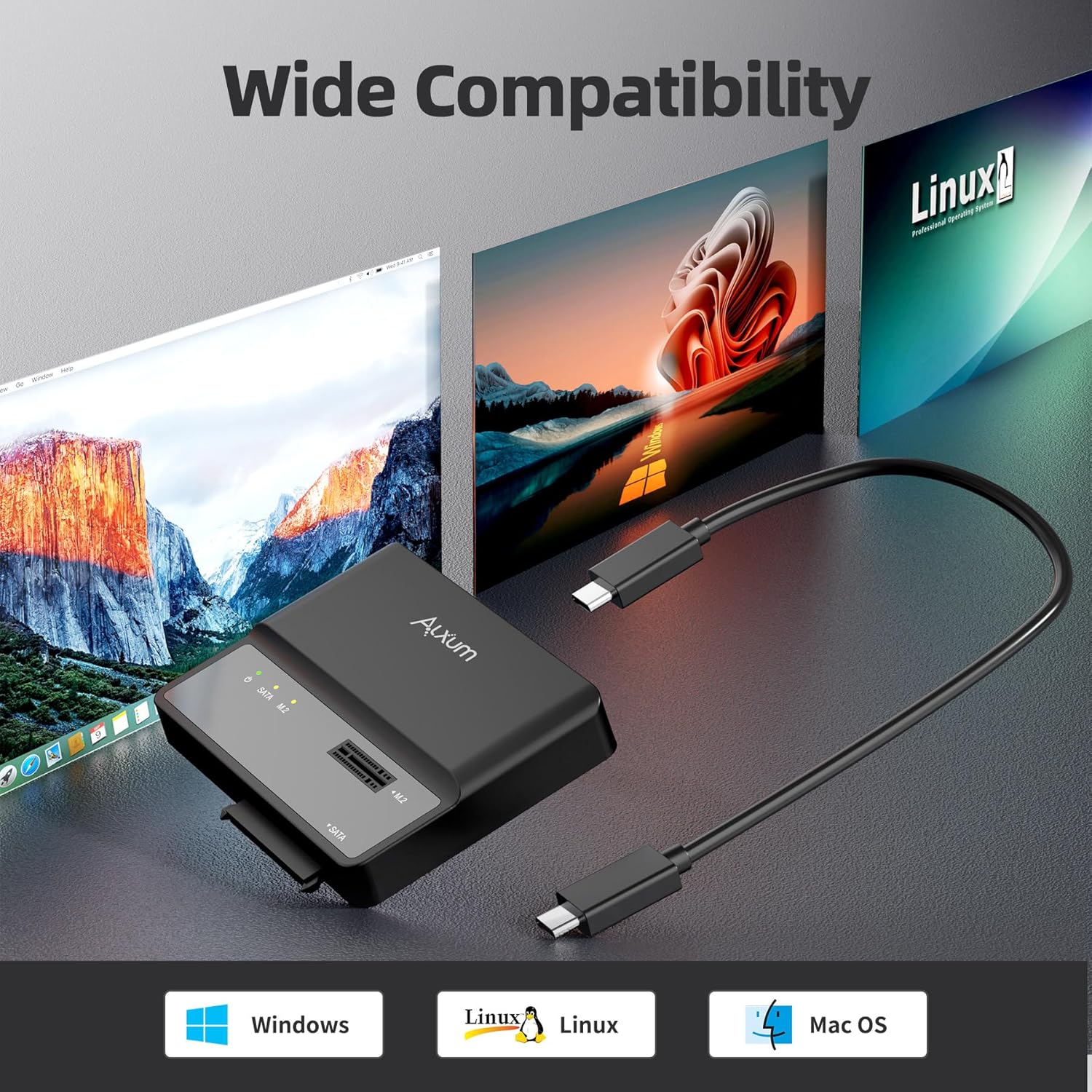
Image: Wide operating system compatibility.
7. Important Notes
- This M.2 & SATA SSD Enclosure does not support cloning operations.
- An external 12V/2A power supply is required when connecting a 3.5-inch SATA hard disk.
- Ensure proper insertion of M.2 SSDs to avoid damage.
8. Maintenance
To ensure the longevity and optimal performance of your Alxum S1235D enclosure:
- Keep the device clean and free from dust. Use a soft, dry cloth for cleaning.
- Avoid exposing the device to extreme temperatures or humidity.
- The vertical open interface design aids in heat dissipation for M.2 SSDs. Ensure adequate airflow around the device during operation.
- Store the device and its components in a safe place when not in use.
9. Troubleshooting
If you encounter issues with your Alxum S1235D, please refer to the following common problems and solutions:
- Device Not Recognized:
- Ensure all cables are securely connected.
- Verify the enclosure's main switch is in the 'ON' position.
- Try connecting to a different USB-C port on your host device.
- If using a 3.5-inch SATA HDD, confirm the 12V/2A power adapter is connected and functioning.
- Check your computer's Disk Management (Windows) or Disk Utility (Mac OS) to see if the drive is detected but uninitialized or unformatted.
- Slow Data Transfer Speed:
- Ensure your host device's USB-C port supports USB 3.1 Gen 2 (10Gbps) for optimal speeds.
- Verify that the connected SSD/HDD is capable of high speeds.
- Avoid using USB hubs if possible, as they can sometimes limit transfer speeds. Connect directly to the computer's port.
- M.2 SSD Overheating:
- The vertical design helps, but ensure the device is placed in an area with good airflow.
- Avoid covering the enclosure during operation.
- Automatic Hibernation Too Frequent:
- The device is designed to hibernate after 30 minutes of inactivity. This is normal behavior to save power and extend drive life.
10. Specifications
| Feature | Detail |
|---|---|
| Model Number | S1235D |
| Max Number of Supported Devices | 2 (1 M.2 NVMe, 1 SATA) |
| Data Transfer Rate | 10 Gigabits Per Second (USB 3.2 Gen 2) |
| Hardware Interface | USB 3.2 Gen 2 Type-C |
| Supported M.2 SSD Types | 2242/2260/2280 M Key (NVMe), B+M Key (NVMe) |
| Supported SATA Drive Types | 2.5-inch / 3.5-inch SATA HDD/SSD |
| Compatible Devices | Desktop, Laptop, Smartphone, Television |
| Hardware Platform | Universal |
| Product Dimensions | 3.78 x 2.76 x 0.63 inches |
| Item Weight | 10.2 ounces |
| Power Input | 12V/2A (for 3.5-inch SATA HDD) |
11. Customer Support
For any questions or concerns regarding your Alxum S1235D M.2 NVMe SATA SSD Enclosure, our dedicated support team is available to assist you. Please contact us via email for prompt assistance.
Note: Specific warranty details are not provided in this manual. Please refer to the product packaging or contact customer support for warranty information.


