Introduction
Thank you for choosing the NOVOO 15-in-1 USB-C Docking Station. This manual provides detailed instructions for setting up, operating, maintaining, and troubleshooting your device. Please read this manual thoroughly before use to ensure optimal performance and longevity of your docking station.
Product Overview
The NOVOO 15-in-1 USB-C Docking Station is designed to expand the connectivity of your laptop, offering a wide range of ports for various peripherals and external displays.
Key Features:
- 15-in-1 Connectivity: Includes 2x 4K HDMI, 1x VGA, 2x USB-C 3.0 (5Gbps), 1x USB-C PD100W charging port, 3x USB-A 3.0, 2x USB-A 2.0, Gigabit RJ45 Ethernet, SD/Micro SD Card Reader, and 3.5mm Audio/Mic port.
- Triple Display Support: Enables multi-screen work on Windows systems with different content across three displays. Note: macOS supports mirroring or single expansion only (A-AAA or A-BBB).
- 100W Power Delivery: Supports up to 100W input for stable power supply and up to 85W output for fast laptop charging.
- High-Speed Data Transfer: USB 3.0 and USB-C ports offer up to 5Gbps data transfer. USB 2.0 ports provide 480Mbps.
- 4K@60Hz Media Display: Delivers clear 4K@60Hz video output via HDMI.
- One-Click Screen-Off Button: Instantly locks the display for privacy without interrupting workflow.
- Portable Design: Compact and includes a 30cm extension cable for flexible use.

Image: Detailed diagram of the 15-in-1 docking station ports, including USB-C 3.0 (5Gbps), USB-A 3.0 (5Gbps), USB-A 2.0 (480Mbps), 3.5mm Audio & Mic, HDMI (4K@60Hz), SD & TF card slots, RJ45 (1000Mbps), VGA, and 100W PD port.
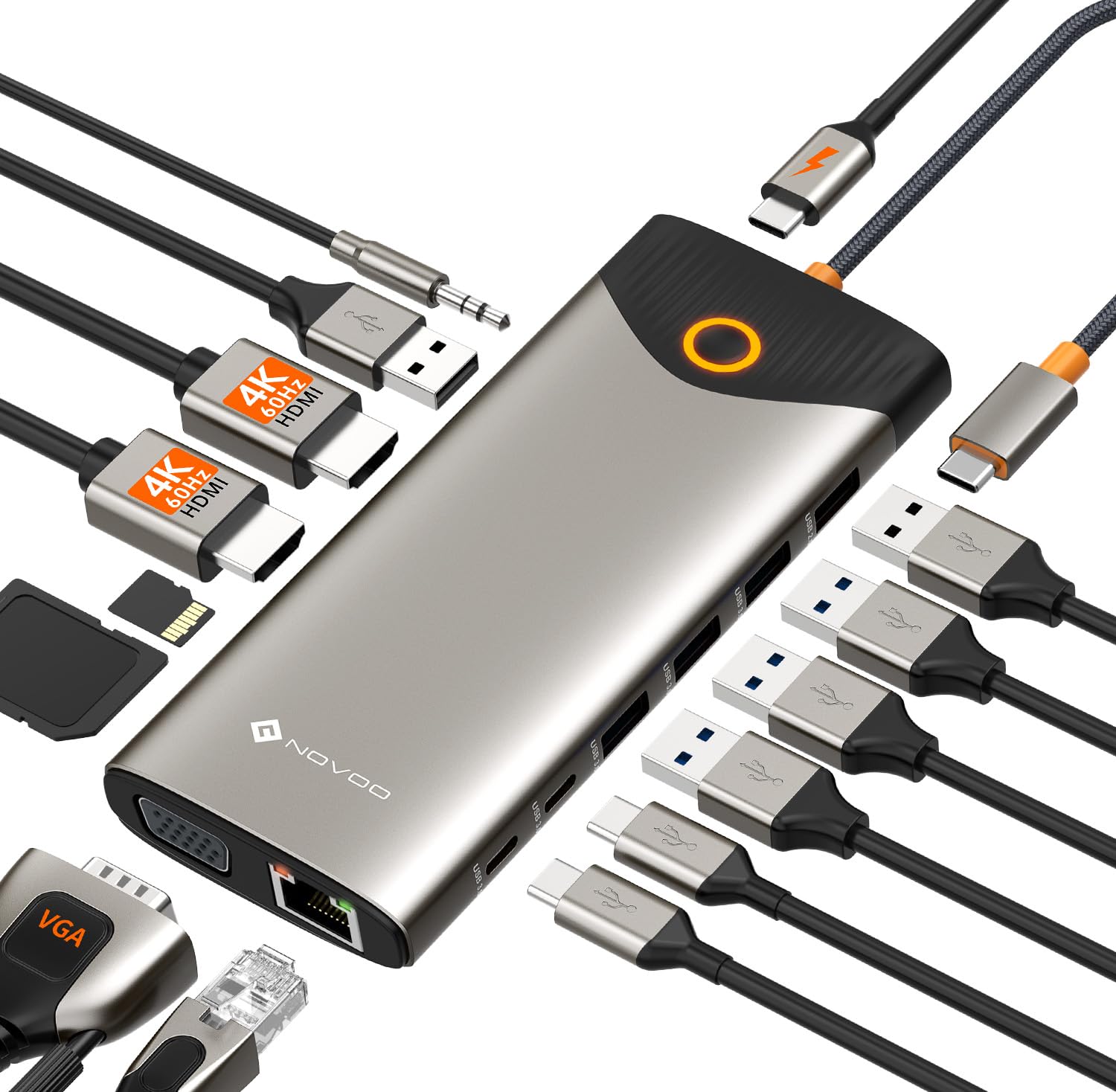
Image: The NOVOO docking station connected to multiple devices, illustrating its comprehensive connectivity options.
Compatibility
To ensure full functionality, your laptop's USB-C port must support Data Transfer, Power Delivery (PD), and DisplayPort Alternate Mode (DP Alt Mode). Please verify your laptop's USB-C port capabilities before connecting the docking station.

Image: Guide to checking your laptop's USB-C port functionality for compatibility with the docking station.
Setup Instructions
1. Connecting the Docking Station to Your Laptop:
- Connect the integrated USB-C cable from the docking station to a compatible USB-C port on your laptop.
2. Connecting External Displays:
- For HDMI displays, connect HDMI cables from your monitors to the HDMI ports on the docking station.
- For VGA displays, connect a VGA cable from your monitor to the VGA port on the docking station.
- Ensure your monitors are powered on and set to the correct input source.
3. Powering Your Laptop (Optional):
- Connect your laptop's original USB-C power adapter to the PD 100W USB-C port on the docking station. This will charge your laptop through the docking station.
4. Connecting Peripherals:
- Connect USB devices (keyboard, mouse, external drives) to the available USB-A 3.0, USB-A 2.0, or USB-C 3.0 data ports.
- For wired network access, connect an Ethernet cable to the RJ45 port.
- Insert SD or Micro SD cards into the corresponding slots for data access.
- Connect headphones or a microphone to the 3.5mm audio/mic port.

Image: Illustration of the docking station providing 85W output power to a laptop and a 1000Mbps Gigabit Ethernet connection.
Operating Instructions
Display Modes (Windows):
Windows operating systems support various display configurations, including Mirror Mode, Extend Mode, and MST (Multi-Stream Transport) for triple displays.

Image: Single Display configurations for Windows and macOS.

Image: Dual Display configurations for Windows.

Image: Triple Display configurations for Windows. Note: Extension of 3 displays simultaneously is only supported by DP1.4 version or Thunderbolt 3/4 Laptops.
Display Modes (macOS):
macOS only supports Mirror Mode (A-AAA) or Single Extension Mode (A-BBB). It does not support MST (Multi-Stream Transport) for displaying different content on multiple external monitors simultaneously.

Image: Dual Display configurations for macOS.

Image: Triple Display configurations for macOS. Please be advised that MST (Multi-Stream Transport) is not supported by macOS, resulting in identical images displayed on external monitors.
One-Click Screen ON/OFF Button:
The docking station features a dedicated ON/OFF button to instantly turn off or lock your connected displays. This is useful for privacy or to quickly manage screen output without disconnecting cables.

Image: Using the Display Screen-Lock Button to switch the screen on and off with one click.
Data Transfer:
Utilize the USB 3.0 and USB-C 3.0 ports for high-speed data transfer up to 5Gbps. The USB 2.0 ports are suitable for connecting keyboards, mice, and other standard USB-A devices.
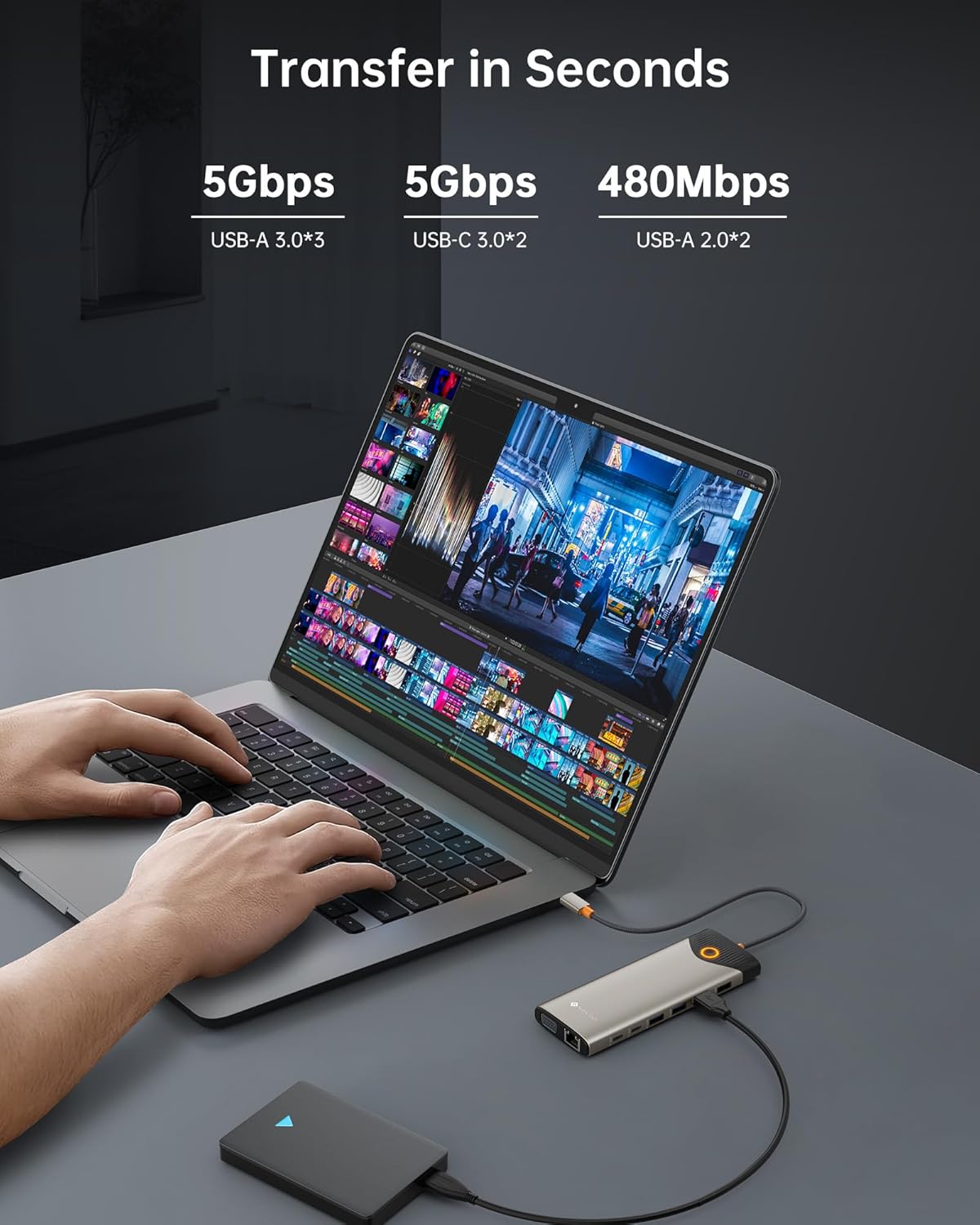
Image: Data transfer speeds for USB-A 3.0, USB-C 3.0, and USB-A 2.0 ports.
Ethernet Connection:
The Gigabit RJ45 port provides a stable and fast wired internet connection up to 1000Mbps, ideal for reliable network performance.
Audio Connection:
The 3.5mm audio/mic port allows you to connect headphones, speakers, or a microphone for audio input and output.
Maintenance
- Keep the docking station clean by wiping it with a soft, dry cloth.
- Avoid exposing the device to extreme temperatures, humidity, or direct sunlight.
- Do not attempt to disassemble or repair the docking station yourself. Contact customer support if issues arise.
- Ensure proper ventilation around the device during operation.
Troubleshooting
If you encounter issues with your NOVOO docking station, please refer to the following common solutions:
Indicator Light Status:
The indicator light on the docking station provides information about its display status.

Image: Description of the indicator light behavior. The button light detects if the laptop's USB-C port supports DP Alt Mode for screen extension or mirroring. If supported, the light will be always on; otherwise, it will flash.
| Problem | Possible Cause | Solution |
|---|---|---|
| No display on external monitor(s) | 1. Laptop USB-C port does not support DP Alt Mode. 2. Incorrect display settings on laptop. 3. Loose cable connections. 4. Monitor input not selected correctly. | 1. Verify laptop USB-C port functionality (refer to Compatibility section). 2. Adjust display settings in your operating system (e.g., Extend, Duplicate). 3. Ensure all HDMI/VGA and USB-C cables are securely connected. 4. Select the correct input source on your monitor. |
| Laptop not charging via docking station | 1. Laptop USB-C port does not support Power Delivery. 2. Power adapter not connected to PD port. 3. Power adapter insufficient wattage. | 1. Confirm your laptop's USB-C port supports PD. 2. Connect your laptop's original power adapter to the docking station's PD 100W USB-C port. 3. Use a power adapter with sufficient wattage (e.g., 65W or higher for most laptops). |
| USB devices not recognized | 1. Loose USB connection. 2. Device drivers missing/outdated. 3. Power issue for high-power devices. | 1. Reconnect the USB device firmly. 2. Update USB drivers on your laptop. 3. Ensure the docking station is receiving adequate power, especially for power-hungry devices. |
| Ethernet connection unstable or not working | 1. Loose Ethernet cable. 2. Network driver issue. 3. Router/modem problem. | 1. Ensure the Ethernet cable is securely connected to both the docking station and your router/modem. 2. Update your laptop's network adapter drivers. 3. Restart your router/modem. |
| HDMI signal loss (intermittent) | 1. Cable quality. 2. Interference. 3. Driver issues. | 1. Use high-quality HDMI cables. 2. Ensure the docking station is not placed near strong electromagnetic interference sources. 3. Update graphics drivers on your laptop. |
Specifications
| Feature | Detail |
|---|---|
| Model Number | NHM15D-168C |
| Product Dimensions | 2.2 x 0.63 x 5.91 inches |
| Item Weight | 4.2 ounces |
| Hardware Interface | USB Type C |
| USB Ports | 2x USB-C 3.0 (5Gbps), 3x USB-A 3.0 (5Gbps), 2x USB-A 2.0 (480Mbps) |
| Video Output | 2x HDMI (up to 4K@60Hz), 1x VGA |
| Power Delivery | USB-C PD 100W Input, 85W Output |
| Ethernet | Gigabit RJ45 (1000Mbps) |
| Card Reader | SD and Micro SD |
| Audio | 3.5mm Audio/Mic Port |
| Cable Length | 30cm (integrated) |
| Compatible Devices | Laptops, Monitors, Headphones, Keyboards, Mouse |
Warranty and Support
NOVOO products are designed for reliability and performance. For warranty information, technical support, or any inquiries regarding your docking station, please contact NOVOO customer service through their official website or the retailer where the product was purchased. Please retain your proof of purchase for warranty claims.


