1. Setup
This section provides instructions for the initial setup of your HP OmniDesk Desktop PC M02-0010. Please follow these steps carefully to ensure proper functionality.
1.1 Unpacking and Contents
Carefully remove all components from the packaging. Verify that all items listed below are present.

Image: Contents of the HP OmniDesk Desktop PC M02-0010 box, including the desktop tower, keyboard, mouse, power supply, and setup instructions.
- HP OmniDesk Desktop M02-0010 PC
- HP USB black wired keyboard
- HP USB black wired mouse
- 180 W 80 Plus Gold certified power supply
- Setup instructions document
1.2 Connecting Peripherals
Before powering on your desktop, connect the essential peripherals.

Image: The HP OmniDesk Desktop PC M02-0010 tower with the included wired keyboard and mouse connected, ready for use.
- Connect the Monitor: Connect your monitor to the desktop using an HDMI or DisplayPort cable. The desktop supports dual display output.
- Connect the Keyboard and Mouse: Plug the USB cables from the keyboard and mouse into any available USB Type-A ports on the desktop.
- Connect Power: Connect the power supply to the desktop's power input and then plug the power cord into a wall outlet.
- Power On: Press the power button located on the front of the desktop tower.
2. Operating Instructions
This section details the general operation and key features of your HP OmniDesk Desktop PC M02-0010.
2.1 System Overview

Image: An overview of the HP OmniDesk Desktop PC M02-0010, highlighting its Intel Core i3-14100 processor, Intel UHD Graphics 730, 8GB DDR5 RAM, 512GB SSD, Wi-Fi 6, Bluetooth 5.4, Windows 11, and dual display support.
The HP OmniDesk Desktop PC M02-0010 is equipped with an Intel Core i3-14100 processor, 8 GB DDR5 RAM, and a 512 GB PCIe Gen4 NVMe M.2 SSD for efficient performance and storage. It runs on Windows 11 Home and includes Microsoft Copilot for enhanced productivity.
2.2 Ports and Connectivity
The desktop offers various ports for connecting external devices and features advanced wireless connectivity.

Image: A detailed diagram showing the front and rear ports of the HP OmniDesk Desktop PC M02-0010, including USB Type-A, USB Type-C, HDMI, DisplayPort, RJ-45, and headphone/microphone combo jack.
- Front Ports: Headphone/microphone combo, USB Type-A 5Gbps (x2), USB Type-C 10Gbps (x1).
- Rear Ports: USB 2.0 Type-A (x4), RJ-45 (Ethernet), HDMI Out (x1), DisplayPort 1.4 (x1).
- Wireless Connectivity: Integrated Wi-Fi 6 and Bluetooth 5.4 for fast and reliable wireless connections.
2.3 Dual Display Support
The HP OmniDesk supports connecting two monitors simultaneously via its HDMI Out and DisplayPort 1.4, allowing for an expanded workspace and improved productivity.

Image: A family interacting with the HP OmniDesk Desktop PC M02-0010, demonstrating its use in a home environment and highlighting dual monitor support for enhanced online experiences.
3. Maintenance
Regular maintenance helps ensure the longevity and optimal performance of your HP OmniDesk Desktop PC.
3.1 Cleaning
- Exterior: Use a soft, lint-free cloth slightly dampened with water or a mild cleaning solution to wipe the exterior surfaces. Avoid harsh chemicals.
- Vents: Periodically use compressed air to clear dust from the ventilation openings to prevent overheating. Ensure the PC is powered off before cleaning vents.
- Screen (if applicable): For connected monitors, follow the monitor manufacturer's cleaning instructions.
3.2 Software Updates
Keep your operating system and drivers updated to ensure security and performance. Windows 11 Home will typically manage updates automatically, but you can manually check for updates through the Settings menu.
4. Troubleshooting
This section provides solutions to common issues you might encounter with your HP OmniDesk Desktop PC.
4.1 No Power
- Ensure the power cord is securely connected to both the desktop and a working electrical outlet.
- Verify the power outlet is functional by plugging in another device.
- Check the power supply unit for any indicator lights.
4.2 No Display on Monitor
- Confirm the monitor is powered on and its input source is correctly selected (e.g., HDMI, DisplayPort).
- Ensure the video cable (HDMI or DisplayPort) is securely connected to both the desktop and the monitor.
- Try connecting the monitor to a different video port on the desktop, if available.
4.3 Peripheral Not Responding
- Check that the USB cable for the keyboard or mouse is firmly plugged into a USB port.
- Try plugging the peripheral into a different USB port.
- Restart the computer.
5. Specifications
Detailed technical specifications for the HP OmniDesk Desktop PC M02-0010.
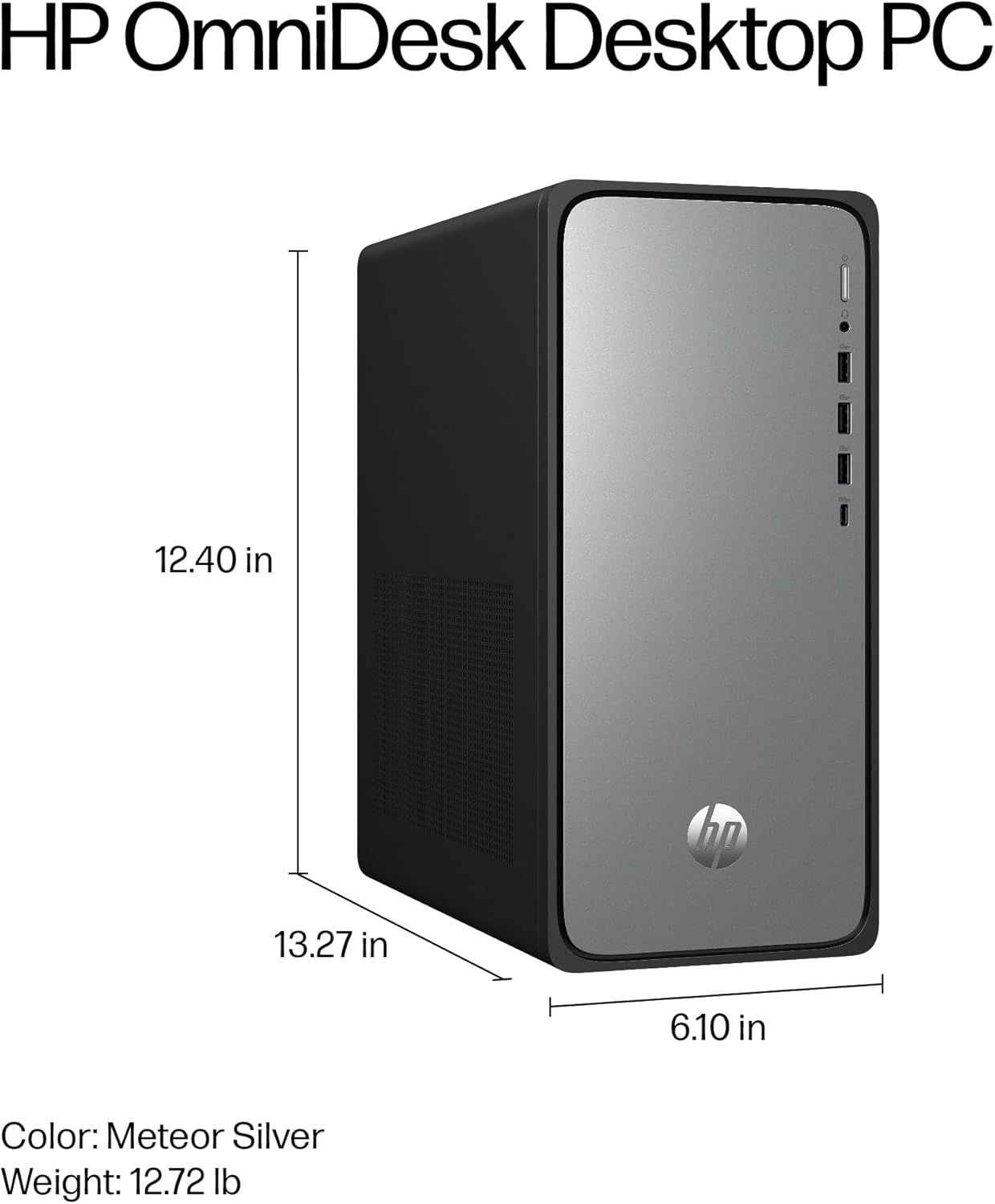
Image: A diagram illustrating the physical dimensions of the HP OmniDesk Desktop PC M02-0010: 13.27 inches (length), 6.10 inches (width), and 12.40 inches (height).
| Feature | Specification |
|---|---|
| Model Number | M02-0010 (B5RK6AA#ABA) |
| Processor | Intel Core i3-14100 (4.7 GHz) |
| RAM | 8 GB DDR5 (4800 MHz) |
| Storage | 512 GB PCIe Gen4 NVMe M.2 SSD |
| Graphics | Intel UHD Graphics 730 (Integrated) |
| Operating System | Windows 11 Home |
| Wireless Connectivity | Wi-Fi 6, Bluetooth 5.4 |
| Ports (Front) | 1x Headphone/microphone combo, 2x USB Type-A 5Gbps, 1x USB Type-C 10Gbps |
| Ports (Rear) | 4x USB 2.0 Type-A, 1x RJ-45, 1x HDMI Out, 1x DisplayPort 1.4 |
| Dimensions (LxWxH) | 13.27 x 6.1 x 12.4 inches |
| Item Weight | 11.49 pounds |
| Color | Meteor silver, jack black chassis |
6. Environmental Information
The HP OmniDesk Desktop PC M02-0010 is designed with environmental sustainability in mind.

Image: The HP OmniDesk Desktop PC M02-0010 shown in a natural setting, accompanied by icons indicating 20% recycled metal, 50% post-consumer recycled plastic, EPEAT Gold with Climate+ certification, and ENERGY STAR certification.
- Constructed with 20% recycled metal and 50% post-consumer recycled plastic.
- EPEAT Gold with Climate+ certified.
- ENERGY STAR certified for energy efficiency.
7. Warranty and Support
Your HP OmniDesk Desktop PC M02-0010 comes with comprehensive support and warranty coverage.
- Hardware Warranty: 1-year limited hardware warranty.
- Technical Support: 1-year limited technical support for software and initial setup.
- MyHP Application: Utilize the MyHP application to customize, optimize, and secure your device. It provides tips, easy-to-access settings, and helpful messages to maintain smooth operation.
For further assistance, please refer to the official HP support website or contact HP customer service.