
Introduction
This manual provides detailed instructions for the installation, operation, and maintenance of your Jzones V630 4K Triple Dash Cam. Please read this manual thoroughly before using the product to ensure proper functionality and safety. This dash cam is designed to record video footage from the front, cabin, and rear of your vehicle, offering comprehensive coverage for your driving and parking needs.
Package Contents
Verify that all items listed below are included in your package. If any items are missing or damaged, please contact customer support.
- Dash Camera Unit (Front & Cabin) x1
- Rear Camera (6M/20ft cable) x1
- 3M Stickers x4
- Electrostatic Films x6
- Single USB Car Charger x1
- USB Type-C Power Cable (3.5M/12ft) x1
- 64GB Storage Card x1
- Cable Clips x5
- Pry Tool x1
- User Manual x1

Image: All components included in the Jzones V630 Dash Cam package.
Product Overview
The Jzones V630 is a high-performance triple-channel dash camera system designed for comprehensive vehicle surveillance. It features:
- Triple Camera Recording: Simultaneous recording from front (4K/3840*2160), cabin (1080P), and rear (1080P) cameras.
- Wide Viewing Angles: 155° front, 130° cabin, and 130° rear for extensive coverage.
- Starvis 2 HDR Night Vision: Enhanced low-light performance with an F1.8 aperture for clear night recordings.
- Built-in GPS: Records crucial driving data including time, speed, direction, longitude, and latitude.
- Wi-Fi & Bluetooth Connectivity: Easy access to footage and settings via the Jzones mobile application.
- G-Sensor: Automatically detects collisions and locks video files to prevent overwriting.
- Loop Recording: Continuously records, overwriting the oldest files when the memory card is full.
- 24-Hour Parking Mode: Provides continuous surveillance when the vehicle is parked (requires hardwire kit, sold separately).
- Included 64GB SD Card: Ready for immediate use.

Image: The Jzones V630 Dash Cam's triple camera system, highlighting 4K front, 1080P cabin, and 1080P rear recording capabilities.
Setup
1. Installation
- Mount the Front Dash Cam: Clean the windshield area where you intend to mount the dash cam. Apply an electrostatic film first, then attach the dash cam using a 3M adhesive sticker. Ensure the camera has a clear view of the road and the cabin. The main unit can be rotated 360 degrees for optimal positioning.
- Install the Rear Camera: Mount the rear camera on the rear windshield using a 3M adhesive sticker. Route the rear camera cable to the main dash cam unit, ensuring it does not obstruct your view or interfere with airbags.
- Connect Power: Plug the USB Type-C power cable into the dash cam and the single USB car charger into your vehicle's cigarette lighter socket. Use the provided cable clips and pry tool to neatly tuck away the cables along the vehicle's interior trim.

Image: Step-by-step installation guide for the Jzones V630 Dash Cam system.
2. Initial Setup
- Insert SD Card: Gently insert the provided 64GB microSD card into the designated slot on the dash cam until it clicks into place. Ensure the card is inserted correctly.
- Power On: Start your vehicle. The dash cam will automatically power on and begin recording.
- Format SD Card: For optimal performance, it is recommended to format the SD card within the dash cam's settings menu upon first use and periodically thereafter. Refer to the 'Operating Instructions' section for menu navigation.
Operating Instructions
1. Basic Recording (Loop Recording)
The dash cam automatically starts recording when powered on. It records video in continuous loops (1, 2, or 3-minute segments, configurable in settings). When the 64GB SD card is full, the oldest unlocked files will be overwritten by new recordings. The included 64GB card supports approximately 3 hours of continuous recording.

Image: Loop recording functionality with a 64GB SD card, indicating recording duration based on card size.
2. G-Sensor Function
The built-in G-Sensor detects sudden impacts or collisions. When activated, it automatically locks the current video file, preventing it from being overwritten by loop recording. This ensures critical incident footage is preserved. The sensitivity of the G-Sensor can be adjusted in the settings.
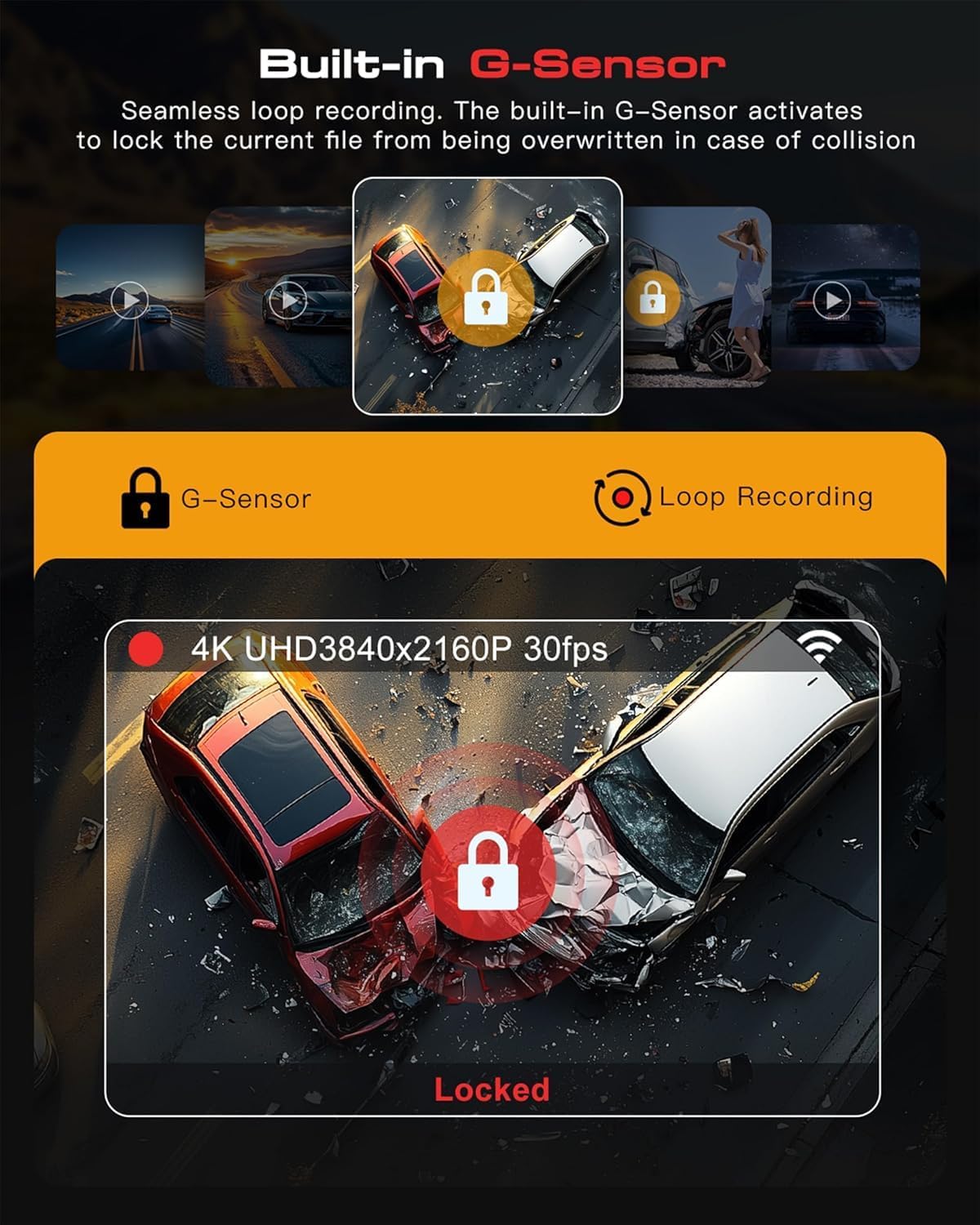
Image: G-Sensor activation during a simulated collision, showing the locked file icon.
3. 24-Hour Parking Mode
When properly configured with a hardwire kit (not included, sold separately), the dash cam can monitor your vehicle for 24 hours even when the engine is off. It detects impacts or motion and automatically records, providing protection against vandalism or hit-and-runs. Ensure the hardwire kit is installed correctly to avoid draining your car battery.

Image: The 24-hour parking mode feature, showing protection against various incidents while parked.
4. GPS Functionality
The built-in GPS module records essential driving data, including your vehicle's time, direction, speed, satellite count, longitude, and latitude. This data can be viewed alongside your video footage using the dedicated Jzones app or compatible GPS player software on a computer, providing valuable evidence in case of an incident.

Image: GPS data displayed with video footage on various devices, showing tracking and playback capabilities.
5. Wi-Fi & App Control
Download the Jzones app from your smartphone's app store. Connect your phone to the dash cam via Wi-Fi or Bluetooth. The app allows you to:
- View live footage from all three cameras.
- Preview recorded videos.
- Download videos directly to your phone.
- Adjust dash cam settings.
- Share videos to social media platforms.

Image: The Jzones mobile application interface for controlling the dash cam and managing footage.
6. Night Vision
Equipped with a Super Starvis 2 HDR Night Vision sensor and a wide F1.8 aperture, the Jzones V630 dash cam delivers excellent low-light performance. This technology enhances clarity and reduces blur, allowing the camera to capture clear details, including license plates, even in challenging low-light conditions.

Image: Enhanced night vision capabilities of the Jzones V630 Dash Cam, demonstrating clear image capture in dark environments.
Maintenance
1. SD Card Management
- Regular Formatting: Format the microSD card every 2-4 weeks to maintain optimal recording performance and prevent data corruption. This can be done through the dash cam's settings menu or via the mobile app.
- Card Replacement: If you experience frequent errors or degraded performance, consider replacing the microSD card. Use high-endurance, Class 10 (U3) microSD cards from reputable brands for reliable operation. The dash cam supports up to 128GB.
2. Cleaning
- Lens Cleaning: Gently wipe the camera lenses with a soft, lint-free cloth to remove dust or smudges. Avoid using abrasive cleaners that could scratch the lens.
- Unit Cleaning: Use a dry or slightly damp cloth to clean the exterior of the dash cam unit. Do not use excessive moisture or immerse the device in water.
Troubleshooting
- Dash Cam Not Powering On:
Ensure the power cable is securely connected to both the dash cam and the car charger. Check if the car charger is properly inserted into the vehicle's cigarette lighter socket and that the socket is receiving power. Test with another power source if possible. - Recording Errors / Freezing:
Format the microSD card. If the issue persists, try a different high-endurance microSD card. Ensure the card is Class 10 (U3) or higher. - Poor Video Quality:
Clean the camera lenses. Ensure the protective film has been removed from the lenses. Check video resolution settings in the menu; ensure it's set to 4K for the front camera. - Wi-Fi / App Connection Issues:
Ensure Wi-Fi is enabled on the dash cam and your smartphone. Restart both the dash cam and your phone. Reinstall the Jzones app if necessary. - Parking Mode Not Working:
Verify that a hardwire kit is correctly installed and connected to a constant power source. Parking mode requires a separate hardwire kit, which is not included in the standard package. - GPS Not Recording Data:
Ensure the dash cam has a clear view of the sky to acquire GPS signals. Check GPS settings in the menu to ensure it is enabled.
Specifications
| Brand | Jzones |
| Model Name | V630 (RM) |
| Video Capture Resolution | Front: 4K (3840x2160p), Cabin: 1080p, Rear: 1080p |
| Connectivity Technology | Bluetooth, Wi-Fi |
| Special Feature | Built-in GPS, G-Sensor, Night Vision |
| Mounting Type | Windshield Mount |
| Control Method | App |
| Frame Rate | 30 FPS |
| Real Viewing Angle | Front: 155°, Cabin: 130°, Rear: 130° |
| Included Memory Card | 64 GB microSD |
| Max Supported Memory | 128 GB microSD |
| Screen Type | LCD or LED (4.9 cm) |
| Battery Type | Lithium-ion |
| Color | Black |
| Item Weight | 698 Grams |
| Dimensions (DxWxH) | 3P x 10l x 14H cm |
Warranty and Support
All Jzones products come with an unconditional 1-year warranty. If you have any questions regarding product operation, usage, or app connectivity, our customer support team is available 24/7 to assist you. Please refer to the contact information provided in your product packaging or visit the official Jzones website for support.


