
1. Introduction
This manual provides comprehensive instructions for the installation, operation, and maintenance of your Yakiter 1200Mbps Dual-Band WiFi Repeater/Extender. Please read this manual carefully before using the device to ensure optimal performance and to prevent any damage.
2. Product Overview
The Yakiter 1200Mbps Dual-Band WiFi Repeater/Extender is designed to expand your existing WiFi coverage, eliminate dead zones, and provide stable internet access throughout your home or office. It supports both 2.4GHz and 5GHz bands for versatile connectivity.
2.1 Key Features
- Extended Signal Coverage: Boosts WiFi coverage up to 7000 square feet, eliminating signal dead zones in large homes, villas, and duplexes.
- Dual-Band Technology: Supports 2.4GHz (up to 300Mbps) and 5GHz (up to 867Mbps) bands for high-speed connections. Prioritize 5GHz for optimal performance.
- Easy Configuration: Features a WPS button for one-click setup with compatible routers and an Ethernet port for wired connections.
- Enhanced Security: Supports WEP and WPA/WPA2 wireless security protocols to protect your network and data.
- High Compatibility: Compatible with 99% of routers and gateways on the market, connecting up to 52 devices simultaneously.
2.2 Device Components
Familiarize yourself with the main components of your WiFi Repeater:

Image: Front view of the Yakiter WiFi Repeater, showing the Extender, 5G, 2.4G, and Power LED indicators, along with the WPS button. The device is plugged into a wall outlet.
- Power LED: Indicates power status.
- 2.4G LED: Indicates 2.4GHz band activity.
- 5G LED: Indicates 5GHz band activity.
- Extender LED: Indicates repeater mode status.
- WPS Button: For quick setup with WPS-enabled routers.
- Ethernet Port: For wired connections.
- Antennas: Four high-gain antennas for signal transmission and reception.
3. Setup Instructions
There are two primary methods for setting up your Yakiter WiFi Repeater: using the WPS button or through a web browser.
3.1 WPS Quick Setup
The WPS (Wi-Fi Protected Setup) method allows for a quick and easy connection to your existing router.
- Power On: Plug the Yakiter WiFi Repeater into a power outlet near your main router. Wait for the Power LED to light up.
- Activate WPS on Router: Press the WPS button on your main router. Refer to your router's manual for the exact location and timing.
- Activate WPS on Repeater: Within two minutes of pressing the WPS button on your router, press the WPS button on the Yakiter WiFi Repeater. The Extender LED on the repeater should start blinking.
- Connection Confirmation: Wait for the Extender LED on the repeater to turn solid, indicating a successful connection. This may take a few moments.
- Relocate Repeater: Once connected, unplug the repeater and move it to a location halfway between your router and the WiFi dead zone. Ensure the Extender LED remains solid, indicating a good signal from the router.
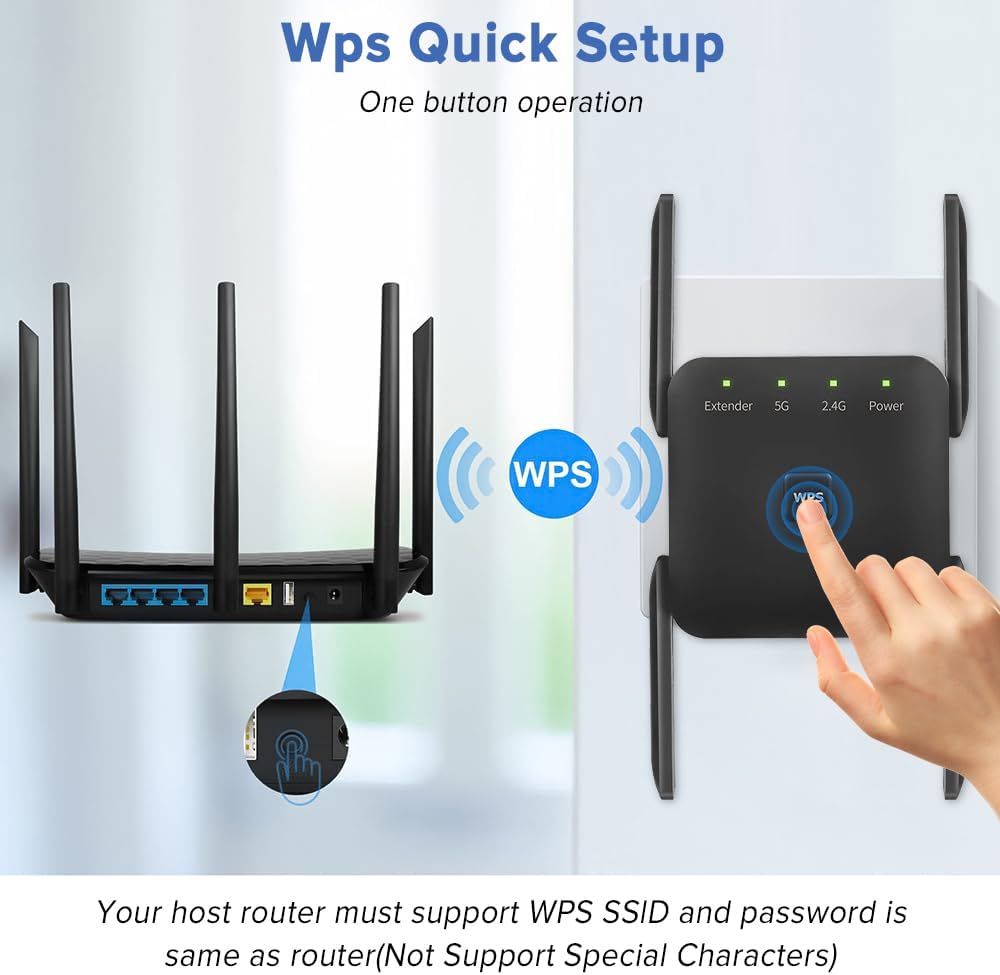
Image: Illustration of the WPS quick setup, demonstrating pressing the WPS button on both the main router and the Yakiter WiFi Repeater to establish a connection. Your host router must support WPS, and the SSID/password should not contain special characters.
Note: Your host router must support WPS. If your router's SSID or password contains special characters, the WPS method may not work. In such cases, use the web browser setup method.
3.2 Web Browser Setup (Manual Configuration)
If WPS is not available or fails, you can configure the repeater via a web browser.
- Power On: Plug the Yakiter WiFi Repeater into a power outlet near your main router.
- Connect to Repeater's WiFi: On your computer or smartphone, connect to the WiFi network broadcast by the repeater (e.g., "Yakiter_EXT" or similar, without a password).
- Access Setup Page: Open a web browser and enter the default IP address or domain name (usually found on a sticker on the device or in the quick start guide, e.g.,
192.168.1.1orrepeater.net). - Login: Enter the default username and password (e.g., "admin" for both).
- Select Repeater Mode: Follow the on-screen instructions to select "Repeater Mode" or "Extender Mode."
- Scan for Networks: The repeater will scan for available WiFi networks. Select your main router's 2.4GHz and 5GHz networks.
- Enter Passwords: Enter the WiFi passwords for your main router's networks. You can choose to keep the same SSID or create new ones for the extended networks.
- Apply Settings: Save the settings and wait for the repeater to restart.
- Relocate Repeater: Once configured, unplug the repeater and move it to an optimal location.
4. Operating Modes
The Yakiter WiFi Repeater supports two main operating modes:
4.1 Wireless to Wireless (Repeater Mode)
In this mode, the device extends the range of your existing wireless network. It receives the WiFi signal from your main router and re-broadcasts it, expanding coverage to areas with weak or no signal.

Image: Diagram showing the "Wireless to Wireless" mode where the repeater connects wirelessly to the router and extends the signal to devices like laptops, phones, and iPads. This expands the wireless range and enhances signal strength throughout the home.
4.2 Wireless to Wired (Access Point Mode / Client Mode)
When connected to your router wirelessly, the repeater's Ethernet port can be used to provide a wired internet connection to devices that do not have WiFi capabilities, such as desktop computers or smart TVs.
Image: Diagram showing the "Wireless to Wired" mode where the repeater connects wirelessly to the router and provides a wired connection via its Ethernet port to devices like Smart TVs and desktop computers.
5. Extending WiFi Coverage
The Yakiter WiFi Repeater is designed to overcome obstacles and extend your network's reach.

Image: An overhead view of a house illustrating how the Yakiter WiFi Repeater extends the router's wireless range (yellow area) into previously uncovered areas (blue area), eliminating WiFi dead zones.
The device's dual-band capability and wall penetration features help maintain signal strength even through common household barriers.

Image: Diagram showing the 2.4G and 5.0G wall penetration capabilities of the Yakiter WiFi Repeater, indicating its ability to transmit signals through walls, maximizing data transmission and reducing loss.
The repeater is suitable for various application scenarios, ensuring connectivity in different rooms and environments.

Image: A collage depicting various application scenarios for the Yakiter WiFi Repeater, including living rooms, bedrooms, balconies, offices, and other areas where extended WiFi coverage is beneficial.
6. Safety and Security
The Yakiter WiFi Repeater incorporates security features to protect your network:
- Supports WEP, WPA, and WPA2 wireless security protocols.
- Helps prevent unauthorized access to your network.
- Protects your important data and privacy.
Always use strong, unique passwords for your WiFi network to maximize security.
7. Maintenance
To ensure the longevity and optimal performance of your WiFi Repeater:
- Placement: Place the device in a well-ventilated area, away from direct sunlight, heat sources, and moisture.
- Cleaning: Use a soft, dry cloth to clean the device. Do not use liquid cleaners or aerosols.
- Firmware Updates: Periodically check the manufacturer's website for firmware updates to ensure the best performance and security.
- Reset: If the device is not functioning correctly, you may perform a factory reset by pressing and holding the reset button (usually a small pinhole) for about 10 seconds while the device is powered on. This will revert all settings to default.
8. Specifications
| Feature | Detail |
|---|---|
| Brand | Yakiter |
| Model | 1200Mbps Dual-Band WiFi Repeater |
| Wireless Standard | 802.11ac |
| Data Transfer Rate | Up to 867 Mbps (5GHz), Up to 300 Mbps (2.4GHz) |
| Frequency Bands | 2.4GHz and 5GHz |
| Special Feature | One-touch setup (WPS) |
| Compatible Devices | Laptop, Smartphone, Tablet, Smart TV, Desktop |
| Connectivity | Wireless, Ethernet Port |
| Dimensions | 8.6 x 7.9 x 7.6 cm |
| Weight | 130 g |
9. Troubleshooting
If you encounter issues with your Yakiter WiFi Repeater, refer to the following common problems and solutions:
- No Power / LEDs Off:
- Ensure the repeater is securely plugged into a working power outlet.
- Check if the power outlet itself is functional.
- Cannot Connect to Repeater's WiFi:
- Ensure the repeater is powered on and within range of your device.
- If you changed the repeater's SSID during setup, connect to the new network name.
- Try resetting the repeater to factory defaults and reconfiguring.
- Repeater Not Extending Signal / Weak Signal:
- Placement: Relocate the repeater to a position halfway between your main router and the desired coverage area. Ensure the Extender LED indicates a strong connection to the router. Avoid placing it near large metal objects, microwaves, or thick walls.
- WPS Issues: If WPS setup failed, try the web browser setup method. Ensure your router's SSID and password do not contain special characters if using WPS.
- Router Compatibility: While highly compatible, some older routers might have specific configurations. Ensure your router's firmware is up to date.
- Interference: Other electronic devices can cause interference. Try moving the repeater away from such devices.
- Slow Internet Speed Through Repeater:
- Placement: The repeater might be too far from the main router, receiving a weak signal. Move it closer.
- Band Selection: For higher speeds, ensure your devices are connecting to the 5GHz band of the repeater, if available and supported by your devices.
- Network Congestion: Too many devices on the network or heavy internet usage can slow down speeds.
- Incorrect Plug Type (UK Plug):
- The product is specified with a UK plug. If you are in a region that uses a different plug standard (e.g., Mexico), you will need a suitable plug adapter (not included) to use the device.
10. Warranty and Support
For warranty information and technical support, please refer to the documentation included with your purchase or visit the official Yakiter website. Keep your purchase receipt as proof of purchase for warranty claims.
If you require further assistance, please contact Yakiter customer support.