
Bextgoo R90-Pro
Bextgoo 4G LTE Cellular Security Camera User Manual
Model: R90-Pro
1. Introduction
This manual provides comprehensive instructions for the setup, operation, and maintenance of your Bextgoo 4G LTE Cellular Security Camera, Model R90-Pro. This camera is designed for remote monitoring in locations without Wi-Fi access, utilizing 4G LTE cellular networks. It features a 5200mAh battery, HD video recording, 160° wide-angle view, AI motion detection, and night vision capabilities.
2. Package Contents
Please verify that all items are present in your package:
- Bextgoo 4G LTE Cellular Security Camera (Model R90-Pro)
- Mounting Bracket
- 4G SIM Card (with 300MB free data trial)
- Screw Pack for mounting
- USB-C Charging Cable
- User Manual (this document)

Image: The Bextgoo 4G LTE Cellular Security Camera, showing the device itself, the included 4G SIM card, and the mounting bracket. This illustrates the primary components included in the product package.
3. Product Specifications
| Feature | Specification |
|---|---|
| Model Name | R90-Pro |
| Connectivity | 4G LTE Cellular (No Wi-Fi required) |
| Battery Capacity | 5200mAh Lithium Ion (included) |
| Video Resolution | 2K HD (1080P HD for live view/recording) |
| Viewing Angle | 160 Degrees |
| Digital Zoom | 10x |
| Night Vision Range | Up to 65 feet (20 meters) / 33 feet (10 meters) with IR lights |
| Motion Detection | AI Motion Detection (filters people, vehicles, pets) |
| Local Storage | Micro SD Card (up to 128GB, not included) |
| Cloud Storage | 30-day free trial available |
| Dimensions (L x W x H) | 2.16 x 1.65 x 1.49 inches |
| Weight | 8.1 ounces |
| Power Source | Battery Powered (5V) |
| Indoor/Outdoor Usage | Indoor, Outdoor |
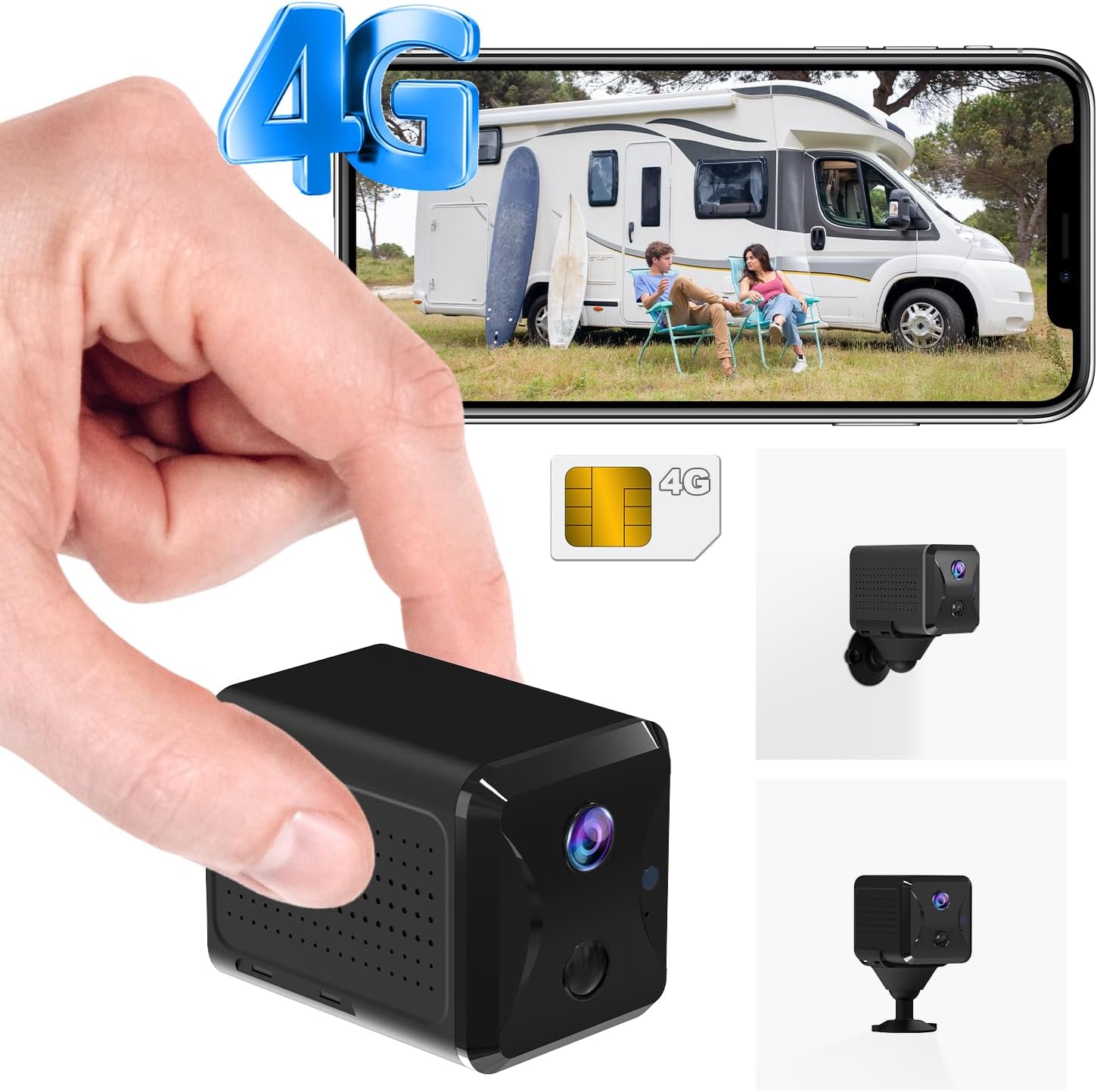
Image: The Bextgoo 4G LTE Cellular Security Camera, highlighting its compact design and 4G connectivity feature, suitable for various environments.
4. Setup Guide
4.1 Charging the Camera
Before initial use, fully charge the camera using the provided USB-C cable. Connect the cable to the camera's USB-C port and a standard 5V USB power adapter (not included). The charging indicator light will show the charging status.
4.2 Installing the SIM Card
The camera comes with a prepaid 4G SIM card. To install:
- Locate the SIM card slot on the camera.
- Insert the provided 4G SIM card into the slot with the gold contacts facing down and the notched corner aligned correctly. Push until it clicks into place.
- Ensure the SIM card is securely seated.
The camera is compatible with SIM cards from various carriers such as AT&T, T-Mobile, Verizon, MetroPCS, C Spire, and ClearTalk. If using your own SIM card, ensure it is a 4G LTE data SIM.

Image: A close-up view of the Bextgoo camera, illustrating the correct method for inserting the 4G SIM card into its designated slot.
4.3 App Installation and Pairing
The camera operates via the UBox app. Follow these steps to set up:
- Download the UBox App: Search for "UBox" in your smartphone's app store (iOS App Store or Google Play Store) and install it.
- Power On the Camera: Turn on the camera using the ON/OFF switch. Wait for the indicator light to turn solid blue, indicating it's ready for connection.
- Add Device in App: Open the UBox app, create an account or log in. Tap "Add Device" or the "+" icon.
- Scan Setup Code: The app will prompt you to scan a QR code. Locate the setup QR code on the camera (usually on the back or bottom) and scan it using your phone's camera through the app.
- Follow On-Screen Prompts: Complete the pairing process by following any additional instructions provided by the UBox app. This may include naming your camera and setting initial preferences.

Image: A visual guide demonstrating the four simple steps for setting up the Bextgoo camera using the UBox mobile application, from downloading the app to scanning the setup code.
5. Operating Instructions
5.1 Live View and Remote Monitoring
Once connected, you can access the live video feed from your camera through the UBox app. This allows for real-time monitoring from any location with cellular service.
- Open the UBox app and select your camera from the device list.
- The live feed will display. You can use the digital zoom feature (10x) to view details.
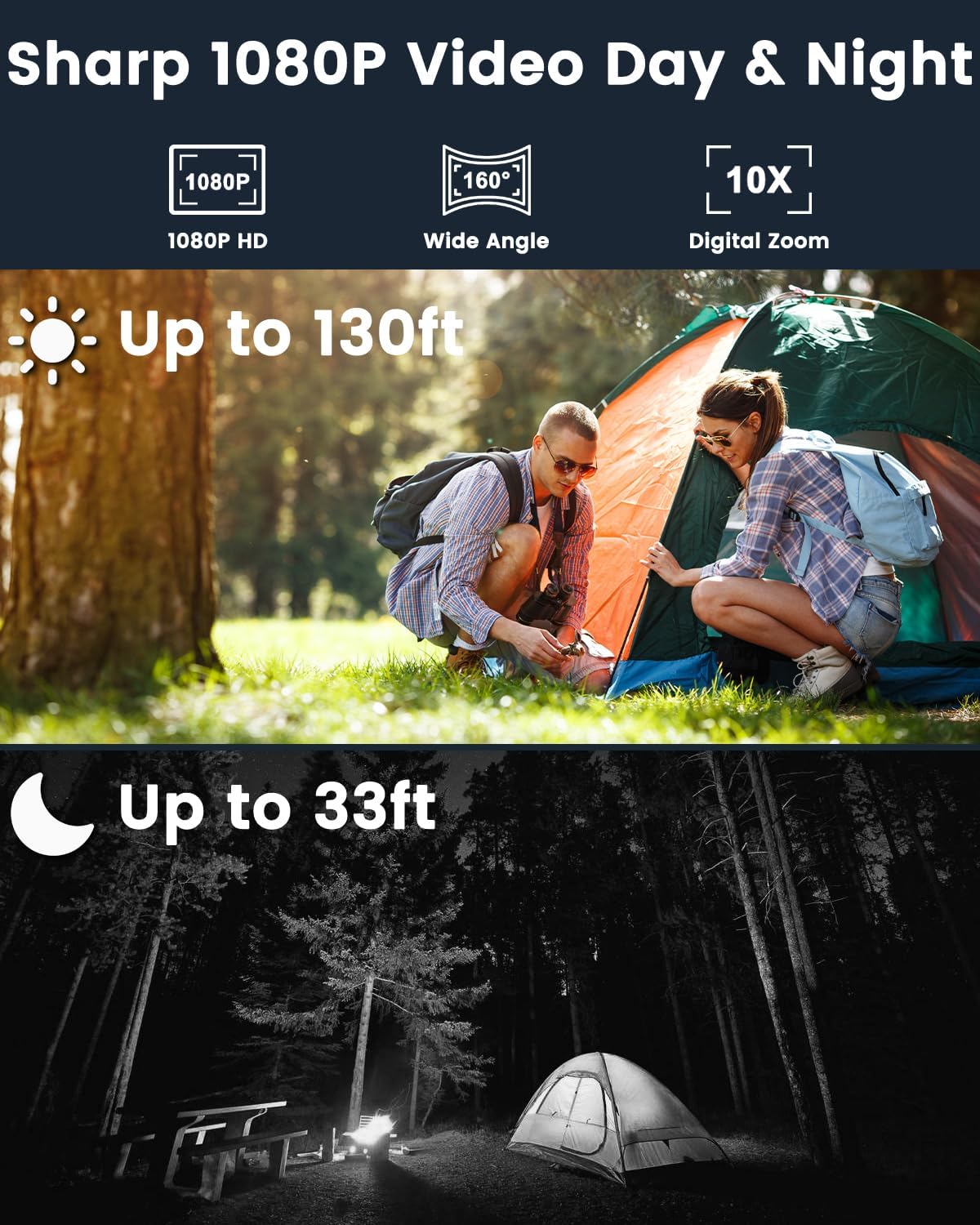
Image: A person viewing the live feed from the Bextgoo camera on their smartphone, demonstrating remote viewing capabilities in an outdoor setting.
5.2 Motion Detection and Alerts
The camera features advanced AI motion detection to minimize false alarms. When motion is detected, you will receive instant notifications on your smartphone.
- Customizing Alerts: Within the UBox app settings for your camera, you can adjust motion detection sensitivity and set specific time periods for alerts. This helps in receiving notifications only for relevant events.
- Event Recording: Upon detection, the camera will automatically record video clips.

Image: A smartphone screen showing notifications from the UBox app, indicating activity detected by the security camera, with a visual representation of motion detection in action.
5.3 Night Vision
The camera is equipped with 6 upgraded IR lights for enhanced night vision, providing clear visibility up to 10 meters (33 feet) in low-light conditions.

Image: A split image demonstrating the camera's performance in both daytime (up to 130ft) and nighttime (up to 33ft) conditions, highlighting its clear HD video capabilities in varying light.
5.4 Storage Options
The camera supports two storage methods for recorded video:
- Local Storage (Micro SD Card): Insert a Micro SD card (up to 128GB, not included) into the camera's SD card slot. Recordings will be saved directly to the card. When the card is full, older recordings will be automatically overwritten.
- Cloud Storage: A 30-day free trial of cloud storage is available. This option provides secure, encrypted storage for your video clips. After the trial, a subscription may be required.

Image: The Bextgoo camera with a Micro SD card being inserted, alongside an icon representing cloud storage, illustrating the flexible storage options available.
5.5 Video Playback
Recorded videos can be reviewed through the UBox app. You can access both local (SD card) and cloud-stored footage.
- Navigate to the playback section within the app for your camera.
- Select the desired date and time to review recorded events.

Image: A smartphone displaying the video playback interface of the UBox app, allowing users to review recorded events and pinpoint key moments.
5.6 Sharing Device Access
You can share access to your camera with family members or trusted individuals through the UBox app, allowing multiple users to view the live feed and receive alerts.

Image: Multiple individuals viewing the camera feed on their smartphones, demonstrating the unlimited device sharing feature for family viewing.
6. Installation and Placement
The Bextgoo camera is designed for versatile placement, suitable for both indoor and outdoor use. It can be mounted on ceilings, walls, or placed on tabletops.
- Mounting: Use the provided mounting bracket and screw pack to secure the camera to a desired surface. Ensure the mounting surface is stable and can support the camera's weight.
- Placement Considerations:
- Choose a location with good 4G LTE signal strength for optimal performance.
- Position the camera to cover the desired monitoring area, taking advantage of its 160° wide-angle view.
- For outdoor use, consider placing the camera in a sheltered area to protect it from extreme weather, although it is rated for outdoor use.

Image: The Bextgoo camera shown in different installation environments, including tabletop, wall-mounted, and ceiling-mounted positions, demonstrating its adaptability.

Image: Illustrations of various environments where the Bextgoo 4G LTE camera can be used, such as vehicles, motorhomes, camping sites, and remote cabins, highlighting its versatility without needing Wi-Fi.
7. Maintenance
7.1 Battery Management
The camera's 5200mAh battery provides extended usage. To maximize battery life:
- Fully charge the camera before extended periods of use.
- Reduce motion detection sensitivity or frequency if continuous recording is not required, as this consumes more power.
- Avoid exposing the camera to extreme temperatures, which can affect battery performance.
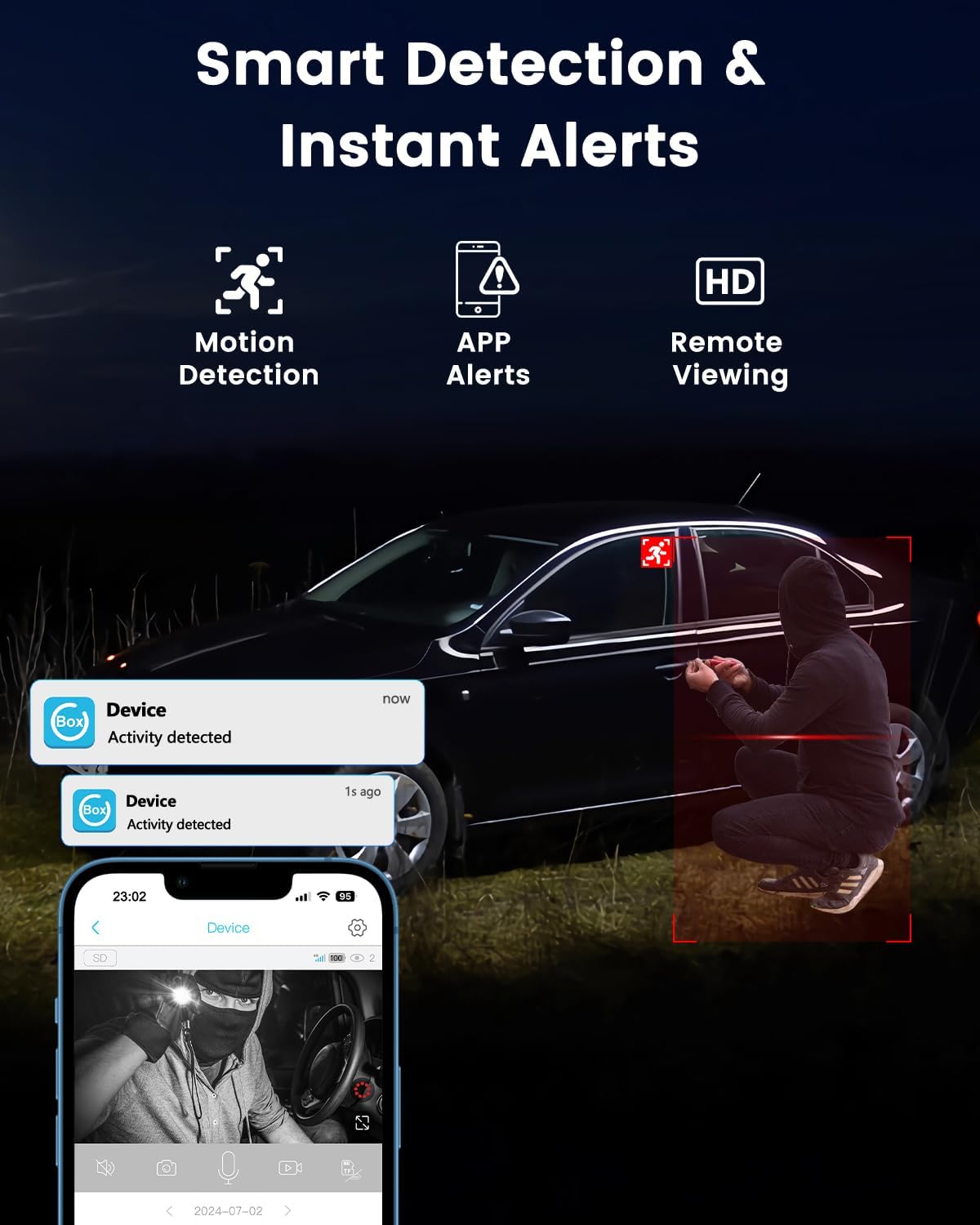
Image: An illustration comparing the Bextgoo camera's 5200mAh battery capacity to smaller alternatives, emphasizing its longer battery life.
7.2 Cleaning
To ensure clear image quality, periodically clean the camera lens and body.
- Use a soft, dry cloth to wipe the lens. Avoid abrasive materials that could scratch the surface.
- For the camera body, a slightly damp cloth can be used, but ensure no moisture enters the ports.
7.3 Firmware Updates
Periodically check the UBox app for available firmware updates. Keeping your camera's firmware updated ensures optimal performance, new features, and security enhancements.
8. Troubleshooting
| Problem | Possible Cause | Solution |
|---|---|---|
| Camera not connecting to app. | Low battery, incorrect SIM card insertion, no 4G signal, app issue. |
|
| No motion detection alerts. | Sensitivity too low, incorrect schedule, app notifications disabled. |
|
| Poor video quality. | Dirty lens, poor cellular signal, low light conditions. |
|
| Battery drains quickly. | Frequent motion detection, continuous live view, weak signal. |
|
9. Warranty and Support
Bextgoo is committed to providing high-quality security products. For warranty information, technical support, or any inquiries regarding your Bextgoo 4G LTE Cellular Security Camera, please refer to the following:
- Manufacturer: Bextgoo
- Brand Store: Visit the Bextgoo Store on Amazon
- Customer Service: Please contact Bextgoo customer support through the contact information provided on the official Bextgoo website or via your purchase platform for assistance.
Bextgoo states: "Every camera will be strictly tested and checked before shipment. With the advanced encryption technology, all data are securely stored and only you can access."
Related documentsR90-Pro

Ask a question about this manual
Ask about setup, troubleshooting, compatibility, parts, safety, or missing instructions. Manuals+ will review the question and use this page’s manual context to help answer it.