
Product Overview
The MCHOSE V9 PRO Wireless Gaming Headset delivers an immersive audio experience with 7.1 Surround Sound and powerful 53mm Neodymium Drivers. Designed for comfort during extended gaming sessions, it features a lightweight build and soft, breathable ear cushions. With Tri-Mode Connectivity (2.4GHz wireless, BT wireless, and wired), it offers versatile compatibility across multiple platforms including PC, Laptop, Switch, PS5, PS4, Mobile Phone, and Tablet. The headset also boasts an AI Noise-Canceling Microphone for clear communication and customizable audio settings via the MCHOSE HUB software.
What's in the Box
Your MCHOSE V9 PRO Wireless Gaming Headset package includes the following components:
- Headset
- User Manual
- Handy Card
- USB-C Cable
- 2.4GHz Receiver
- Foam Windscreen (pre-installed on microphone)

Figure 1: Package Contents of the V9 PRO Headset.
Headset Controls and Indicators
Familiarize yourself with the controls and indicators on your V9 PRO headset for optimal use.

Figure 2: Headset Controls Layout.
| Feature | Action/Indicator | Description |
|---|---|---|
| Indicator Lights | BT Waiting for Connection | Red and blue lights flash alternately |
| 2.4G Waiting for Connection | Red and green lights flash alternately | |
| Charging | Red light stays on | |
| Fully Charged | Blue light stays on | |
| Power Button | Long press for about 3s | Power On/Off |
| Double-click | Connection Mode Switch | |
| Triple-click | Game/Music Mode Switch | |
| Single click | Play/Pause, Answer/End Call | |
| Long press for about 1.5s | Reject Call | |
| Microphone Button | Single click | Microphone On/Off |
| Volume Wheel | Slide upwards | Volume + |
| Slide downwards | Volume - |
Setup and Connectivity
The V9 PRO headset offers versatile connectivity options for various devices.
2.4GHz Wireless Connection (TOPSPEED Low Latency)
- Take out the 2.4GHz USB-A & Type-C receiver from the headset.
- Plug the 2.4GHz receiver into an available USB port on your PC, Laptop, PS5, PS4, or Switch dock. For mobile phones/tablets, use the Type-C adapter if needed.
- Press and hold the Power Button on the headset for approximately 3 seconds to power it on.
- Double-click the Power Button to switch to 2.4GHz wireless mode. The indicator light will flash red and green alternately while waiting for connection, then turn green when connected.

Figure 3: TOPSPEED Wireless Connectivity via 2.4GHz Receiver.
Bluetooth (BT 5.3) Connection
- Press and hold the Power Button on the headset for approximately 3 seconds to power it on.
- Double-click the Power Button to switch to Bluetooth mode. The indicator light will flash red and blue alternately while waiting for connection.
- On your device (Mobile Phone, Tablet, PC with Bluetooth), search for "MCHOSE V9 PRO" in the Bluetooth settings and select it to pair. The indicator light will turn blue when connected.
Wired Connection (3.5mm Audio Cable)
- Connect the included 3.5mm audio cable to the headset's 3.5mm port.
- Plug the other end of the 3.5mm audio cable into the audio jack of your device (PC, Laptop, PS5, PS4, Switch, Mobile Phone, Tablet).
- The headset will automatically switch to wired mode.

Figure 4: Multi-Platform Compatibility.
Microphone Installation
- Locate the microphone port on the left earcup of the headset.
- Align the microphone's 3.5mm jack with the port and firmly insert it until it clicks into place.
- Adjust the flexible microphone boom to your preferred speaking position. The microphone light will indicate it is active.
Video Guide: How to Set Up MCHOSE V9 PRO Wireless Gaming Headset
Video 1: This video demonstrates the step-by-step process of setting up your MCHOSE V9 PRO Wireless Gaming Headset, including connecting the receiver and powering on the device.
Advanced Audio Customization (MCHOSE HUB Software)
Unlock the full potential of your V9 PRO headset by installing the MCHOSE HUB software. This software allows for precise control over audio settings, including equalizer adjustments, surround sound, and microphone enhancements.
Software Installation
- Ensure your 2.4GHz receiver is plugged into your computer.
- Visit the official MCHOSE website (mchose.store).
- Navigate to the "Support" section and click on "Drivers & Firmwares".
- Locate and download the "V9 / V9 Pro Driver".
- Install the downloaded software on your computer.
Video Guide: How to Connect the MCHOSE Web Driver and Desktop Driver
Video 2: This video provides instructions on how to download and connect the MCHOSE drivers for your headset, enabling advanced customization options.
Equalizer Settings
The equalizer allows you to fine-tune the audio output to your preference, enhancing specific frequencies for gaming or music.
- Open the MCHOSE HUB software.
- Right-click on "Speakers" and select "Equalizer".
- Enable the equalizer and adjust the frequency bands as needed.
- You can save your custom settings as a preset or choose from official presets like Dance, Rap, Metal, Jazz, etc.

Figure 5: Audio Equalizer Customization Interface.
7.1 Surround Sound
Enable 7.1 Surround Sound for an immersive audio experience, crucial for directional audio in FPS games.
- In the MCHOSE HUB software, right-click on "Speakers" and select "Xear Surround Headphone".
- Enable Xear Surround and choose between "Music/Gaming mode" or "Movie mode".
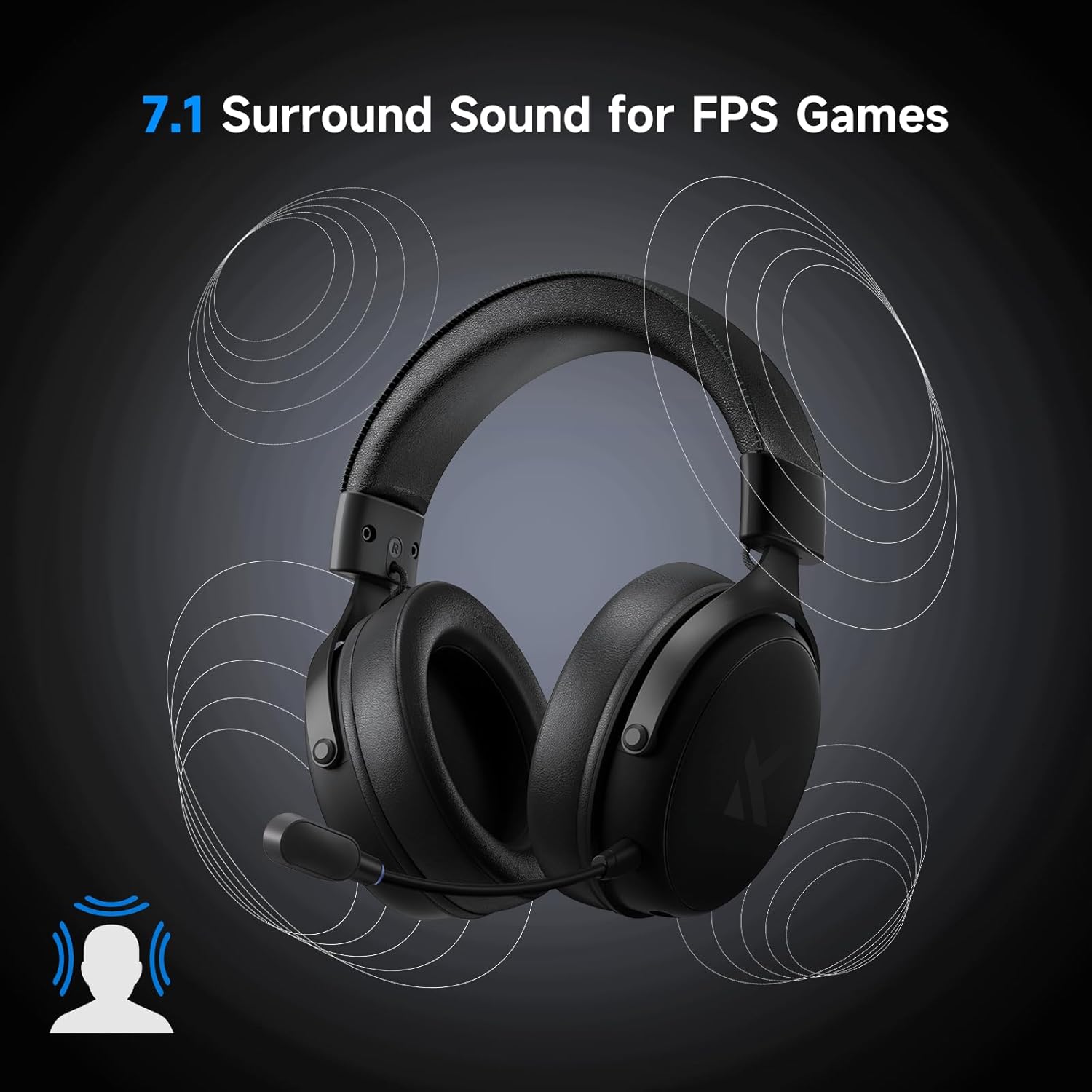
Figure 6: 7.1 Surround Sound Feature.
Microphone Enhancements (AI Noise-Canceling)
The AI Noise-Canceling microphone effectively filters out background noise for crystal-clear communication.
- In the MCHOSE HUB software, right-click on "Mic" and select "AI NoiseReduction".
- Enable AI NoiseReduction for improved voice clarity.
- You can also explore "Xear Magic Voice" to change your voice effect output.
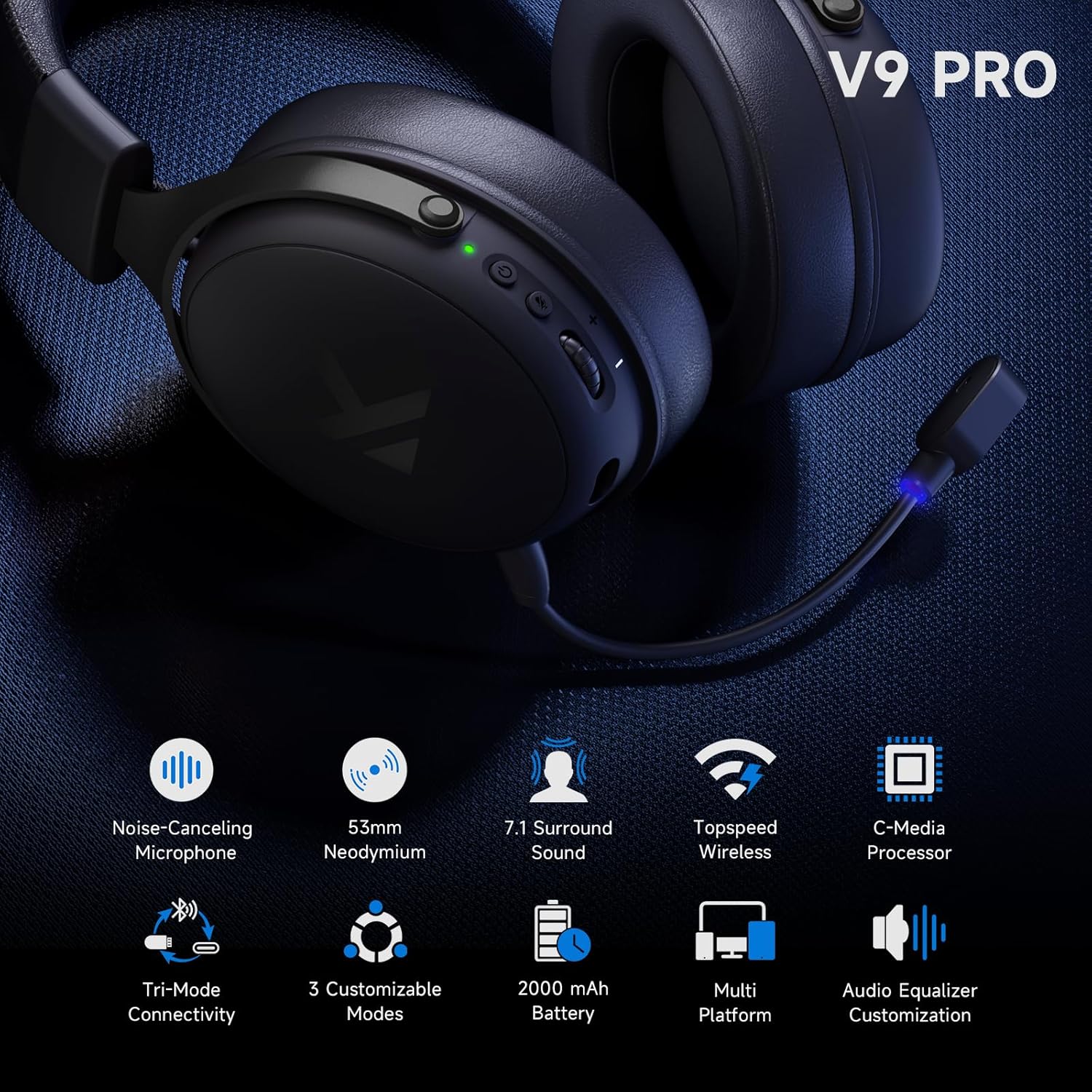
Figure 7: AI Noise-Canceling Microphone.
Battery and Charging
The V9 PRO headset is equipped with a long-lasting battery for extended use.
- Battery Life: Up to 250 hours of playtime on a single charge.
- Charging: Connect the headset to a power source using the provided USB-C cable. The indicator light will be red during charging and turn blue when fully charged.
Figure 8: Extended Battery Life and Lightweight Design.
Specifications
| Feature | Detail |
|---|---|
| Model Name | V9 Pro |
| Connectivity Technology | Wireless, Wired, BT 5.0 |
| Wireless Communication Technology | Bluetooth, Wi-Fi (2.4GHz) |
| Headphones Jack | 3.5 mm Jack |
| Compatible Devices | PC, Laptop, Switch, PS5, PS4, Mobile Phone, Tablet |
| Audio Driver Type | Balanced Armature Driver (53mm Neodymium Drivers) |
| Audio Latency | 15 Milliseconds |
| Battery Life | Up to 250 Hours |
| Bluetooth Version | 5.1 |
| Bluetooth Range | 40 Meters |
| Frequency Range | 20 Hz - 20,000 Hz |
| Microphone | AI Noise-Canceling, Detachable |
| Earpiece Shape | Over Ear |
| Item Weight | 0.60 lbs (275g) |
| Product Dimensions | 7.8 x 7 x 4 inches |
| Material | Polyurethane (PU), Plastic, Metal |
| Noise Control | Passive Noise Cancellation |
Troubleshooting
If you encounter any issues with your MCHOSE V9 PRO headset, please refer to the following common troubleshooting steps:
- No Sound/Low Volume:
- Ensure the headset is powered on and fully charged.
- Check the volume wheel on the headset and your device's volume settings.
- Verify the correct audio output device is selected in your computer's sound settings.
- For 2.4GHz wireless, ensure the receiver is properly plugged in and the headset is in 2.4GHz mode (green indicator light).
- For Bluetooth, ensure the headset is paired and connected (blue indicator light).
- For wired connection, ensure the 3.5mm cable is fully inserted into both the headset and your device.
- Microphone Not Working:
- Ensure the microphone is securely plugged into the headset.
- Single-click the microphone button on the headset to ensure it is not muted (check microphone light).
- Check your device's sound settings to ensure the correct microphone input device is selected and its volume is not muted.
- If using the MCHOSE HUB software, check microphone settings and ensure AI NoiseReduction is not overly aggressive if experiencing voice cut-outs.
- Connection Issues (2.4GHz/Bluetooth):
- Ensure the headset is within the effective wireless range (40 meters for Bluetooth).
- Try restarting both the headset and the connected device.
- For Bluetooth, try unpairing and re-pairing the headset.
- Avoid strong electromagnetic interference sources.
- Software/Driver Issues:
- Ensure you have downloaded and installed the correct driver from the official MCHOSE website.
- Restart your computer after driver installation.
- If issues persist, try reinstalling the MCHOSE HUB software.
Maintenance and Care
To ensure the longevity and optimal performance of your MCHOSE V9 PRO headset, follow these maintenance guidelines:
- Cleaning: Use a soft, dry cloth to clean the headset. Avoid using harsh chemicals or abrasive materials.
- Storage: Store the headset in a cool, dry place away from direct sunlight and extreme temperatures.
- Handling: Avoid dropping the headset or subjecting it to strong impacts. Do not pull on the cables excessively.
- Battery Care: For optimal battery life, avoid fully discharging the headset frequently. Charge it regularly, even if not in use for extended periods.
Warranty and Support
MCHOSE products are designed for reliability and performance. For warranty information and technical support, please refer to the following:
- Warranty: Please refer to the warranty card included in your product packaging or visit the official MCHOSE website for detailed warranty terms and conditions.
- Customer Support: For any technical assistance, troubleshooting, or product inquiries, please visit the MCHOSE Official Website Support Page or contact their customer service as per the details provided on their website.