
Walfront WALFRONTeci5nubfgx
Walfront 3D Printer Motherboard 32 Bit for Anet ET5X Instruction Manual
Model: WALFRONTeci5nubfgx
1. Introduction
This manual provides detailed instructions for the installation, setup, operation, and maintenance of the Walfront 32-bit 3D Printer Motherboard, specifically designed for the Anet ET5X 3D printer. Please read this manual thoroughly before using the product to ensure proper function and safety.
2. Safety Information
- Always disconnect power to the 3D printer before installing or removing the motherboard.
- Handle the motherboard by its edges to avoid electrostatic discharge (ESD) damage to components.
- Ensure proper grounding during installation.
- Verify all connections are secure and correctly oriented before applying power. Incorrect wiring can cause damage to the motherboard or other components.
- Operate the 3D printer in a well-ventilated area.
- Do not expose the motherboard to moisture or extreme temperatures.
3. Product Overview
The Walfront 32-bit 3D Printer Motherboard is an advanced control board for the Anet ET5X, featuring a powerful STM32F407 microprocessor and integrated A4988 motor drivers. It is designed for enhanced performance, reliability, and ease of use.
3.1 Key Features
- Microprocessor: STM32F407 (32-bit)
- Motor Driver: Integrated A4988 for precise stepper motor control.
- Input Voltage: Wide range of 8-35V.
- Thermal Management: Two-layer PCB design with high-efficiency MOSFETs for optimized heat dissipation.
- Safety Features: Protection against overcurrent, overload, and overheating.
- Printing Modes: Supports offline and online printing.
- Advanced Functions: Power outage recovery and filament runout detection.
- Firmware Update: Via memory card or USB flash drive.
- Compatibility: Specifically designed for Anet ET5X 3D printers.
3.2 Optimized Heat Dissipation
The motherboard features a two-layer PCB design and high-efficiency MOSFETs to ensure excellent heat dissipation, which is crucial for stable long-term operation and preventing overheating.

Figure 1: Motherboard design emphasizing optimized heat dissipation for reliable performance.
3.3 Motherboard Layout and Dimensions
Below is an image illustrating the overall dimensions of the motherboard.
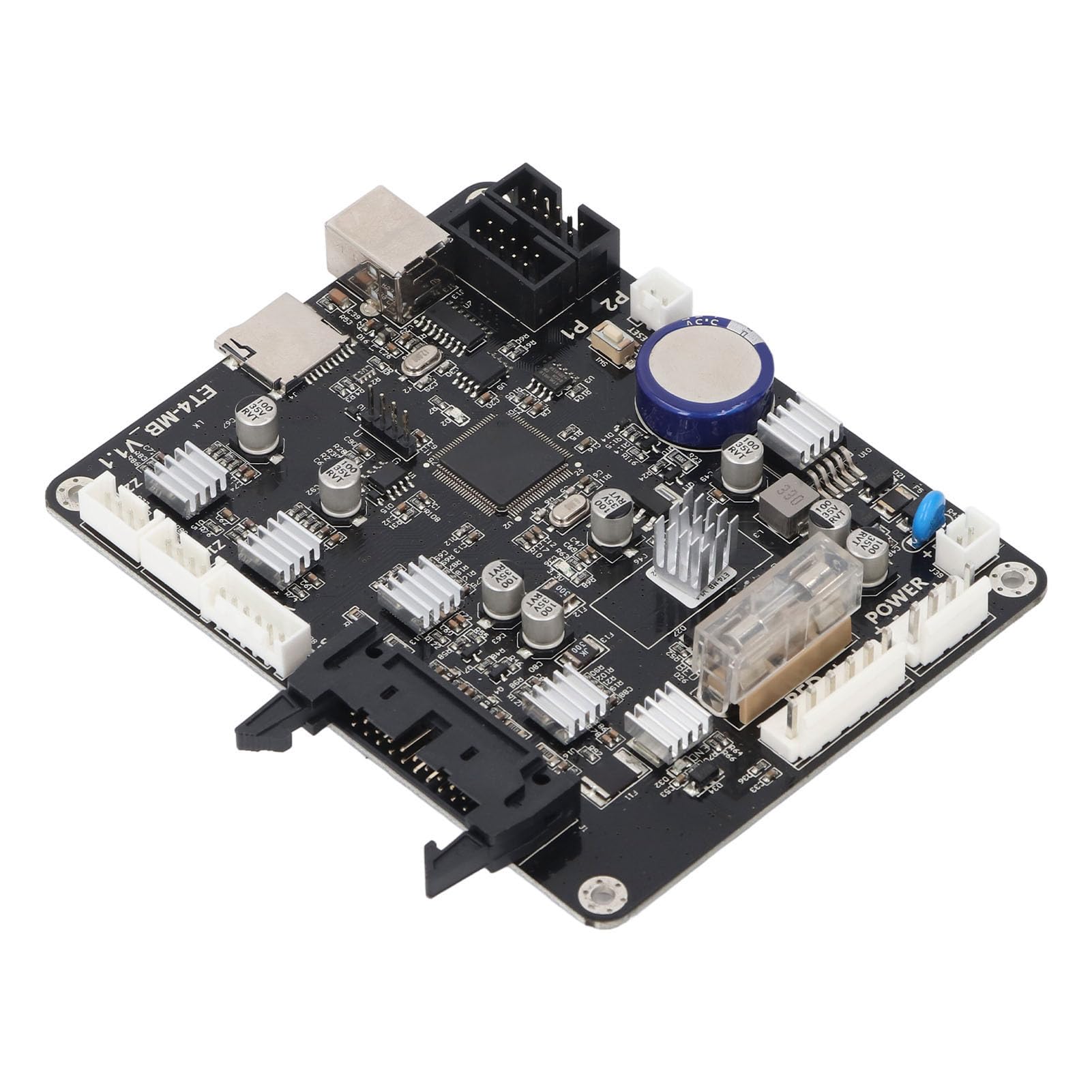
Figure 2: Motherboard dimensions (approximately 130mm x 100mm).
The motherboard measures approximately 130mm (5.12 inches) in length and 100mm (3.94 inches) in width.
3.4 Port Identification
Refer to the diagram below for the identification of various ports and connectors on the motherboard.

Figure 3: Labeled ports and interfaces on the motherboard. Key connections include Power Supply Input, Hot Bed Interface, Nozzle Main Line, Motor (Y, Z1, Z2) and Y Fiber Switch, USB, and Memory Card Port.
This diagram highlights critical connection points such as the power input, hot bed interface, motor connections (Y, Z1, Z2), and data ports like USB and the memory card slot. Proper connection to these ports is essential for the motherboard's functionality.
4. Installation
This section outlines the steps for installing the Walfront 3D Printer Motherboard into your Anet ET5X 3D printer.
- Prepare the Printer: Ensure your Anet ET5X 3D printer is powered off and disconnected from the main power supply.
- Access Existing Motherboard: Carefully open the control box or access panel of your 3D printer to expose the existing motherboard.
- Disconnect Components: Systematically disconnect all cables and connectors from the old motherboard. It is recommended to take photos or label each connection to aid in reassembly.
- Remove Old Motherboard: Unscrew and remove the old motherboard from its mounting points.
- Install New Motherboard: Place the Walfront 32-bit motherboard into the designated slot, aligning it with the mounting holes. Secure it with screws.
- Reconnect Components: Reconnect all cables and connectors to the new motherboard according to the labels or photos taken earlier. Refer to Figure 3 for port identification. Ensure all connections are firm and correctly seated.
- Close Printer: Once all connections are verified, close the control box or access panel.

Figure 4: The motherboard shown alongside a 3D printer, indicating its intended application and installation context.
After installation, proceed to the setup section for firmware updates and initial configuration.
5. Setup
The Walfront 3D Printer Motherboard supports firmware updates via memory card or USB flash drive. It is recommended to ensure the latest compatible firmware is installed for optimal performance.
5.1 Firmware Update Procedure
- Obtain Firmware: Download the latest firmware compatible with the Walfront 32-bit motherboard for Anet ET5X from the official Walfront support website or Anet's official resources.
- Prepare Storage Device: Copy the downloaded firmware file to a memory card (not included) or a USB flash drive. Ensure the storage device is formatted correctly (e.g., FAT32).
- Insert Storage Device: With the 3D printer powered off, insert the memory card into the designated slot on the motherboard (refer to Figure 3) or connect the USB flash drive to the USB port.
- Power On and Update: Power on the 3D printer. The motherboard will automatically detect the firmware file and initiate the update process. Follow any on-screen prompts if available.
- Verify Update: Once the update is complete, power cycle the printer. Check the printer's display or settings to confirm the new firmware version is active.

Figure 5: The memory card slot on the motherboard, used for offline firmware upgrades.
The image above illustrates the memory card slot, which is crucial for performing offline firmware updates. This method allows for convenient maintenance and enhancement of the motherboard's functionality.
6. Operating Instructions
This motherboard enhances the operational capabilities of your Anet ET5X 3D printer with several key features.
6.1 Offline Printing
The motherboard supports offline printing, allowing you to print directly from a memory card or USB drive without needing a constant connection to a computer. Simply load your G-code files onto the storage device, insert it into the motherboard, and select the desired file from the printer's interface.
6.2 Power Outage Recovery
In the event of a power interruption during a print job, the power outage recovery feature allows the printer to resume printing from where it left off once power is restored. This minimizes material waste and saves time on long prints.
6.3 Filament Runout Detection
The motherboard supports filament runout detection. If the printer runs out of filament during a print, it will automatically pause the print, allowing you to load new filament and resume the print without losing progress.
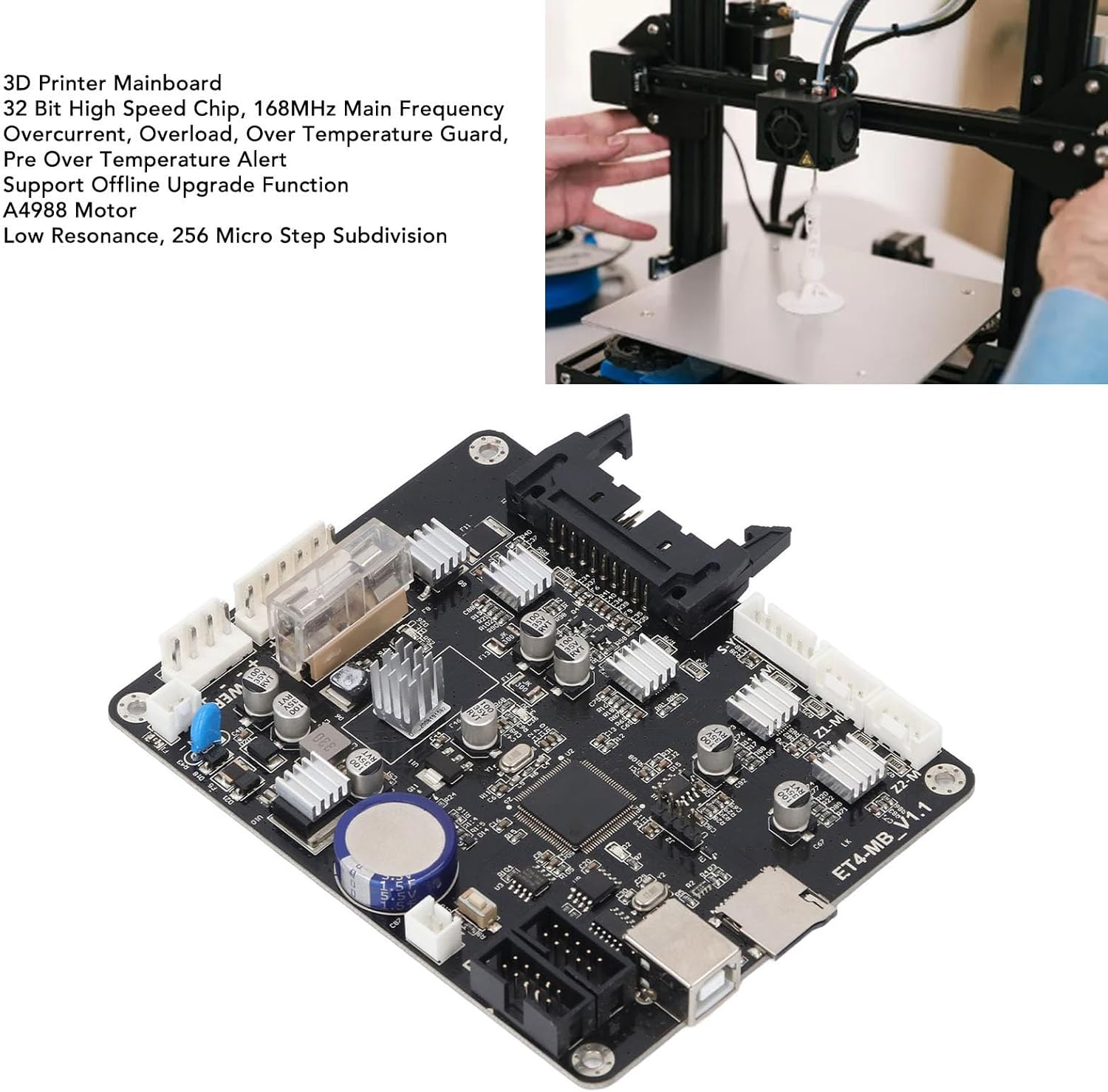
Figure 6: Visual representation of the filament runout detection and power off resume printing functionalities.
These features are designed to improve the reliability and user experience of your 3D printing operations.
7. Maintenance
Proper maintenance ensures the longevity and optimal performance of your Walfront 3D Printer Motherboard.
- Cleaning: Periodically inspect the motherboard for dust accumulation. Use a soft brush or compressed air to gently clean the surface, ensuring no debris obstructs components or heatsinks. Always disconnect power before cleaning.
- Environmental Conditions: Operate the 3D printer in a clean, dry environment with stable temperatures. Avoid areas with high humidity, excessive dust, or extreme temperature fluctuations.
- Firmware Updates: Regularly check for and install the latest firmware updates to benefit from performance improvements, bug fixes, and new features.
- Connection Checks: Occasionally verify that all cable connections to the motherboard are secure and free from damage.
8. Troubleshooting
This section provides solutions to common issues you might encounter with your Walfront 3D Printer Motherboard.
| Problem | Possible Cause | Solution |
|---|---|---|
| Printer does not power on after motherboard installation. | Incorrect power connection, faulty power supply, or motherboard not seated correctly. |
|
| Motors are not moving or moving erratically. | Motor cables incorrectly connected, faulty motor, or driver issue. |
|
| Firmware update fails. | Incorrect firmware file, improperly formatted storage device, or corrupted file. |
|
| Printer not detecting filament (Filament Runout Detection). | Filament sensor not connected, faulty sensor, or feature disabled in firmware. |
|
9. Specifications
| Feature | Detail |
|---|---|
| Item Type | 3D Printer Motherboard |
| Material | PCB |
| Size | Approx. 130x100mm / 5.12x3.94in |
| Microprocessor | STM32F407 (32-bit) |
| Input Voltage | 8-35V |
| Motor Driver | A4988 |
| Sensor Type | 100K Negative Temperature Coefficient Thermistor |
| Firmware Update | Support memory card, USB flash drive update (Memory card not included) |
| Printing Mode | Support offline printing, online printing |
| Power Outage Recovery | Yes |
| Filament Runout Detection | Yes |
| Application | For Anet ET5X |
| Item Weight | 4.3 ounces (approx. 122 grams) |
| Model Number | WALFRONTeci5nubfgx |
10. Warranty and Support
For warranty information and technical support, please refer to the official Walfront website or contact your retailer. Keep your purchase receipt as proof of purchase for any warranty claims.
For further assistance, you may visit the Walfront Store on Amazon.
Ask a question about this manual
Ask about setup, troubleshooting, compatibility, parts, safety, or missing instructions. Manuals+ will review the question and use this page’s manual context to help answer it.