
1. Introduction
Thank you for choosing the WOOLINK Solar Security Camera. This manual provides detailed instructions for the installation, operation, and maintenance of your wireless outdoor security camera system. Designed for home security, this camera features solar power, AI detection, 1080P color night vision, two-way talk, and IP65 waterproofing. Please read this manual thoroughly before use to ensure proper setup and functionality.
2. Package Contents
Verify that all components are present in your package:
- 2 x WOOLINK Cameras
- 2 x Screw Kits for Camera Mounting
- 2 x User Manual A7
- 2 x Type-C Charging Cables
- 2 x 3W Solar Charging Panels
- 2 x Solar Panel Mounts
- 2 x Screw Kits for Solar Panel Mounting
3. Setup Guide
3.1 Initial Charging
Before installation, fully charge the camera's built-in 6000mAh rechargeable battery using the provided Type-C charging cable. Connect the cable to the camera and a standard USB power adapter (not included). A full charge ensures optimal performance, especially during initial setup or periods of low sunlight.
3.2 App Download and Account Registration
Download the HoMeYe Pro app from your device's app store (iOS or Android). Follow the in-app instructions to create an account and log in.
3.3 Camera and Solar Panel Mounting
Select an outdoor location for your camera that provides the desired viewing angle and is within range of your 2.4GHz Wi-Fi network. The camera is IP65 weatherproof, suitable for various outdoor conditions.
- Camera Placement: Mount the camera using the provided screw kit. Ensure it has a clear line of sight to the area you wish to monitor.
- Solar Panel Placement: Install the 360° adjustable solar panel in a location that receives direct sunlight for several hours daily. This ensures continuous power to the camera. The solar panel connects to the camera via a cable.
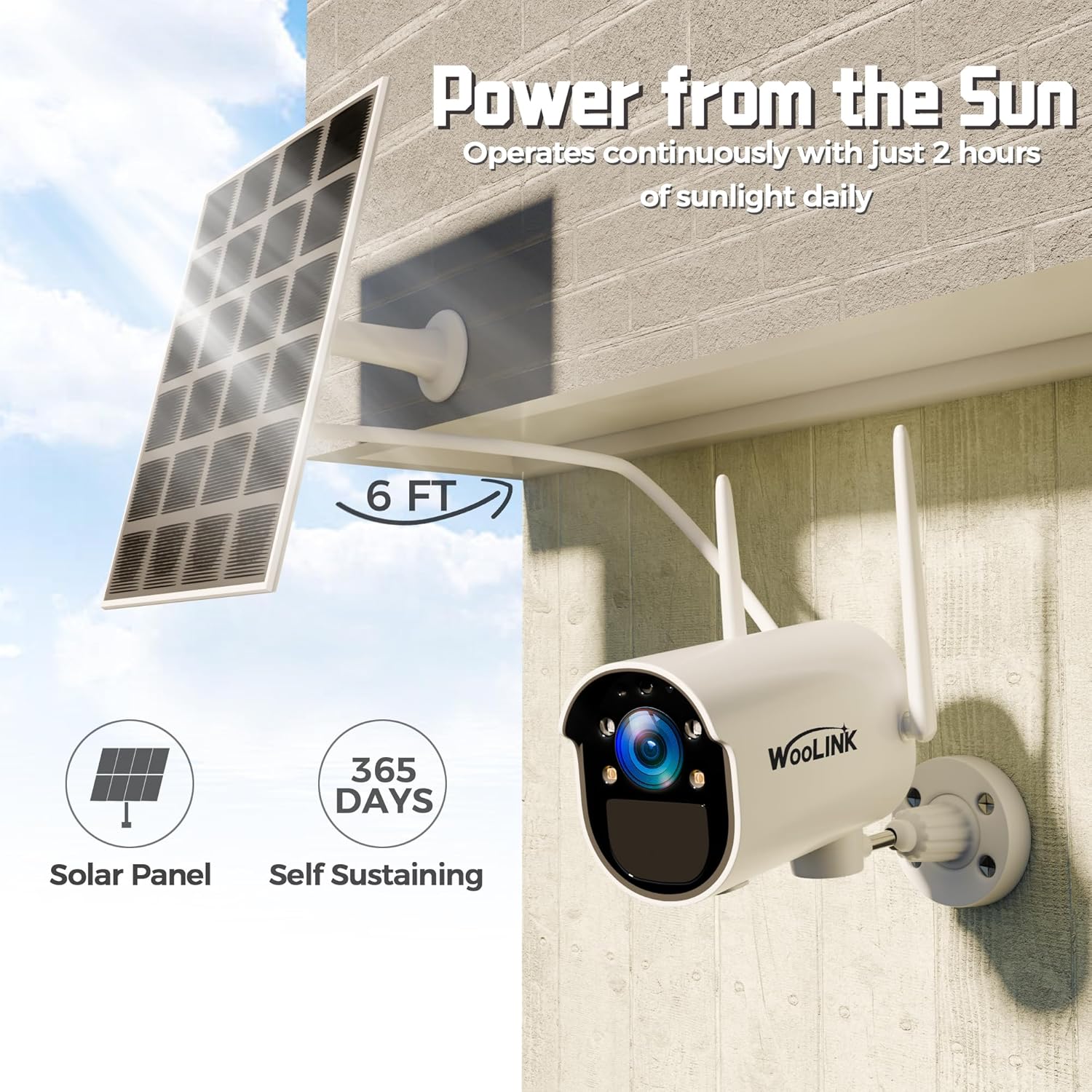
Image: WOOLINK Solar Security Camera and Solar Panel mounted on an exterior wall, illustrating the connection and placement.

Image: Diagram illustrating the solar panel's function, indicating continuous operation with sufficient sunlight.
3.4 Wi-Fi Connection
Follow the HoMeYe Pro app's instructions to connect your camera to your 2.4GHz Wi-Fi network. Ensure your router is within a reasonable distance for a stable connection.
4. Operating Instructions
4.1 Live View and Pan Rotation
Access the live video feed through the HoMeYe Pro app. The camera supports a horizontal pan rotation of 225°, allowing you to adjust the viewing angle remotely via the app.

Image: A smartphone displaying the live view from the camera, demonstrating the pan functionality and two-way talk feature with a delivery person.
4.2 Night Vision Modes
The camera offers three night vision modes, manually switchable via the app:
- Infrared Night Vision: Standard black and white night vision.
- Full Color Night Vision: Utilizes built-in spotlights to provide color video in low-light conditions up to 33 feet.
- Intelligent Night Vision: Automatically switches between infrared and color night vision based on detected motion or light conditions.

Image: A visual comparison demonstrating the difference between full color night vision (spotlight vision) and standard black and white night vision.
4.3 Two-Way Talk
Utilize the integrated microphone and speaker system for two-way audio communication through the HoMeYe Pro app. This allows you to speak with visitors or deter intruders.
4.4 PIR Motion Detection and Alerts
The camera features intelligent PIR (Passive Infrared) motion detection to distinguish between people, vehicles, and pets, reducing false alarms.
- Real-time Alerts: Receive push notifications on your HoMeYe Pro app when motion is detected.
- Alarm Actions: The camera can trigger alarm sounds and bright spotlights to deter potential intruders.
- Customization: Adjust motion sensitivity and define specific alert areas within the app to optimize detection.

Image: A smartphone displaying a "Found someone entering!" notification from the HoMeYe Pro app, with the camera's spotlight illuminating a detected person.
4.5 Storage Options
The camera supports two storage methods for recorded video footage:
- Micro SD Card: Supports up to 128GB Micro SD card (not included). Insert the card into the designated slot on the camera.
- Cloud Storage: Offers free rolling past 3 days cloud storage and a 30-day free trial. After the trial, a subscription fee is required. Encrypted cloud data is accessible only by you.

Image: Illustration of the camera's storage capabilities, including cloud storage and support for up to a 128GB Micro SD card.
5. Maintenance
- Cleaning: Regularly wipe the camera lens and solar panel with a soft, damp cloth to remove dust and debris. Avoid abrasive cleaners.
- Solar Panel Exposure: Ensure the solar panel remains unobstructed and receives adequate direct sunlight for optimal charging. Trim any overhanging branches or clear snow/ice as needed.
- Battery Health: While solar-powered, prolonged periods of low sunlight may require manual charging via the Type-C port to maintain battery health.
- Firmware Updates: Check the HoMeYe Pro app periodically for available firmware updates to ensure your camera has the latest features and security enhancements.
6. Troubleshooting
- Camera Not Powering On: Ensure the battery is charged. If using solar, check for sufficient sunlight exposure. Connect the Type-C cable for manual charging.
- Wi-Fi Connection Issues: Verify your Wi-Fi network is 2.4GHz. Ensure the camera is within range of your router. Restart the camera and your router, then attempt to reconnect via the app.
- No Motion Detection Alerts: Check motion detection settings in the HoMeYe Pro app. Ensure sensitivity is adjusted correctly and alert areas are properly defined. Verify app notifications are enabled on your smartphone.
- Poor Night Vision: Clean the camera lens. Ensure no obstructions are blocking the view. If using color night vision, verify the spotlights are enabled in the app.
- Two-Way Talk Problems: Check microphone and speaker settings in the app. Ensure your phone's volume is up and there are no obstructions near the camera's microphone/speaker.
- SD Card Not Recording: Ensure the Micro SD card is correctly inserted and formatted within the app. Check if the card is full or corrupted.
7. Specifications
| Feature | Detail |
|---|---|
| Model Number | N1140TYN-2PK |
| Indoor/Outdoor Usage | Outdoor |
| Compatible Devices | Android + iOS |
| Power Source | Solar Powered |
| Connectivity Protocol | Wi-Fi (2.4GHz) |
| Controller Type | APP (HoMeYe Pro) |
| Mounting Type | Wall Mount |
| Night Vision Range | 33 Feet |
| Item Dimensions (L x W x H) | 7.36 x 5.2 x 7.83 inches |
| Water Resistance Level | IP65 Waterproof |
| Flash Memory Supported Size Maximum | 128 GB (Micro SD Card) |
| Item Weight | 3.08 pounds |
| Manufacturer | WOOLINK |
8. Warranty and Support
For warranty information and technical support, please refer to the official WOOLINK website or contact customer service through the HoMeYe Pro app. Keep your purchase receipt for warranty claims.


