1. Introduction
This manual provides essential information for setting up, operating, maintaining, and troubleshooting your Lenovo Tab 10.1-inch WUXGA tablet. Please read this guide thoroughly to ensure optimal performance and longevity of your device.
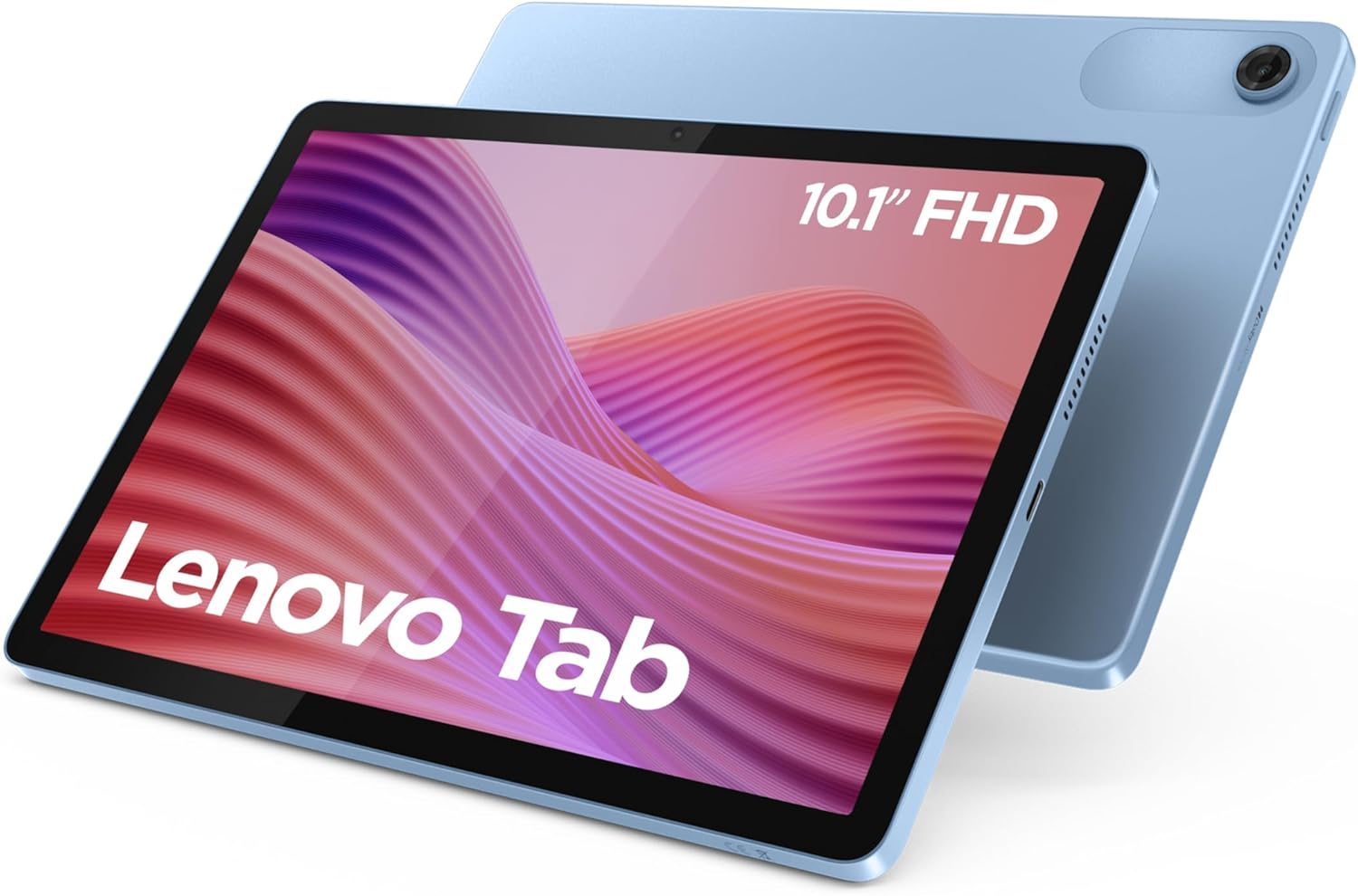
Figure 1: Lenovo Tab 10.1-inch WUXGA Tablet (Polar Blue)
2. Package Contents
Verify that all items are present in your product package:
- Lenovo Tab 10.1-inch WUXGA Tablet
- Battery (integrated)
- Transparent Protective Case
- USB Type-C Cable (assumed, necessary for charging)
- Power Adapter (assumed, necessary for charging)
- Quick Start Guide (assumed)
- Warranty Card (assumed)
3. Device Layout and Ports
Familiarize yourself with the physical components and connection points of your Lenovo Tab.

Figure 2: Device Layout with Ports and Slots
- Power Button: Used to turn the tablet on/off or put it to sleep/wake it up.
- Dual Speakers: Provide stereo audio output.
- USB Type-C 2.0 Port: For charging, data transfer, and digital audio output (DP 1.4 compatible).
- 3.5 mm Audio Jack: For connecting headphones or external speakers.
- Volume Button: Adjusts the audio volume.
- Microphone: For voice input during calls or recordings.
- MicroSD Card Slot / SIM Card Tray: For expanding storage with a microSD card or inserting a SIM card (LTE models only).
4. Setup
4.1 Initial Charge
Before first use, fully charge your tablet.
- Connect the USB Type-C cable to the tablet's USB Type-C port (3).
- Connect the other end of the cable to the power adapter, then plug the adapter into a wall outlet.
- The battery indicator on the screen will show charging status.
4.2 Power On/Off
- To Power On: Press and hold the Power Button (1) until the Lenovo logo appears.
- To Power Off: Press and hold the Power Button (1), then select "Power off" from the options on the screen.
- To Restart: Press and hold the Power Button (1), then select "Restart" from the options on the screen.
4.3 Initial Setup Wizard
Upon first power-on, the tablet will guide you through the initial setup process. Follow the on-screen instructions to:
- Select your language.
- Connect to a Wi-Fi network.
- Sign in with your Google account or create a new one.
- Set up screen lock (PIN, pattern, password).
- Review and accept terms and conditions.
4.4 Inserting a MicroSD Card (Optional)
To expand storage, you can insert a microSD card into the dedicated slot (7).
- Locate the MicroSD card slot (7) on the side of the tablet.
- Use the provided SIM ejector tool (if applicable) or a small paperclip to gently press into the small hole next to the tray to eject it.
- Place the microSD card onto the tray with the gold contacts facing down.
- Carefully reinsert the tray into the slot until it clicks into place.
5. Operating Your Tablet
5.1 Navigating Android 14
Your Lenovo Tab runs on Android 14, offering an intuitive user interface.
- Home Screen: The central hub for your apps and widgets.
- Notifications Panel: Swipe down from the top of the screen to access notifications and quick settings.
- App Drawer: Swipe up from the bottom of the screen to view all installed applications.
- Multitasking: Swipe up and hold from the bottom of the screen to view recent apps.
5.2 Display and Visuals
The 10.1-inch WUXGA display (1920 x 1200 pixels) provides clear and detailed visuals.

Figure 3: High-quality visual experience on the WUXGA display.
- Brightness Adjustment: Adjust screen brightness via the quick settings panel or Display settings.
- Eye Comfort Mode: Activate TÜV eye care certified mode in Display settings to reduce blue light and minimize eye strain.
- Refresh Rate: The display features a dynamic 60 Hz refresh rate for smooth visuals.
5.3 Audio Features
Experience rich and immersive sound with Dolby Atmos stereo speakers.

Figure 4: Immersive audio experience with Dolby Atmos.
- Volume Control: Use the Volume Button (5) or on-screen controls to adjust sound levels.
- Headphone Jack: Connect wired headphones to the 3.5 mm audio jack (4).
- Bluetooth Audio: Pair Bluetooth headphones or speakers via Settings > Connected devices > Bluetooth.
5.4 Camera Usage
The tablet is equipped with a 5MP front camera and an 8MP rear camera.
- Open the Camera app from the home screen or app drawer.
- Switch between front and rear cameras as needed.
- Tap the shutter button to take photos or record videos.
6. Maintenance
6.1 Cleaning the Tablet
- Use a soft, lint-free cloth to clean the screen and body of the tablet.
- For stubborn smudges, slightly dampen the cloth with water or a screen cleaner specifically designed for electronics.
- Avoid using harsh chemicals, abrasive materials, or excessive moisture.
6.2 Battery Care
- Avoid extreme temperatures, as they can degrade battery life.
- For optimal battery health, try to keep the charge level between 20% and 80%.
- If storing the tablet for an extended period, charge it to about 50% before turning it off.
6.3 Software Updates
Regularly check for and install software updates to ensure your tablet has the latest features, security patches, and performance improvements.
- Go to Settings > System > System update.
- Follow the on-screen instructions to download and install any available updates.
7. Troubleshooting
7.1 Tablet Not Turning On
- Ensure the battery is charged. Connect the tablet to its charger for at least 30 minutes.
- Press and hold the Power Button (1) for 10-15 seconds to perform a forced restart.
7.2 Screen Freezes or Becomes Unresponsive
- Press and hold the Power Button (1) for 10-15 seconds to force a restart.
- If the issue persists, try clearing the cache of problematic apps or performing a factory reset (backup your data first).
7.3 Wi-Fi Connectivity Issues
- Toggle Wi-Fi off and on in quick settings.
- Restart your Wi-Fi router.
- Forget the network in Settings > Network & internet > Internet, then reconnect.
7.4 Poor Battery Life
- Reduce screen brightness.
- Close unused apps running in the background.
- Disable Wi-Fi, Bluetooth, or GPS when not in use.
- Check battery usage in Settings > Battery to identify power-hungry apps.
8. Specifications
| Feature | Detail |
|---|---|
| Brand | Lenovo |
| Model Number | ZAEH0038FR |
| Series | Lenovo Tab |
| Color | Blue |
| Operating System | Android 14 |
| Processor Brand | MediaTek |
| Processor Model | Helio G85 (Octa-core) |
| Screen Size | 10.1 inches |
| Screen Resolution | 1920 x 1200 pixels (WUXGA) |
| Graphics Chipset | ARM Mali-G52 (Integrated) |
| RAM | 4 GB |
| Storage | 64 GB eMMC 5.1 (expandable via MicroSD) |
| Connectivity | Wi-Fi (802.11ac), Bluetooth 5 |
| Ports | USB Type-C 2.0, 3.5mm Audio Jack, MicroSD Slot |
| Cameras | 5MP Front, 8MP Rear |
| Battery Life (Average) | Up to 82 hours (standby), 9.5 hours (YouTube streaming) |
| Dimensions (L x W x H) | 23.6 x 15.4 x 0.7 cm |
| Weight | 425 Grams |
| Special Features | Dolby Atmos Stereo Speakers, TÜV Eye Care Certification, Transparent Protective Case Included |
9. Warranty and Support
9.1 Manufacturer's Warranty
Your Lenovo Tab comes with a 2-year manufacturer's warranty. This warranty covers defects in materials and workmanship under normal use. Please refer to the warranty card included in your package for full terms and conditions.
9.2 Customer Support
For further assistance, technical support, or warranty claims, please contact Lenovo customer support.
- Lenovo Support Website: Visit the official Lenovo support website for FAQs, drivers, and contact information. support.lenovo.com
- Online Resources: Check the Lenovo community forums for peer-to-peer support and additional tips.


